









 Store
Store


For music lovers who prioritize high-fidelity sound, the ability to play Tidal on Apple Watch is a game-changer. Whether you are hitting the pavement for a morning run or heading to the gym, leaving your iPhone behind shouldn't mean leaving your lossless audio behind. In this guide, we will guide you through everything you need to know about setting up, downloading, and troubleshooting Tidal on Apple Watch to ensure a seamless, phone-free listening experience.
Part 1. Does Tidal Work on Apple Watch?
Yes, Tidal works on Apple Watch and supports both streaming and offline listening. The Tidal app for Apple Watch allows you to listen to music independently of your iPhone, which is especially useful for workouts or when you want to travel light. With the Tidal app for Apple Watch, you can enjoy playback features as follows.
-
Offline Playback: You can download playlists and albums directly to your Apple Watch to listen without an internet connection.
-
Standalone Streaming: If your Apple Watch has a cellular data or is connected to WiFi, you can stream music directly from the watch.
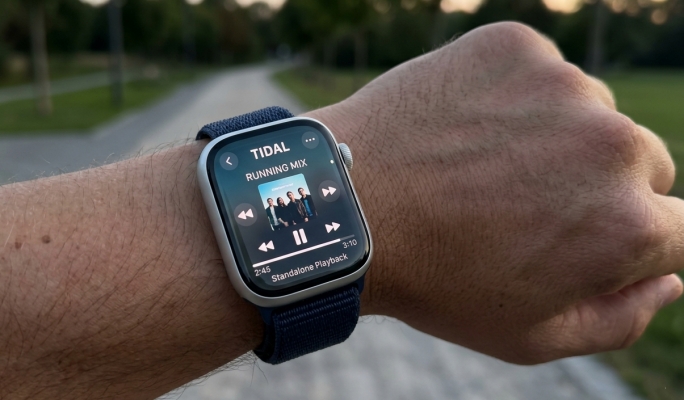
However, although Tidal has updates its services to Apple Watch, there are still lots of limitations. When using Tidal on Apple Watch, you will encounter the following limitations.
-
Download Limitations: Only full albums or playlists can be downloaded. Individual tracks or your Favorite tracks list cannot be downloaded for offline use.
-
No Search Function: The watch app currently does not have a search bar. You must choose music from your existing library, playlists, or recently played tracks.
-
Display Limits: Tidal typically only displays the first 50 tracks of a playlist or album on the watch. You may need to tap More to see or download additional songs.
Part 2. How to Set Up Tidal on Apple Watch for Online Playing
Getting Tidal onto your Apple Watch is a two-part process, including installation and account linking. Before we dive into the setup, let's ensure your hardware is ready for the high-res life. To run the latest version of the Tidal app, you will need:
-
Apple Watch Series 3 or newer
-
watchOS 8.0 or later
-
A Tidal subscription
-
Bluetooth Head phones
Step 1 Install Tidal on Apple Watch
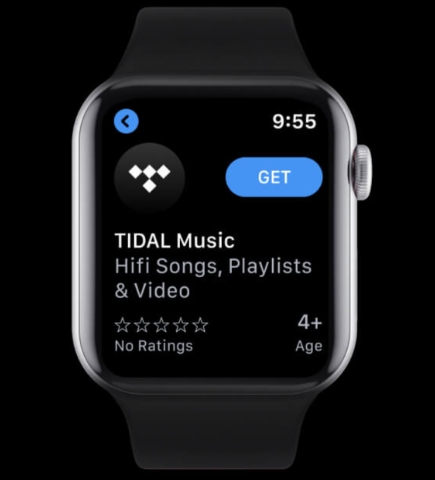
1) Open the App Store directly on your Apple Watch.
2) Search for Tidal and tap Get to install.
Alternatively, open the Watch app on your iPhone, scroll down to Available Apps, and tap Install next to Tidal. Then the Tidal app will be install onto the watch.
Step 2 Install Tidal on Apple Watch
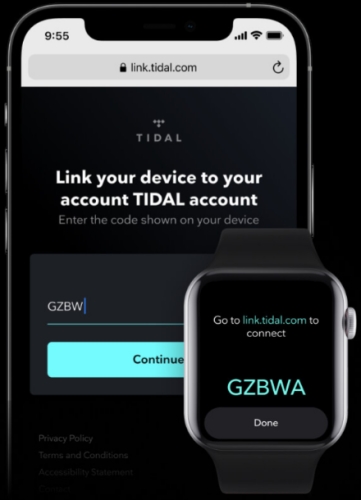
1) Launch the Tidal app on your Apple Watch.
2) On your iPhone, go to link.tidal.com.
3) Log in to your Tidal account and enter the code displayed on your watch.
4) Tap Done on your watch, and your library will begin to sync.
Part 3. How to Download Tidal Music for Offline Listening
The most critical step for runners is downloading content. Relying on a cellular Apple Watch can drain the battery rapidly and lead to buffering in low-signal areas. Offline playback is the professional solution. If you want to listen to your Tidal music library on your Apple Watch offline, learn how to here.
Method 1. Enjoy Native Tidal Offline Mode on Apple Watch
The true power of the Apple Watch Tidal app is Offline Mode. This allows you to listen to your music without an internet connection or your iPhone nearby. But a crucial tip for Tidal users is that you cannot download individual tracks your Liked songs folder. To listen offline, your Tidal music must be organized into an album or a playlist. Then follow the steps below to download Tidal music onto Apple Watch for offline listening.
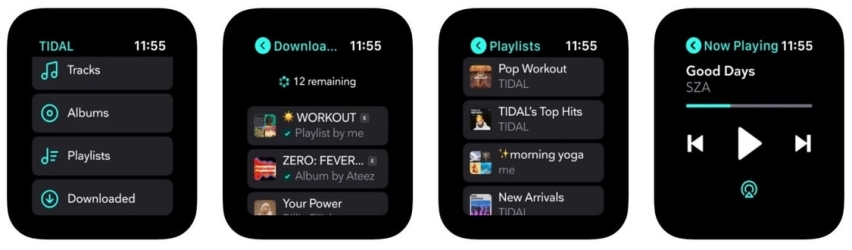
Step 1. Open the Tidal app on your Apple Watch.
Step 2. Navigate to the Album or Playlist you want to save.
Step 3. Tap the Download icon (the downward arrow).
Step 4. Once the progress circle completes, the music is stored locally on the watch.
Method 2. Use TunesMake to Get Tidal on Apple Watch Offline
While the official Tidal app for Apple Watch is convenient , some users find the Playlist Only download rule or the requirement of continuous subscription too restrictive. If you want to play individual tracks oar keep your music library even if you cancel your Tidal subscription, using a tool like TunesMake Tidal Music Converter is a practical solution.
TunesMake Tidal Music Converter allows you to download Tidal tracks directly to your computer in universal formats like MP3, FLAC, or WAV. This effectively bypasses the official Tidal app's limitations. Then these converted Tidal music files can be synced to your iPhone for listening on Apple Watch offline. This method is particularly helpful for users who want to avoid the 50-track limit in the official app or who want to ensure their music is always available.
TunesMake Tidal Music Converter –
Download Tidal music for playing on Apple Watch
- Download songs, albums, playlists, and artists from Tidal without premium
- Convert Tidal music to MP3, FLAC, WAV, AIFF, M4A, and M4B losslessly
- Handle the conversion of Tidal music up to 25× faster speed and in batch
- Save a whole set of ID3 tags during the conversion process automatically
- Preserve the original audio quality up to HiRes FLAC or 320kbps MP3
Security Verified. 100% Clean & Safe.
How to Download Tidal Music with TunesMake
The process of downloading Tidal music with TunesMake Tidal Music Converter is pretty easy. First, download and install TunesMake Tidal Music Converter. Then, follow the steps below to start downloading your liked Tidal tracks.
Step 1 Select Tidal Songs to Download
Launch TunesMake Tidal Music Converter on your computer, and it will automatically load the Tidal web player. Then head to log into with your Tidal credentials. Find any music track, album, playlist, or radio you want to download. Simply click the + button to add the target items into the conversion list for downloading and converting.

Step 2 Configure the Output Format for Tidal Music
After adding Tidal music tracks to the conversion list, you can click the menu button > Preferences, and you will see the settings window. Here you can select MP3 or other formats as the output audio format. You can also change the bit rate, sample rate, and channel according to your own demand. Once done, click the OK button to save the settings.

Step 3 Download Songs from Tidal to MP3
Once all the setting is completed, you can click the Convert button to let TunesMake Tidal Music Converter download and convert music from Tidal. All the converted Tidal music files will be saved to the default folder on your computer. You can find Tidal songs by clicking the Converted button on the top of the software interface.

How to Sync Tidal Music Files to Apple Watch
Now you can directly sync those downloaded Tidal music files to your Apple Watch. If you don't know how to, then learn how to sync Tidal music to your Apple Watch now. But before, you need to put Tidal music on your iPhone. Here's how to proceed.
Step 1. Connect your iPhone to your Windows computer or macOS.
Step 2. Open iTunes or the Finder, then click File > Add File to Library to upload Tidal music files.
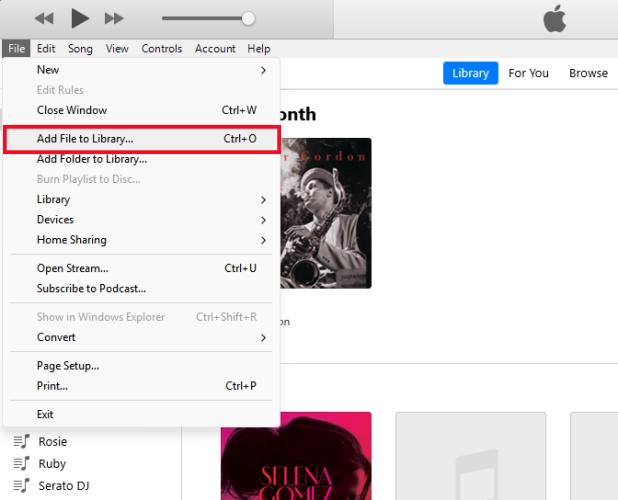
Step 3. In the Finder or iTunes, click the device icon in the sidebar or at the top right corner.
Step 4. Navigate to Music > Sync music onto iPhone > Selected artists, albums, genres and playlists.
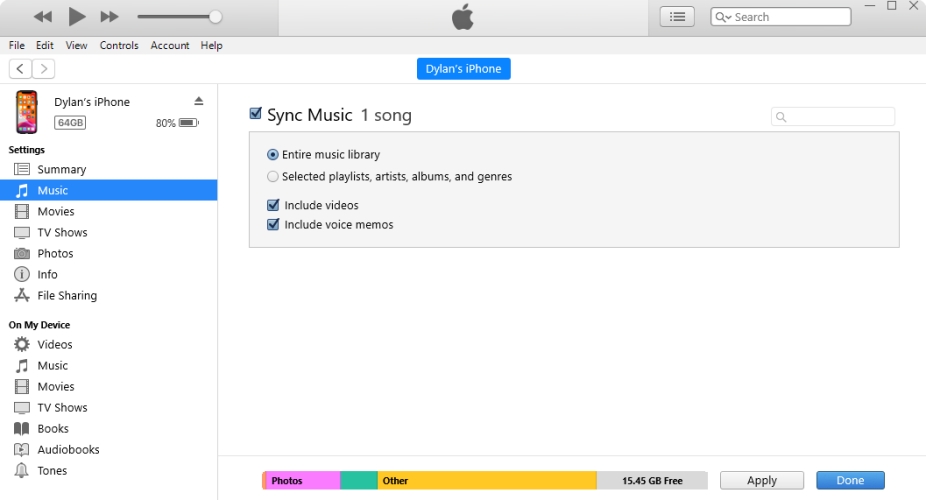
Step 5. Select the music track you want to sync and click Apply to sync.
Step 6. Run the Apple Watch on your iPhone and tap My Watch > Music > Add Music.
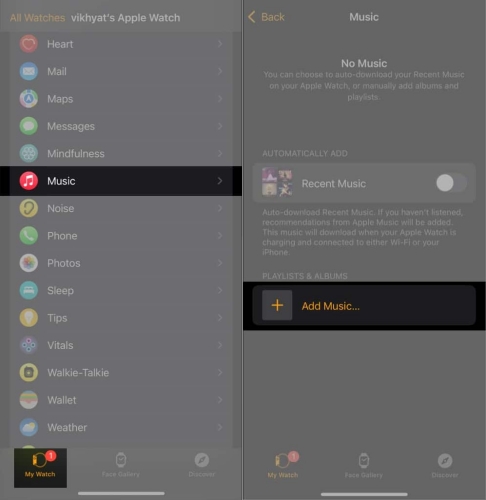
Step 7. Choose albums and playlists you want to sync to your Apple Watch.
Step 8. Tap Add to add selected items to the Playlists & Albums queue. Then all the Tidal music will be synced to the watch.
Part 4. Conclusion
And voila! That's all! If you want the simplest setup of Tidal on Apple Watch, the official Tidal app is your best bet for quick syncing. However, if you prefer to own your Tidal music files, listen to individual tracks offline, or avoid subscription-based playback locks, TunesMake Tidal Music Converter offers the most flexibility. Whichever you choose, you can finally enjoy premium Tidal audio right from your wrist easily and freely.
Related Articles

A senior editor from TunesMake, dedicated to sharing professional tutorials and solutions of software, movies, and music.
- 1
- 2
- 3
- 4
- 5
- 6
- 7
 Leave Your Comment
(0)
Leave Your Comment
(0)

 Download Center

