








 Store
Store


Where to listen to music in HiFi sound quality? Tidal could be a great option. Regarded as the best HiFi music provider, Tidal allows its users to stream music up to 1411kbps or 9216 kbps with a paid subscription. In addition to enjoying CD-quality audio, Tidal also offers the feature of Offline Mode. This means that you can download music from Tidal and listen to it offline. With the download button on the Tidal app installed on your mobile phone, it’s easy to listen to your favorite songs offline. For users who prefer to enjoy Tidal music on Mac, the essential question is how to download Tidal music on Mac. In this comprehensive guide, we will show you the answer. Keep reading to explore the best method to assist you in downloading Tidal music and listening to it offline without quality loss.
Part 1. How to Download the Tidal App on Mac
Before discussing how to download music from Tidal on a Mac, it’s important to clarify the official way to access Tidal on macOS. You can stream high-quality audio on both the Tidal web player and the Tidal app. The app version provides a more stable and feature-rich experience. Here’s how to download the Tidal app on your Mac:
Step 1. Open any browser on your Mac and visit the Tidal download page.
Step 2. Click the download here link to access the Mac version of the Tidal app.
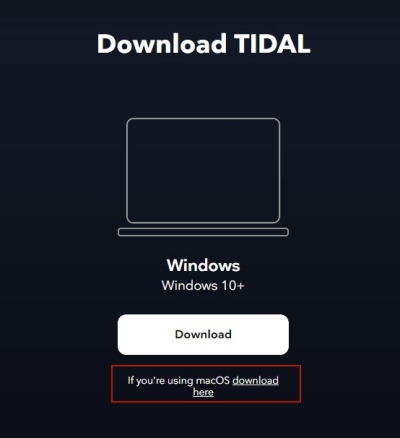
Step 3. Then, you can find the app that is compatible with your device’s operating system and install it by clicking the Download button.
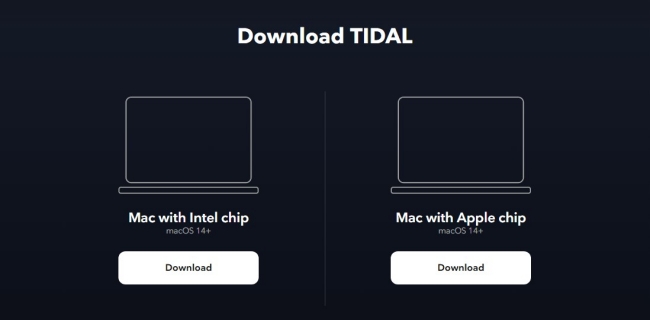
Step 4. Alternatively, you can head to the App Store on your Mac and search for the Tidal app to download .
Part 2. How to Download Tidal Music on Mac
Tidal offers the downloading feature for its subscribers. However, this feature is only available on the Tidal mobile app. In other words, there is no official method that lets you to download songs on the Tidal app on your Mac. It doesn’t matter since there is an available alternative method. That is to utilize a dedicated third-party music downloader. Here, we’d like to recommend the TunesMake Tidal Music Converter.
Best Tidal to Mac Downloader - TunesMake Tidal Music Converter
When it comes to using a Tidal music downloader, TunesMake Tidal Music Converter is a trusted name. It is a powerful and popular music downloader that long provided convenience for Tidal users. You can use it to download songs, playlists, albums, and podcasts from Tidal to Mac in plain formats, such as MP3, M4A, M4B, WAV, FLAC, and AIFF. In other words, the TunesMake program can help you get the DRM-free Tidal files, which can be imported to other media players and devices for offline playback.
With up-to-date and smart ID3 tag recognition technology, the TunesMake program can preserve Tidal songs with the original metadata information, including the title, artist, lyrics (if provided), and more. Besides, it can retain 100% of the HiFi sound quality of Tidal audio to ensure your listening experience.

TunesMake Tidal Music Converter –
Best Tidal Music Downloader for Mac Users
- Download any Tidal content, including songs, albums, playlists, and artists
- Convert Tidal music to MP3, FLAC, AIFF, WAV, M4A, and M4B
- Preserve a whole set of ID3 tag information in the downloaded Tidal songs
- Handle the conversion of Tidal music up to 22X faster speed and in batch
Security Verified. 100% Clean & Safe.
Step 1
Add Tidal Music to TunesMake Software

Click the Free Download button so that you can get the TunesMake Tidal Music Converter on your Mac. Please make sure that you choose the right version. Then, launch it and sign in to your Tidal account on its interface. You can now select any playlist or album you want to listen to offline. After that, you should add songs from the playlist/album to the conversion list by clicking the lower Add icon > Add to List.
Step 2
Adjust the Output Audio Parameters

Then, you can personalize the output audio parameters. Simply click the menu icon at the top right corner and select the Preferences option. In the settings window, switch to the Conversion tab. Here, you can select the output format and set the bit rate, sample rate, and channel. As TunesMake supports six audio formats, you can choose FLAC, which inputs the HiFi audio quality.
Step 3
Download Tidal Music to MP3 on Mac

When the settings are completed, you can click the Convert button at the bottom right corner. Then, TunesMake Tidal Music Converter will download and save Tidal music to your Mac computer as soon as possible. And you can click the Converted icon to open the history list. You can browse all the downloaded Tidal music saved in your required folder.
Part 3.Conclusion
You can easily install the Tidal app on your Mac and stream high-fidelity music, but it is a pity that the official Tidal Mac app doesn’t support downloading music for offline playing. In this case, you may wonder how to download Tidal music on Mac. Well, the TunesMake Tidal Music Converter is your choice. As a professional and powerful Tidal music downloader, it can help you download Tidal music on Mac for flexible playback.
Related Articles


A senior editor from TunesMake, dedicated to sharing professional tutorials and solutions of software, movies, and music.
- 1
- 2
- 3
- 4
- 5
- 6
- 7
 Leave Your Comment
(0)
Leave Your Comment
(0)

 Download Center

