








 Store
Store


Streaming music is now a popular way for people to enjoy their leisure time. You may have noticed that music is everywhere, and you almost can’t ignore it. In so many circumstances, you’ll be easily involved in the phenomenon with music playing in the background. So, some people are getting used to the habit of listening to a gentle or soft song before going to bed. However, when you are almost asleep, but the music is still playing, you may feel too sleepy to get up again to turn it off. Tidal subscribers are experiencing the same trouble now. Things will be easier if we have a Tidal sleep timer set up. You may be wondering whether Tidal has a sleep timer? No worries. In this post, we will give all the information you will need about the Tidal sleep timer, from how to set it across different devices to how to fall asleep while enjoying Tidal freely.

Part 1. Does Tidal Have a Sleep Timer?

How is there no sleep timer on the phone app? Come on guys. It's a pretty basic feature on Spotify, podcasts etc.
-- User from RedditNowadays, most music platforms has a inner sleep timer feature, since it gives assistance in preventing music from playing all night and saving your battery life. Thus, here comes the biggest question: Is there a sleep timer on Tidal? Unfortunately, the answer is negative. Currently, Tidal does not offer a native sleep timer within its official app on desktop or mobile devices.
If you are digging through the Tidal app, you won’t find any “Sleep Timer” button. This means you cannot directly set a timer to automatically stop music playback inside the Tidal interface. However, don’t worry. This does not mean you cannot listen to Tidal while falling asleep. What you need is third-party tools on your smartphone or a system timer on your computers. In the following parts, we will walk through the most effective methods. Keep reading for more information.
Part 2. How to Set a Tidal Sleep Timer on Mobile Devices
Most music lovers listen to Tidal on a smartphone. If you are one of them, you can take advantage of features built into your phone or some dedicated timer tools. Both iPhone and Android offer ways to stop audio playback automatically.
On iPhone:
On your iOS mobile device, you can set a sleep timer for Tidal by simply using the Clock app.
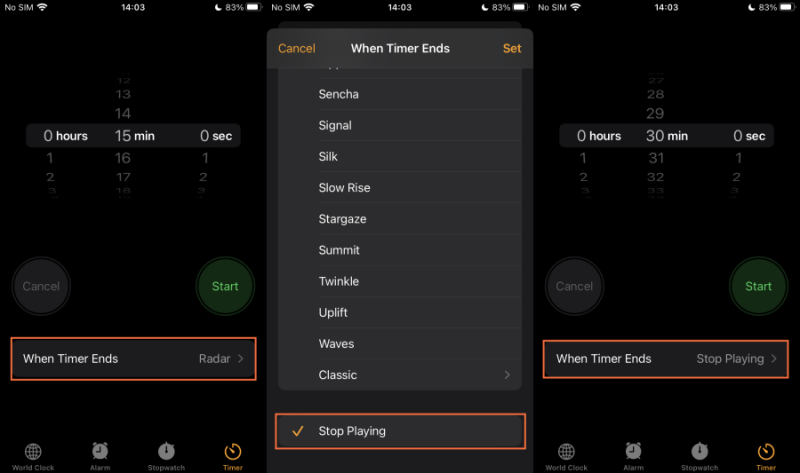
Step 1. On your iPhone, open the Clock app and tap Timer at the bottom.
Step 2. Here you can create a sleep timer for Tidal music as you want.
Step 3. Tap When Timer Ends and scroll down to the bottom to select Stop Playing.
Step 4. Tap Set to apply and adjust the time period as preferred.
Step 5. Once done, tap the Start button to start tracking the time.
It will stop the Tidal from playing music automatically when the time ends.
On Android:
When it comes to setting a sleep timer for Tidal on Android, you’ll need to install an extra app for help. Now one of the popularly used by Android users is called Sleep Timer. It is an app that allows you to fall asleep to your favorite music without the need to worry about the music turn-off.
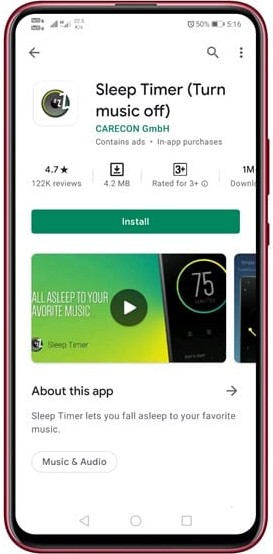
Step 1. Download and install the Sleep Timer app from Google Play Store on your Android device.
Step 2. Adjust the time period via the circular icon and click the Start button to start the timer.
Step 3. You can also tap the three-vertical dot icon to open Settings.
Step 4. Here you can select Player to launch on the start option and select Tidal to make sure the sleep timer is workable for Tidal.
Step 5. You can go to Settings > on sleep > Perform action to customize more settings like turn off Wi-Fi; turn off Bluetooth.
When the time is up, it will stop Tidal music playing and put your device into sleep mode.
Part 3. How to Get a Sleep Timer on Tidal Computer?
For users who are using Tidal on a PC or Mac, the steps to set a sleep timer are slightly different. Also, you should notice that the operating systems will put the entire computer to sleep instead of just pausing a specific app.
On Windows:
On your Windows computer, there is a similar setting called Power and Sleep which are useful to set a Sleep Timer for Tidal.
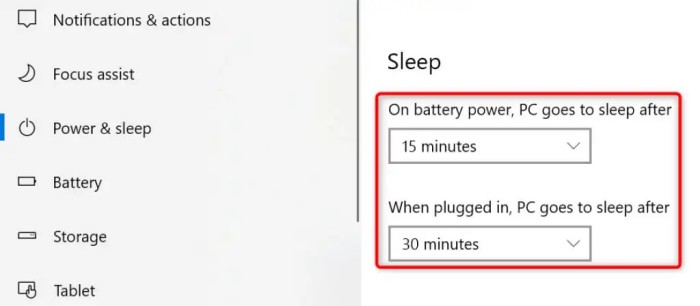
Step 1. On your Windows computer, press the Windows key +Q to open the search menu.
Step 2. Type “Sleep” and click on “Power and sleep settings” from the appearing results.
Step 3. Scroll down to “Sleep” to open drop-down menus.
Step 4. Select the time period you want your computer to sleep before going to bed.
After setup, close the window and the changes will be saved.
On Mac:
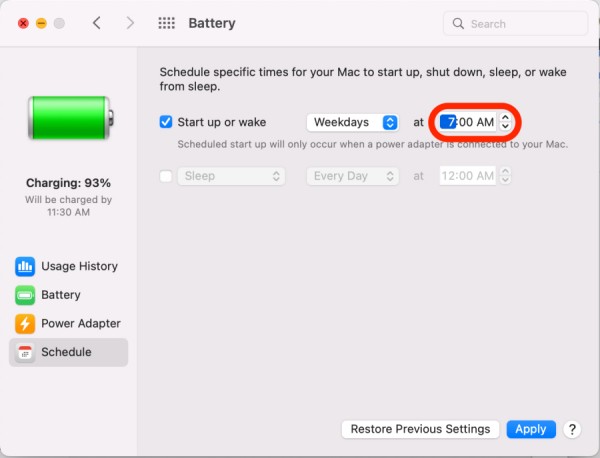
On Mac, the steps are just as simple as on PC, here’s how:
Step 1. On your Mac, click the Apple menu from the top left of the toolbar.
Step 2. Select “Battery” if you use macOS Big Sur. For the macOS version before Catalina, select “Energy Saver”.
Step 3. From the drop-down menu, select “Sleep”, then click on “Schedule”.
Step 4. Adjust the time as you preferred to stop playing, then click “OK” to save your settings.
Step 5. Now launch the Tidal app and play your liked songs. Your Mac will end at the scheduled time and put your device into sleep mode automatically.
Part 4. How to Download Tidal Music for Any Sleep Timer
The above methods work, but they are not perfect. If you want full control over how and where you use a sleep timer with your Tidal songs, the best solution is to download Tidal songs as local audio files. Once done, you can play it on any music lover that offers a great sleep timer. What’s more, playing local high-fidelity music all night does not require a stable network connection. You can have an uninterrupted and seamless music experience.
The only obstruction of doing so is Tidal’s DRM protection, because of which, all Tidal tracks are encrypted and only available and playable on its official app. Once you cancel or your subscription is over, all your downloads are gone with the wind, which means unavailable or greyed out. Luckily, here is a tool that can help, try TunesMake Tidal Music Converter.
TunesMake Tidal Music Converter is a useful music downloader for all Tidal users, as it can easily remove DRM from Tidal tracks and convert them to common audio files, including MP3, M4A, M4B, WAV, FLAC, and AIFF. Whether you want to save a single track or download an entire playlist, album, or even a podcast, the TunesMake tool works perfectly. Thanks to the innovative technology, you can download high-quality lossless music from Tidal and keep the original ID3 tags and lyrics (if provided) as well.

TunesMake Tidal Music Converter –
Save Tidal Songs as Local Files
- Download any Tidal content, including songs, albums, playlists, and artists
- Convert Tidal music to MP3, FLAC, AIFF, WAV, M4A, and M4B
- Preserve a whole set of ID3 tag information in the downloaded Tidal songs
- Handle the conversion of Tidal music up to 22X faster speed and in batch
Security Verified. 100% Clean & Safe.
Step 1
Import Tidal Tracks to Download
TunesMake Tidal Music Converter is now available on both Windows and Mac computers. You can choose the version that fits your operating system and install it via the Free Download button above. When you launch the TunesMake program, the Tidal web player will work simultaneously. Then, you can find the playlist or album you want to save as local files. Just select it, and then click the lower Add icon > Add to List. All the songs in this playlist/album will be loaded to the conversion list successfully.

Step 2
Select Preferred Output Audio Formats
Once loaded the files, you can select the output format and parameters in the three-line icon on the top right of the main screen. In the pop-up menu, choose Preferences > Convert to set sample rate, bit rate, channel, and archive according to your needs.

Step 3
Download Tidal Songs Offline
After setting the formats, you can click the Convert button to start the conversion. It’s no problem to convert a batch of music files. Just have a cup of tea, and you’ll get the converted tracks soon. Once finished, you can access the converted music files easily in your local folder by clicking the Converted icon.

Step 4
Set Sleep Timer Tidal on Mobile Devices
After that, you downloaded Tidal songs offline successfully. You can transfer the converted tracks to your mobile phone for listening with ease. Just connect your phone to your computer with a USB drive and transfer the songs. Then you can set the sleep timer as you want to enjoy Tidal songs during the night.
Wrap Up
If you want to set a Tidal sleep timer for enjoying a good sleep without worries, you can follow the above steps to set it up on your mobile and desktop devices. Once done, you can fall asleep to your favorite songs in your sweet dreams. Moreover, for some people who would like a direct solution, we offer you the one-click solution: TunesMake Tidal Music Converter.
Related Articles




A senior editor from TunesMake, dedicated to sharing professional tutorials and solutions of software, movies, and music.
- 1
- 2
- 3
- 4
- 5
- 6
- 7
 Leave Your Comment
(0)
Leave Your Comment
(0)

 Download Center

