








 Store
Store


Navigating through music tracks, switching playlists, or trying to hit small buttons while behind the wheel can be dangerous. To minimize driver distraction, the Amazon Music app features Car Mode, a simplified, high-contrast interface designed specifically for safer in-car listening. Whether you want to enable Car Mode on Amazon Music or looking for fixes to Amazon Music Car Mode not working, this comprehensive guide covers everything you need to know about Amazon Music Car Mode. Let's dive into the details now!
Part 1. What Is Amazon Music Car Mode?
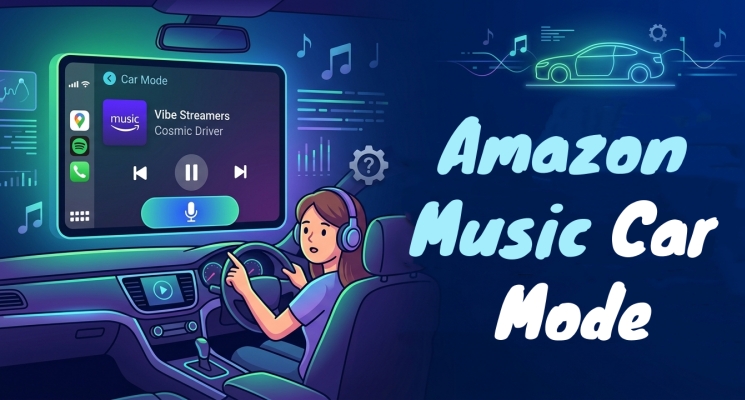
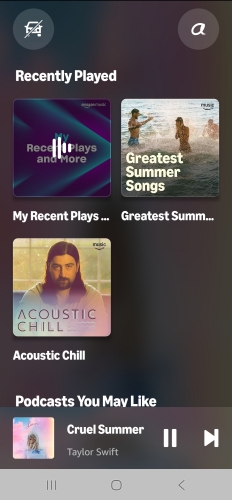
Amazon Music Car Mode is a safety-oriented playback view within the Amazon Music mobile app for iOS and Android. It replaces the default interface with a stripped-down, distraction-free design focused on core playback functions and voice control.

Key Features of Car Mode:
-
Oversized Controls: Large Play, Pause, Track Forward, and Track Back buttons allow for easy taps without precise aiming.
-
Swipe Gestures: Swipe left or right anywhere on the main playback screen to switch tracks seamlessly.
-
Customizable Presets: Quick-access tiles display your top playlists, favorite stations, and recent albums.
-
Hands-Free Alexa: Voice recognition allows you to ask Alexa to search and play music without taking your hands off the steering wheel.
FAQs about Car Mode:
Does Amazon Music Car Mode use more mobile data?
No. Car Mode changes only the visual display and user interface of the app. Music streaming data usage remains the same as in standard mode.
Can I use Amazon Music Car Mode with Apple CarPlay or Android Auto?
Yes, but they serve different functions. Apple CarPlay and Android Auto display the app on your car's built-in infotainment screen. Amazon Music Car Mode is intended for your smartphone display when mounted on a dash or windshield holder.
Is Amazon Music Car Mode available for free users?
Yes. Car Mode is available across all Amazon Music tiers, including Prime Music, Amazon Music Unlimited, and the free ad-supported tier.
Part 2. How to Use Amazon Music Car Mode
Getting started with Car Mode is straightforward, whether you want it to trigger automatically as soon as you enter your vehicle or prefer starting it manually whenever you need it.
Method 1. Enable Automatic Launch via Bluetooth
If your car supports Bluetooth audio, Amazon Music can detect the connection and switch to Car Mode automatically.
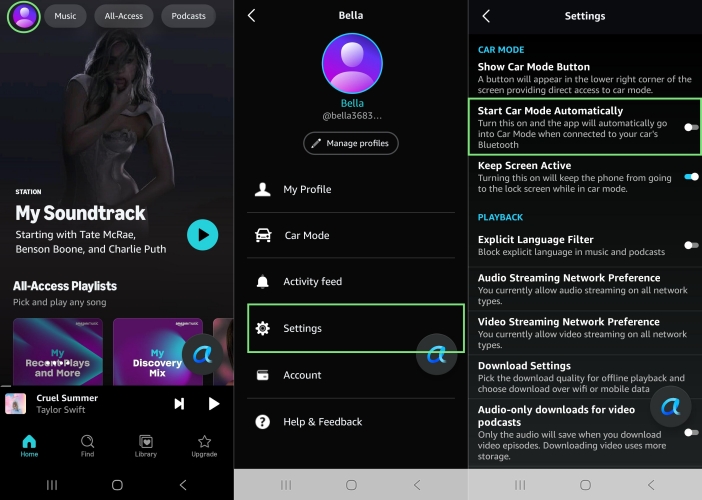
Step 1. Turn on Bluetooth on your phone and connect it to your vehicle's audio system.
Step 2. Open the Amazon Music app.
Step 3. Tap your profile image in the top-left corner and select Settings.
Step 4. Scroll to the Car Mode section and toggle Start Car Mode Automatically to On.
Method 2. Activate Car Mode via Manual Launch
If your vehicle lacks Bluetooth or if you use an AUX cable or FM transmitter, you can launch Car Mode in Amazon Music manually.
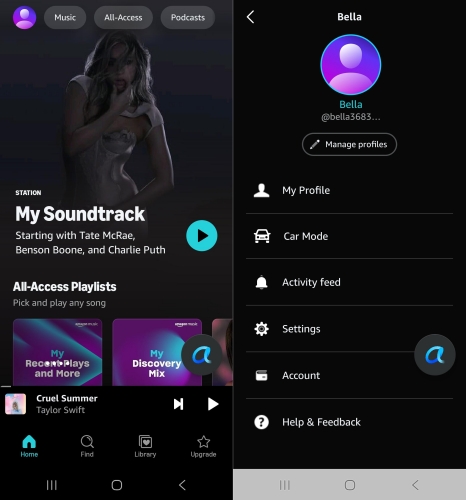
Step 1. Open the Amazon Music app before driving.
Step 2. Tap your profile image in the top-left corner.
Step 3. Select Car Mode from the dropdown menu.
Customize Amazon Music Car Mode Settings
To get the most out of your driving experience, you can customize how Amazon Music Car Mode behaves on your device.
| Setting | Function | How to Adjust |
|---|---|---|
| Keep Screen Active | Prevents your phone screen from dimming or locking while driving. | Tap your profile image, tap Settings, and toggle Keep Screen Active to ON. |
| Manage Presets | Adds or removes quick-access buttons for favorite playlists and stations. | Tap + on the Car Mode home screen to add, or swipe left on a tile to remove. |
| Alexa Hands-Free | Enables voice activation like "Alexa, play top hits". | Tap the Mic icon in Car Mode or go to enable Hands-free with Alexa in the settings. |
Part 3. How to Turn Off Car Mode on Amazon Music
For passengers or users who prefer the full app interface while in the vehicle, the automatic launch feature can be inconvenient. Fortunately, turning it off is simple.
Disable Automatic Car Mode
To prevent the app from switching interface styles automatically, you can disable the Automatic Car Mode feature in the Amazon Music app on your phone.
Step 1. Open the Amazon Music app while safely parked or away from your car.
Step 2. Tap your profile image in the upper-left corner and select Settings.
Step 3. Under the Car Mode header, toggle Start Car Mode Automatically to Off.
Exit Car Mode Manually
To leave Car Mode at any time, tap the Exit icon represented by an arrow pointing out of a box or an X located in the top-left corner of the Car Mode screen.
Part 4. Top Fixes to Amazon Music Car Mode Not Working
If Car Mode on Amazon Music fails to launch, crashes, or refuses to auto-connect, try these troubleshooting steps to resolve the issue on your phone.
Issue 1: Car Mode Doesn't Launch Automatically
- Ensure your phone is connected specifically as an audio device in your car's Bluetooth settings menu.
- Check your phone's settings to ensure Amazon Music has background activity and Bluetooth permissions enabled.
- Toggle Start Car Mode Automatically off, wait 10 seconds, and turn it back on within the app settings.
Issue 2: Alexa Voice Commands Not Responding
- Confirm that Hands-Free Alexa is turned on in the setting of Amazon Music on your phone.
- Check that your phone's microphone isn't blocked by a phone mount or dashboard attachment.
Issue 3: Car Mode Glitches or Freezes
- Ensure the Amazon Music app is updated to the latest version via the Apple App Store or Google Play Store.
- Open the Settings app on your Android phone, go to Apps > Amazon Music > Storage, and tap Clear Cache.
- Press and hold the Amazon Music icon on your iPhone's home screen, delete the app, and download it again from the App Store.
Part 5. Alternative Way to Play Amazon Music in Car
If your vehicle lacks Bluetooth support, doesn't support Apple CarPlay or Android Auto, or if you frequently encounter streaming glitches while driving through low-service areas, using mobile Car Mode may not be ideal. In such cases, an alternative approach is to download your music locally using TunesMake Amazon Music Converter. Then you can transfer your downloaded Amazon Music track to a USB drive for playing in your car without limits.

Streaming Audio Recorder –
Download music from Amazon Music unlimitedly
- Download songs, albums, and playlists from Amazon Music
- Convert Amazon Music to MP3, M4A, M4B, WAV, FLAC, and AIFF
- Remove DRM protection from Amazon Music completely and safely
- Preserve the original audio quality and ID3 tags for management
- Support downloading music from 10 popular streaming platforms
Security Verified. 100% Clean & Safe.
Step 1 Select Amazon Music Tracks to Download
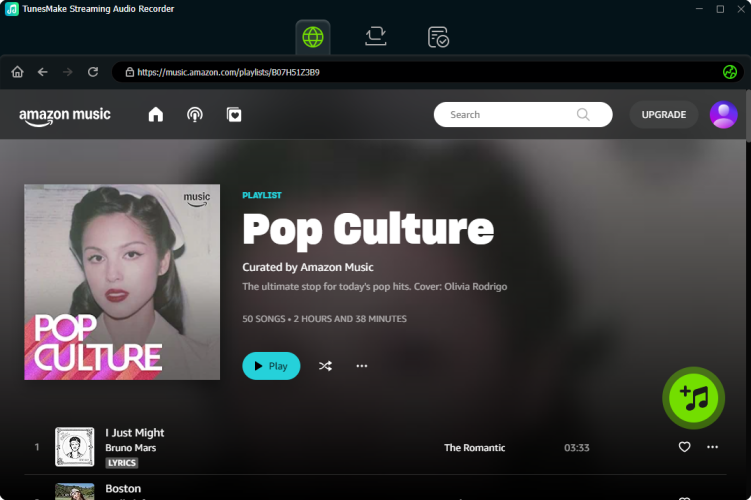
Run TunesMake Streaming Audio Recorder on your computer, and you can click Amazon Music on the main interface. Then you will be redirected to the built-in Amazon Music web player where you can log into with your personal Amazon Music account. Now you can search, find, and select any music track, album, or playlist to download.
Step 2 Change Audio Parameters for Amazon Music
After adding the target items into the conversion list, you are free to customize parameters as you like. Just click the Setting at the bottom-left corner and locate the Conversion tab. Here you can set the output audio format, sample rate, bit rate, and channel. To play Amazon Music songs in the car, you can choose MP3 as the output format.

Step 3 Start to Download Amazon Music to MP3
Finally, you can click the Convert button, and TunesMake will start downloading and saving Amazon Music tracks to your required formats automatically. When complete, the program enables you to browse all the downloaded music tracks in the History list. You can click on the search icon beside each music track to locate them in the local folder.

Step 4 Play Amazon Music in the Car via USB Drive
Now you can transfer those Amazon Music audio files to a USB drive. Just connect a USB drive to your computer and then copy and paste them to the USB drive. After that, you can insert the USB drive into the port of your car and browse all the music files with the built-in media player on your car's ecosystem. And you can listen to them without any hassle.
Part 6. Conclusion
Amazon Music Car Mode offers a safer, simplified way to enjoy your favorite soundtracks on the road by placing oversized touch controls, quick presets, and hands-free Alexa commands right on your smartphone screen. Whether you choose to automate Car Mode via Bluetooth, adjust your settings to prevent unexpected auto-launches, or opt for alternative offline play using TunesMake Amazon Music Converter, tailoring your audio setup ensures a smoother, safer, and distraction-free driving experience.
Related Articles


A professional writer at TunesMake, crafts in-depth tutorials, practical tips and expert advice focusing on streaming music, technology, and more.
- 1
- 2
- 3
- 4
- 5
- 6
- 7
 Leave Your Comment
(0)
Leave Your Comment
(0)

 Download Center

