








 Store
Store


Spatial audio has completely transformed how we experience music. Instead of traditional left and right stereo channels, object-based audio formats like Dolby Atmos on Amazon Music place individual sounds, instruments, and vocals in a virtual 3-D space around you.
If you want to move beyond standard stereo and immerse yourself in a true multi-dimensional soundstage, this guide will walk you through the subscription requirements and compatible hardware of Dolby Atmos on Amazon Music. Also, we will show you the exact setup steps to get Amazon Music Dolby Atmos working perfectly.
Part 1. What Is Dolby Atmos on Amazon Music?
Traditional high-definition audio including HD and Ultra HD focuses on delivering uncompressed, lossless stereo sound. While it sounds incredibly crisp, it is still mixed for two channels.
Dolby Atmos, on the other hand, is a revolutionary audio technology that allows engineers to treat elements of a song as independent sound objects. When you play a Dolby Atmos track on Amazon Music, the audio is decoded in real-time to simulate distance, height, and depth, making it feel like the band is playing live right in your room.
Part 2. Does Amazon Music Have Dolby Atmos?
Amazon Music has Dolby Atmos, but not all devices support this feature. Hardware compatibility can be a bit confusing because Amazon Music treats headphones and home theater speakers differently. To get true spatial audio, make sure your playback device is supported.
1. Mobile Devices & Tablets (iOS and Android)
You can listen to Dolby Atmos on almost any modern smartphone or tablet using the official Amazon Music app.
-
With Headphones: You do not need expensive, specialized gear. The Amazon Music app can downmix Dolby Atmos into a binaural stereo signal for any standard pair of wired or wireless headphones.
-
With Built-In Speakers: Premium devices like the iPhone 12 and later or Samsung Galaxy S9 and later feature built-in hardware decoding to play spatial audio directly through the phone's external speakers.
2. Smart Speakers
Amazon has built its spatial audio ecosystem natively into its premium smart speakers:
-
Amazon Echo Studio: This is the flagship device for Amazon's spatial audio format, utilizing its five directional speakers to bounce sound off your walls.
-
Sonos Speakers: Supported on premium, spatial-audio-capable Sonos hardware like the Sonos Era 300, Sonos Arc, Arc Ultra, and Beam.
3. Home Theater & TV Streaming Devices
If you want to experience Dolby Atmos through a dedicated home theater receiver or multi-channel soundbar setup, your choice of streaming hardware matters significantly.
-
Supported: Amazon Fire TV devices including the Fire TV Stick 4K, Fire TV Stick 4K Max, and Fire TV Cube connected via HDMI eARC to an Atmos-compatible sound system.
-
Limited: Unlike competing streaming services, the Amazon Music app for Apple TV 4K, Android TV, and Google TV does not currently support Dolby Atmos output.
Part 3. How to Enable Dolby Atmos on Amazon Music
Before diving into the hardware setup, it is crucial to check your account tier. Dolby Atmos is an exclusive feature of Amazon Music Unlimited, including the Individual, Family, and Student plans. Even if you have the right subscription and compatible hardware, Dolby Atmos isn't always turned on by default. Follow these steps to ensure the setting is enabled in your app.
Note
If you access Amazon Music via a standard Prime membership or the ad-supported Free tier, Dolby Atmos content will not be available. You must upgrade to the Unlimited tier to unlock spatial audio and Ultra HD playback.
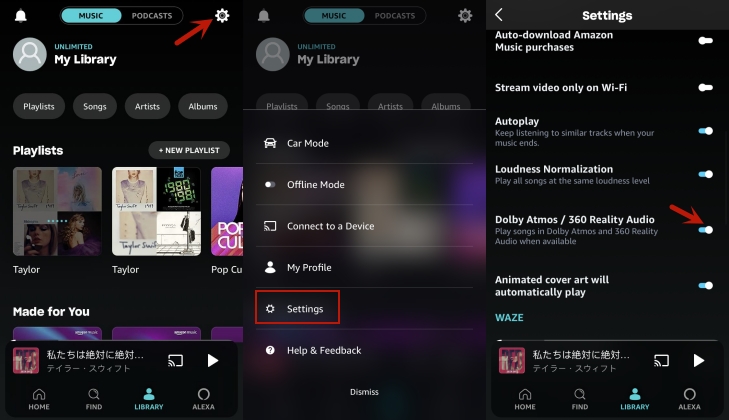
Step 1. Launch the Amazon Music on your iPhone or Android phone.
Step 2. Tap the Settings icon located in the top-right corner of your screen.
Step 3. Select Settings from the drop-down menu.
Step 4. Scroll down to the Playback section.
Step 5. Locate the option labeled Dolby Atmos or Spatial Audio.
Step 6. Flip the toggle to the ON position.
How to Find Dolby Atmos Music on Amazon Music
Not every song on the platform is available in spatial audio. To verify your system is working perfectly, look for the visual indicators provided by the app.
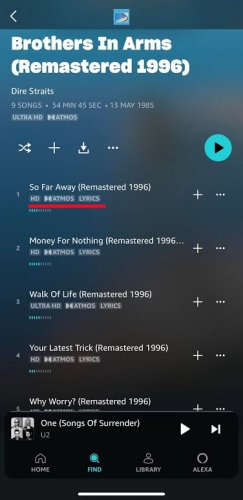
Verify the Audio Badge
When a song is actively playing in spatial audio, a small "Atmos" or "Spatial Audio" badge will appear on the "Now Playing" screen right next to the song title. If you see "HD" or "Ultra HD" instead, the current song is playing in traditional left or right stereo.
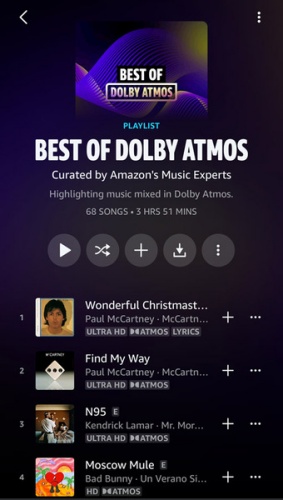
Use Curated Playlists
The easiest way to test your setup is to type "Dolby Atmos" into the Amazon Music search bar. Amazon maintains official, curated playlists like "Best of Dolby Atmos" which are guaranteed to feature fully optimized spatial tracks.
Part 4. How to Get the Playback of Amazon Music Anywhere
As noted above, listening to high-tier audio formats on desktop systems or transferring them to unsupported legacy devices can be highly restrictive due to operating system limitations and Bluetooth bandwidth caps. If your primary goal is to enjoy your Amazon Music library offline across any device without being tethered to specific hardware ecosystems, a dedicated tool like TunesMake Amazon Music Converter can bridge the gap.
While local file conversion tools cannot preserve the proprietary, object-based multi-channel metadata required for a true Dolby Atmos 3D mix, TunesMake is highly effective at downloading and converting Amazon Music tracks into high-quality, standard stereo formats like FLAC, MP3, or WAV. This allows you to preserve the high-resolution, lossless clarity of your favorite tracks for offline playback on MP3 players, car stereos, or legacy audio equipment that doesn't support the official Amazon Music app.

Streaming Audio Recorder –
Download music from Amazon Music unlimitedly
- Download songs, albums, and playlists from Amazon Music
- Convert Amazon Music to MP3, M4A, M4B, WAV, FLAC, and AIFF
- Remove DRM protection from Amazon Music completely and safely
- Preserve the original audio quality and ID3 tags for management
- Support downloading music from 10 popular streaming platforms
Security Verified. 100% Clean & Safe.
Step 1 Personalize the Parameters for Amazon Music
Launch the installed TunesMake Amazon Music Converter, then click the three-line icon given in the upper right corner. From the drop-down menu, select Preferences, then a Preferences window will pop up. There are the parameters including the format, channel, sample rate, and bit rate for you to personalize. Remember to click the OK button to save your settings.

Step 2 Load the Selected Tracks to the Conversion List
After that, come to the software interface and select Amazon Music. You will be directed to a new window with the built-in Amazon Music web player. Here you can log into your Amazon Music account, then you can browse your library and search for any music you want to download in the library. Click the + button to browse all the music and add them to the conversion list.
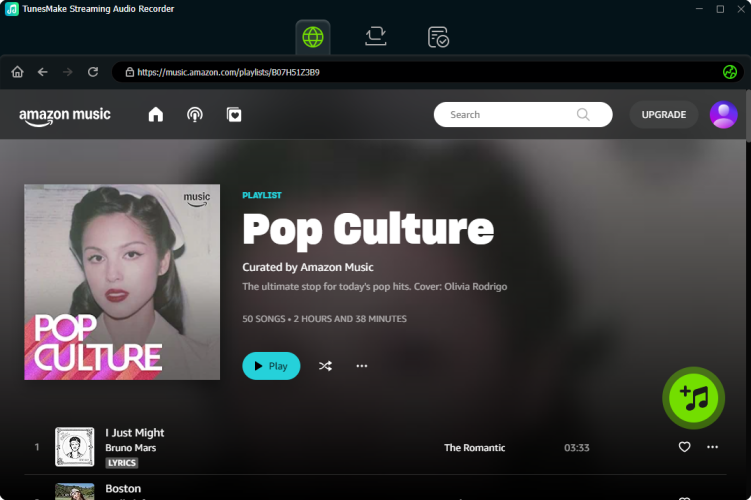
Step 3 Convert Amazon Music to Common MP3 Format
Make sure all the selected music is added to the conversion list. Click the Convert button to initiate the downloading and conversion of Amazon Music tracks. Wait for a while, and you can browse the converted files by clicking the Converted tab at the top of the interface. At last, you can enjoy high-quality Amazon Music tracks by transferring them to your device.

Part 5. Conclusion
Listening to Dolby Atmos music in Amazon Music is a great choice if you have a high-quality demand for your music on your device. With the above detailed steps, you can enable Dolby Atmos on Amazon Music, then find Dolby Atmos music for playing. Also, recommend TunesMake Amazon Music Converter to you if you want to play your liked Amazon Music tracks anywhere. What are you waiting for? Download the converter and give it try!
Related Articles


A professional writer at TunesMake, crafts in-depth tutorials, practical tips and expert advice focusing on streaming music, technology, and more.
- 1
- 2
- 3
- 4
- 5
- 6
- 7
 Leave Your Comment
(0)
Leave Your Comment
(0)

 Download Center

