








 Store
Store


Few things disrupt a smooth listening experience like music that refuses to play. Whether Amazon Music stops after a single track, cuts off midway through a song, skips the specific track you tapped, or throws an error when you try to listen offline, playback failures can quickly ruin your day.
These issues generally stem from two distinct sources: technical glitches or account restrictions related to Amazon Music tier limitations. This comprehensive guide breaks down step-by-step solutions for all Amazon Music not playing issue so you can resolve the problem and get back to your playback.

Part 1. What Causes Amazon Music Not Playing?
Lots of users have some questions about Amazon Music not playing: "Why does Amazon Music not play the song I choose?", "Why is Amazon Music not playing the right song?", or "Why does Amazon Music play songs not on my playlist?". The issue of Amazon Music not playing can be caused by several reasons. Here are the primary cause of all Amazon Music not playing issues.
| Amazon Music Playback Issues | Primary Cause |
|---|---|
| Not Playing Next Song | Autoplay turned off, active Repeat mode, or background battery optimization. |
| Not Playing Full Song | Prime Music tier limitations, DRM licensing timeout, or corrupted stream quality settings. |
| Not Playing Selected Song | Prime Music "Shuffle-Only" rule, explicit content block, or track region lockout. |
| Not Playing Downloaded Songs | Expired offline license verification, corrupted local storage, or "Play Downloads First" disabled. |
Part 2. Specific Fixes for All Amazon Music Not Playing Issues
After figuring out what causes the Amazon Music app not playing songs, it becomes easy to fix those issues on your device. Here are specific fixes to all Amazon Music not playing issues.
Issue 1. Amazon Music Not Playing Next Song
When Amazon Music finishes a track and simply stops or stalls indefinitely on the player screen, the app is likely suffering from a broken playback queue or background process restrictions imposed by your device's operating system.
Fix 1: Turn Off Repeat Loops and Enable Autoplay
If your queue stops entirely after one track or loops the same song continuously, check your player controls in the Amazon Music app.
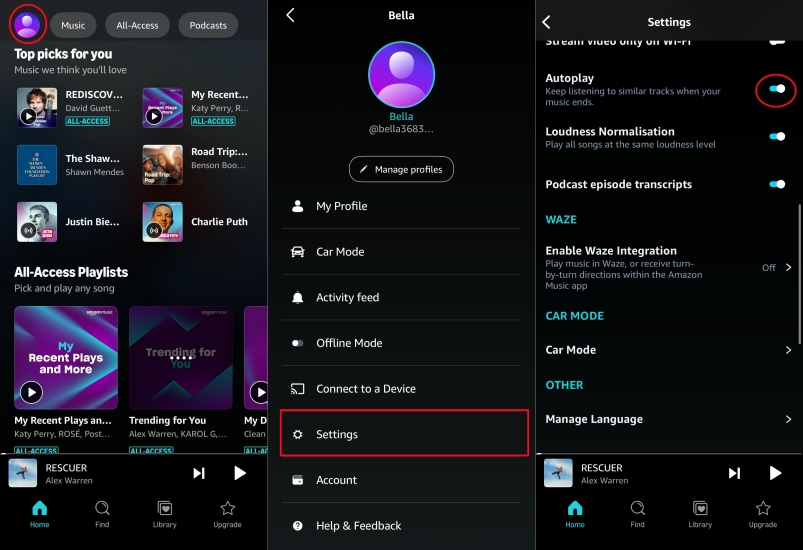
Step 1. Open the Amazon Music app and pull up the Now Playing screen.
Step 2. Ensure the Repeat icon is turned OFF. If it shows a small "1," the app is locked to the current songs.
Step 3. Tap your profile image, tap Settings, and scroll down to Autoplay.
Step 4. Toggle Autoplay to ON. This instructs Amazon Music to keep playing similar tracks once your current queue finishes.
Fix 2: Adjust Background Data and Battery Optimization Settings
Mobile operating systems often kill background app tasks to save battery, which prevents Amazon Music from loading the next track when your screen is locked.
On Android:
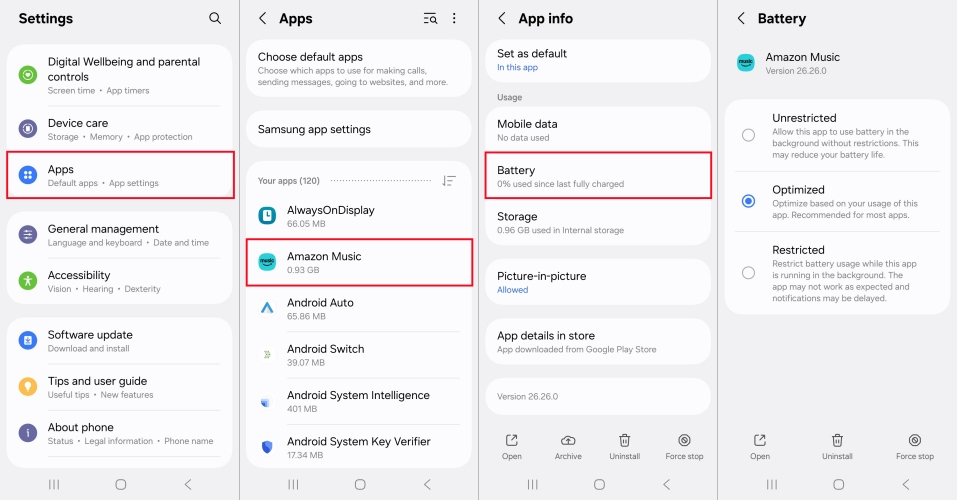
Step 1. Go to Settings > Apps > Amazon Music > Battery.
Step 2. Select Unrestricted or Optimized.
Step 3. Then tap Data Usage and enable Allow background data usage.
On iOS:
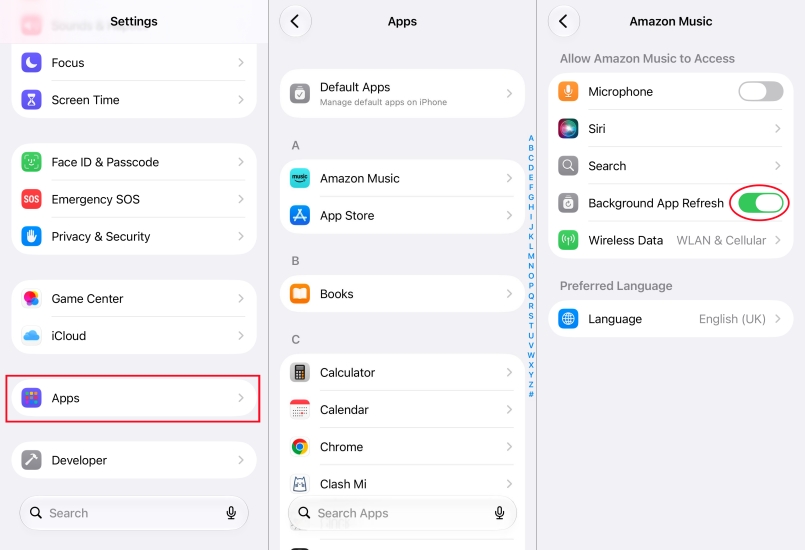
Step 1. Go to Settings > Apps and select Amazon Music.
Step 2. Find Background App Refresh and ensure the toggle is switched ON.
Fix 3: Disable Sleep Timers and Hands-Free Alexa Conflicts
An active sleep timer will quietly pause your music queue when the time expires. Sometimes, the Alexa hands-free mode within the app also disturbs the playback.
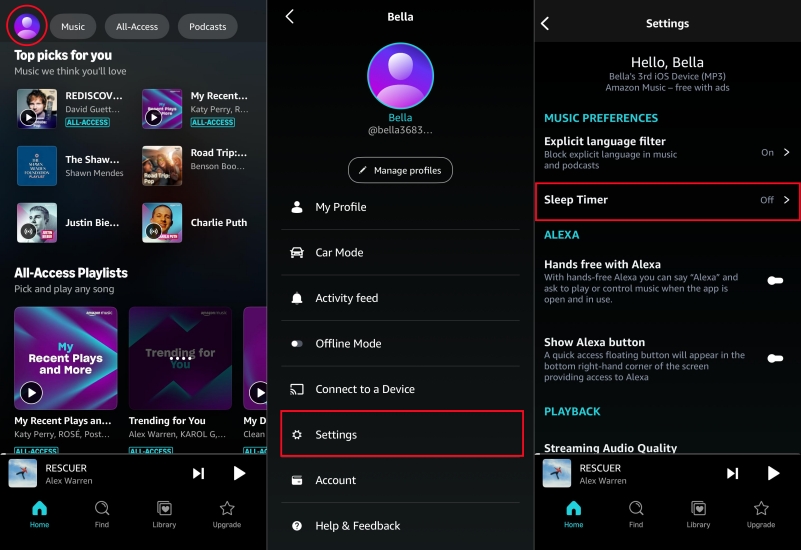
Step 1. Tap your profile picture and tap the Settings button.
Step 2. Find Sleep Timer and ensure it is turned OFF.
Step 3. Toggle Hands free with Alexa off and back on to clear any listening-loop freezes.
Issue 2. Amazon Music Not Playing Selected Song
Tapping a track only for the Amazon Music app to play a completely different song or skip past your pick entirely is one of the most common user frustrations.
Fix 1: Understand Prime Music "Shuffle-Only" Limitation
If you are an Amazon Prime member using the official Amazon Music app, direct on-demand playback for specific individual tracks is restricted for most catalog items.
- The Limitation: Selecting a specific song will automatically start a shuffle station of related tracks rather than playing that exact song.
- The Exception: You can play individual songs on-demand only if they are placed inside personalized All-Access Playlists.
- The Solution: To play any specific song on demand at any time, upgrade to Amazon Music Unlimited, or move the desired track into an All-Access Playlist created by the app.
Fix 2: Check Explicit Content Restrictions
If grayed-out tracks in the Amazon Music app skip automatically when clicked, your account's explicit content filter may be blocking them.
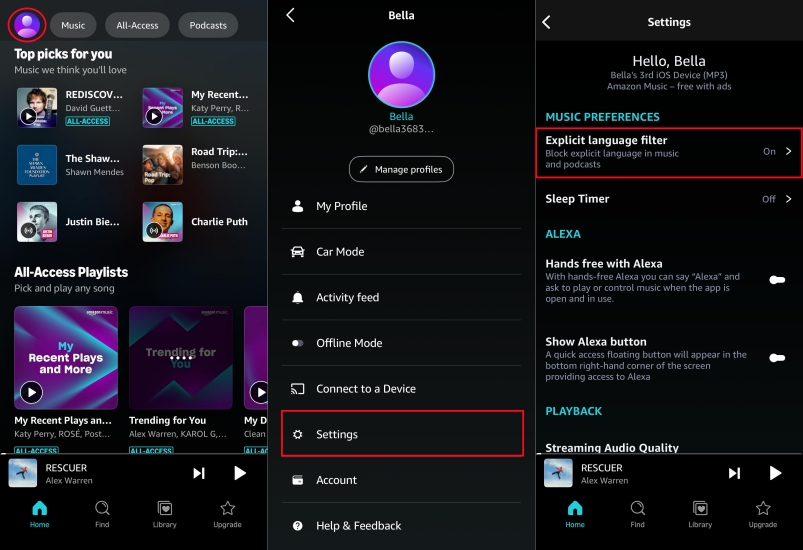
Step 1. Open Amazon Music and tap your profile image.
Step 2. Tap Settings and scroll to Music Preferences.
Step 3. Locate Explicit language filter and toggle the switch to ON.
Issue 3. Amazon Music Not Playing Full Song
If your songs cut off after 30 seconds or jump to the next track mid-stream, your Amazon Music app is usually operating in "preview mode" due to missing account authorization or temporary digital rights management (DRM) mismatches.
Fix 1: Check Amazon Music Account Status
Amazon Music Prime members have access to a full catalog of songs, but most tracks outside designated "All-Access Playlists" are restricted to shuffle playback. Attempting to select individual track streams can sometimes trigger short sample previews if your Amazon Music subscription status hasn't synced properly.
Step 1. Open a browser and log into your Amazon Account.
Step 2. Navigate to Your Memberships & Subscriptions.
Step 3. Confirm that your Amazon Music subscription is active and not pending payment.
Fix 2: Refresh DRM Licenses and Device Re-Authorization
Cached streaming authorization tokens can expire or become corrupted after software updates. In this case, try to refresh the authorization on your device.
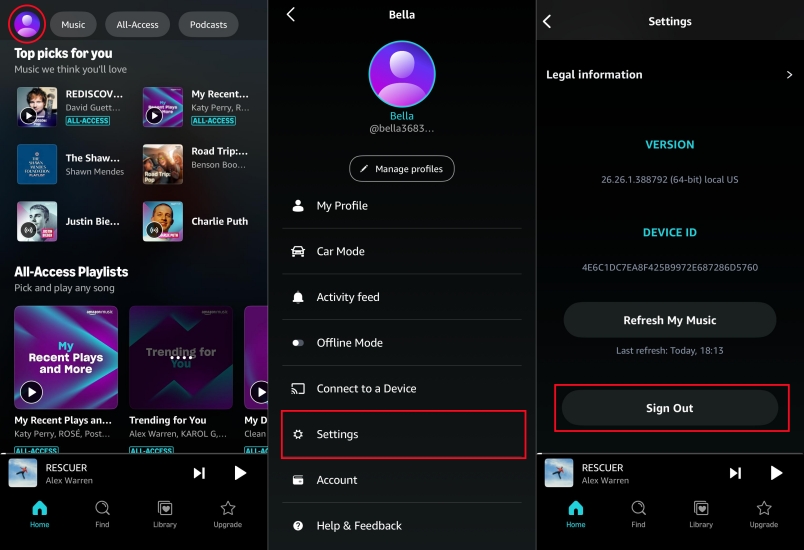
Step 1. Open Amazon Music on your device.
Step 2. Go to Settings and tap Sign Out.
Step 3. Restart your device completely.
Step 4. Sign back into your Amazon account.
Fix 3: Lower Audio Quality in Amazon Music
High-definition audio streams require higher bandwidth and processing power. If the stream stalls while buffering lossless audio, the app may cut the track short.
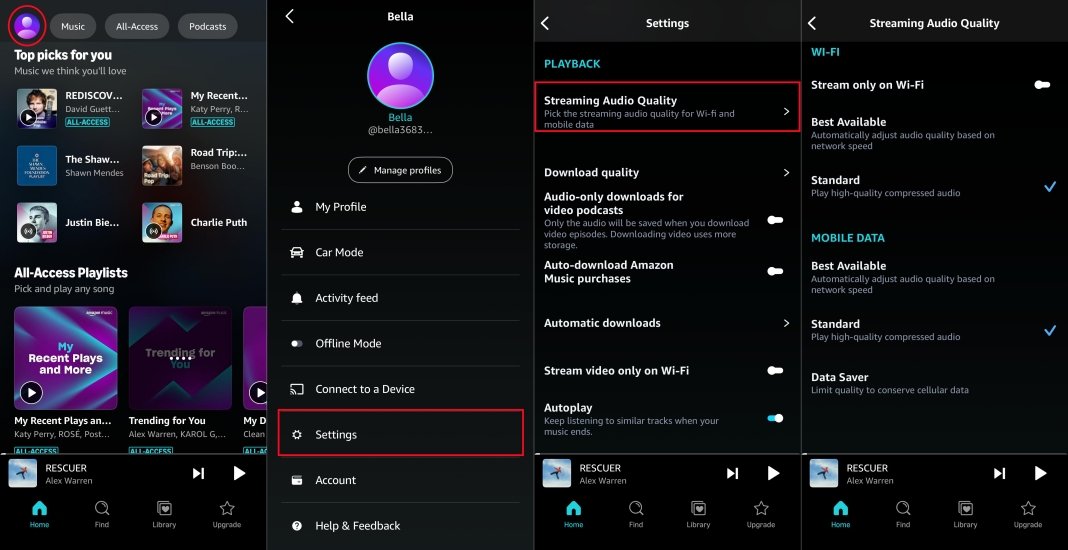
Step 1. In the Amazon Music app, go to open the Settings menu.
Step 2. Tap Audio Quality and switch Streaming Quality to Standard.
Step 3. Test streaming the song again to check if network bandwidth was forcing early track termination.
Issue 4. Amazon Music Not Playing Downloaded Songs
Downloaded Amazon Music songs failing to play offline usually points to an expired offline security validation token or storage location errors.
Fix 1: Re-Connect to Internet for Subscription License Sync
Amazon Music requires offline downloads to re-verify your subscription status periodically. If your phone has been offline or in Airplane Mode for several days, downloaded tracks will refuse to play until you reconnect.
Step 1. Connect your device to a stable Wi-Fi network.
Step 2. Open Amazon Music and let it fully load for 1–2 minutes to refresh your license tokens.
Step 3. Switch back to offline listening and test playback.
Fix 2: Toggle Play Downloads First or Offline Mode
If the Amazon Music app attempts to stream a track over a weak cellular signal instead of playing the local offline file, playback will freeze.
Step 1. Tap your profile image and open Settings.
Step 2. Turn ON the switch for Play Downloads First.
Alternatively, tap your Library tab and switch the top toggle to Offline Mode to force the app to ignore online servers completely.
Fix 3: Re-Download Corrupted Offline Tracks
App updates or SD card storage errors can occasionally corrupt downloaded files. To resolve the issue, try to remove your downloads and download them again.
Step 1. Go to Library > Downloaded in the Amazon Music app.
Step 2. Select the broken album or song, tap the three dots, and select Remove from Download.
Step 3. Restart your phone, reconnect to Wi-Fi, and tap Download again.
Part 3. Universal Fixes to All Amazon Music Not Playing Issues
If targeted steps do not solve the Amazon Music not playing issue, apply these universal maintenance fixes to clear underlying system conflicts.
Fix 1. Force Close and Relaunch the App
A soft crash in the playback queue can freeze track progression. Force closing the app and relaunch it can resolve most Amazon Music playback issues.
On Android:
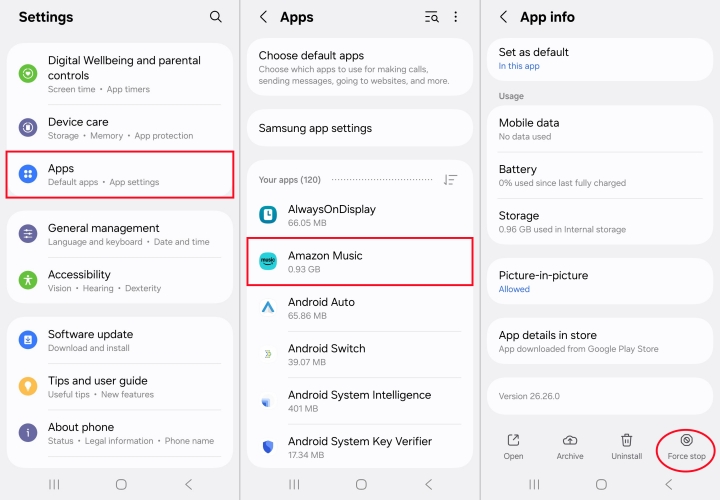
Step 1. Navigate to Settings > Apps and tap Amazon Music.
Step 2. Tap Force Stop at the bottom of the screen.
On iOS:
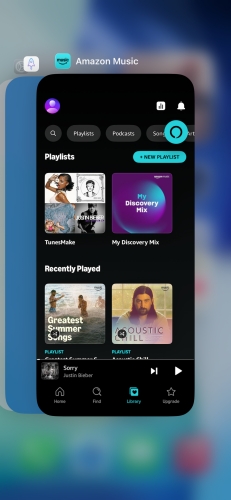
Step 1. Swipe up from the bottom of your home screen.
Step 2. Locate the Amazon Music app card and swipe it upward to close it completely.
Fix 2: Toggle Network Connections
Network handoffs between cellular data and Wi-Fi frequently cause Amazon Music to pause or drop streams. Turn on Airplane Mode for 10 seconds, switch it back off, and let your device re-establish a fresh connection to your network.
Fix 3: Clear Amazon Music App Cache
Clearing cache in the Amazon Music app removes temporary system files without deleting your saved playlists or offline downloads.
On Android:
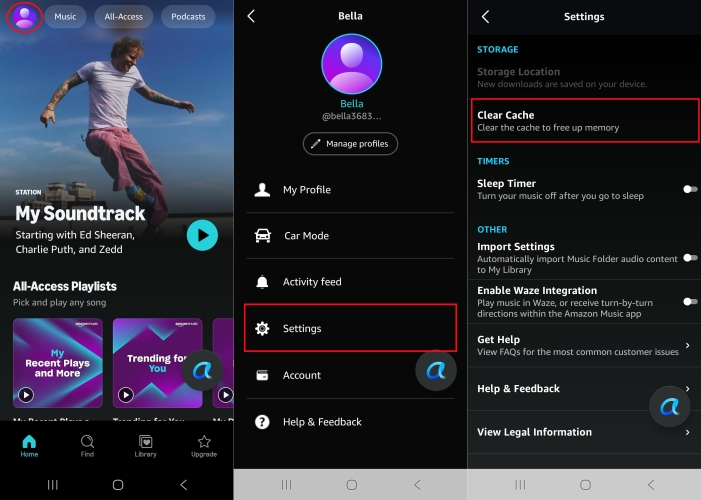
Step 1. Go to Settings > Apps and select Amazon Music.
Step 2. Tap Storage, then select Clear Cache.
On iOS:
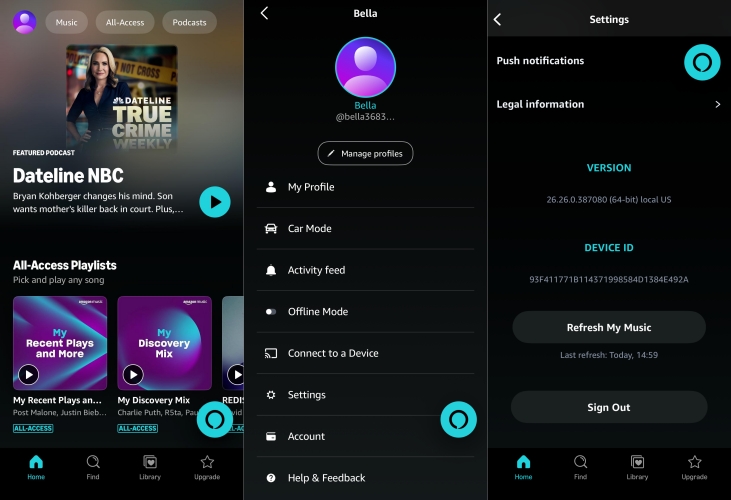
Step 1. Open the Amazon Music app and go to Settings.
Step 2. Scroll down and tap Refresh My Music.
Fix 4: Force Stop and Reinstall the Application
A fresh installation replaces corrupt system dependencies and updates the app to the latest build. Try to delete Amazon Music and reinstall it.

Step 1. Force close the app completely.
Step 2. Uninstall Amazon Music from your device.
Step 3. Restart your device and reinstall the latest version of Amazon Music.
Part 4. Ultimate Solution to Amazon Music App Not Playing Music
If app glitches, DRM verification failures, or Prime shuffle rules repeatedly interrupt playback, bypassing the official Amazon Music app altogether offers a reliable workaround. Using TunesMake Amazon Music Converter allows you to download and save tracks, playlists, and albums from Amazon Music directly to your computer as unprotected local audio files.
TunesMake works with both Amazon Music Prime and Unlimited, enabling direct, on-demand track downloads without enforced shuffle playback. Tracks downloaded with TunesMake are stored locally on your hard drive, eliminating 30-day license check-ins or offline verification timeouts. Furthermore, saved tracks can be played on any media player without depending on the Amazon Music app.

Streaming Audio Recorder –
Download music from Amazon Music unlimitedly
- Download songs, albums, and playlists from Amazon Music
- Convert Amazon Music to MP3, M4A, M4B, WAV, FLAC, and AIFF
- Remove DRM protection from Amazon Music completely and safely
- Preserve the original audio quality and ID3 tags for management
- Support downloading music from 10 popular streaming platforms
Security Verified. 100% Clean & Safe.
Step 1 Select Amazon Music Tracks to Download
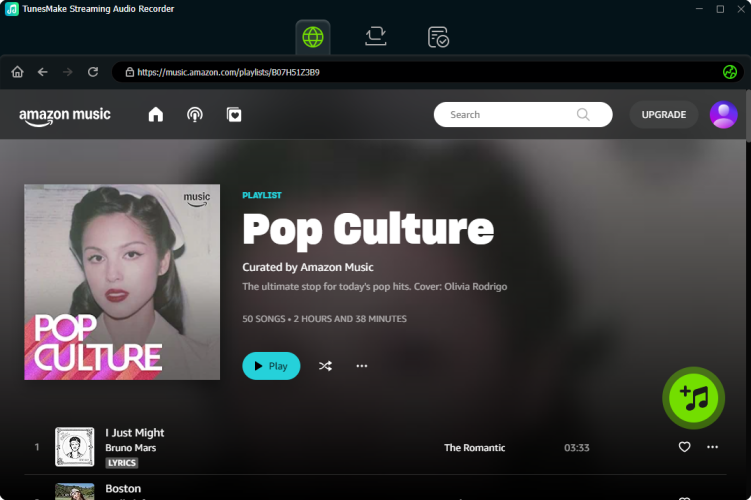
Launch TunesMake Streaming Audio Recorder on your computer, then select Amazon Music from the main dashboard. It will automatically load the Amazon Music web player and go to log into with your Amazon Music account and password. Search for your favorite songs and click the + button to add them into the conversion list.
Step 2 Set MP3 as the Output Audio Format
From the left bottom corner, click the Settings button and switch to the General tab in the new window. You can choose the output audio options, such as the format, bit rate, sample rate, and channel. You have the option of selecting MP3 as the output format here. To save the changes, click the OK button after completing the settings.

Step 3 Start to Download Amazon Music to MP3
Simply click the Convert button at the bottom right of the converter to begin downloading and converting Amazon Music. Then TunesMake software will store the converted Amazon Music files to your computer shortly. After conversion, you may examine the history list by clicking the History button. You'll be able to discover the converted tracks in the history list.

Part 5. Conclusion
Troubleshooting Amazon Music playback failures ultimately comes down to identifying whether the root cause is a technical glitch or an account restriction. By methodically working through your device's app settings, refreshing your Amazon Music account, or adopting alternative local conversion tools like TunesMake Amazon Music Converter to permanently bypass offline sync errors and shuffle limits, you can restore seamless, uninterrupted listening across your device.
Related Articles




A professional writer at TunesMake, crafts in-depth tutorials, practical tips and expert advice focusing on streaming music, technology, and more.
- 1
- 2
- 3
- 4
- 5
- 6
- 7
 Leave Your Comment
(0)
Leave Your Comment
(0)

 Download Center

