








 Store
Store


Few things are more frustrating than preparing for a flight, road trip, or workout, only to realize your offline playlist refuses to save. If you are struggling with Amazon Music not downloading songs, don't fret! This step-by-step troubleshooting guide will help you resolve Amazon Music download failures so you can get back to listening offline.

Part 1. Why Is Amazon Music Not Downloading My Songs?
If you are dealing with Amazon Music not downloading songs, the root cause often stems from network glitches, misconfigured settings, storage limitations, or corrupted temporary files. It helps to understand why Amazon Music downloads fail or stall.
-
Network Restrictions: In-app settings blocking cellular downloads, or VPNs interfering with location checks.
-
Insufficient Free Storage: Not enough internal memory on your internal storage or external SD card.
-
Corrupted Temporary Files: Stale temporary data causing music download queues to hang at 0% or 99%.
-
Subscription Out-of-Sync: Lapsed subscriptions or out-of-sync account licensing preventing offline playback authorization.
Part 2. How to Fix Amazon Music Not Downloading Songs
Amazon Music downloads usually fail due to in-app settings, insufficient storage, corrupted cache, or subscription licensing issues. To fix Amazon Music not downloading songs on iOS and Android devices, try the following solutions one by one.
Section 1: Network & Settings Troubleshooting
Network bottlenecks and restrictive data-saving settings are among the most common culprits.
Adjust In-App Download Settings
By default, Amazon Music restricts downloads to Wi-Fi connections. If you are using mobile data, you need to grant the app permission.
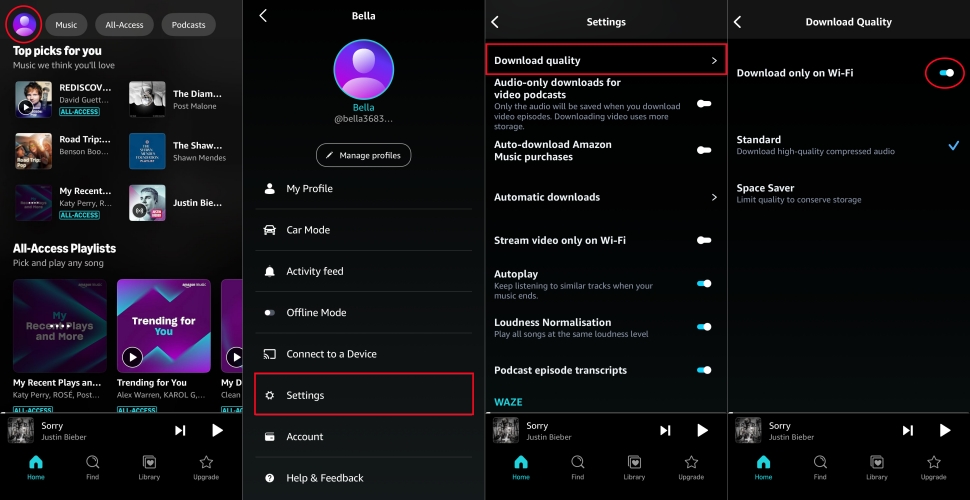
Step 1. Open Amazon Music and tap the Gear icon in the upper-right corner.
Step 2. Select Settings and scroll down to tap Download Quality.
Step 3. Toggle off Download on Wi-Fi Only.
Step 4. Set Audio Quality to Standard if low bandwidth is causing downloads to stall.
Enable Cellular Data for Downloads
If you are trying to download tracks away from Wi-Fi, the device data usage settings may be blocking the download queue.
On Android:
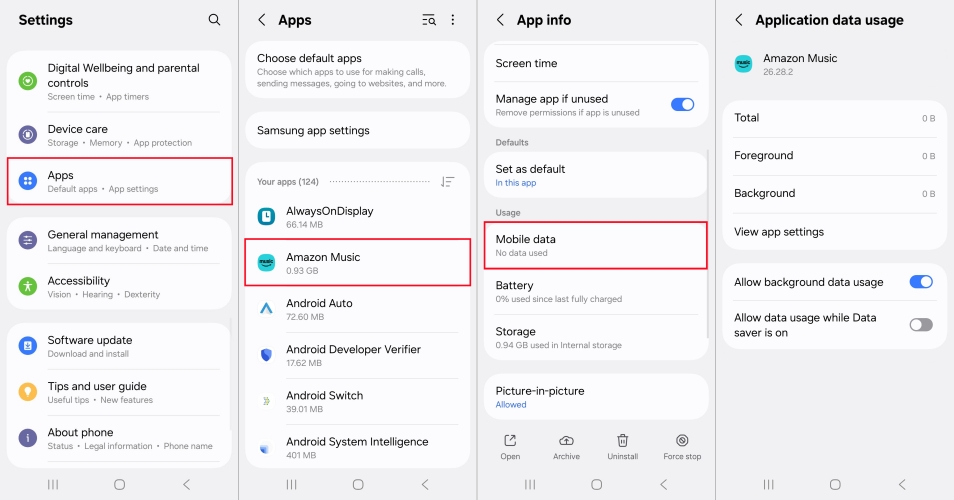
Step 1. Navigate to Settings > Apps and select Amazon Music.
Step 2. Tap Mobile Data and enable Allow data usage while Data saver is on.
On iPhone:
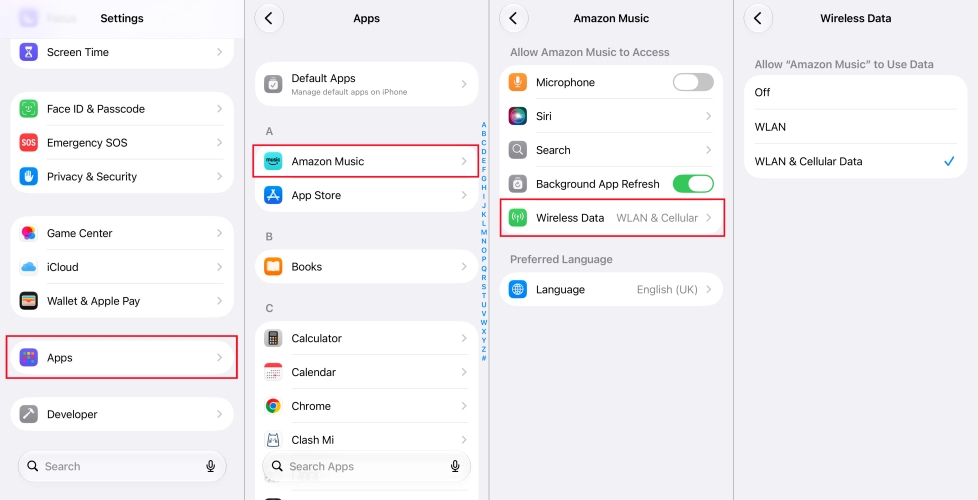
Step 1. Open Settings > Apps and tap Amazon Music.
Step 2. Tap Wireless Data and select WLAN & Cellular Data.
Resolve VPN and Firewall Conflicts
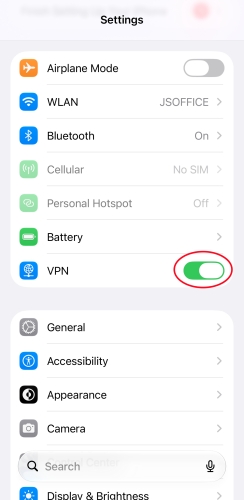
Virtual Private Networks (VPNs) alter your IP routing, which often triggers Amazon's geo-licensing blocks. Turn off any active VPN or proxy software on your iPhone or Android phone.
Section 2: Storage, Cache, and Permission Fixes
Physical storage problems and permission blocks frequently halt the download process.
Clear Amazon Music App Cache
Accumulated temporary files can become corrupted over time, leading to stuck download queues or download error messages.
On Android:
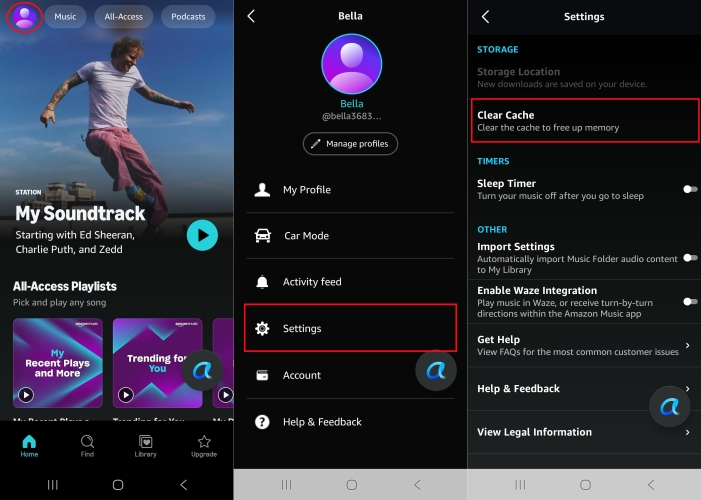
Step 1. Open your phone's Settings app.
Step 2. Go to Apps > Amazon Music.
Step 3. Tap Storage & Cache.
Step 4. Select Clear Cache.
On iPhone:
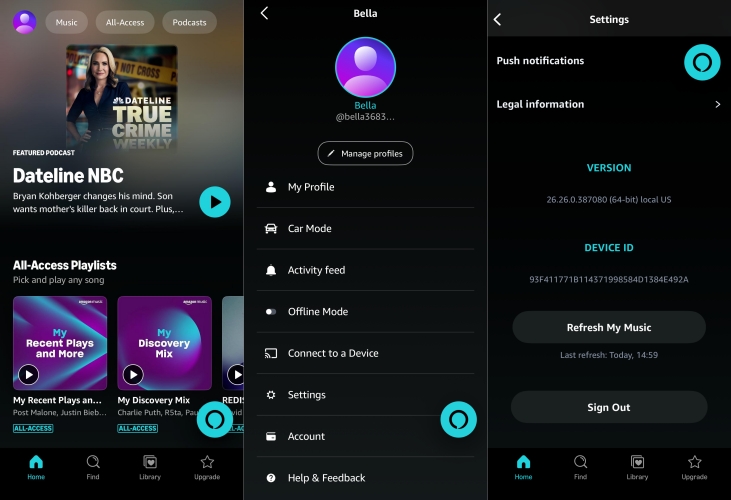
Step 1. Launch the Amazon Music app.
Step 2. Tap the Gear icon and select Settings.
Step 3. Scroll to the bottom and tap Refresh My Music.
Grant Storage and Media Permissions (Android)
If Amazon Music doesn't have permission to write files to your Android device, Amazon Music downloads will fail instantly.
Step 1. Open your device's Settings app.
Step 2. Tap Apps > Amazon Music.
Step 3. Select Permissions.
Step 4. Ensure Files and Media is set to Allow.
Configure Storage Location (Android)
If your Android phone uses a micro SD card, a corrupted card or altered storage path can break downloads of Amazon Music songs.
Step 1. Open the Amazon Music app.
Step 2. Tap the Gear Icon in the top-right corner and select Settings.
Step 3. Scroll to Storage Location.
Step 4. Switch the download destination from SD Card back to Internal Storage.
Section 3: Account & DRM Licensing Issues
Amazon Music requires regular online authentication to confirm that your subscription is active.
Check Amazon Subscription Status
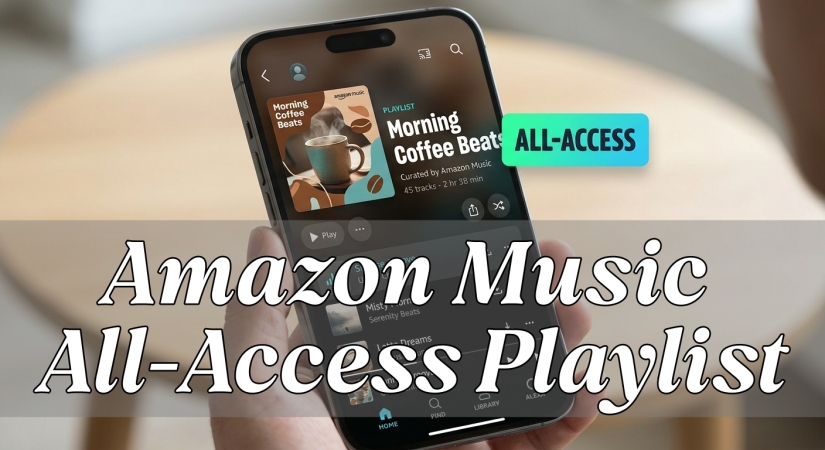
Subscribers to Amazon Music Unlimited are allowed to download all the content in Amazon Music, while Amazon Music Prime users only can download All-Access Playlist for offline playback. Make sure that your subscription doesn't expire or is not out-of-date.
Log Out and Log Back In
Offline downloads depend on active DRM tokens linked to your subscription. Logging out refreshes these security keys.
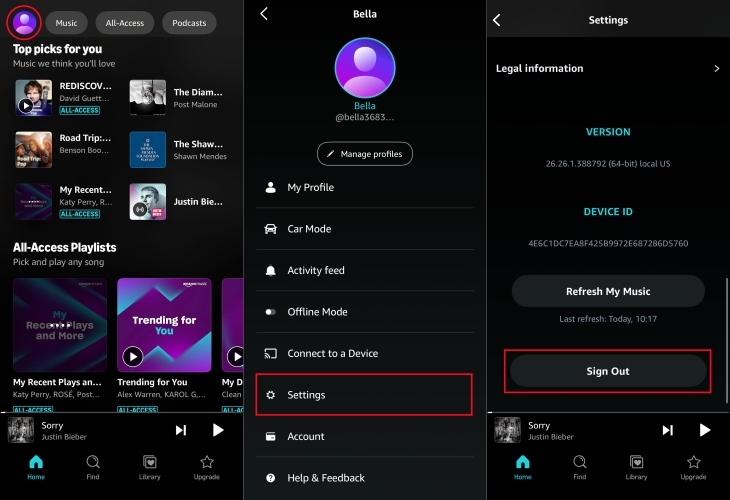
Step 1. In the Amazon Music app, go to Settings.
Step 2. Scroll to the bottom and tap Sign Out.
Step 3. Restart your device.
Step 4. Open Amazon Music and sign back in with your primary Amazon credentials.
Step 5. Retry downloading your songs or playlist.
Section 4: Advanced Fixes
If basic adjustments do not resolve the issue, try these advanced maintenance steps.
Update the Amazon Music App
Running an outdated version of the Amazon Music app can lead to service incompatibilities with Amazon's servers.
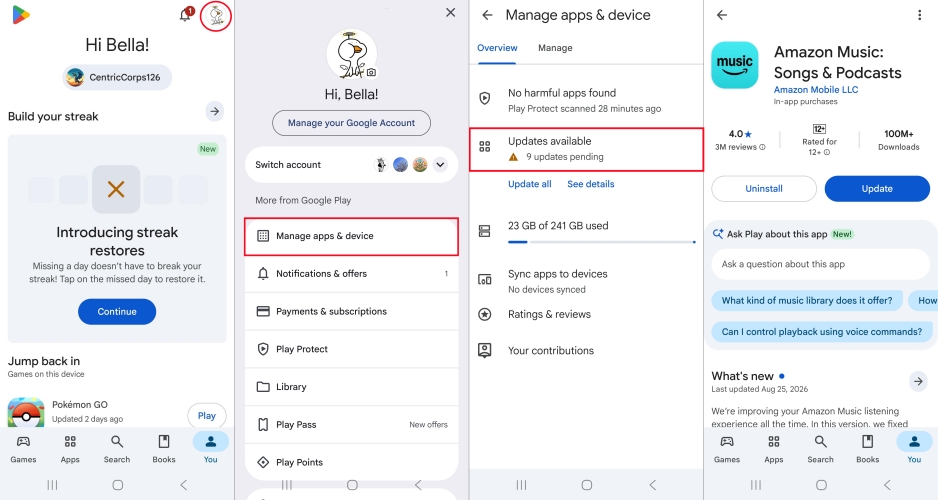
Step 1. Open the Google Play Store or Apple App Store.
Step 2. Tap your profile image at the top right corner.
Step 3. Go to Manage apps & device > Updates available.
Step 4. If an Update button is visible, tap it to install the latest build.
Reinstall the App
If app files are corrupted beyond cache clearing, a fresh installation of the Amazon Music app resets all core files.
On Android:

Step 1. Touch and hold the Amazon Music icon on the home screen.
Step 2. Tap the App Info icon and select Uninstall.
Step 3. Tap OK to confirm and re-download from the Google Play Store.
On iPhone:
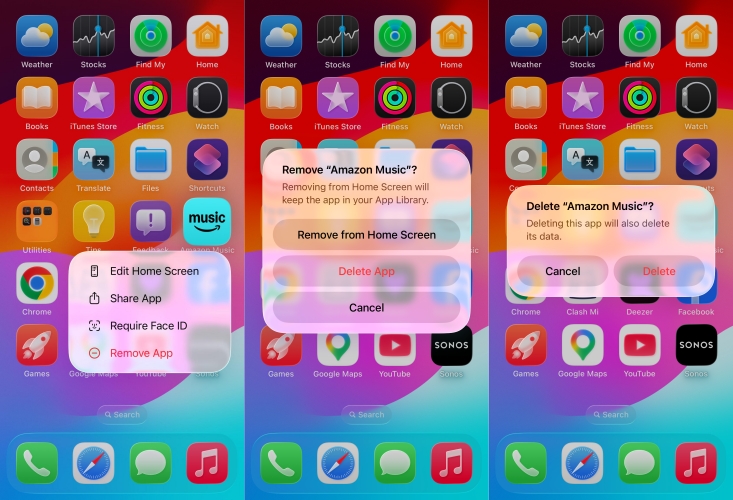
Step 1. Press and hold the Amazon Music icon on the home screen.
Step 2. Select Remove App and tap Delete App.
Step 3. Tap Delete to confirm and re-download from the App Store.
Part 3. Common Fixes to Amazon Music Songs Not Downloading
With the above solutions, you can fix the Amazon Music not downloading to phone issue. Sadly, some users have trouble downloading Amazon Music songs in other places. There are some specific problems with Amazon Music not downloading. From the Amazon forum, we have collected some common issues about Amazon Music not downloading. Learn how to resolve it with some simple yet specific steps.
Problem 1. Amazon Music Queued But Not Downloading

On a Samsung tablet, trying to download a playlist in the Amazon Music app for offline playback. The songs within the playlist have shown a status of 'queued' for over an hour. Checked my WiFi connection, and it's all good."
To resolve Amazon Music queued but not downloading, you can try the above solutions. Or you can choose to clear the download queue in the Amazon Music app.
1. Open Library in the Amazon Music app.
2. Tap Download Queue.
3. Locate any stuck or paused tracks.
4. Cancel or delete the stuck tracks from the queue.
5. Restart the app and attempt to download the tracks individually.
Problem 2. Amazon Music App Not Downloading on SD Card
I recently bought an SD card to use with my phone in order to free up some space in my internal storage. I downloaded all of the music on my phone to the SD card. But I simply get an error message stating: 'SD card not found. Please re-insert SD card.' How can I fix it?"
If you have tried the above methods to resolve the issue, you can refresh your music library in the app. Make sure that you have changed the download location to an SD card.
1. Tap the Gear icon in the Amazon Music app.
2. Select Settings, then scroll down to tap Download Location.
3. Change the download location to an SD card.
Problem 3. Purchased Amazon Music Not Downloading to Phone
Purchased an album on Amazon and can't open, download or play it in the Amazon Music app. It just keeps telling me I need Amazon Music Prime. From the web, it wants to play in the app but doesn't open the album just the app 'Home'. Why can't download purchased music!"
Purchased music belongs to your digital library permanently. When purchased tracks fail to download to your phone, you can download the raw .mp3 files via a mobile browser.
1. Open Chrome or Safari on your phone and go to music.amazon.com.
2. Switch your browser settings to Desktop Site.
3. Log in, go to Library > Purchased, select your songs, and tap Download.
Part 4. Ultimate Solution to Songs Not Downloading on Amazon Music
Still cannot download your liked music in the Amazon Music app on your device? No worry, and using a dedicated music downloader serves as a reliable workaround. Software like TunesMake Amazon Music Converter download and convert tracks, playlists, and albums directly to local audio files saved on your computer, completely bypassing in-app download failures, error codes, and mobile permission restrictions.
After conversion, you can keep those converted Amazon Music files on your device and play them on any device anytime. Adopted with advanced decryption technology, TunesMake software can not only preserve the original sound quality but also recognize the metadata information. It's easy to operate this software. You just need to import your liked music's link into the converter and set up the output audio parameters. Try this super-efficient software now.

Streaming Audio Recorder –
Download music from Amazon Music unlimitedly
- Download songs, albums, and playlists from Amazon Music
- Convert Amazon Music to MP3, M4A, M4B, WAV, FLAC, and AIFF
- Remove DRM protection from Amazon Music completely and safely
- Preserve the original audio quality and ID3 tags for management
- Support downloading music from 10 popular streaming platforms
Security Verified. 100% Clean & Safe.
Step 1 Select Amazon Music Songs to Download
Upon launching TunesMake Streaming Audio Recorder, click Amazon Music on the main dashboard and go to log in to your account in the built-in Amazon Music web player. You can search for any song, album, or playlist to download. Simply click the + button to add your target item into the conversion list.
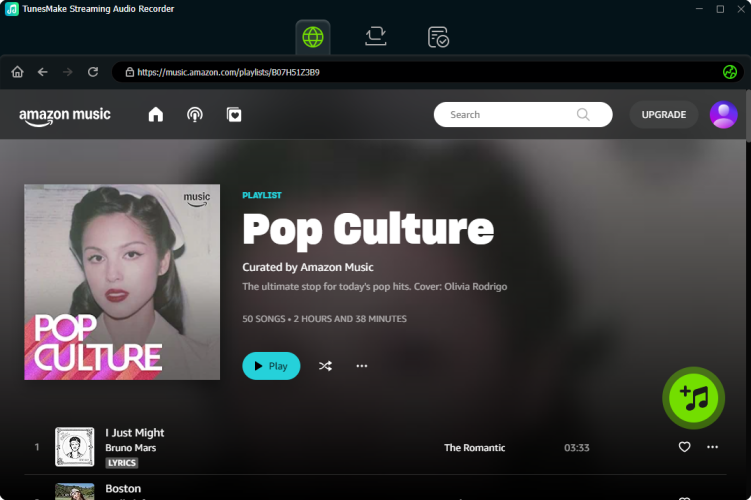
Step 2 Set the Audio Format for Amazon Music
TunesMake supports 6 audio formats to convert to. And the default output format is MP3 andyou can change it depending on your need. You can change it by clicking the Settings button at the bottom left of the interface. Under the menu setting, you can click General > Conversion to set up. Meanwhile, you are able to adjust the sample rate, bit rate, channel, and output archive here.

Step 3 Start to Convert Amazon Music to MP3
Now confirm your settings and click the Convert button to start downloading and converting your Amazon Music songs. You just need to wait for a while till it is finished. Once finished, you can locate the converted Amazon Music files in the local folder you set before. By clicking the History button at the left sidebar, you can find all the converted tracks.

Part 5. Conclusion
We have stated the reasons why Amazon Music is not downloading and offered several methods to help you fix it. Have you solved your problem or not? Honestly, TunesMake Amazon Music Converter is a professional tool you can try. And you're able to download Amazon Music for playing anywhere with TunesMake software. Hope this guide will be valuable to you. If you have something to share with us, please comment below.
Related Articles


A professional writer at TunesMake, crafts in-depth tutorials, practical tips and expert advice focusing on streaming music, technology, and more.
- 1
- 2
- 3
- 4
- 5
- 6
- 7
 Leave Your Comment
(0)
Leave Your Comment
(0)

 Download Center

