








 Store
Store


Experiencing Amazon Music not working can immediately disrupt your morning routine, workout, or workday. Because streaming services rely on a combination of app software, cloud servers, local device storage, and network hardware, troubleshooting steps often vary depending on the specific device you are using. This comprehensive guide breaks down platform-specific solutions to get Amazon Music streaming smoothly again across all your devices, including iOS, Android, Mac, Windows PC, and smart devices.
Part 1. Why Is Amazon Music Not Working?
When Amazon Music stops working, the issue usually stems from one of a few common causes across servers, network connections, app data, or account settings. Here are the primary reasons why Amazon Music is not working.
-
Amazon Server Outage: Occasionally, Amazon's servers experience temporary downtime, preventing the app from streaming music or verifying account licenses globally.
-
Corrupted App Cache: Over time, temporary operational files accumulated by the app can become corrupted, leading to app crashes, freezing, or error messages.
-
Unstable Network Connection: Weak Wi-Fi, poor cellular data, or VPN interference can cause continuous buffering or tracks stopping midway.
-
Subscription or Account Restrictions: Expired payment methods or cancelled subscriptions restrict full playback.
-
Outdated App or Operating System: Compatibility glitches can arise if the Amazon Music app or your device's operating system hasn't been updated to the latest version.
-
Background & Battery Permissions: Aggressive battery saver modes or restricted mobile background data on mobile devices can shut down the app when your screen turns off.
Part 2. Basic Fixes to Amazon Music Not Working
Before diving into complex settings, start with these essential diagnostic checks. Often, the issue of Amazon Music not working isn't on your device at all.
Check Amazon Music Server Status
If Amazon Music is down globally, no amount of troubleshooting on your device will fix it.
- Visit status tracking websites like Downdetector to see if other users are reporting outages.
- Check official Amazon Help social media channels for system update notices.
Confirm Amazon Account Status
Sometimes, the playback of Amazon Music stops because your plan of Amazon Music was changed or your payment to Amazon Music subscription failed.
Step 1. Go to your Amazon account settings in a web browser.
Step 2. Navigate to Your Memberships & Subscriptions.
Step 3. Verify that your Amazon Prime or Amazon Music Unlimited plan is active.
Check Device Authorizations
Amazon Music Unlimited limits how many devices can be authorized to download and stream music under one account, typically up to 10 devices.
Step 1. Log into your account on the Amazon website.
Step 2. Go to Manage Your Content and Devices.
Step 3. Remove old or unused smartphones, tablets, or computers to free up authorization slots.
Verify Internet Connection
High-definition streaming requires a consistent internet connection. Ensure that your device is connected to a stable network. If not, refresh the network.
Step 1. Enable Airplane Mode for 10 seconds.
Step 2. Disable it to refresh your device's network connections.
Part 3. How to Fix Amazon Music Not Working on Android/iPhone
If servers are running normally and your internet connection is solid, the problem is likely tied to local app data, temporary system glitches, device permissions, or app parameters.
Solution 1. Force Stop Amazon Music
Simply closing the app doesn't always stop its background processes. To fix Amazon Music not working, force stop Amazon Music in the background.
On Android:
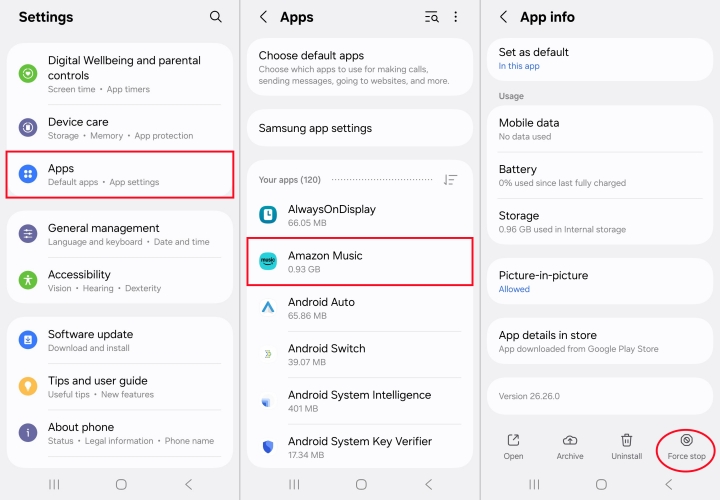
Step 1. Open Settings and tap Apps.
Step 2. Select Amazon Music and tap Force Stop.
On iPhone:
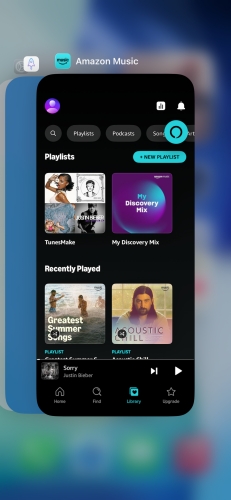
Step 1. Swipe up from the bottom of your screen.
Step 2. Find the Amazon Music preview card.
Step 3. Swipe it up to close it completely.
Solution 2. Clear Temporary Data (Android)
Clearing cached data in the Amazon Music app removes corrupted temporary files without deleting your personal account settings.
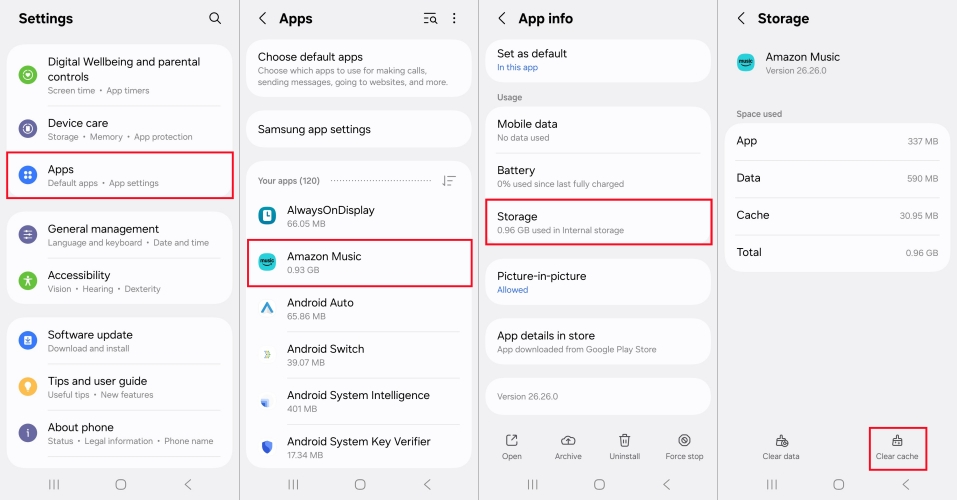
Step 1. Open the Settings app on your device.
Step 2. Tap Apps and select Amazon Music.
Step 3. Tap Force Stop, then Storage.
Step 4. Tap Clear Cache.
Solution 3. Adjust Battery Saver (Android)
If Amazon Music stops playing every time your phone screen turns off, aggressive battery optimization settings are likely interfering.
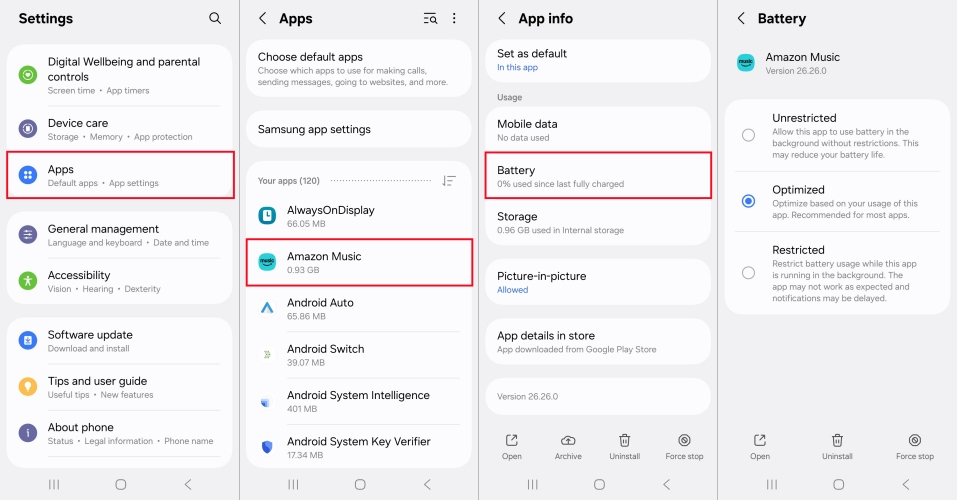
Step 1. Open Settings > Apps > Amazon Music.
Step 2. Tap Battery and set permissions to Unrestricted or Optimized.
Solution 4. Reset Explicit Content Filter
When specific songs grayed out or skipped automatically, your explicit content filter in the Amazon Music app might be blocking them.
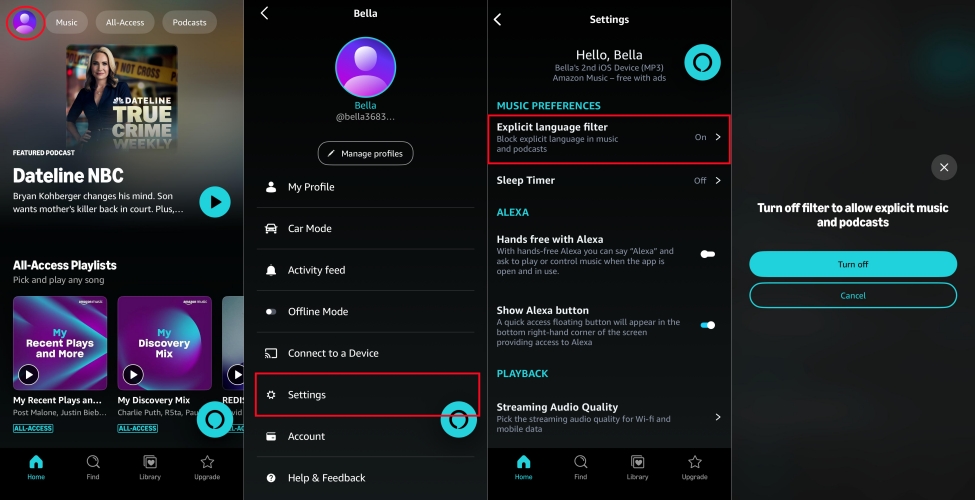
Step 1. Open the Amazon Music app.
Step 2. Tap the Settings in the top right corner.
Step 3. Locate Block Explicit Songs and toggle it off to allow all tracks to play.
Solution 5. Refresh Amazon Music (iPhone)
If the Amazon Music app opens but songs fail to load or buffer continuously, refreshing the library usually resolves temporary hiccups.
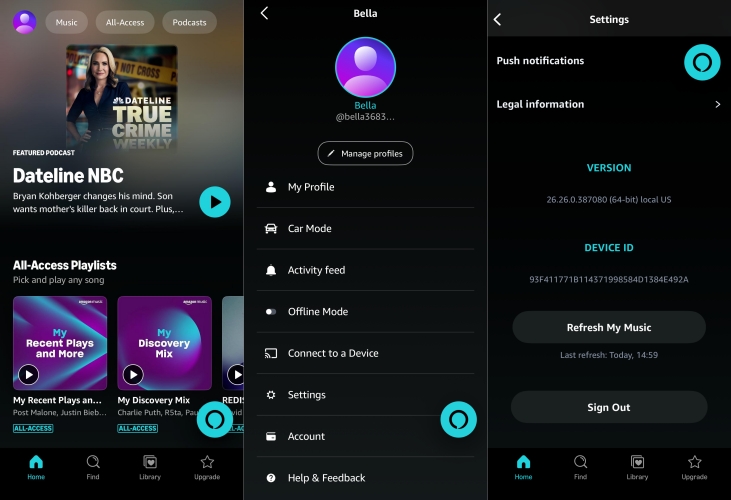
Step 1. Launch the Amazon Music app and tap your profile image.
Step 2. Go to Setting and scroll down to the bottom.
Step 3. Tap Refresh My Library and wait to complete.
Solution 6. Re-Download Offline Songs
If tracks fail to play when you are offline, local authorization tokens may have expired or downloaded files may be corrupted.
Step 1. Delete the affected playlist or album from your offline downloads.
Step 2. Re-connect to a strong Wi-Fi network.
Step 3. Download the tracks again from scratch.
Solution 7. Update the App to the Latest Version
Running an outdated version of Amazon Music can lead to software conflicts, especially after major mobile operating system updates.
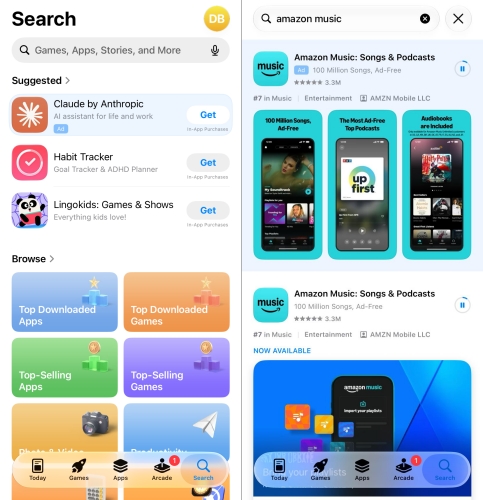
Step 1. Open the Google Play Store or Apple App Store.
Step 2. Search for Amazon Music.
Step 3. If an Update button is visible, tap it to install the latest build.
Solution 8. Reinstall the Amazon Music App
If clearing the cache does not resolve freezing, a clean installation ensures all outdated or corrupted app files are removed.
On Android:
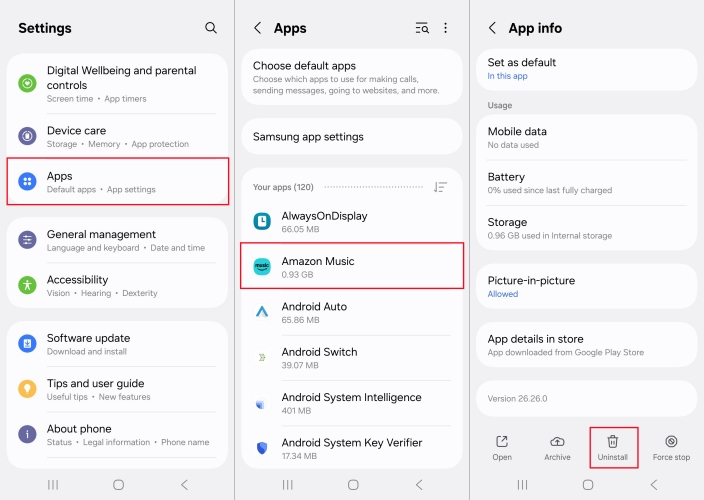
Step 1. Navigate to Settings > Apps.
Step 2. Under Apps, select Amazon Music.
Step 3. Tap Uninstall and re-install it from the Google Play Store.
On iPhone:
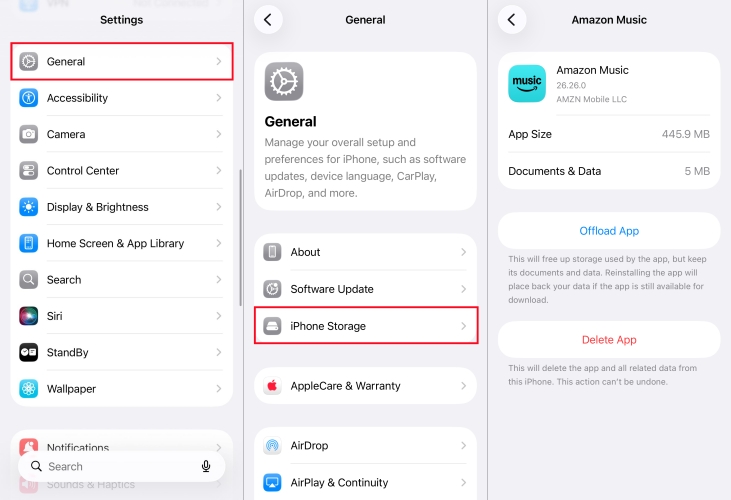
Step 1. Go to Settings > General > iPhone Storage.
Step 2. Scroll down and tap Amazon Music.
Step 3. Tap Delete App and re-download it from the App Store.
Part 4. How to Fix Amazon Music Not Working on Mac/Windows PC
When the Amazon Music desktop client freezes, shows a black screen, or stops playing audio, local database issues are usually responsible.
Solution 1. Delete Local Data Folders
Clearing the Amazon Music app's data folder on the computer forces it to rebuilt its local database cleanly upon launch.
On Windows:
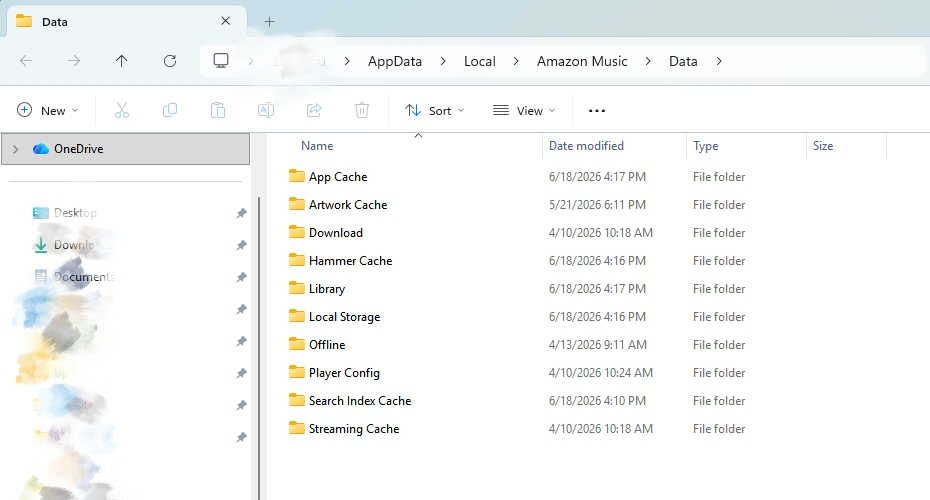
Step 1. Press Win + R to open the Run dialog box.
Step 2. Type %userprofile%\AppData\Local\Amazon Music\Data and press Enter.
Step 3. Delete all files and subfolders inside this directory.
On Mac:
Step 1. Open Finder and press Cmd + Shift + G.
Step 2. Enter ~/Library/Application Support/Amazon Music/Data and hit Return.
Step 3. Delete the temporary files located inside the folder.
Solution 2. Use the Reload Library Option
If your playlists in Amazon Music aren't updating or Amazon Music tracks fail to start on your Windows PC or Mac, try to reload the library.
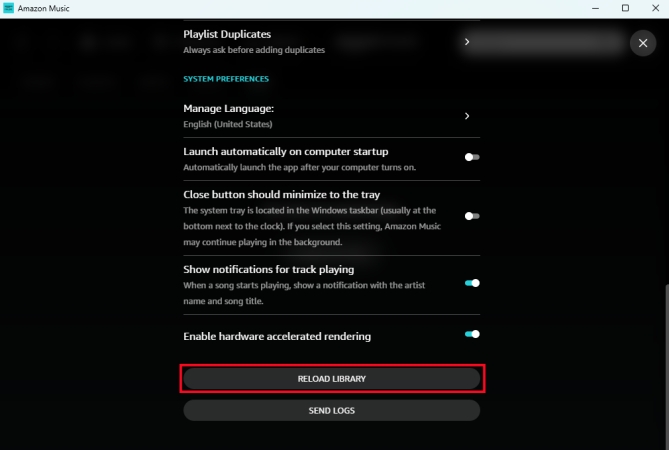
Step 1. Click your profile avatar or account name in the top right corner of Amazon Music.
Step 2. Select Settings, then scroll down to the bottom and click Reload Library.
Solution 3. Save Amazon Music Tracks Locally
If standard troubleshooting fails to resolve persistent app crashes, offline download expiration, or device authorization conflicts, downloading audio tracks locally provides an alternative workaround. Software like TunesMake Amazon Music Converter allows users to convert Amazon Prime or Unlimited tracks into common, unencrypted audio formats such as MP3, FLAC, or WAV on a computer. By saving tracks as standard local files, you can play them using most media players like VLC or Apple Music without relying on the official Amazon Music desktop app.

Streaming Audio Recorder –
Download music from Amazon Music unlimitedly
- Download songs, albums, and playlists from Amazon Music
- Convert Amazon Music to MP3, M4A, M4B, WAV, FLAC, and AIFF
- Remove DRM protection from Amazon Music completely and safely
- Preserve the original audio quality and ID3 tags for management
- Support downloading music from 10 popular streaming platforms
Security Verified. 100% Clean & Safe.
Part 5. How to Fix Amazon Music Not Working on Smart Devices
The Amazon Music app not working issue can be a huge pain, whether it's on your smartphone, computer, smart speaker, or even in your car. With the above steps, you can fix Amazon Music not working on your phone or computer. What to do when Amazon Music is not working on smart devices? Here we will give some specific solutions to help you fix it.
Issue 1. Amazon Music App Not Working on LG TV

I have two LG Web OS TV. Neither will play Amazon Music and I've restarted the router, uninstalled the apps and reinstalled. No Joy. Anyone have any ideas?"
Here are some steps for you to fix this issue:
1. Restart your WiFi router or reconnect your LG TV to a WiFi network.
2. Go to update the system of your LG TV or get the latest Amazon Music app.
3. Clear the cache and data in the Amazon Music app on your LG TV.
Issue 2. Amazon Music Not Working on Android Auto
A couple days ago I got in my car, plugged in my phone, pressed Android auto and the app launched just fine but not only did Amazon music not play, I cannot find a way to play it. Anyone have an idea on how to fix this?"
The following steps can help you to fix this issue:
1. Go to turn on Car Mode in the Amazon Music app.
2. Change the settings of Car Mode in the Amazon Music app.
3. Check the settings of Android Auto on your device.
4. Clear the cache in the Amazon Music app.
Issue 3. Amazon Music Not Working on Apple Watch
I just got a series 7 and downloaded the Amazon Music app. When I try to open the app, the display just kicks back to the watch face instead of opening the app. All the other apps on the watch work well. Would love to hear some thoughts on what my problem might be. Thanks!"
Here are some ways to fix the issue:
1. Turn off WiFi and try connecting to cellular data.
2. Update the Apple Watch or the Amazon Music app.
3. Remove all the downloaded songs and re-download them.
Issue 4. Amazon Music Not Working on Alexa
I ask it to play a song on my echo, she responds saying playing the song. Then nothing happens. No music no nothing. I had unplugged from the wall and hard reset. Verified that my account is active and in good standing. Will not work on any devices. Worked 2 days ago just like normal."
The following solutions are available for fixing the issue:
1. Check your Amazon Music subscription or linked accounts.
2. Set Amazon Music as the default music provider on Alexa.
3. Turn off the explicit filter feature in the Amazon Music app.
4. Update the software on your Echo device or restart it.
Part 6. Conclusion
Whether you are streaming on an iPhone, Android phone, PC, Mac, or other smart devices, resolving Amazon Music not working usually comes down to resetting local app data or checking background network permissions. For recurring app bugs or offline playback restrictions, converting Amazon Music songs locally with tools like TunesMake offers a reliable fallback. Following the platform-specific steps above will help you restore playback quickly and keep your favorite Amazon Music songs flowing smoothly.
Related Articles



A professional writer at TunesMake, crafts in-depth tutorials, practical tips and expert advice focusing on streaming music, technology, and more.
- 1
- 2
- 3
- 4
- 5
- 6
- 7
 Leave Your Comment
(0)
Leave Your Comment
(0)

 Download Center

