








 Store
Store


Google Home speakers deliver exceptional smart home audio, while Amazon Music offers one of the largest high-fidelity streaming catalogs available. Naturally, bringing the two together seems like a logical choice. Although Google and Amazon operate competing ecosystems, setting up Amazon Music on Google Home is as simple as clicking a single link button.
As you can set Amazon Music as your default voice-activated provider inside the Google Home app, you can seamlessly play your favorite playlists, albums, and podcasts across any Google Nest device. This comprehensive guide covers connection methods and voice command capabilities to help you get the best audio experience.
Part 1. Does Amazon Music Work with Google Home?
Yes, Amazon Music works with Google Home and Google Nest speakers. And it also can be linked directly as a default voice-activated music provider inside the Google Home app. Once setting Amazon Music as the default music service, you can say "Hey Google, play Amazon Music" to launch a stream. Here are several methods available to play Amazon Music on Google Home.
| Connection Method | Best For | Connection Type | Same WiFi Required? | Basic Voice Control? |
|---|---|---|---|---|
| Direct Link | All users | WiFi | Yes | Full Voice Control |
| Google Cast | Android, Windows, Mac users | WiFi | Yes | Yes |
| Bluetooth Pairing | iPhone and iPad users | Local Bluetooth | No | Yes |
| Cloud Upload Workaround | Hands-free Enthusiasts | Local File | No | Full Voice Control |
Part 2. How to Link Amazon Music to Google Home
Google has rolled out updates expanding ecosystem compatibility, though availability and functionality can vary by region and account type. To play Amazon Music on a Google Home speaker, you can use the Google Home app to link your Amazon Music account and then get the playback of your favorite audio.
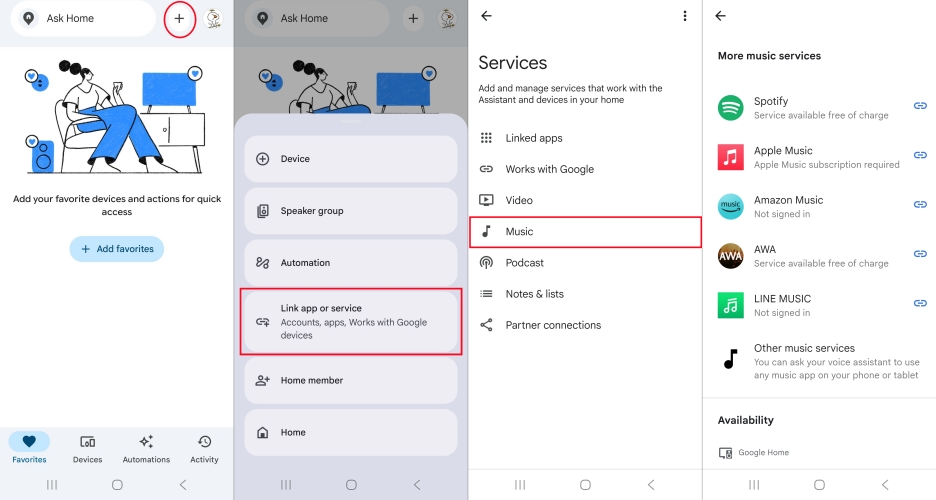
Step 1. Open the Google Home app and tap the + button at the top right corner.
Step 2. From the pop-up window, select Link app or service.
Step 3. Select Music under Services.
Step 4. Under More music services, locate Amazon Music and tap Link.
Step 5. Follow the prompt to log into your Amazon account and authorize the connection.
Set Amazon Music as Default on Google Home
Once linked your Amazon Music account to a Google Home speaker, you can easily set Amazon Music as your default streaming service in the Google Home app.
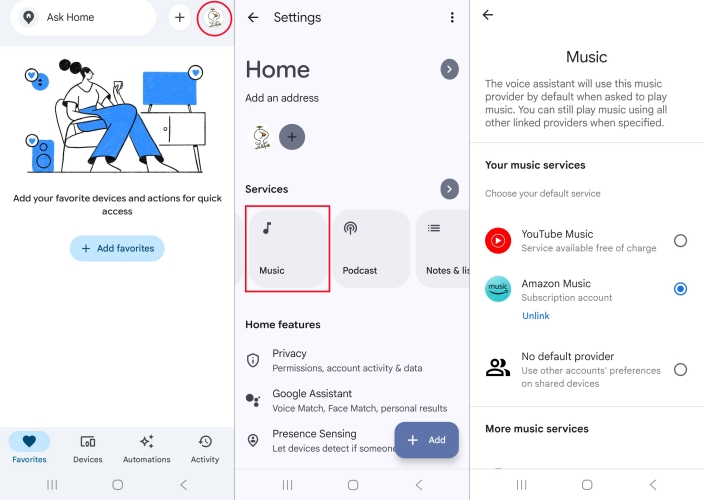
Step 1. Open the Google Home App and go to Home Settings.
Step 2. Find and tap Music under Services.
Step 3. Select Amazon Music under "Your music services" to mark it as your Default service.
Google Assistant Voice Commands for Amazon Music
Now that Amazon Music is set as your default on your Google Home speaker, you don't need to specify "on Amazon Music" every time. All voice commands work smoothly.
| Voice Command Category | What You Can Say to Google Assistant |
|---|---|
| Playback Control | "Hey Google, pause" "Hey Google, resume" "Hey Google, stop" |
| Track Navigation | "Hey Google, next track" "Hey Google, previous song" "Hey Google, skip" |
| Volume Adjustment | "Hey Google, volume 50%" "Hey Google, turn it up" "Hey Google, set volume to 4" |
Note:
You must have an active Amazon Music subscription linked to your Google Home profile to use direct voice streaming.
Part 3. How to Cast Amazon Music to Google Home
Instead of linking Amazon Music to Google Home, you can also easily stream your favorite playlists, albums, and podcasts from Amazon Music to any Google Home or Nest speaker using Google Cast or Bluetooth. Here is how to play Amazon Music on Google Home across Android, iPhone, and desktop devices directly.
Option 1. Cast from Android to Google Home
Android devices offer the smoothest experience because the Amazon Music for Android app includes Google Cast support. This enables you to have the ability to cast your content from Amazon Music on various devices, including Google Home. Now let's get started on how to play Amazon Music through Google Home from Android.
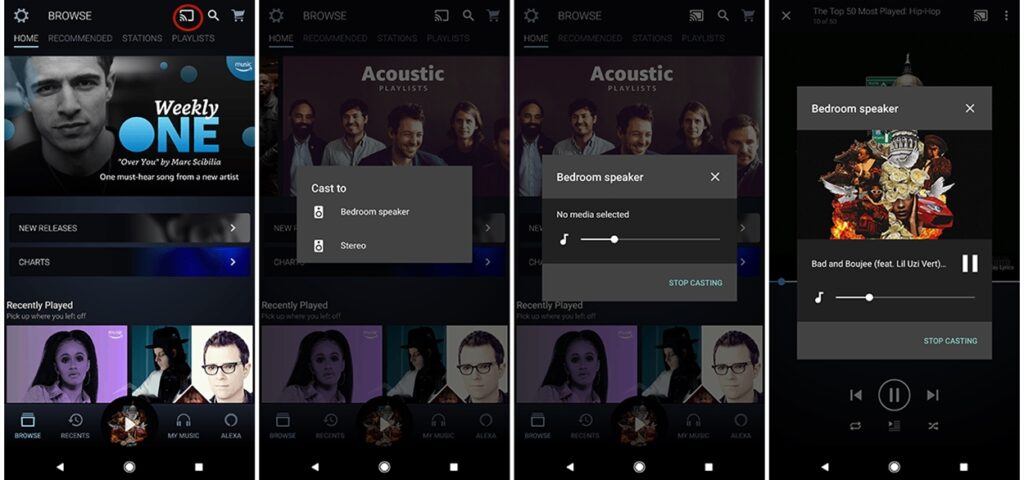
Step 1. Open the Amazon Music app on your Android device.
Step 2. Tap the Cast icon in the top-right corner or on the main playback bar.
Step 3. Select your Google Home speaker from the list of available casting targets.
Step 4. Choose your favorite playlist, album, or station and press play. Audio will stream seamlessly over Wi-Fi.
Option 2. AirPlay from iPhone to Google Home
Unlike Android devices, Apple iOS devices feature Chromecast support within the Amazon Music app, but you still can play Amazon Music from your iPhone on a Google Home. Pairing your iPhone via Bluetooth and making use of AirPlay is the most reliable method to stream Amazon Music to Google Home. Here's how to cast Amazon Music to Google Home from iPhone.
Step 1. Open the Google Home app on your iPhone.
Step 2. Tap the tile for your Google Home speaker.
Step 3. Tap the Settings gear icon in the upper-right corner.
Step 4. Select Audio, then tap Paired Bluetooth devices.
Step 5. Tap Enable pairing mode at the bottom of the screen.
Step 6. Open Settings on your iPhone and turn on Bluetooth.
Step 7. Look under Other Devices and tap your Google Home speaker.
Step 8. Once connected, open the Amazon Music app and press play on any track.
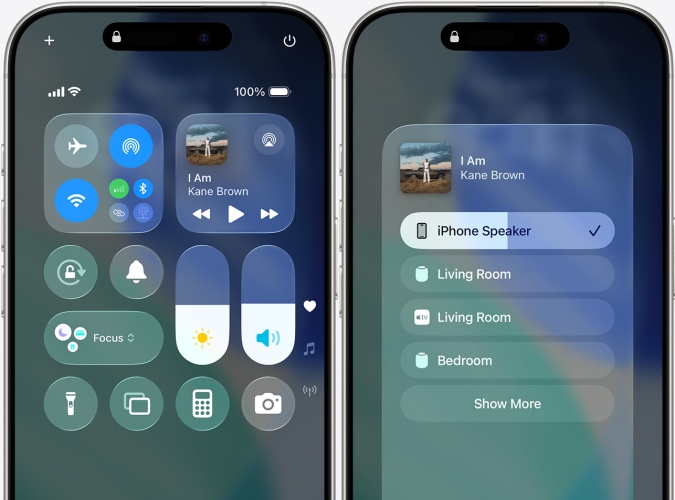
Step 9. Go to Control Center, then press and hold the group of controls in the upper-right corner.
Step 10. Tap the Airplay icon and select Google Home. Audio will now output directly to your Google speaker.
Option 3. Cast from Computer to Google Home
Amazon develops a web player for all users to access Amazon Music without installing the Amazon Music desktop app. If you prefer controlling your Amazon Music from a laptop or desktop computer, you can cast audio directly using the Google Chrome browser. Here's how to cast beats from Amazon Music to your Google Home speaker.
Step 1. Launch Google Chrome on your PC or Mac.
Step 2. Go to music.amazon.com and log into your Amazon account.
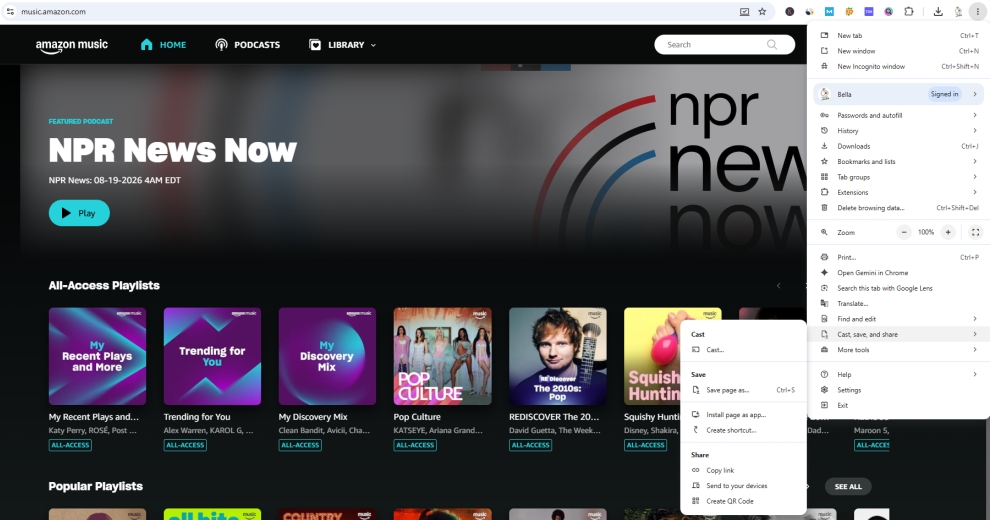
Step 3. Click the three vertical dots menu icon in the top-right corner of Chrome.
Step 4. Select Cast... from the drop-down menu.
Step 5. Choose your Google Home speaker from the device list.
Step 6. Start playing music on the web player. Chrome will stream the tab's audio directly to your speaker.
Part 4. Best Way to Play Amazon Music on Google Home
Even with direct-linking options available in the Google Home app, there is a more convenient way for you to start listening to Amazon Music on Google Home. The best option here is to convert your Amazon Music tracks into local audio files and upload them to directly to services like YouTube Music or local media servers. Once uploaded, Google Assistant can stream those personal files smoothly via voice commands.
Direct linking features and certain voice commands may require specific paid Amazon subscription tiers. Converting Amazon Music tracks locally gives you perpetual access to your favorite playlists regardless of changes to subscription tiers. To get it done, you need the help of TunesMake Amazon Music Converter, a professional yet easy-to-use music downloader that can download and convert songs from Amazon to several widely-supported audio formats.

Streaming Audio Recorder –
Download music from Amazon Music unlimitedly
- Download songs, albums, and playlists from Amazon Music
- Convert Amazon Music to MP3, M4A, M4B, WAV, FLAC, and AIFF
- Remove DRM protection from Amazon Music completely and safely
- Preserve the original audio quality and ID3 tags for management
- Support downloading music from 10 popular streaming platforms
Security Verified. 100% Clean & Safe.
4.1 How to Download Amazon Music as Local Files
Before playing songs from Amazon Music through Google Home, you need to download and convert Amazon Music to MP3 or other playable audio formats using TunesMake Amazon Music Converter. Then you can enjoy Amazon Music from Google Home in your room. Follow the steps below to use TunesMake for downloading Amazon Music.
Step 1 Add Your Preferred Playlists to the Conversion List
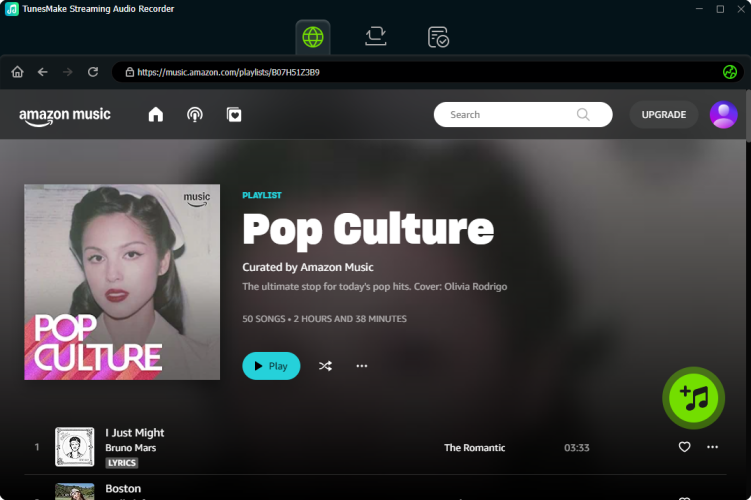
After you have TunesMake Streaming Audio Recorder on your computer, pull up the tool, then select Amazon Music on the main interface. Start to browse albums or playlists you want to convert and locate your preferred playlists or tracks on Amazon Music. Then add those songs to the conversion list by click the + button.
Step 2 Choose to Set the Output Audio Parameters
Upon passing over the import of Amazon Music, all you need is to adjust the audio parameters for Amazon Music. You need to click the Settings button and begin to set the output audio parameters. The format including MP3, AIFF, FLAC, WAV, MA4, and M4B is available for you. You need to set the audio as MP3 or FLAC. Besides, set other parameters to get better audio quality.

Step 3 Begin to Download Amazon Music to MP3
After your chosen playlists or songs are added from Amazon Music to the converter, click the Convert button to start downloading Amazon Music tracks to your computer and TunesMake will save them as MP3 or other formats to your specific destination. Then click on the History icon to locate the destination where you save the converted Amazon Music.

4.2 How to Cast Amazon Music to Google Home
After completing the conversion, you can play the converted tunes from streaming services supported by Google Home now. You can choose to import Amazon Music to Spotify, Apple Music, or YouTube Music for playing on Google Home. Now you can try the following options to start playing Amazon Music.
Option 1. Import Amazon Music to Spotify for Playing
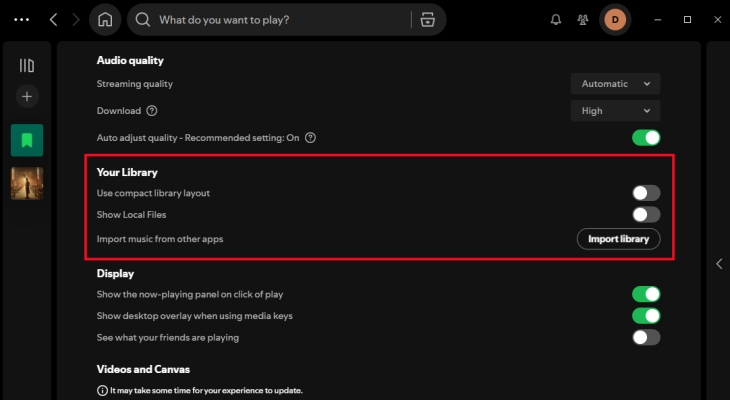
Step 1. Click the menu bar on Spotify to choose Settings, then scroll down to Local Files.
Step 2. Switch Show Local Files on and click ADD A SOURCE to select a folder that stores Amazon Music files.
Step 3. Start the Google Home app on your device and tap + in the top-left then select Music and Audio.
Step 4. Select Spotify and tap Link Account, then log into Spotify. Now you can ask Google Home to play your songs.
Option 2. Transfer Amazon Music to Apple Music for Playing
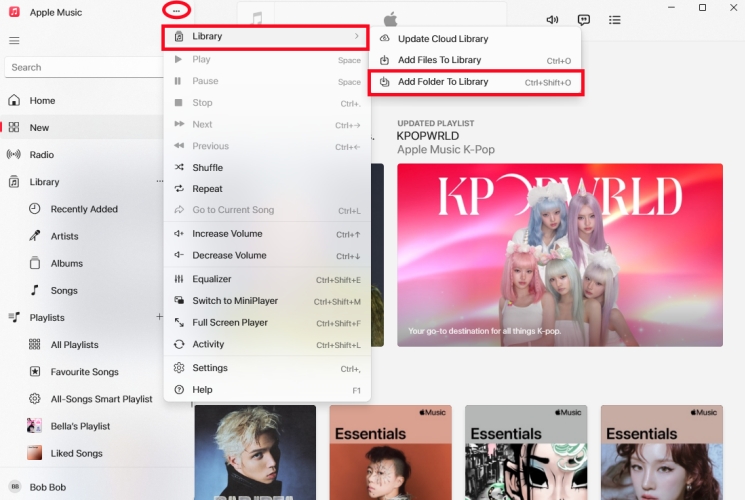
Step 1. In the Apple Music app, click Sidebar Actions > > Library > Add Folder to Library.
Step 2. Locate a folder where you store Amazon Music files, then click the Open button.
Step 3. On your device, open the Google Home app and tap Settings, then select Music.
Step 4. Under More music services, tap the Link icon next to Apple Music, then tap Link Account.
Step 5. Sign in with your Apple Music account and start to play Amazon Music songs on your Google Home.
Option 3. Upload Amazon Music to YouTube Music for Playing
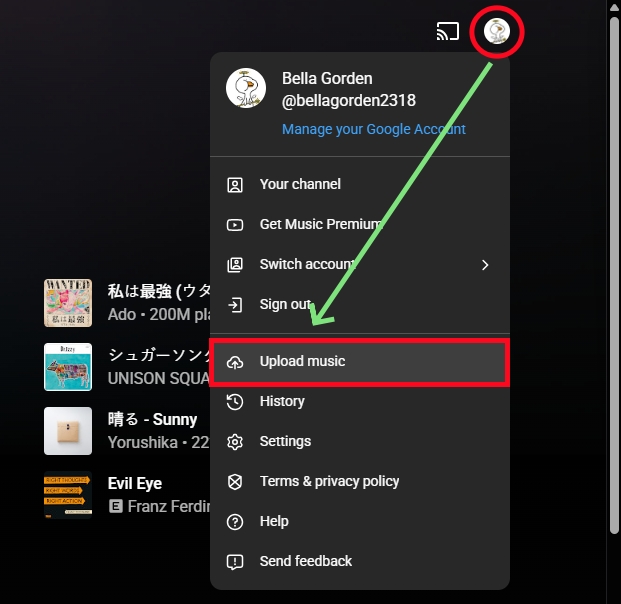
Step 1. Head to https://music.youtube.com/ and click your profile image, then select Upload Music.
Step 2. Open the folder where you store the converted Amazon Music files and select them to upload.
Step 3. Launch the Google Home app on your mobile phone and tap Settings at the bottom of the screen.
Step 4. Under Services, tap Music and select YouTube Music as the default music service.
Step 5. Go to log into your Google account and start playing Amazon Music on your smart speaker.
4.3 How to Play Amazon Music on Google Home via Voice Assistant
Although you are not allowed to link Amazon Music to Google Home for playing, you can download Amazon Music by using TunesMake software and then play Amazon Music on Google Home from Spotify, Apple Music, or YouTube Music. After doing the above steps, you can ask Google Assistant to play Amazon Music on your smart speaker. Just say "Hey Google," then:
"Shuffle some music"
"Play songs like Taylor Swift"
"Play songs like Champion"
"Next song"
"Stop the musicz"
"Play music for cooking"
Part 5. Conclusion
It's easy to get Google Home to play Amazon Music after reading this post. When you have an Android device or computer, you can start your listening even though Amazon Music is not compatible with Google Home. But there's also the issue that the streaming of Amazon Music to Google Home cannot be done sometimes. It doesn't matter, and then you can have a try of TunesMake Streaming Audio Recorder. For now, you can easily access Amazon Music on Google Home without any hassle.
Related Articles


A professional writer at TunesMake, crafts in-depth tutorials, practical tips and expert advice focusing on streaming music, technology, and more.
- 1
- 2
- 3
- 4
- 5
- 6
- 7
 Leave Your Comment
(0)
Leave Your Comment
(0)

 Download Center

