








 Store
Store


How to turn off shuffle? I made the mistake of selecting ‘Shuffle' on a playlist. Now all playlists only play on shuffle and I don't want them to. How do I turn off shuffle?”
— From Amazon Music ForumAs a popular streaming service, Amazon Music is customizable and allows paid users to randomize listening. The Amazon Music shuffle mode feature undoubtedly adds more surprises to you and brings a novel experience especially when you don't know what to listen to. If you subscribe to Amazon Music Unlimited, you are free to shuffle or unshuffle Amazon Music at will. But with an Amazon Music Prime membership, you might think why is Amazon Music on shuffle, the truth is that there is no option to turn off Amazon Prime Music shuffle mode. Any playlist, album, and artist for Amazon Music Prime can only be played in the shuffle.
Hence, this guide on how to unshuffle on Amazon Music included in the following article aims at Amazon Music Unlimited. For Amazon Music Prime to turn off shuffle on Amazon Music, you can directly skip to Part 3.

Part 1. How to Turn On Shuffle Mode on Amazon Music Unlimited
Whether you are using the Amazon Music mobile app or the desktop app, we offered a detailed tutorial. Grab the steps below to dive into the surprise the Amazon Music shuffle feature gives!
1.1 How to Enable Amazon Music Shuffle Mode for Mobile
Step 1. On the Amazon Music app, start playing a playlist.
Step 2. Open the Now Playing screen, and you will see the Shuffle button.
Step 3. If the Shuffle button is white, then you can hit on it to shuffle play your Amazon Music.
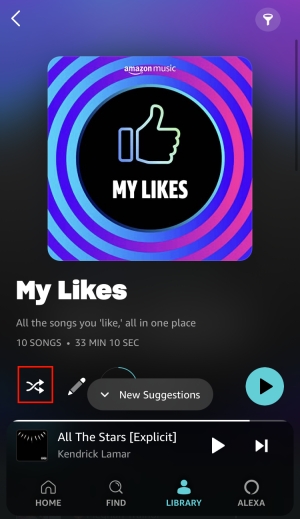
1.2 How to Enable Amazon Music Shuffle Mode for Desktop
Step 1. Launch the Amazon Music app or visit music.amazon.com.
Step 2. From the Home screen or Library, select a playlist.
Step 3. Click the playlist you want to shuffle and enter the detailed page.
Step 4. Under the title, you can see the Shuffle button. Hit on it to shuffle this playlist.
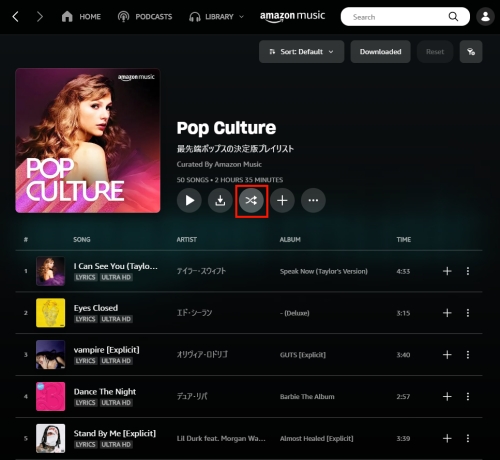
Part 2. How to Turn Off Shuffle on Amazon Music Unlimited
Unlike Amazon Music Prime service, Amazon Music Unlimited, the top-leading service, can play Amazon songs on demand. What's more, people who subscribe to Amazon Music Unlimited can stream songs in HD, Ultra HD, and Spatial Audio to dive into an immersive experience. Here's how to turn off shuffle on Amazon Music for Unlimited users.
2.1 How to Unshuffle A Playlist on Amazon Music for Mobile
Step 1. Step into the Amazon Music app and pick a playlist to play.
Step 2. From the bottom music player open the Now Playing window.
Step 3. From here, you can turn off shuffle on Amazon Music by tapping the Shuffle button. Once the button turns to white, it means you have turned off shuffle mode and can play Amazon Music on-demand.
2.2 How to Unshuffle A Playlist on Amazon Music for Desktop
Step 1. Go to the Amazon Music app or the web player on your Windows or Mac.
Step 2. Pick any song or playlist to access the music player.
Step 3. From the bottom, you can control the music playback and change the playing mode.
Step 4. If the Shuffle button is highlighted, it indicates that it's on the shuffle mode. Please click on the Shuffle button to stop Amazon Music shuffle.

Part 3. How to Remove Shuffle on Amazon Music for Prime
More than one Amazon Music Prime users wonder how to stop Amazon Music from shuffling or how to remove shuffle on Amazon Music. In the following part, you can find answers.
Method 1. Dive into All-Access Playlist
Since 2022, Amazon Music has expanded its whole library to Prime subscribers with shuffle mode. In the same vein, Amazon Music also allows Prime users to play Amazon Music on-demand in the All-Access Playlists. So if you want to know how to unshuffle a playlist on Amazon Music, you can only do so in the All-Access Playlists. Diving into All-Access Playlists to pick and play any song on-demand, or download them to listen offline.
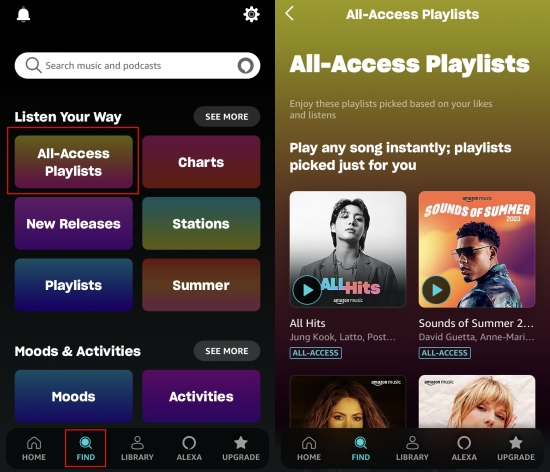
Method 2. Upgrade to Amazon Music Unlimited
To get rid of Amazon Prime Music shuffle mode, another official way is to change your current Amazon Music status to Amazon Music Unlimited. As we stated, Amazon Music Unlimited users are eligible to shuffle and unshuffle Amazon Music at will. So try this way to remove shuffle from Amazon Music. Switching from Amazon Music Prime to Unlimited, you are required to pay $8.99 monthly or $89 for an annual subscription.
Method 3. Download Amazon Music with an Amazon Music Converter
Considering there are a lot of Amazon Music Prime users who don't want to shell out a fortune for the streaming service, here we offer a perfect solution to remove shuffle on Amazon Music. That is to download Amazon Music with TunesMake Streaming Audio Recorder and then play Amazon Music on-demand with any player. This method also works well to solve Amazon Prime Music shuffle only.
Functioning as an Amazon Music downloader, TunesMake Streaming Audio Recorder has the ability to download and convert all songs from Amazon Music to MP3, M4A, M4B, WAV, FLAC, and AIFF while retaining lossless audio quality. Since Amazon Music applies DRM technology which limits you from playing them on other players, TunesMake with its top decryption technology just removes this restriction. After conversion, you can play Amazon Music with the built-in player and play them on-demand without the Amazon Prime Music shuffle mode.

Streaming Audio Recorder –
Download Streaming Music to MP3 on PC and Mac
- Unlimitedly download streaming music songs, playlists, and podcasts
- Losslessly convert streaming music to MP3, M4A, M4B, WAV, FLAC, and AIFF
- Remove DRM protection from many streaming music platforms
- Convert streaming songs with original sound quality and ID3 tags kept
Security Verified. 100% Clean & Safe.
Let's see how to use TunesMake Streaming Audio Recorder to download Amazon Music for playing on-demand. If it exactly suits your needs, hit on the above link to install it and reap the benefits.
Step 1
Add Amazon Music Songs to TunesMake
Launch the TunesMake program on your computer and it will launch the Amazon Music web player automatically. Once done, you can head your music library on Amazon Music and find the playlist you want to download. To load all included songs to TunesMake's conversion list, you need to select the playlist first. Then, click the Add icon at the bottom and choose Add to List.
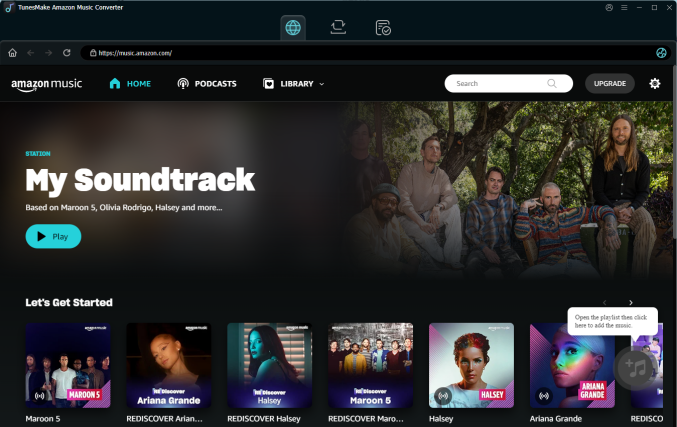
Step 2
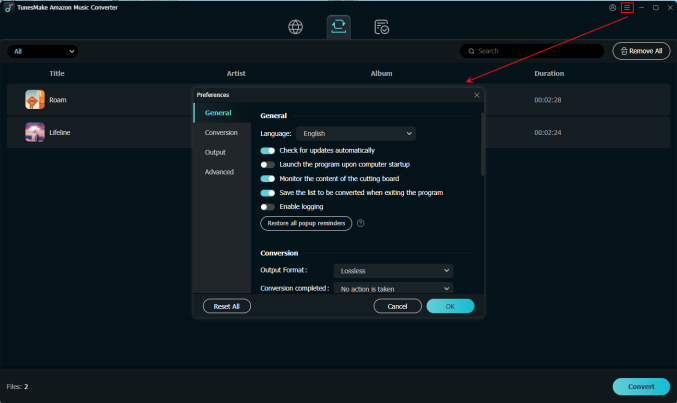
Change Output Parameters for Amazon Music
For a better listening experience, the TunesMake tools enables you to customize parameters as you like. Just click the menu icon at the top, and then select the first option Preferences from the dropdown menu. Next, go to the Conversion window where you're able to set the audio format, sample rate, bit rate, channel, etc. If you're not satisfied with the output location, you can also change the path by clicking the three dots on the bottom.
Step 3
Initiate the Conversion of Amazon Music
Now view the list carefully and check off the songs you want. After that, click the Convert button. You can go back and add other songs and playlists while working on the conversion process. When done, the program enables you to browse all the downloaded songs by clicking the top Converted icon. You can also click on the file icon beside each song to locate them in the local folder by default or the location you set.
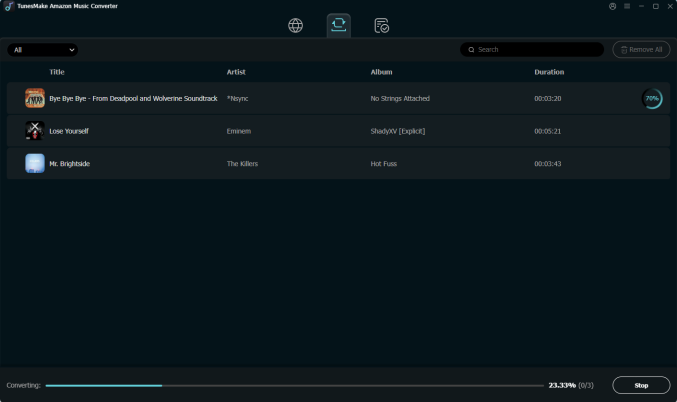
Now, open the converted Amazon Music files with the built-in player on your computer and congratulate that you have gotten rid of the Amazon Prime Music shuffle mode. If necessary, you can use a USB cable to transfer these converted Amazon Music songs from TunesMake Streaming Audio Recorder to your mobile device, MP3 player, or any other device for playing on-demand.
Related Articles



A professional writer at TunesMake, crafts in-depth tutorials, practical tips and expert advice focusing on streaming music, technology, and more.
- 1
- 2
- 3
- 4
- 5
- 6
- 7
 Leave Your Comment
(0)
Leave Your Comment
(0)

 Download Center

