








 Store
Store


Personalizing your phone with a favorite track is one of the quickest ways to make your device feel like your own. It was fairly easy to set up a ringtone on your phone several years ago. But a boom in the streaming music industry has made things become a bit difficult to select any downloadable song as your ringtone. People now only have the ability to use the default ringtone on the phone instead of those liked tunes from streaming music platforms.
However, if you've ever tried to make an Amazon Music ringtone, you've likely realized there isn't a simple "Set as Ringtone" button inside the app. This is primarily due to Digital Rights Management (DRM). Music streamed via Amazon Music Prime or Unlimited is encrypted to prevent unauthorized sharing, meaning the files are locked within the app. Luckily, this guide will show you exactly how to make Amazon Music rings on an iPhone or Android phone.
Part 1. Can I Make a Ringtone from Amazon Music?
Yes, you can make a ringtone from Amazon Music, but this is only limited to purchased Amazon Music tracks, not including music from Amazon Music Prime or Unlimited. All tracks purchased from the Amazon Digital Music store are free of Digital Rights Management. Without a doubt, users can use those purchased Amazon Music songs as ringtones on a mobile device.
However, if you use an Amazon Prime user or an Amazon Music Unlimited subscriber, you cannot access the raw file as all the music in the library is streaming content. To make songs from Amazon Streaming Music, you will need a third-party music converter to convert the track for personal use as a local file. Then you can use Amazon Music as a ringtone on the device
Until now, lots of users cannot figure out Amazon Digital Music and Amazon Streaming Music. The two use different audio formats, and that's why some users cannot make Amazon Music ringtones. To make Amazon Music ringtones, you have to meet the required format depending on your device. The supported file format of Amazon Music and mobile phone ringtone is as follows.
| Amazon Digital Music | Amazon Streaming Music | Device Ringtone | |
|---|---|---|---|
| Audio Formats | Unprotected MP3 | Protected FLAC or OPUS | M4R, AAC, M4A (iPhone) MP3, WAV, M4A, OGG (Android) MP3, WMA, AAC, FLAC (Samsung) |
Part 2. How to Make Amazon Music as Ringtone (Purchased Music)
Thanks to the digital store on Amazon Music, you have the ability to purchase the music you like and then download it locally. If you have purchased a bunch of songs from Amazon Music, you can save them as MP3 files and set them as ringtones on your iPhone or Android phone. Following are the steps to download purchased Amazon Music tracks as ringtones.
On iPhone & Android
Step 1. Open the Amazon Music app on your phone and log into your account.
Step 2. Go to the Library and tap Purchased to see all the purchased songs.
Step 3. Find the song you want to download and choose Download to get it locally.
Step 4. Locate the downloaded Amazon Music folder on the device.
Step 5. Go to Settings > Sound & Vibration > Phone Ringtone > Music on device to set the Amazon Music song as your ringtone. On an iPhone, go to Part 4 for the detailed steps.
On PC & Mac
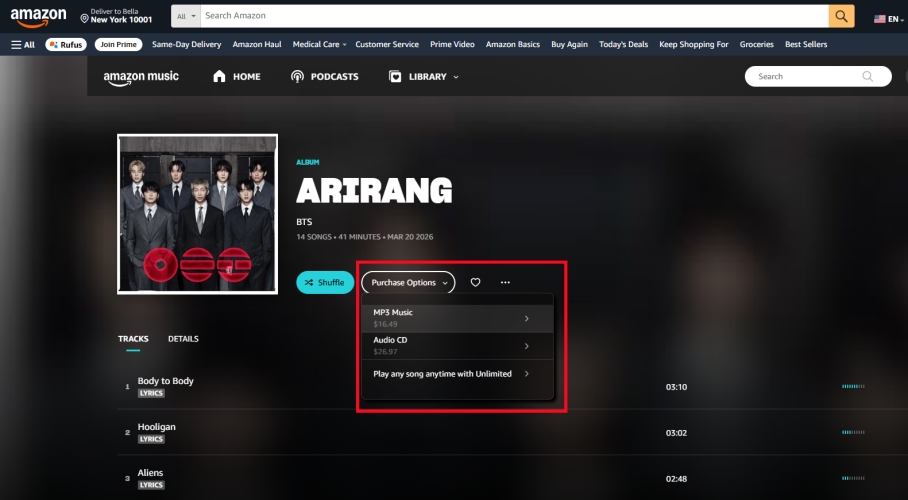
Step 1. Fire up the Amazon Music app or Amazon Music web player on your computer.
Step 2. Choose Library > Music > Songs > Purchased.
Step 3. Find the song you want and click Download to save it as the local file.
Step 4. Go to Settings > Download location in the Amazon Music app to check.
Step 5. Set the downloaded music as ringtones by following the steps in Part 4 or Part 5.
Part 3. How to Get Ringtones from Amazon Music (Streaming Music)
If you use Amazon Music Unlimited or Prime, you likely have large playlists that you want to access across multiple devices or use for custom alerts. Since streaming tracks are encrypted, a specialized tool like TunesMake Amazon Music Converter can be a helpful bridge, being able to strip DRM protection from Amazon Music and convert Amazon Music songs to ringtone formats.
TunesMake Amazon Music Converter is designed specifically to solve the compatibility issue by converting Amazon Music tracks into plain formats like MP3, M4A, or WAV. Its primary benefit is maintaining the original HD audio quality while removing the technical barriers that prevent you from using a track as a ringtone. Here is how to download and save Amazon Music songs as device ringtone formats with TunesMake Amazon Music Converter.

Streaming Audio Recorder –
Download Amazon Music for Ringtones
- Download songs, albums, and playlists from Amazon Music
- Convert Amazon Music to MP3, M4A, M4B, WAV, FLAC, and AIFF
- Remove DRM protection from Amazon Music completely and safely
- Preserve the original audio quality and ID3 tags for management
- Support downloading music from 10 popular streaming platforms
Security Verified. 100% Clean & Safe.
Step 1 Customize the Output Audio Parameters
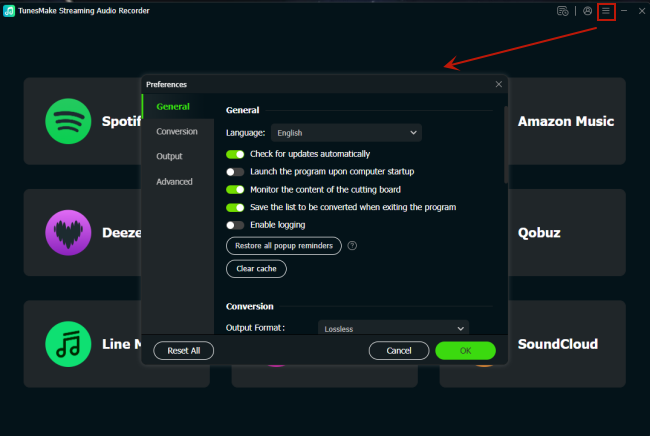
Launch TunesMake Amazon Music Converter and go to set the output audio parameters for Amazon Music. Click the menu button and select the Preference option, then there will pop up a window. Here you can set MP3 as the output audio format and adjust other parameters like bit rate. Once done, save the settings and close the Preferences window.
Step 2 Select Amazon Music as Ringtones
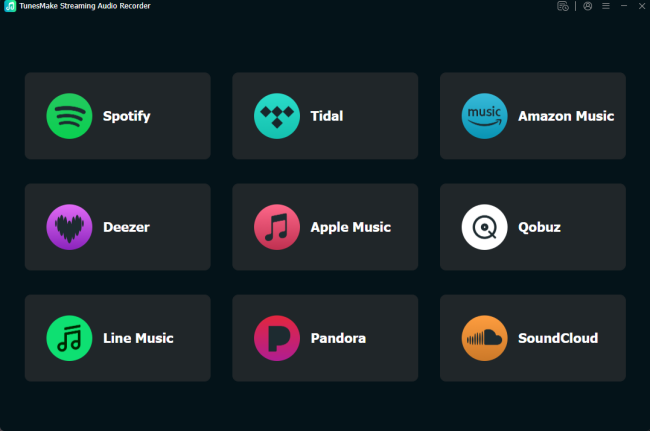
Switch to the interface of the software and select Amazon Music. Then it will open the Amazon Music web player, and you need to log into your Amazon account. Go to select songs or playlists you want to download. When viewing songs or playlists, open it and click the + (Add) button to save them to the conversion list for downloading and converting.
Step 3 Download Songs from Amazon Music
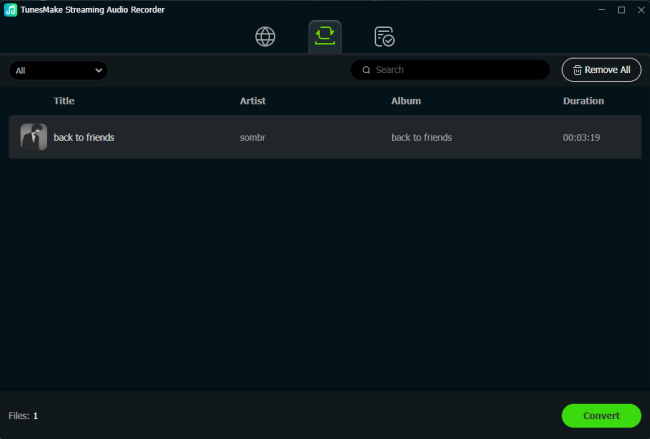
After you've selected your songs, you'll click the Convert button to start downloading and converting them to your computer. This process can take anywhere from two minutes to half an hour depending on the number of songs. When it's done, you can click the Converted button on the top of the interface to browse all the converted tracks.
Part 4. How to Set Amazon Music as Ringtone on iPhone
To set Amazon Music as ringtone for iPhone, you need to upload the converted music files to iTunes or Apple Music first, then you can create an M4R format and set it as a new iPhone ringtone. Also, you can do the same steps on an iPad or iPod touch to set the song as a ringtone. Let's dive into the details.
Method 1. Get Amazon Music Ringtones for iPhone with iTunes
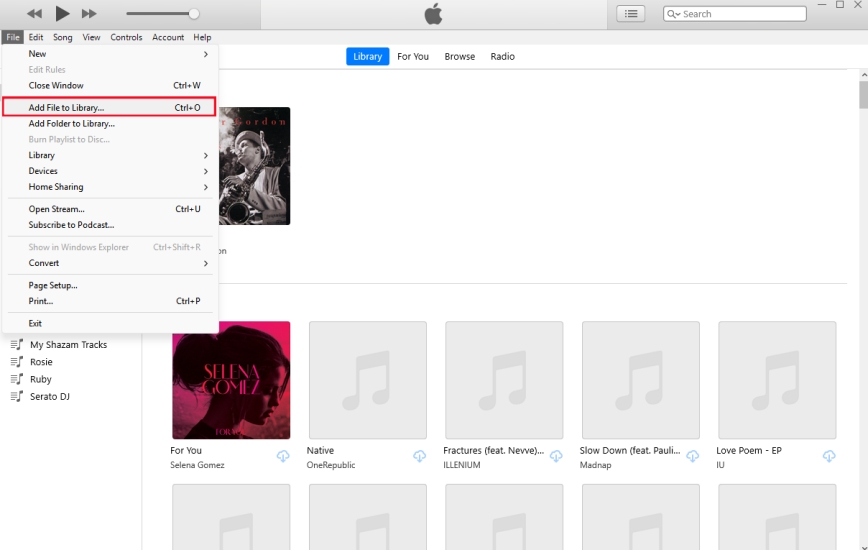
Step 1. Run iTunes and click File > Add Files to Library to upload the converted music files.
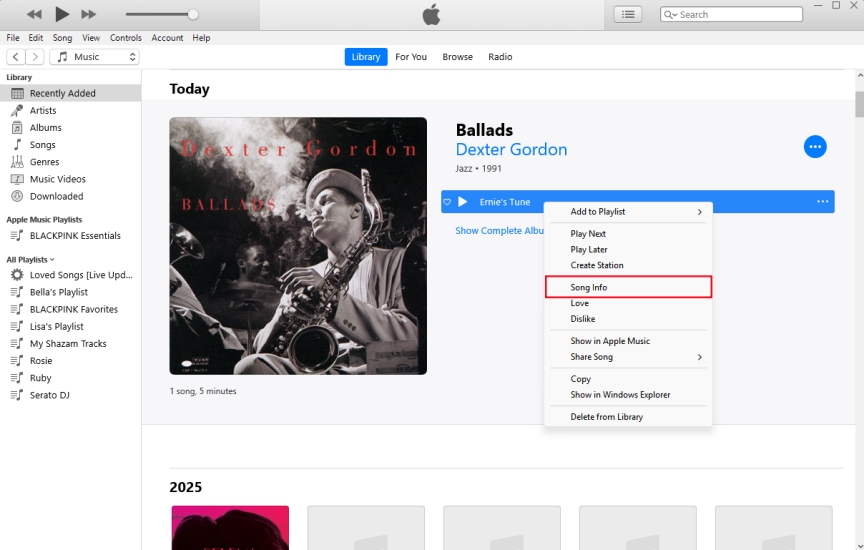
Step 2. Pick a song you'd like to use as the new ringtone on the device in the Recently Added tab.
Step 3. Right-click the song to select Song Info from the resulting drop-down list.
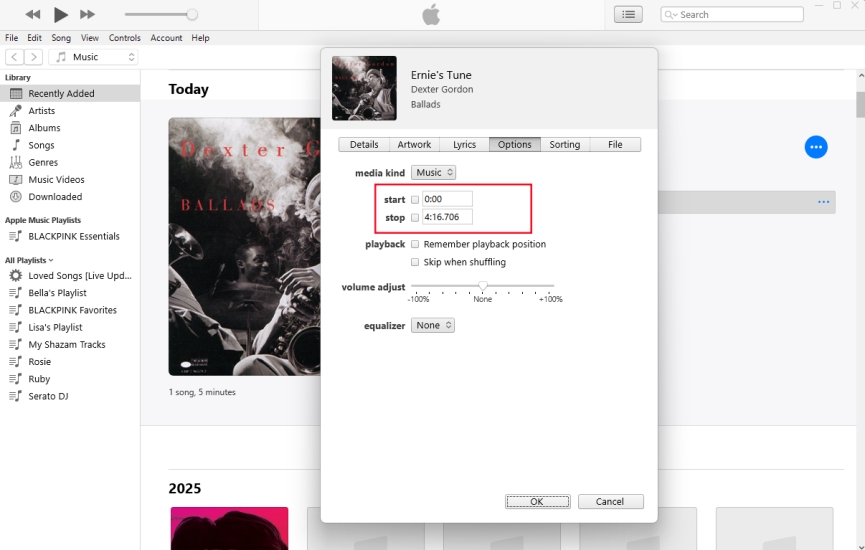
Step 4. In the Song Info window, switch to the Options tab and enter the times for Start and Stop.
Step 5. Click OK at the bottom, then go to File > Convert > Convert to AAC Version.
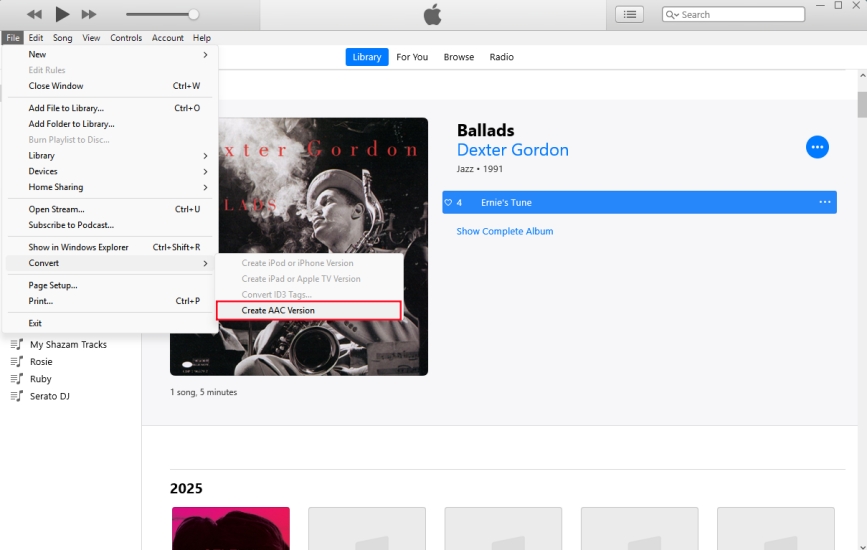
Step 6. Once created, click the AAC version of the song and drag it to the desktop.
Step 7. Rename the file extension from .m4a to .m4r.
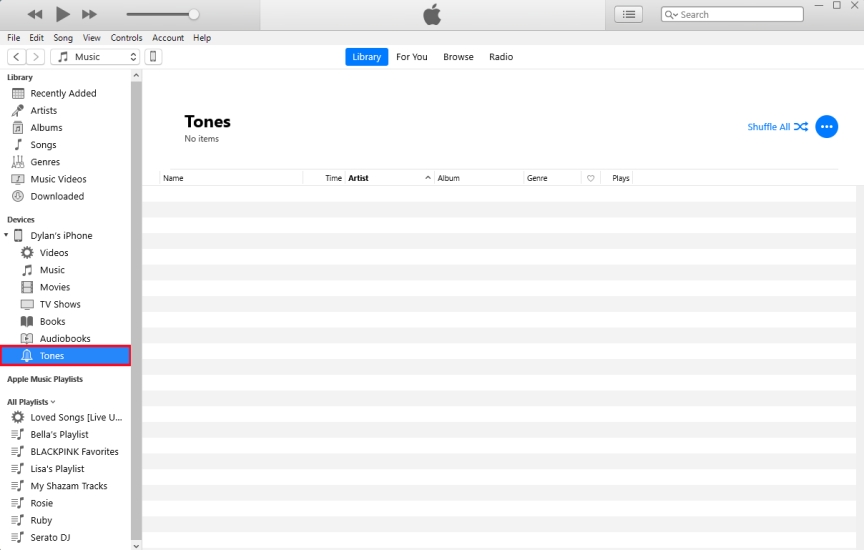
Step 8. Connect your iPhone, select Tones in iTunes, and drag the .m4r ringtone file.
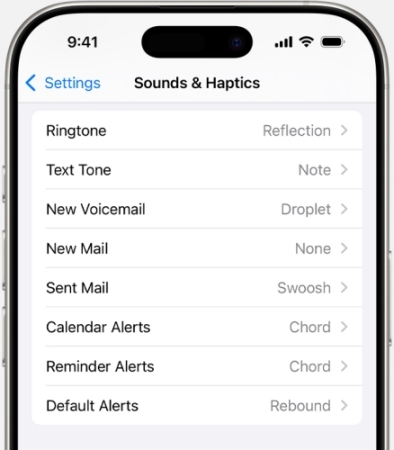
Step 9. On the iPhone, go to Settings > Sounds & Haptics and tap Ringtone.
Step 10. Select your ringtone from the top of the resulting list.
Method 2. Get Amazon Music Ringtone for iPhone with GarageBand
Step 1. Connect your iPhone to a computer and move Amazon Music files to the phone.
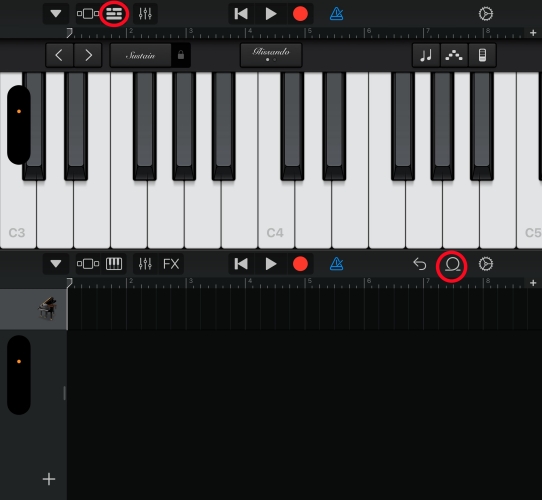
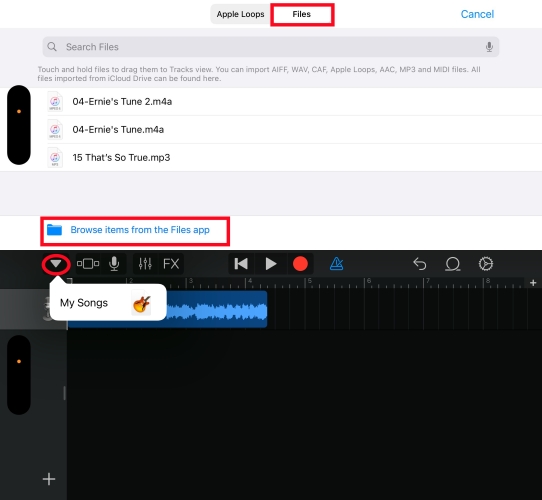
Step 2. Launch GarageBand on the iPhone and switch to the Tracks tab.

Step 3. Select any instrument, tap Project > Loop Browser at the top of the screen.
Step 4. Tap Files > Browse items from the Files app to find the converted Amazon Music songs.
Step 5. Long-press on the song to add it to the project and start trimming the audio.
Step 6. After adjusting the track, tap on the download arrow icon and select My Songs.
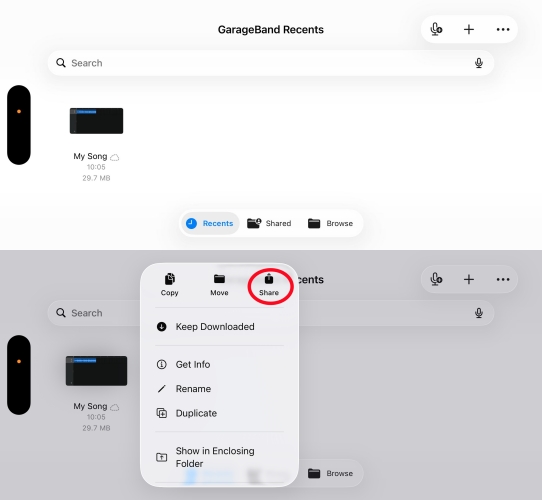
Step 7. Under GarageBand Recent, tap the edited track and select Share.
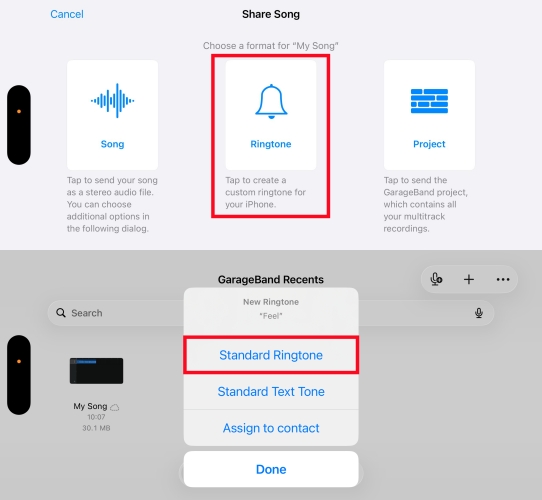
Step 8. Once you've done, touch Export and select Use sound as to set this Amazon Music song as Standard Ringtone.
Part 5. How to Set Amazon Music as Ringtone on Android
After your selected Amazon Music songs are downloaded, you can move the downloaded files to your Android phone and make them ringtones. Here we will show you how to set Amazon Music as ringtone on Android devices. The following is the example of Huawei phone and Samsung phone. And you can make it to most Android phones.
Transfer Downloaded Amazon Music to Android Phones
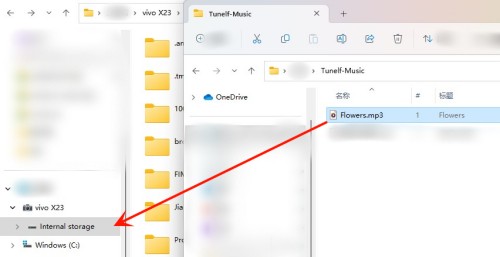
Step 1. Connect your Android phone to your computer with a USB cable.
Step 2. Locate the folder where you store the converted Amazon Music files on your computer by clicking the search icon on the TunesMake software.
Step 3.Create a folder on your Android phone to store your Amazon Music files.
Step 4. Copy the Amazon Music files from your computer and paste them into the newly created folder on your Android device.
Set Amazon Music as Ringtones on Android Phones
On Samsung Phone
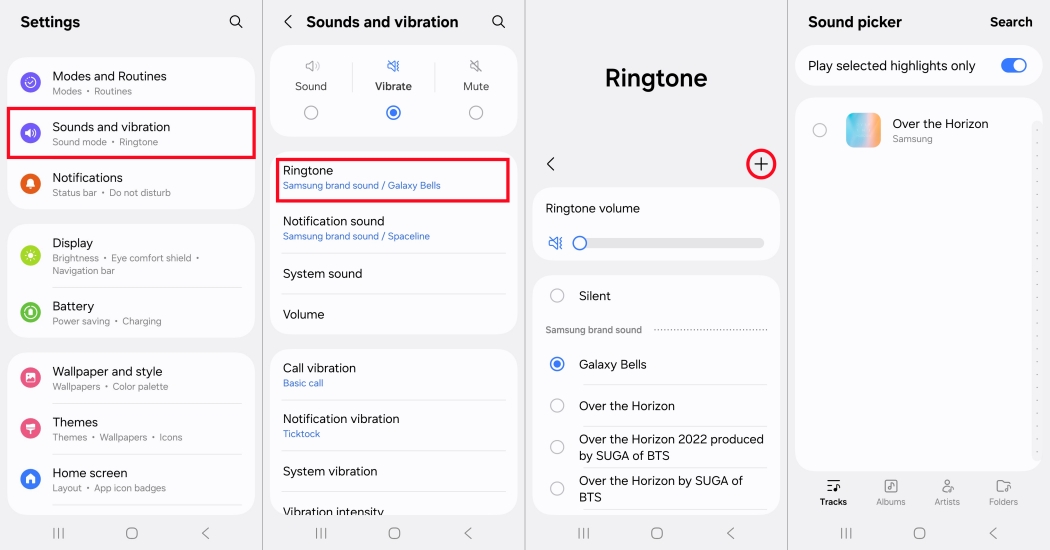
Step 1. Go to Settings on your Samsung phone, then tap Sounds and vibration.
Step 2. Tap Ringtone and configure the ringtone separately for SIM 1 and SIM 2.
Step 3. Tap Add to select your Amazon Music song and tap Done to confirm the settings.
On Huawei Phone
Step 1. Open Settings on your Huawei phone and tap Sounds & Vibration.
Step 2. Under Sounds & Vibration, select Phone ringtone.
Step 3. Choose SIM 1 or SIM 2 to set a ringtone, then touch Music on device.
Step 4. Select an Amazon Music song to set it as the ringtone.
In addition to setting a ringtone for all incoming calls, you can set a different ringtone for a particular contact to distinguish more easily when that contact is calling you.
Part 6. FAQs about Amazon Music as Ringtone
Is it legal to use Amazon Music as a ringtone?
Using purchased music for personal use is perfectly legal. If you are using a music downloader or audio recorder for streaming music, ensure it is for private, non-commercial use only, as distribution of copyrighted material is prohibited.
Can I set a different Amazon song for specific contacts?
Yes! Once the ringtone is added to your system list, go to the Contacts app on your phone, select a contact, tap Edit, and change the specific Ringtone field. Then you will get a different Amazon Music song for specific contacts.
Can I use a song from the Amazon Music Prime library?
Yes, you can use a song from the Amazon Music Prime library, but only if you first convert it to a local MP3 file using a third-party tool like TunesMake Amazon Music Converter. The Amazon Music app does not allow other apps, including the phone's ringtone manager, to access its encrypted cache.
Part 7. Conclusion
It's easy to set those purchased Amazon Music tracks as ringtones on both iPhone and Android phones. But if you want to make your liked songs from Amazon Music Prime or Unlimited ringtones, you have to download and convert them to a ringtone format first. By using TunesMake Amazon Music Converter, you can get Amazon Streaming Music locally and set it as a ringtone successfully. Now you don't need to hear those typically ringtones on your phone when receiving a call and change it to your favorite tunes to feel more enjoyable.
Related Articles



A professional writer at TunesMake, crafts in-depth tutorials, practical tips and expert advice focusing on streaming music, technology, and more.
- 1
- 2
- 3
- 4
- 5
- 6
- 7
 Leave Your Comment
(0)
Leave Your Comment
(0)

 Download Center

