








 Store
Store


How to listen to your favorite music on an Apple Watch depends on which streaming music service you subscribe to. There is an incredible variety of streaming music platforms like Spotify and Amazon Music for all music lovers to access. Playing Amazon Music on an Apple Watch lets you enjoy your favorite playlists, albums, and podcasts directly from your wrist, whether you are working out without your phone or controlling playback around the house. Here we'll talk about how to play Amazon Music on Apple Watch without an iPhone.

Part 1. How to Set up and Activate Amazon Music on Apple Watch
Amazon Music is available on the Apple Watch now. Setting up the official Amazon Music app requires installing it on your watch and pairing your account via a web browser. Here's how to complete the initial setup of Amazon Music on Apple Watch.
What You Need to Get Started
Before setting up the Amazon Music app, make sure your Apple Watch and Amazon Music account meet the core requirements.
| Component | Requirement |
|---|---|
| Supported Devices | Apple Watch Series 3 or later |
| Operating System | watchOS 7.0 or higher |
| Audio Hardware | Bluetooth headphones or earbuds paired directly to your watch |
| Network | Active Wi-Fi or Cellular connection for setup and streaming |
| Amazon Music Unlimited | Full access to stream online, browse top picks, and download tracks directly to the watch for phone-free offline listening. |
| Amazon Prime Music | Support online playback and remote control functionality, but direct offline downloads to the watch are restricted. |
How to Activate Amazon Music on Apple Watch
Regardless of your subscription tier, getting the official Amazon Music app onto your wrist follows the same initial setup procedure.
Option 1. Get Amazon Music App for Apple Watch from iPhone
Downloading the Amazon Music app on your iPhone is easy and convenient. The installation will automatically sync to your watch as long as you have connected your phone and your watch.
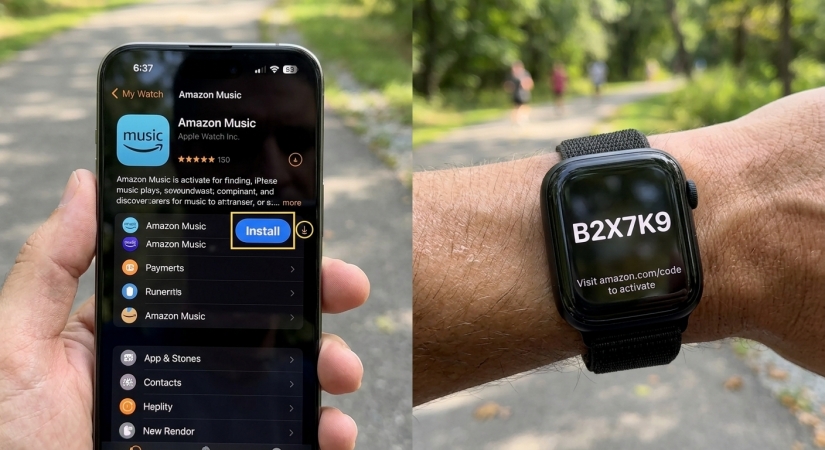
Step 1. Power on your iPhone and launch the Watch app.
Step 2. Pair your Apple Watch with the iPhone and tap the My Watch tab.
Step 3. Go to Scroll down to the Available Apps section.
Step 4. Search for the Amazon Music app and tap Install next to Amazon Music.
Option 2. Get Amazon Music App from the App Store on Apple Watch
The App Store is also valid on your Apple Watch. Therefore, it is possible to install the Amazon Music app directly from your watch. The steps you should take are as follows.
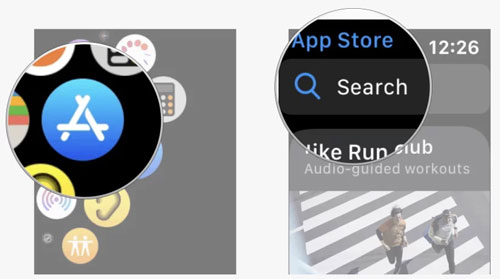
Step 1. Press the Digital Crown and open the App Store.
Step 2. Search for Amazon Music directly or scroll down to discover Amazon Music.
Step 3. Touch Amazon Music to load the download page and tap Get to install it.
Step 4. Double-click the side button to install the app on your watch.
After installation, open the Amazon Music app on your Apple Watch. A 6-character activation code will appear on your watch screen. On your phone or computer browser, go to amazon.com/code, log in to your Amazon account, and enter the code displayed on your watch.
Part 2. How to Play and Control Amazon Music on Apple Watch
Once authorized, your library and personalized recommendations in Amazon Music will sync automatically to your Apple Watch. With an Amazon Music Unlimited, you can enjoy phone-free streaming on your watch, while an Amazon Prime account only allows you to control the playback of Amazon Music on Apple Watch from an iPhone.
For Unlimited Subscribers: Phone-Free Streaming & Downloads
If you subscribe to Amazon Music Unlimited, you can leave your iPhone at home and listen directly through your watch. Also, you can download Amazon Music for offline listening.
Stream Amazon Music Directly from Your Wrist
Step 1. Pair your Bluetooth headphones to your watch via Settings > Bluetooth.
Step 2. Launch Amazon Music on your Apple Watch.
Step 3. Tap Library or Find to select a playlist, album, or artist.
Step 4. Select a track to start streaming immediately.
Download Amazon Music for Offline Listening
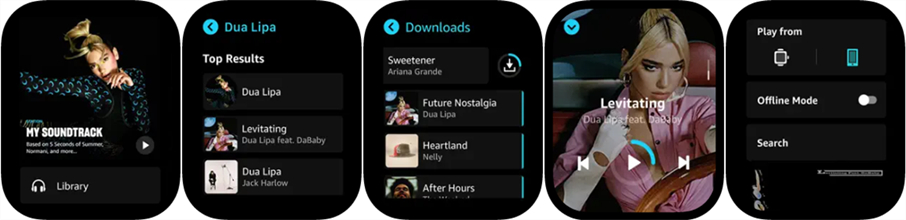
Step 1. Open the Amazon Music app on your watch.
Step 2. Navigate to the playlist or album you want to save.
Step 3. Tap the More Options (...) icon or select Download to Watch.
Step 4. To view downloaded tracks, go to Settings within the watch app and enable Offline Mode.
Important Setup Tip:
-
To prevent download failures, keep your Apple Watch connected to Wi-Fi and place it on its magnetic charger until downloads complete.
For Amazon Prime Users: Remote Control
If you are on Prime Music or the Free tier, direct offline downloads inside the watch app are restricted. You only can control Amazon Music from your iPhone on your Apple Watch.
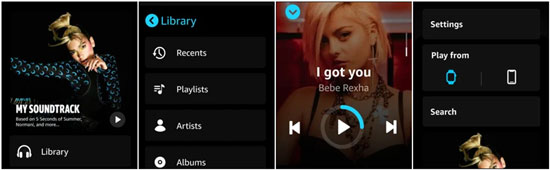
Step 1. Open Amazon Music on your iPhone and start playing your music.
Step 2. Open the Amazon Music app on your Apple Watch.
Step 3. Use your watch to pause, play, or skip tracks.
Part 3. Best Way to Get Amazon Music Apple Watch Offline
Because offline downloads of Amazon Music on the watch app are restricted for Amazon Prime and Free tier users, you can sync locally stored audio files to your Apple Watch using the Apple Watch app. In this case, to get phone-free offline playback during workouts, you just need to use TunesMake Amazon Music Converter, an excellent Amazon Music extractor. It can not only download songs from Amazon Music but also convert Amazon Music to MP3 or other widely-supported formats like MP3 and WAV.

Streaming Audio Recorder –
Download music from Amazon Music unlimitedly
- Download songs, albums, and playlists from Amazon Music
- Convert Amazon Music to MP3, M4A, M4B, WAV, FLAC, and AIFF
- Remove DRM protection from Amazon Music completely and safely
- Preserve the original audio quality and ID3 tags for management
- Support downloading music from 10 popular streaming platforms
Security Verified. 100% Clean & Safe.
Download Amazon Music Songs for Apple Watch
Ready to download music from Amazon Music to MP3? Before that, you need to install TunesMake Streaming Audio Recorder on your computer. Then follow the simple steps below.
Step 1 Add Amazon Music to the Conversion List
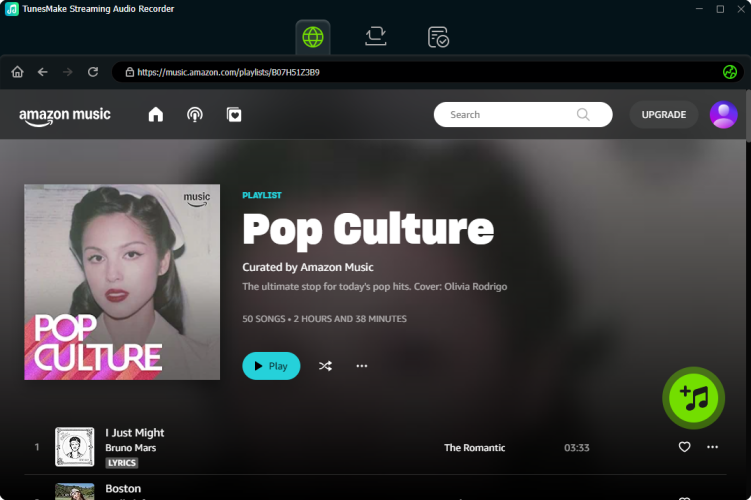
First things first, launch TunesMake Streaming Audio Recorder and select Amazon Music on the main interface. Then it will load the Amazon Music web player automatically. Navigate to your library and browse which songs you want to download. If you've selected your favorite songs, just open an album or playlist, then click the + button to add them into the conversion list.
Step 2 Set Audio Parameters for Amazon Music
TunesMake offers several audio parameters for setting: format, bit rate, sample rate, and channel. Click the Settings button and switch to the Preferences tab. Here you can select the MP3 option from the list of audio formats. For better download audio quality, set other parameters including bit rate, sample rate, and channel.

Step 3 Download Amazon Music Tracks to MP3
To begin downloading Amazon Music, click the Convert button in the bottom right corner. TunesMake lets you specify which storage location you want for downloads. But TunesMake would default to the storage folder on your computer if you don't specify in advance. Once downloaded, all Amazon music content will appear in the History section.

Download Amazon Music Songs for Apple Watch
Now all Amazon Music songs are converted to unprotected audio files. You should first utilize iTunes or Finder to transfer the converted Amazon music files to your iPhone, then sync them to your Apple Watch. Now let's get started.
Step 1. Set your Apple Watch on its charger and make sure that it is charging.
Step 2. Turn on your iPhone and go to Settings > Bluetooth to ensure that Bluetooth is turned on.
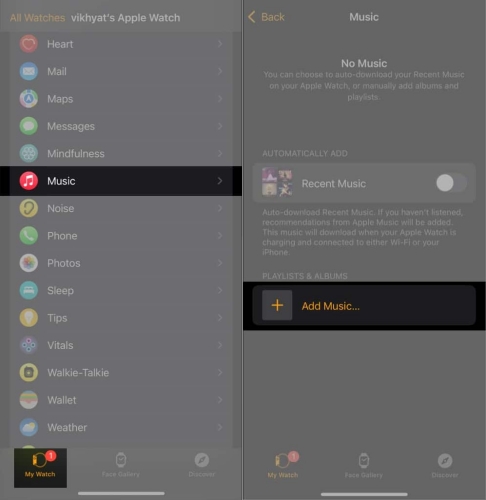
Step 3. On your iPhone, open the Apple Watch app, then tap the My Watch tab.
Step 4. Scroll to tap Music under My Watch, then tap Add Music.
Step 5. Find Amazon Music files you've transferred to your iPhone.
Step 6. Tap the + button next to the music, then your songs will be synced with your watch.
Step 7. Go to Music on your Apple Watch and choose Amazon Music track to play.
Part 4. Troubleshooting Amazon Music Not Working on Apple Watch
If Amazon Music is freezing, refusing to download tracks, failing to connect, or refusing to play on your Apple Watch, resolve the issue using the targeted fixes below.
Step 1: Check Quick Operational Requirements
- Connect Bluetooth Headphones: The Apple Watch cannot output audio through its built-in speaker. Go to Settings > Bluetooth to confirm your headphones are connected.
- Place on Charger for Downloads: watchOS restricts heavy background downloads. Keep your watch on its magnetic charger and connected to Wi-Fi while downloading playlists.
- Verify Subscription: Direct offline downloads on watchOS require an Amazon Music Unlimited plan. Prime Music and Free accounts can only control iPhone playback.
Step 2: Force Restart the App and Hardware
- Force Quit Amazon Music: Press the side button to open the App Switcher. Swipe left on Amazon Music and tap the red X or Trash icon.
- Restart Both Devices: Turn off both your iPhone and Apple Watch, wait 30 seconds, and powered them back on.
Step 3: Refresh Amazon Account Credentials
If your Tesla library looks completely different or never updates, check your Audible account and marketplace regions.
1) On a web browser, go to amazon.com/code and re-authenticate your 6-character code.
2) If authorization loops continuously, log into your Amazon account on a desktop web browser.
3) Go to Account & Lists > Content & Devices > Devices > Amazon Music.
4) Deregister old or unused Apple Watch pairings to clear out stale authentication tokens.
Step 4: Reinstall the App to Clear Cache
1) Delete the Amazon Music app directly from your iPhone.
2) Restart your iPhone and Apple Watch.
3) Download Amazon Music again from the iOS App Store.
4) Open the Watch app on your iPhone and re-install Amazon Music to your watch.
5) Complete the amazon.com/code pairing process.
Part 5. Conclusion
Playing Amazon Music on your Apple Watch gives you the ultimate convenience, whether you are managing playback from your wrist or leaving your iPhone at home entirely during outdoor runs. Unlimited subscribers can take full advantage of direct cloud streaming and watch app downloads, while Prime and Free users can rely on remote control functionality or local MP3 syncing via TunesMake Amazon Music Converter to enjoy uninterrupted, phone-free listening. By setting up the watch app properly and managing background downloads on your magnetic charger, you can ensure a smooth, hands-free music experience wherever you go.
Related Articles



A professional writer at TunesMake, crafts in-depth tutorials, practical tips and expert advice focusing on streaming music, technology, and more.
- 1
- 2
- 3
- 4
- 5
- 6
- 7
 Leave Your Comment
(0)
Leave Your Comment
(0)

 Download Center

