








 Store
Store


The Sonos wireless multi-room system is the bellwether of changing the way many of us listen to music at home. It made a whole music system a convenient and affordable reality, delivering your tunes to every room in your house. With your Sonos speaker, you can stream with your favorite streaming platforms.
Sonos already works with a number of major streaming services, including Spotify, Apple Music, Amazon Music, Tidal, and Deezer. Now since Amazon Music is available on Sonos, all members of Amazon Music Unlimited or Amazon Music Prime can stream millions of songs through Sonos into their homes in an instant. Let's get started on how to play Amazon Music on Sonos.

Part 1. Can Amazon Music Play on Sonos?
The short answer is yes, you can play Amazon Music on your Sonos device. Just make sure you have a Sonos speaker connected to a stable Wi-Fi network, an active Amazon Music account, and the latest version of the Sonos app installed on your mobile device.
1.1 Amazon Music Tiers: What Actually Works on Sonos?
Amazon Music offers several subscription tiers, and not all of them behave the same way on Sonos. You can take the table below as a preference.
| Feature | Amazon Music Free | Amazon Music Prime | Amazon Music Unlimited |
|---|---|---|---|
| On-Demand Play | Limited (All-Access Playlists) | Limited (All-Access Playlists) | Full Access |
| Shuffle Mode | Required | Required (mostly) | Optional |
| Audio Quality | SD (Standard) | SD / HD | Ultra HD & Atmos |
| Ads | Yes | No | No |
1.2 Amazon Music Availability: Where Supports Sonos?
Amazon Music is available on Sonos in a wide array of regions, but there are still regional limitations. Currently, the supported regions include the United States of America, the United Kingdom, Switzerland, Spain, Mexico, Japan, Italy, India, Germany, France, Canada, Brazil, Austria, and Australia.
If you can download the Amazon Music app in your local app store, chances are it will work on your Sonos speakers. If you are in a region where Amazon Music isn’t fully supported, you will need to utilize an alternative playback method to bypass these restrictions. Jump to Part 3 for more detailed information.
Part 2. How to Play Amazon Music on Sonos Online
Once you have verified your account tier, it’s time to get the music flowing. There are several official ways to play Amazon Music on Sonos. Each method has its own advantages. You can choose one of them according to your demands.
Method 1. Get Amazon Music on Sonos via Native Sonos App Integration
On mobile device:
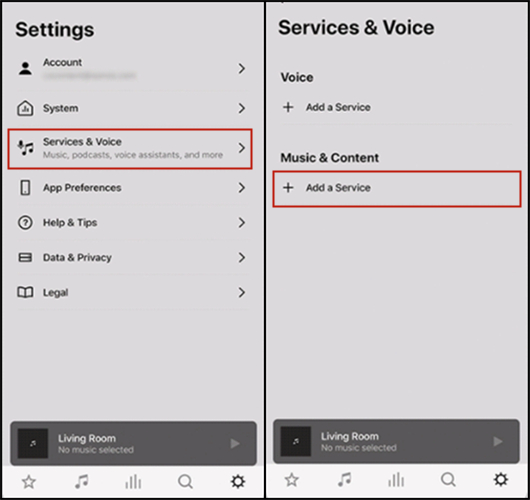
Step 1. Open the Sonos app on your iPhone or Android device.
Step 2. From the Settings tab, tap Service & Voice.
Step 3. Under Music & Content, tap Add a Service, then select Amazon Music.
Step 4. Tap Add to Sonos and go to connect Amazon Music to Sonos by entering your Amazon account details.
On desktop:
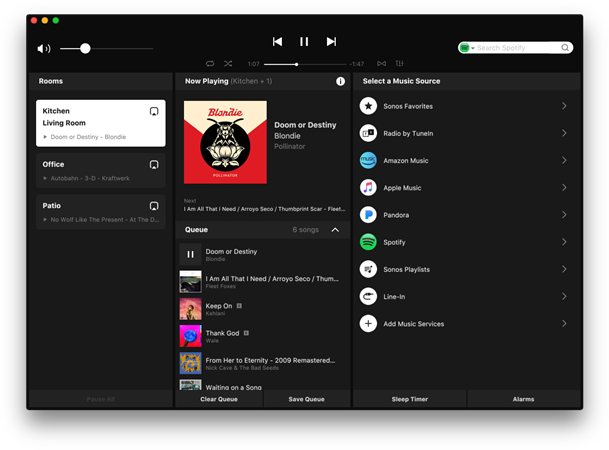
Step 1. Launch the Sonos app on your Mac or PC computer.
Step 2. Go to the Select a music source section and click on Add Music Services.
Step 3. Follow the on-screen instructions to add your Amazon Music account.
Step 4. Select a song or playlist to play on Amazon Music and cast them through your Sonos speaker.
Method 2. Play Amazon Music on Sonos Within the Alexa App
Step 1. Install the latest version of the Amazon Music and Sonos app. Then, launch the Alexa app on your mobile device.
Step 2. Tap the More button in the bottom right corner, then select Settings.
Step 3. Scroll down to find Music & Podcasts and link your Amazon Music account. It’s better to set it as your Default Service.
Step 4. Follow the on-screen prompts to finish all the necessary settings.
After completing the setup, you can just voice command Alexa to play your favorite Amazon Music tracks on your Sonos device. Simply say, "Alexa, play [song name] in the Living Room," and your Sonos will respond.
Method 3. Stream Amazon Music Songs on Sonos via Casting
On mobile device:
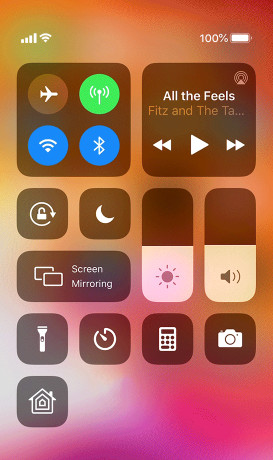
Step 1. Launch the Amazon Music app on your Android device and sign into it with your Amazon account.
Step 2. Find any music, album, or playlist you want to listen to and play it on your device.
Step 3. From the Home screen, tap the Casting icon in the upper right corner.
Step 4. In the available device, select your Sonos speaker and start playing Amazon Music through Sonos.
On desktop:
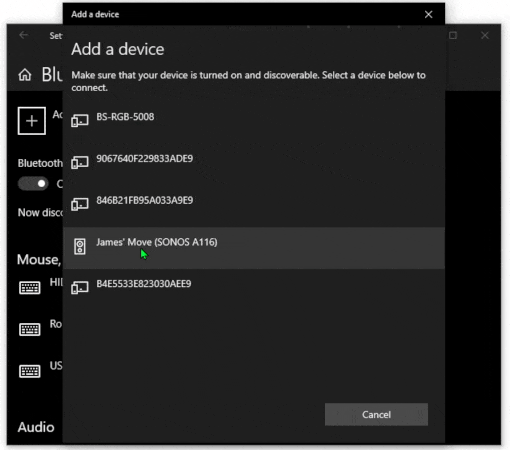
Step 1. Open Amazon Music on a PC computer and connect to your Amazon account.
Step 2. Go to find the music you want to play in Amazon Music and start playing.
Step 3. Launch the Settings app on the computer and then select Devices.
Step 4. In the Bluetooth & Other Devices tab, click Add Bluetooth or other devices.
Step 5. Select your Sonos speaker and click the OK button.
Part 3. How to Play Amazon Music on Sonos Offline
Smooth Amazon Music playback on your Sonos requires a stable internet connection. Buffering Wi-Fi can lock you out of your music at any given moment. Furthermore, if you decide to cancel your Amazon Music Unlimited subscription, your entire curated library will disappear. Thus, the better way to play Amazon Music on Sonos is downloading your favorite Amazon Music tracks to local files and importing the downloaded music to the Sonos app for offline playback.
To do this, you will need a dedicated Amazon Music converter tool to remove the DRM from Amazon Music music and save them as local audio files. Here, we’d like to recommend TunesMake Streaming Audio Recorder.
TunesMake Streaming Audio Recorder is a professional tool that can download songs from streaming music services, including Amazon Music. It supports diverse audio formats, including MP3, M4A, M4B, WAV, FLAC, and AIFF. The best thing is that the TunesMake tool smartly retains lossless output quality and ID3 tags. After converting Amazon Music to local files, you can simply import the converted tracks to the Sonos app, and enjoy offline playback on your Sonos speaker anytime without worrying about network issues or subscription expiration.

Streaming Audio Recorder –
Best Amazon Music on Sonos Downloader
- Unlimitedly download streaming music songs, playlists, and podcasts
- Losslessly convert streaming music to MP3, M4A, M4B, WAV, FLAC, and AIFF
- Remove DRM protection from many streaming music platforms
- Convert streaming songs with original sound quality and ID3 tags kept
Security Verified. 100% Clean & Safe.
Download Amazon Music Songs to Local Files
Step 1
Set the parameters for Amazon Music
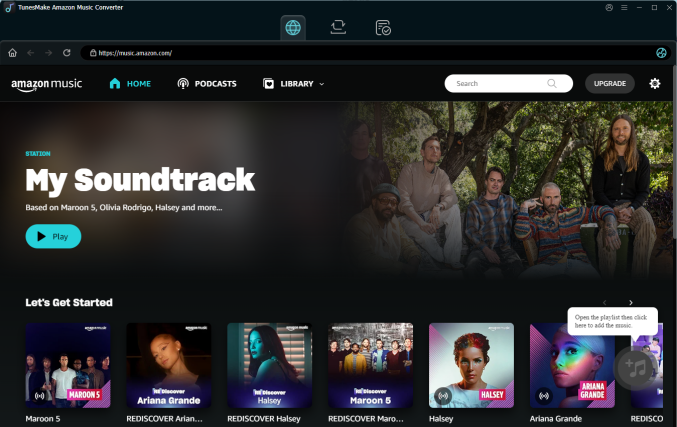
Start by opening TunesMake Streaming Audio Recorder, and then choose Amazon Music in the interface. You can sign in to your Amazon Music account and find the playlist/album you want to download. After that, click the lower Add > Add to List option so that all the songs can be loaded to the conversion list.
Step 2
Find Amazon Music you want to play
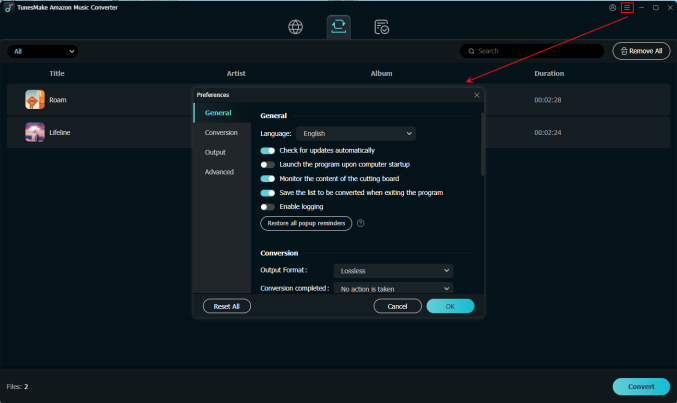
After adding the songs you want to download for playing on Sonos, you are prompted to configure all sorts of audio settings by clicking the Menu bar > Preferences > Converted. According to your personal demand, you can set the output audio format as MP3 or other formats. To get better audio quality, you can adjust the audio channel, bit rate, sample rate, and more in this option.
Step 3
Download songs from Amazon Music
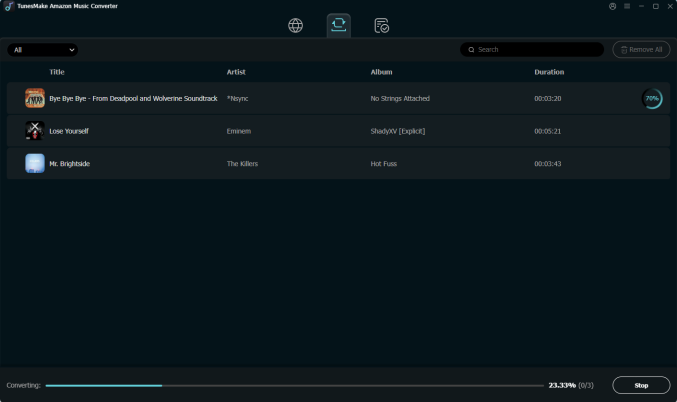
After the settings are complete, you can click the Convert button to convert and download songs from Amazon Music. Just wait for a while and you can get all converted Amazon Music songs. All music can be found in the local folder on your personal computer by clicking the Converted icon at the bottom of the converter. Then you continue to click the Search icon to navigate to the folder.
Stream Amazon Music to Sonos Speakers
Sonos allows you to stream your music library from any computer, or network-attached storage drive, to your Sonos system. Now you can transfer all the converted Amazon Music files to your music library and start playing your songs.
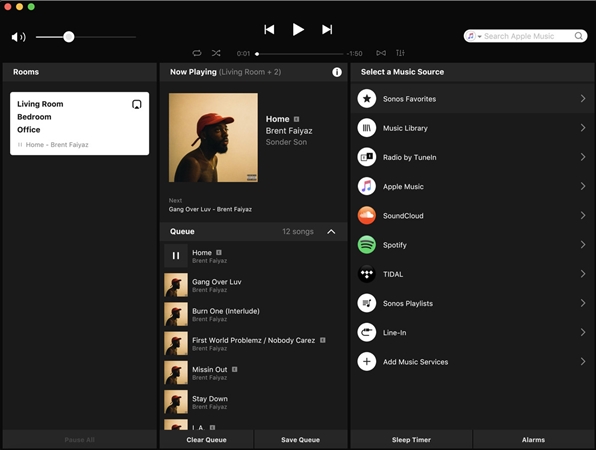
1) Open the Sonos app for macOS or Windows.
2) From the Manage menu, select Music Library Settings.
3) Click + (plus) on macOS or Add if you are using a Windows computer.
4) Select My Music folder to locate the folder where you store Amazon Music songs and start to play songs through your Sonos speaker.
Part 4. FAQs about Amazon Music on Sonos
In the Sonos Community, users reported that they had trouble playing Amazon Music on the Sonos speaker, or they could not connect Amazon Music to Sonos. Here we share several solutions to help you fix Amazon Music not working on Sonos.
How to fix Amazon Music not working on Sonos?
If you find that your Amazon Music doesn’t work on Sonos, you can try the following troubleshooting methods one by one to resolve common issues: check your region, clear Amazon Music cache on your mobile device, relink your Amazon Music account to your Sonos speaker, and update the Amazon Music app to the latest version.
Can I use Alexa to control Amazon Music on my Sonos system?
Yes. As long as your Amazon Music account is linked, you can use any Alexa-enabled device to control playback across your Sonos devices.
Why is Amazon Music grayed out or unavailable in my Sonos app?
This usually happens when your region doesn’t support Amazon Music, you have account linking issues, or your app version is outdated. If you encounter this issue, you can try to update all the apps, log out and back in, and so on.
What bitrate and format does Amazon Music use on Sonos?
Amazon Music offers different quality levels. Standard tracks usually stream at 320kbps (AAC). If you have an Amazon Music Unlimited subscription, you can stream in 24-bit/48kHz (HD) or even 24-bit/192kHz (Ultra HD).
Part 5. Conclusion
The Sonos speaker allows you to add Amazon Music to the app then you can log in and play your favorite music at any time. However, only users in several nations can enjoy this feature. It doesn't matter. With the help of TunesMake Streaming Audio Recorder, you can listen to Amazon Music songs through your Sonos speaker without limits.
Related Articles

A professional writer at TunesMake, crafts in-depth tutorials, practical tips and expert advice focusing on streaming music, technology, and more.
- 1
- 2
- 3
- 4
- 5
- 6
- 7
 Leave Your Comment
(0)
Leave Your Comment
(0)

 Download Center

