








 Store
Store


Imagine paying for separate music subscriptions for everyone in your household when you could combine them into one seamless, affordable plan. With an Apple Music Family Plan, up to six people can enjoy unlimited access to millions of songs, curated playlists, and live radio stations.
The best part? Joining a shared plan does not mean merging your music tastes. If you are worried that your teenager's favorite pop tracks or your spouse's classic rock will hijack your personalized recommendations, rest easy. Apple Music Family Sharing ensures that every family member retains a completely separate, 100% private account.
This comprehensive guide will walk you through how Apple Music Family Sharing works, how to set up Apple Music Family Sharing across all your devices, and how to instantly troubleshoot Apple Music not working with Family Sharing. Also, there is an alternative workaround for Apple Music Family Sharing to share Apple Music songs.
Part 1. What Is Apple Music Family Sharing?
Apple Music Family Sharing allows a single "Family Organizer" to purchase a family subscription and invite up to five other people to use it.
Pricing and Plan Options
To share your music, you cannot use a standard Individual or Student plan. The organizer must subscribe to one of two tiers:
-
Apple Music Family Plan: Costs $16.99/month and provides standalone, unlimited access to Apple Music for up to six people.
-
Apple One Family Plan: Costs $25.95/month and bundles Apple Music with Apple TV+, Apple Arcade, and 200GB of iCloud+ storage.
Part 2. How to Set up Apple Music Family Sharing
If you already have an active Individual Apple Music subscription, you must first upgrade it. On your iPhone, navigate to Settings > your Apple Account > Subscriptions > Apple Music, and select Family. Once active, follow the device-specific instructions below to invite your family.
Prerequisites Before Setting up Apple Music Family Sharing
Before running through the setup steps, ensure your group meets these essential technical requirements to avoid setup errors:
-
Max Players: You can share with a maximum of 5 other people as Apple Family Sharing only allows 6 people total per group.
-
Unique Accounts: Every participant must have their own individual Apple Account. Nave share a single Apple Account password among family members.
-
Region Matching: All family members must have their Apple Account set to the same country or region. If one member's account billing address is in the UK and the organizer is in the US, they cannot join the group.
-
Single Group Rule: An individual can only belong to one Family Sharing group at a time.
Share Apple Music with Family Sharing on iPhone & iPad
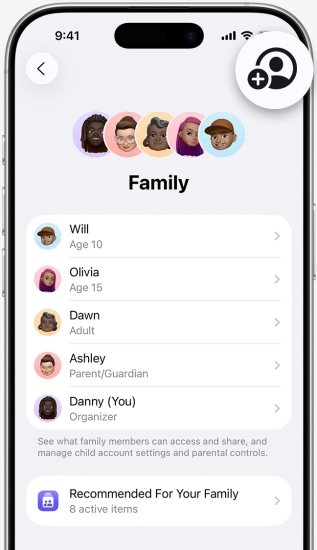
Step 1. Open the Settings app on your iPhone or iPad.
Step 2. Tap your Apple Account banner at the top of the screen.
Step 3. Tap Family, then tap Continue.
Step 4. Tap the Add Member icon in the top right corner of the screen.
Step 5. Select Invite Others. You can send the invitation via Messages, Mail, or AirDrop, or invite them to enter their Apple Account details directly on your device.
Share Apple Music with Family Sharing on Mac
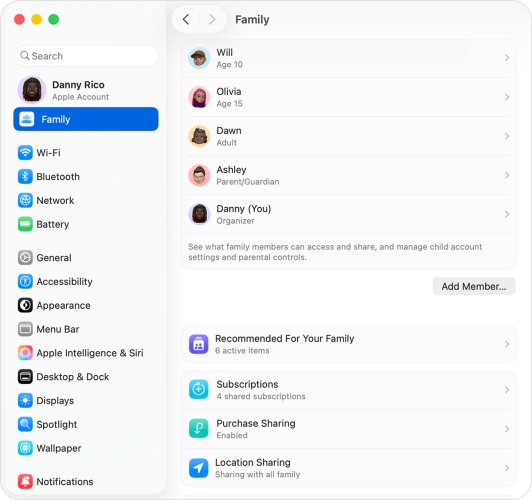
Step 1. Click the Apple menu icon in the top left corner and choose System Settings.
Step 2. Click your Apple Account at the top of the side bar.
Step 3. Select Family Sharing.
Step 4. Click Add Member and follow the onscreen instructions to enter the name or email address of the family member you wish to invite.
How to Invite Family Members on Android Devices
Apple Music isn't exclusive to Apple hardware. If a family member uses an Android phone, they can still join your plan. Here's how to share Apple Music with Family Sharing on Android devices.
Step 1. Ensure the Family Organizer has already set up the Family Sharing group on an Apple device.
Step 2. The Android user must download the Apple Music app from the Google Play Store.
Step 3. The organizer of Family Sharing can send an invitation via text message or email.
Step 4. The Android user opens the invitation link, logs in with their unique Apple Account, and instantly gains premium access.
Part 3. Troubleshooting Apple Music Family Sharing Not Working
Sometimes, despite following all the steps perfectly, a family member opens their Apple Music app and sees a prompt asking them to pay for a subscription. If your Apple Music Family Sharing is not working, try these proven fixes.
Solution 1. Sign Out and Back into Media & Purchase
The absolute number one reason an invited family member cannot access Apple Music is a data sync lag between their device and Apple's authentication servers. Their phone simply doesn't realize they've been added to a family group yet. Forcing a refresh fixes this instantly.
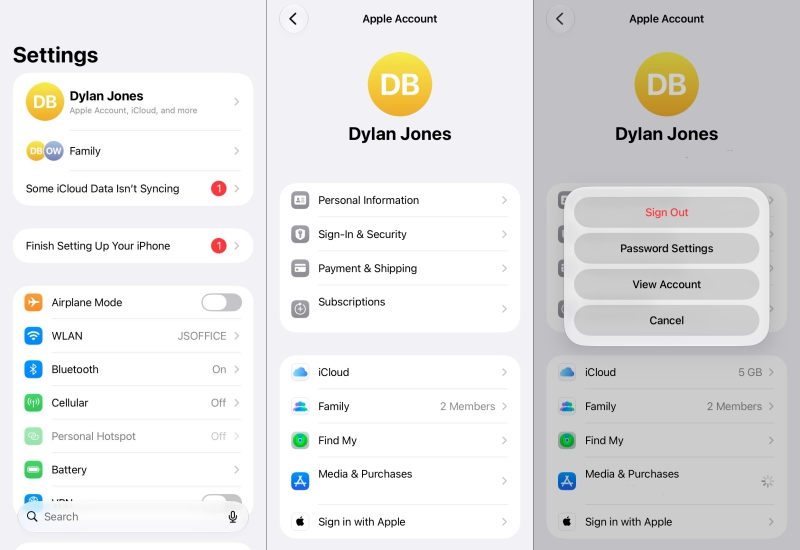
Step 1. On the family member's device where Apple Music is failing, open Settings.
Step 2. Tap their Apple Account at the top of the screen.
Step 3. Tap Media & Purchases and select Sign Out.
Step 4. Restart the device, then return to tap Sign In to log back into their account.
Solution 2. Check the Shared with Family Toggle
If the entire family loses access to Apple Music, the organizer might have inadvertently turned off subscription sharing in the Settings. In this case, simply check whether the Shared with Family toggle is turned off in the Settings of the organizer's device.
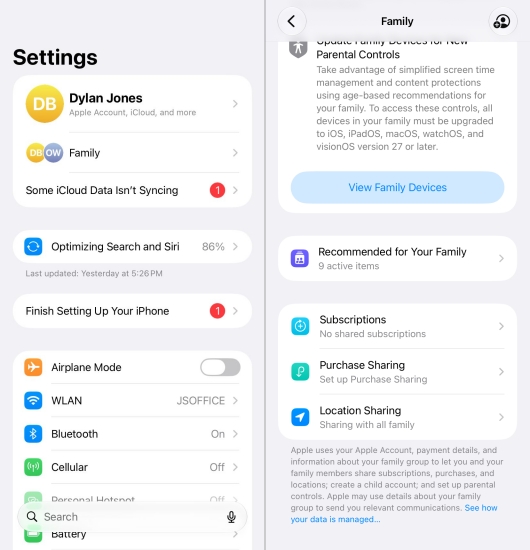
Step 1. As the Family Organizer, open Settings > Family.
Step 2. Tap Subscriptions, then select Apple Music from the list.
Step 3. Ensure that the toggle next to Share with Family is turned ON.
Solution 3. Verify the Apple Music Subscription Tier
Sometimes, an organizer creates a Family Sharing group but forgets to actually upgrade their specific Apple Music subscription tier. An Individual or Student plan cannot be shared, even if you are in a family group.
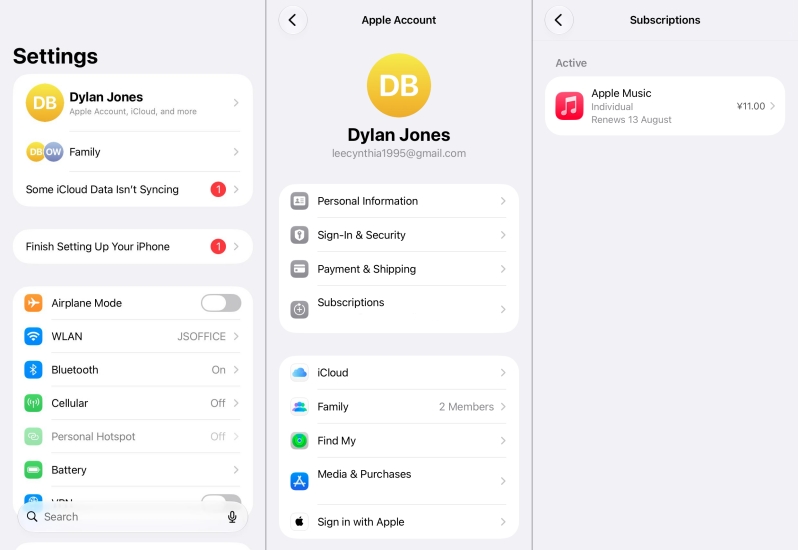
Step 1. On the organizer's device, go to Settings and tap the Apple ID name.
Step 2. Tap Subscriptions and look under the Active section.
Step 3. If it says Apple Music Individual, tap it, select See All Plans, and upgrade to the Family Plan.
Solution 4. Resolve Apple ID Region and Country Mismatches
Apple enforces strict geographical boundaries on digital sharing. If one family member has their billing address or store region set to Canada, and the rest of the group is set to the United States, that user will be blocked from accessing the shared plan.
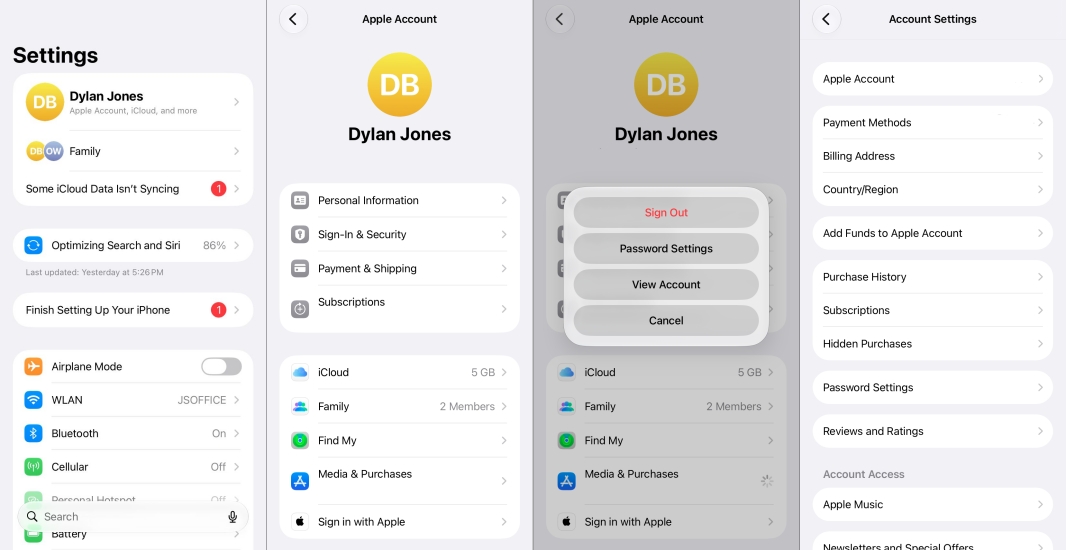
Step 1. On the restricted device, launch the Settings app and tap the Apple ID name.
Step 2. Tap Media & Purchases > View Account > Country/Region.
Step 3. Change the region to match the Organizer's region.
Part 4. Alternative Workaround for Apple Music Family Sharing
While Apple Family Sharing works seamlessly across modern iOS and Android devices, you might run into issues if a family member wants to listen on some unsupported devices like an older iPod, an MP3 player, or a smart wearable that doesn't support the Apple Music app.
Alternative Workaround for Apple Music Family Sharing
In these specific scenarios, an alternative workaround is using a trust-worthy Apple Music downloader like TunesMake Apple Music Converter. Instead of relying on the cloud-based Family Sharing network, this tool allows the subscription holder to convert their downloaded Apple Music tracks into universal formats like MP3, M4A, or FLAC. Once converted, these files can be transferred directly to any device via a USB drive or local home network, bypassing app requirements and the standard device compatibility limits entirely.

Streaming Audio Recorder –
Download Apple Music songs for sharing with anyone
- Download songs, albums, and playlists from Apple Music
- Convert Apple Music to MP3, M4A, M4B, WAV, FLAC, and AIFF
- Remove DRM protection from Apple Music completely and safely
- Preserve the original audio quality and ID3 tags for management
- Support downloading music from 10 popular streaming platforms
Security Verified. 100% Clean & Safe.
Comparison between Apple Music Family Sharing and TunesMake
While both serve the ultimate goal of letting multiple people enjoy the same music catalog, they do so through entirely different mechanisms. Here is a direct, head-to-head comparison to help you understand which method fits your household's needs.
| Feature | Apple Music Family Sharing | TunesMake Apple Music Converter |
|---|---|---|
| Primary Method | Share official subscription plan up to 6 Apple Accounts | Convert encrypted Apple Music into local audio files |
| How it Shares | Invite users via Apple Accounts into a shared billing group | Files are manually shared via USB, local network, or cloud storage |
| User Limits | Hard limit of 6 people total per family group | Unlimited |
| Privacy & Playlists | Fully separate accounts; personal tastes remain private | Completely isolated; users manage files via physical folders |
| Device Compatibility | Restricted to devices supporting the official Apple Music app | Work on any device, like older MP3 players, car stereos, and wearable |
| Cost Structure | Ongoing monthly fee | One-time software purchase |
| Advantages | Effortless integration Lossless & Spatial audio Algorithmic personalization |
Bypasses device restrictions No user limits Permanent offline copies |
| Disadvantages | App restrictions 6-user limitation |
Manual management Loss of smart features |
Part 5. FAQs about Apple Music Family Sharing
Can I share my Apple Music family plan with friends?
Apple's terms of service state that Family Sharing is intended for members of a single household. However, the system enforces this primarily through matching account regions and a single shared payment method.
Who gets charged for purchases of Apple Music Family Plan?
The Family Organizer is responsible for the monthly subscription fee. Furthermore, if "Purchase Sharing" is turned on, any digital movies, books, or apps that family members buy will be billed directly to the organizer's payment method.
What happens if I leave an Apple Music family plan?
If you leave the group, your access to the shared Apple Music subscription terminates immediately. However, your playlists and library are tied to your personal Apple Account, meaning they will be restored if you buy an individual subscription later.
Do Apple Music Family Sharing merged your playlists?
Apple Music Family Sharing never merges your personal music libraries, playlists, or listening history. When you add someone to Apple Music via Family Sharing, they log in using their own unique Apple Account. Your personal iCloud Music Library, your favorite tracks, and the algorithm that builds your personalized "Made For You" mixes remain completely private. Your family members will only share the bill, not your music taste.
Will my family see my private playlists?
No. This is a massive relief for most users. Family Sharing only shares the bill and the access code to the premium service network. Your personal library, curated playlists, listening history, and daily recommendations are entirely tied to your private Apple Account and cannot be viewed by anyone else in the group.
Part 6. Conclusion
Upgrading to an Apple Music Family Plan is one of the easiest ways to slash your household's monthly streaming bill without forcing anyone to compromise on their music taste. Setting it up takes only a few taps on an iPhone, iPad, or Mac, and even your family members on Android can easily hop on board. If you want to share your Apple Music songs with more people and play them on any device, try using TunesMake Apple Music Converter.
Related Articles



A professional writer at TunesMake, crafts in-depth tutorials, practical tips and expert advice focusing on streaming music, technology, and more.
- 1
- 2
- 3
- 4
- 5
- 6
- 7
 Leave Your Comment
(0)
Leave Your Comment
(0)

 Download Center

