








 Store
Store


Whether you want to organize a messy music collection, update playlist artwork, or fix incorrect track titles on imported songs, knowing how to edit Apple Music effectively gives you total control over your listening experience.
Because Apple Music treats mobile devices and desktop computers differently, editing capabilities depend heavily on the device you are using. This comprehensive guide covers everything you need to know about customizing playlists, modifying song metadata, editing track length, and adjusting listening preferences.
Part 1. Can You Edit Songs on Apple Music?
Yes, you can edit songs on Apple Music, but what you can edit depends entirely on whether you are using a computer or a mobile device. On mobile devices, editing options are limited primarily to playlists and recommendations, while the desktop version of the Apple Music app gives you full control over your library's information via the Get Info menu. Here is a breakdown to see where each editing feature is supported.
| Feature | iPhone & iPad (iOS) | Mac & Windows PC (Desktop) |
|---|---|---|
| Edit Playlist Details & Covers | ✔️ | ✔️ |
| Reorder Songs in Playlists | ✔️ | ✔️ |
| Edit Song Metadata (Artist, Album, Title) | ❌ | ✔️ |
| Add Custom Track Lyrics | ❌ | ✔️ |
| Trim Song Audio Length | ❌ | ✔️ |
| Adjust Personal Recommendations | ✔️ | ✔️ |
Crucial Takeaway:
-
If you need to edit song info or metadata such as renaming a track or changing an album artist, you must use the Apple Music app on a Mac or Windows PC. The Apple Music app on the iPhone or iPad currently only support editing playlists and personal recommendations.
Part 2. How to Edit Apple Music Playlists (Mobile & Desktop)
Playlists are the most flexible items in your Apple Music library. You can customize playlist information, change artwork, and reorder tracks on any device.
Customize Playlist Titles, Descriptions, and Animated Covers
On iPhone & iPad
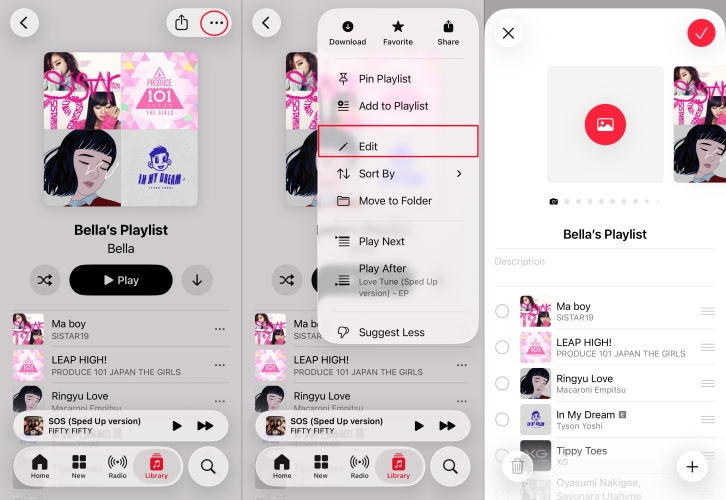
Step 1. Open the Apple Music app on your iPhone or iPad.
Step 2. Navigate to Library and select the playlist you wish to customize.
Step 3. Tap the three-dot menu and select Edit.
Step 4. Select the text fields to enter a new title or detailed description.
Step 5. Tap the camera icon to choose a photo from your library or take a photo.
Step 6. Tap Done to save changes.
On Mac & Windows PC
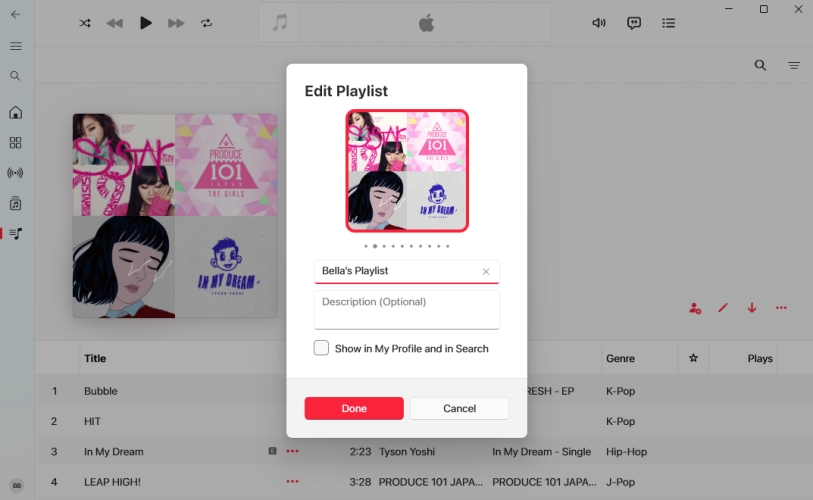
Step 1. Open Apple Music or iTunes on Windows.
Step 2. Find your playlist in the left sidebar, right-click it, and select Edit.
Step 3. Click the cover image to choose a custom local image file.
Step 4. Save your updates by clicking Done.
Change Song Order
On iPhone & iPad
Step 1. Open the desired playlist and tap the three-dot menu, then select Edit.
Step 2. Locate the hamburger icon to the right of any song.
Step 3. Tap and hold the icon, then drag the track up or down to place it in your preferred order.
Step 4. Tap Done to confirm your new track order.
On Mac & Windows PC
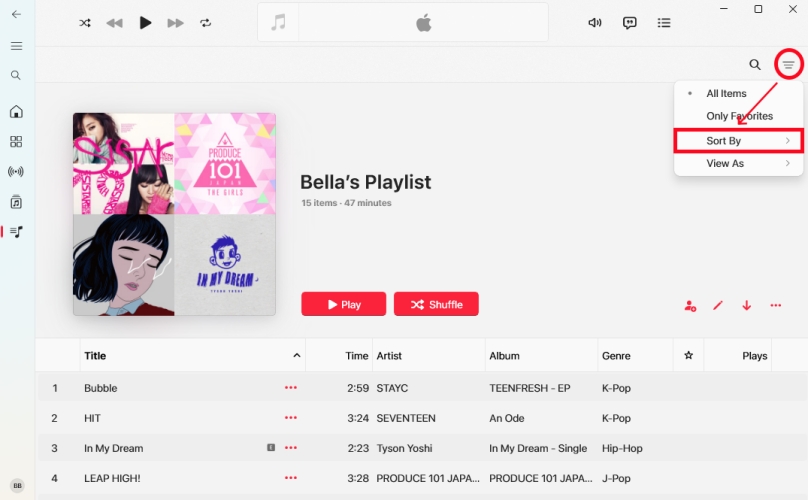
Step 1. Find the playlist you want to change the song order.
Step 2. Reorder songs by dragging them into your preferred sequence, or sort them automatically using Sort By.
Part 3. How to Edit Apple Music Song Details & Metadata (Mac & PC)
To fix misspelled titles, incorrect release dates, or missing genre tags, you must use the desktop version of Apple Music or iTunes on Windows.
Change Song Names, Artists, and Albums
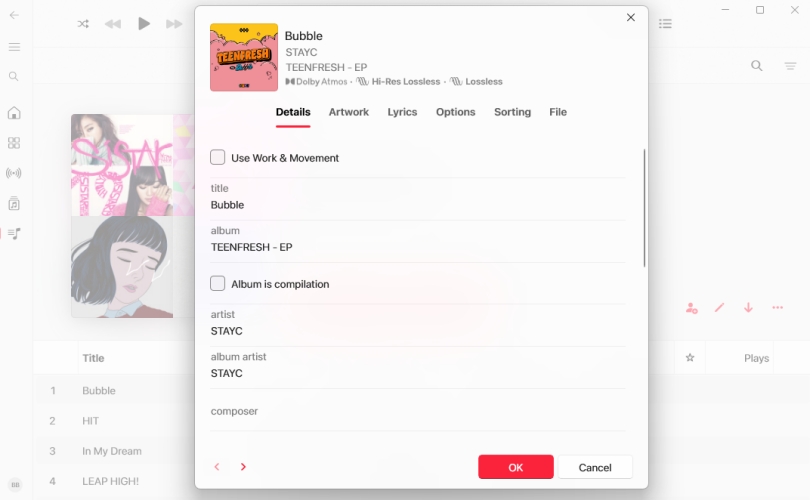
Step 1. Open Apple Music on your Mac or Windows PC.
Step 2. Select the track you wish to modify.
Step 3. Right-click the song and choose Get Info or Properties.
Step 4. Select the Details tab and update the relevant fields like song name.
Step 5. Click OK at the bottom right to apply changes.
Bulk-Edit Album Tags in Apple Music
Editing tracks individually can take a long time. You can apply metadata changes across an entire album or selection at once.
Step 1. Highlight multiple tracks by holding Cmd or Ctrl.
Step 2. Right-click the selected songs and select Get Info or Properties.
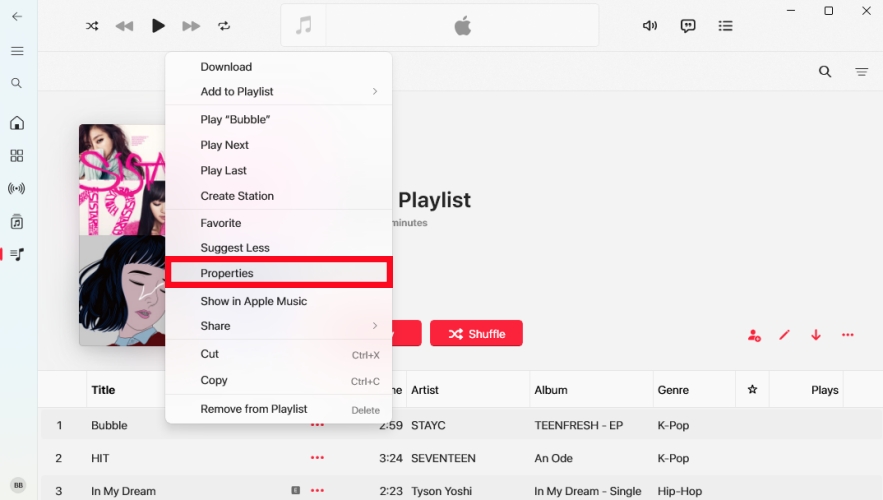
Step 3. Confirm that you want to edit information for multiple items.
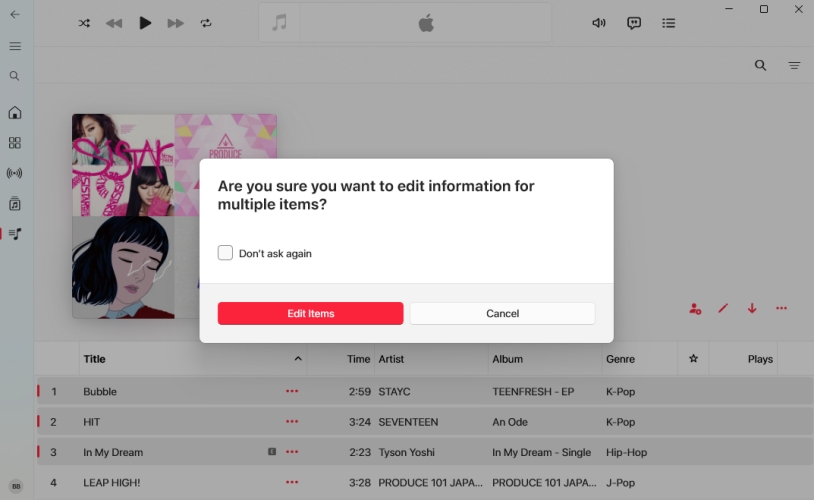
Step 4. Enter shared values in fields like Album Artist, Genre, or Year.
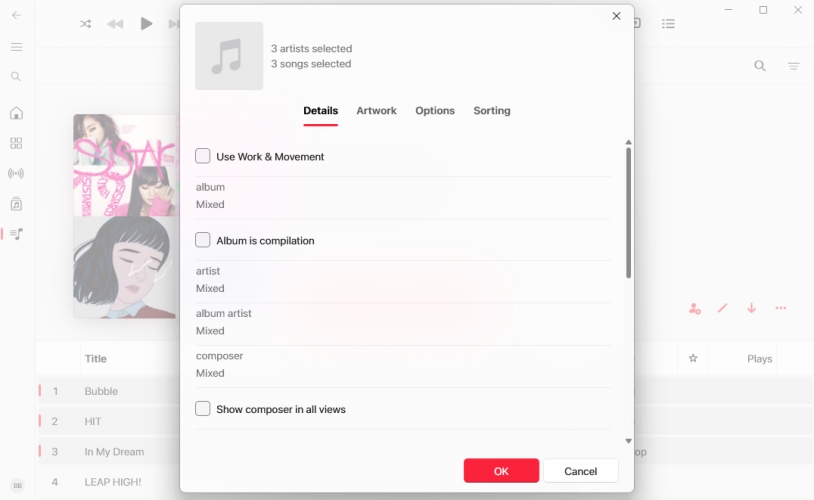
Step 5. Click OK to update all selected tracks simultaneously.
Add Custom Lyrics and High-Res Cover Artwork
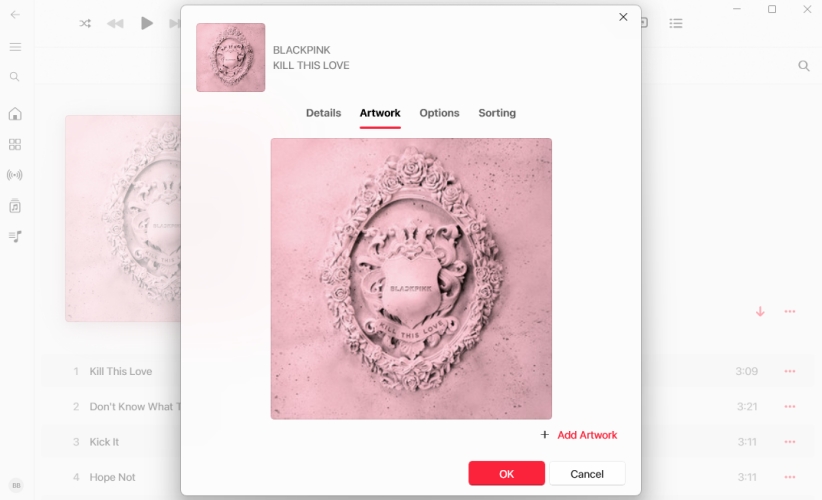
- Custom Artwork: In the Get Info menu, select the Artwork tab, click Add Artwork, choose an image file from your computer, and click OK.
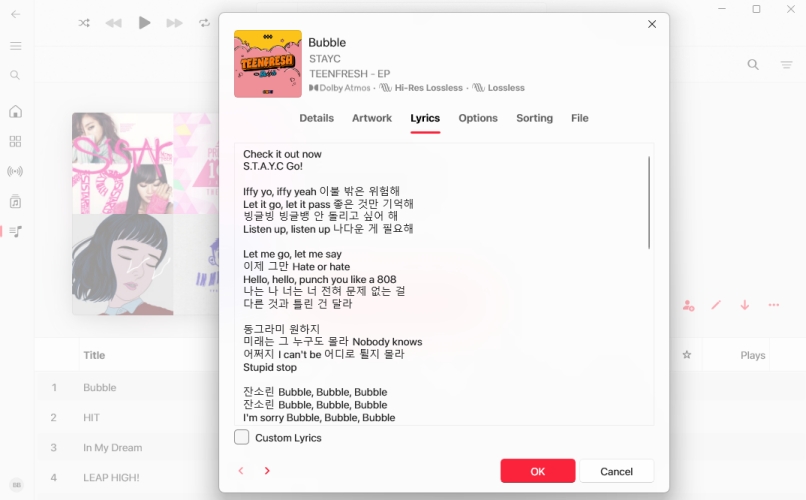
- Custom Lyrics: In the Get Info menu, select the Custom Lyrics tab, check the Custom Lyrics box, paste your lyrics into the text area, and click OK.
Trim Song Start and Stop Times
If a track has an excessively long intro, spoken dialogue, or silence at the end, you can adjust the playback markers in the Get Info or Properties window.
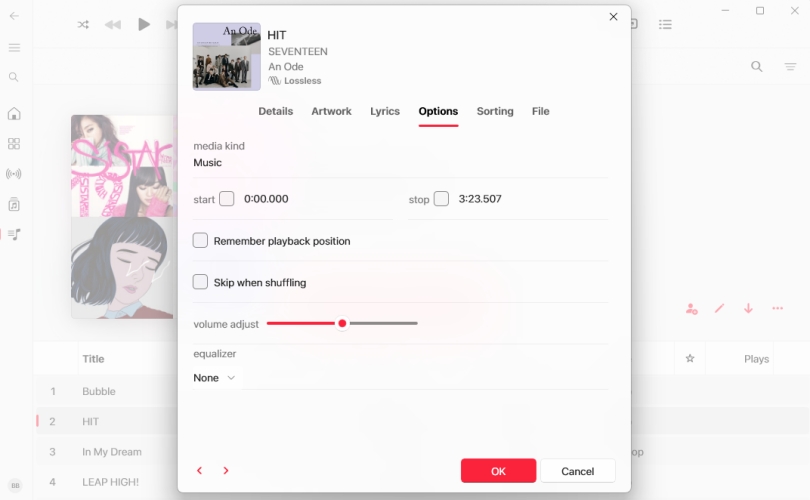
Step 1. Open Get Info or Properties for the target track.
Step 2. Select the Options tab.
Step 3. Check the start and/or stop boxes.
Step 4. Input your desired timestamps.
Step 5. Click OK. Playback will now respect these markers across all devices synced with your cloud library.
Pro Tip: Edit Protected Apple Music Tracks via Format Conversion
Standard Apple Music catalog tracks are encrypted in protected ALAC format. While you can edit how they display inside the desktop Apple Music app, the underlying audio files cannot be permanently edited, exported, or tagged for use in third-party media players or external devices such as DJ software or non-Apple MP3 players. If your goal is to edit metadata on unprotected copies of your Apple Music library, TunesMake Apple Music Converter offer a functional bridge.
TunesMake Apple Music Converter converts protected Apple Music streams into open formats such as MP3, FLAC, or WAV. During conversion, the software automatically detects and preserves original ID3 tags, allowing you to edit these tags directly before or after output. Once converted to unprotected audio formats, the resulting files can be tagged using any standard metadata editing software without restriction.

Streaming Audio Recorder –
Download Apple Music tracks for playing anytime
- Download songs, albums, and playlists from Apple Music
- Convert Apple Music to MP3, M4A, M4B, WAV, FLAC, and AIFF
- Remove DRM protection from Apple Music completely and safely
- Preserve the original audio quality and ID3 tags for management
- Support downloading music from 10 popular streaming platforms
Security Verified. 100% Clean & Safe.
Part 4. How to Edit Apple Music Preferences & Recommendations
Apple Music uses your listening behavior to customize recommendations in the Listen Now tab. You can manually refine these algorithmic preferences.
Reset Your Favorite Genres
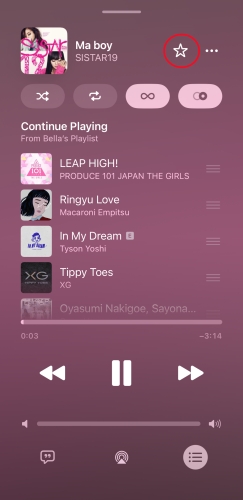
- Favorite Tracks: Tap the star icon on the Now Playing screen or track menu to receive more recommendations similar to that artist or style.
- Suggest Less: Tap the three-dot menu next to a song, album, or playlist and choose Suggest Less to reduce similar recommendations.
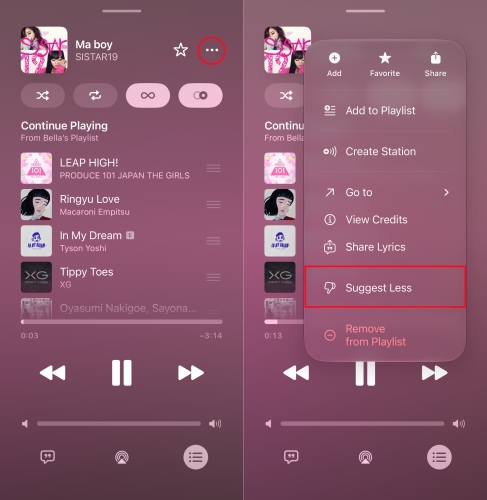
Turn Off Use Listening History
If you share an account or play music for kids, prevent those streams from affecting your algorithm. In this case, you can disable the Use Listening History settings on your device.
On iPhone & iPad
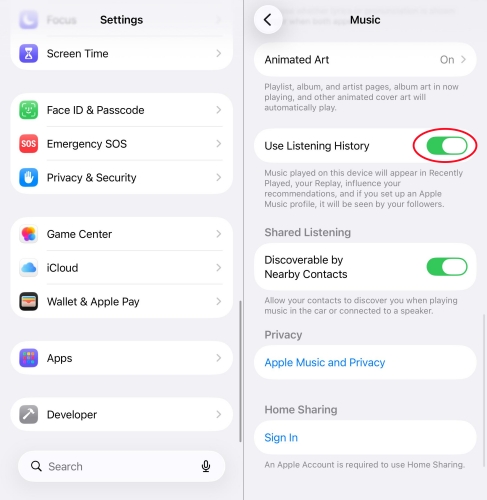
Step 1. Go to Settings > Apps and select Music from the list of apps.
Step 2. Locate and find Use Listening History, then toggle it off.
On Mac & Windows PC
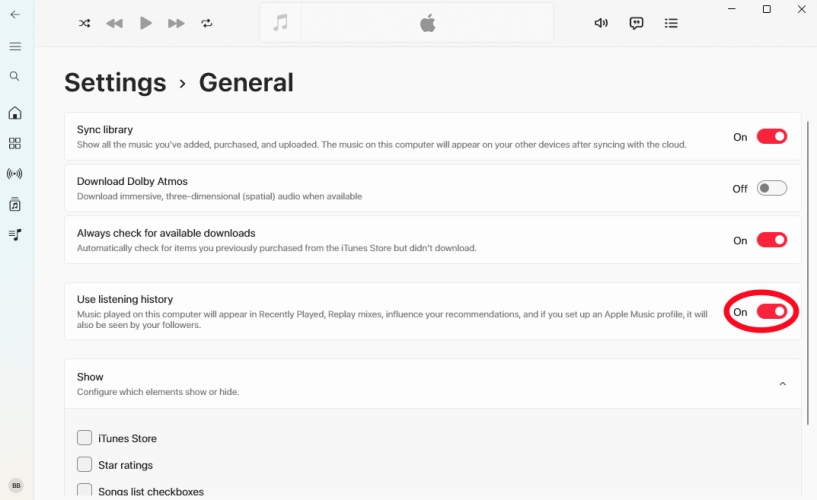
Step 1. In the Apple Music app, click your profile image and open Settings.
Step 2. Navigate to General and toggle the switch of Use Listening History to Off.
Part 5. FAQs about Editing Apple Music
Why can't I edit Apple Music songs on my phone?
The Apple Music app for iOS and iPadOS do not support song metadata editing. To edit track names, album artists, or track numbers, open Apple Music on a Mac or PC, make your changes under Get Info, and ensure Sync Library is enabled across all devices.
Will song metadata edits sync automatically to my iPhone?
Yes. As long as Sync Library is turned on in Settings > Apps > Music on your iPhone and Settings > General on your Apple Music desktop app, all metadata changes made on your computer will sync across your devices via iCloud.
Can I restore original song metadata if I make a mistake?
If you edit a song imported from the Apple Music streaming catalog, you can delete it from your library and re-add it from the catalog to restore the original metadata. For personal local audio files, you will need to re-enter the correct details manually.
Why did my custom artwork revert back to the original image?
Sometimes a major software update or iCloud Library refresh can overwrite custom artwork with default store assets. To fix this, open Get Info on your computer, re-upload your custom artwork image, and force a sync by going to File > Library > Update Cloud Library.
Part 6. Conclusion
Customizing your Apple Music library doesn't have to be complicated once you know where your device's capabilities start and end. While the Apple Music for iOS app handles playlist artwork and track orders with ease, the Apple Music desktop app remains essential for deep metadata editing, tag customization, and file management. By a conversion utility like TunesMake, you can maintain a perfectly tagged, organized, and personalized music collection across all your devices.
Related Articles


A passionate writer specialized in creating engaging content about music and entertainment, covering everything from the latest music trends and entertainment news to practical tutorials.
- 1
- 2
- 3
- 4
- 5
- 6
- 7
 Leave Your Comment
(0)
Leave Your Comment
(0)

 Download Center

