








 Store
Store


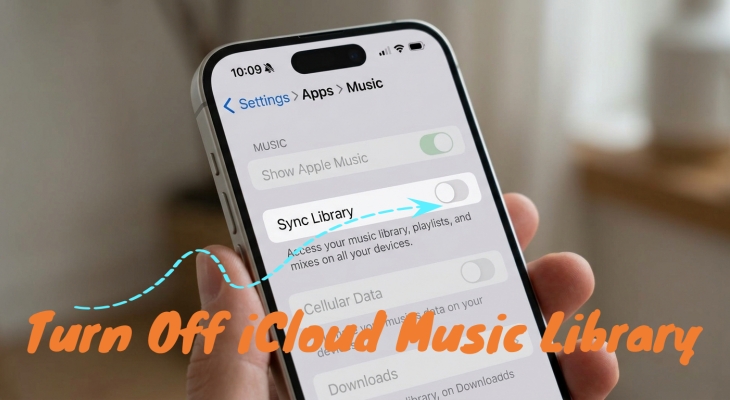
If you are an avid music collector, live recording enthusiast, or audio purist, Apple's automatic cloud syncing can sometimes cause more frustration than convenience. Whether you want to stop Apple from matching your local MP3s, fix duplicate tracks, or free up phone storage, disabling this feature, now officially called Sync Library, takes less than two minutes. Let's see how to turn off iCloud Music Library on iPhone, Mac, and Windows PC.
Part 1. What Happens When You Turn Off iCloud Music Library?
When Sync Library is active, Apple scans your audio files and attempts to match them with equivalent tracks in the Apple Music catalog. If you disable this feature on your device, it will affect your music collection.
What Gets Removed
- Apple Music Offline Downloads: Any tracks, albums, or playlists added directly from the Apple Music catalog and downloaded for offline listening will be removed from that device.
- Cloud-Synced Playlists: Playlists created on other devices through your Apple Music subscription will no longer appear on this device.
What Stays Safe
- Locally Stored Audio Files: Original MP3s, vinyl rips, or personal audio files stored directly on your computer's hard drive will not be deleted.
- iTunes Purchases: Any music purchased through the iTunes Store remains linked to your Apple ID and can be re-downloaded at any time.
Part 2. How to Turn Off iCloud Music Library Across Devices
Apple officially renamed iCloud Music Library to Sync Library. While the name changed in modern versions of iOS, macOS, and Windows, the function remains the same: it connects your local music collection to Apple's cloud servers across all your devices. Here's how to turn off iCloud Music Library on iPhone, Mac, and Windows PC.
Make a Preparation Before Disabling Sync Library
Before disabling cloud sync, execute these quick safety checks on your primary computer to guarantee no original audio files or favorite streaming downloads are lost.
- Locate Your Library: Ensure all original source files reside locally on your primary Mac or PC hard drive (User > Music > Media).
- Back up Media Folders: Copy your local music directory to an external drive or cloud backup service.
- Save Apple Music Tracks Locally: If you rely on tracks downloaded from Apple Music that aren't part of your purchased or local collection, turning off Sync Library will remove them from your offline library. To preserve these tracks locally before toggling off cloud sync, using TunesMake Apple Music Converter can help. It converts protected Apple Music streams into MP3 and more unprotected audio formats while preserving original ID3 tags and audio quality, allowing you to manually manage them alongside your local collection without depending on Sync Library.
 TunesMake Streaming Audio Recorder
A powerful audio downloader to download music tracks, albums, playlists, radios, podcasts, and audiobooks from over 10 streaming platforms.
How to Turn Off iCloud Music Library on iPhone & iPad
On the iPhone and iPad, the path to turn off Sync Library depends slightly on your system version. The following are the steps to turn off iCloud Music Library on the iPhone and iPad.
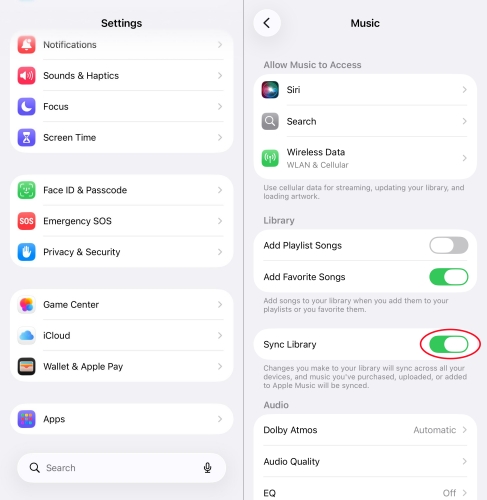
Step 1. Open the Settings app on your iPhone or iPad.
Step 2. Scroll down and tap Apps, then select Music.
Step 3. Find the Sync Library toggle switch.
Step 4. Toggle the switch to the Off position.
Step 5. Tap Turn Off when prompted to confirm that you wish to remove downloads.
How to Switch Off iCloud Music Library on Mac
Disabling cloud sync on a Mac stops Apple Music from merging your local media folder with cloud metadata. Follow the steps below to switch off iCloud Music Library on a Mac.
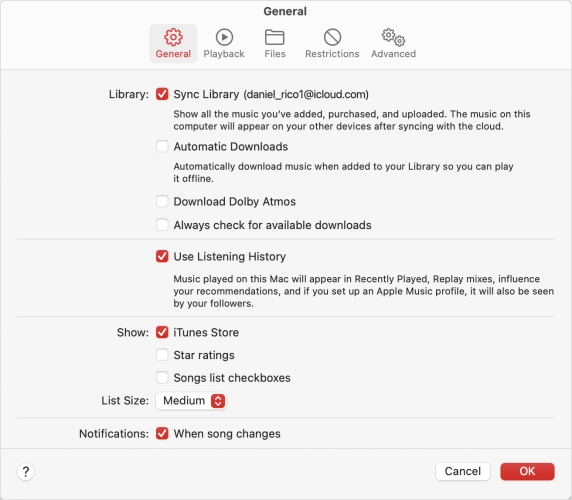
Step 1. Open the Apple Music app on your Mac.
Step 2. Click Music in the top menu bar and select Settings.
Step 3. Ensure you are on the General tab.
Step 4. Uncheck the box labeled Sync Library.
Step 5. Click OK at the bottom of the window to apply your changes.
How to Disable iCloud Music Library on Windows PC
Whether you use the Apple Music app or iTunes on a Windows PC, disabling cloud synchronization takes just a few clicks. Perform the steps below to disable iCloud Music Library.
Use the Apple Music App for Windows
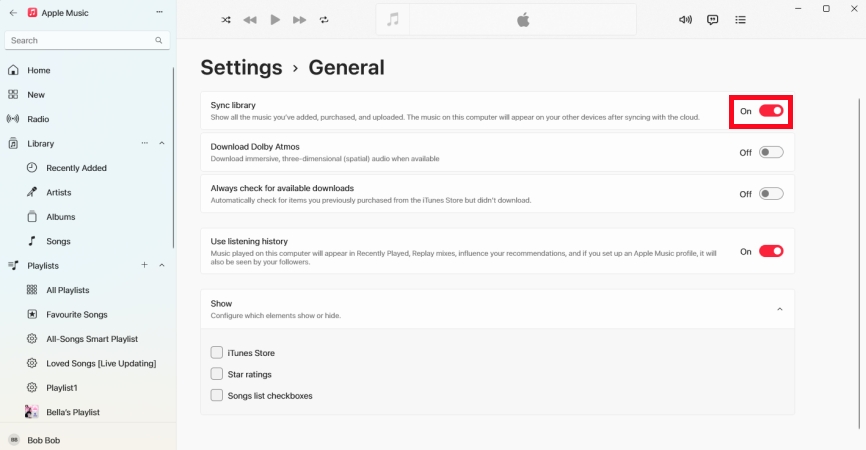
Step 1. Open the Apple Music app on your Windows PC.
Step 2. Click your name at the bottom left of the window.
Step 3. Click the Gear icon and go to General > Sync Library.
Step 4. Toggle the switch to Off.
Use iTunes for Windows
Step 1. Launch iTunes.
Step 2. Click Edit in the top menu bar and choose Preferences.
Step 3. Under the General tab, uncheck iCloud Music Library.
Step 4. Click OK to save your preferences.
Part 3. How to Sync Music After Disabling iCloud Music Library
Once iCloud Music Library is disabled, you can manually transfer your personal music collection from your computer to your iPhone or iPad using a physical cable connection.
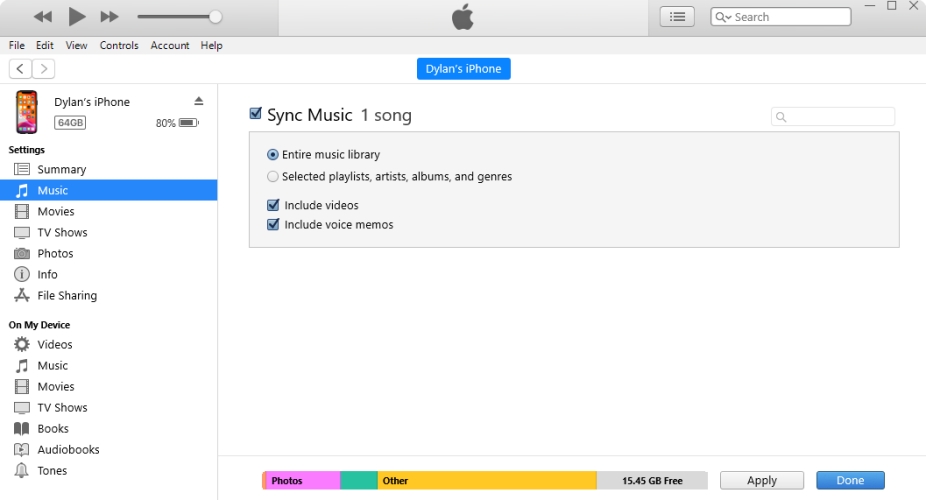
Step 1. Connect your iPhone or iPad to your computer using a USB cable.
Step 2. Open Finder on a Mac or the Apple Devices app on a Windows PC.
Step 3. Select your connected device from the sidebar.
Step 4. Click on the Music tab.
Step 5. Check Sync music onto your device.
Step 6. Choose whether to sync your entire library or selected playlists, artists, and albums.
Step 7. Click Apply or Sync in the bottom-right corner.
Part 4. FAQs about Disabling iCloud Music Library
Will turning off iCloud Music Library delete my local music files?
No. Locally stored audio files residing on your computer's storage are safe. Only cloud-streamed or catalog tracks downloaded via Apple Music will be removed from the local device.
Can I turn off Sync Library on my iPhone without affecting my Mac?
Yes. Disabling Sync Library is device-specific. Turning it off on your iPhone will leave your Mac, iPad, or other connected devices completely unaffected.
How do I get my downloaded Apple Music back if I turn Sync Library back on?
If you re-enable Sync Library later, your Apple Music playlists will reappear, but you will need to re-download tracks for offline playback.
Why don't I see the Sync Library toggle in my settings?
The Sync Library toggle only appears if you have an active Apple Music or iTunes Match subscription tied to your Apple ID on that device.
Part 5. Conclusion
Turning off iCloud Music Library gives you complete control over your music collection. Whether you are fixing mismatched metadata, protecting custom audio files, or managing phone storage, disabling cloud synchronization stops Apple Music from making unwanted changes to your media library. By following the device-specific steps above and securing your local audio files, you can manually manage your Apple Music library without depending on automatic cloud sync.
Related Articles

A passionate writer specialized in creating engaging content about music and entertainment, covering everything from the latest music trends and entertainment news to practical tutorials.
- 1
- 2
- 3
- 4
- 5
- 6
- 7
 Leave Your Comment
(0)
Leave Your Comment
(0)

 Download Center

