








 Store
Store


Experiencing Apple Music no sound when your favorite track starts playing can be extremely frustrating. Whether the progress bar moves while remaining completely silent, or the audio suddenly cuts out over Bluetooth, this issue is surprisingly common. This comprehensive guide covers the most effective step-by-step solutions to fix Apple Music no sound across iPhone, Android, Mac, and Windows PC.
Part 1. How to Fix Apple Music No Sound on iPhone & iPad
If Apple Music plays with no sound on your iPhone or iPad, the root cause usually stems from system, audio routing, or high-resolution streaming settings.
Solution 1. Check System-level Sound Limits
System-level restrictions like physical silent switch, volume limits, or Focus Mode can mute media playback unexpectedly.
Physical Silent Switch:
On supported iPhone models, flip the Silent switch on the left side of your device so the organge bar is no longer visible.
Volume Limits:
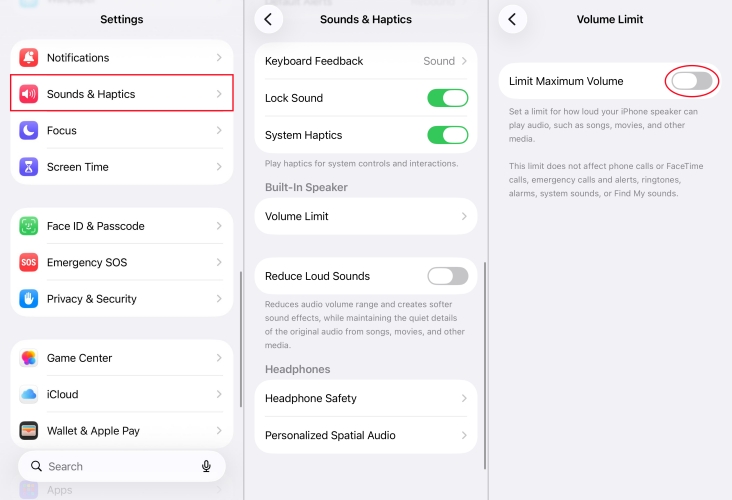
Navigate to Settings > Sounds & Haptic > Volume Limit and ensure the maximum volume threshold isn't set too low.
Focus Modes:
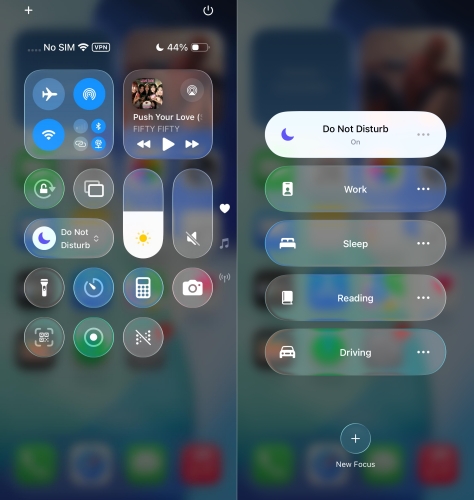
Swipe down to open the Control Center and temporarily turn off any active Focus or Do Not Disturb modes that might suppress audio output.
Solution 2. Verify Audio Output Routing
Your iPhone might be playing sound just through a different device. You can verify the audio output routing in Control Center.
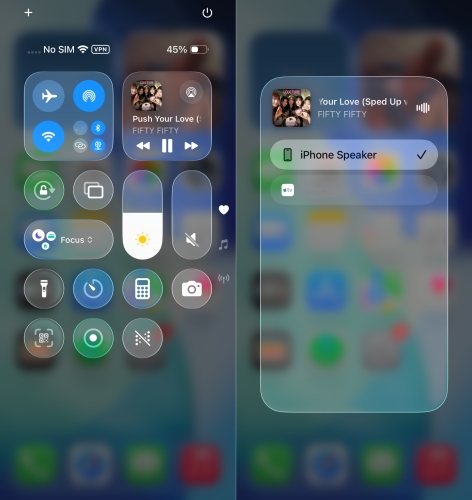
Step 1. Swipe down from the top-right corner of your screen to open the Control Center.
Step 2. Tap the AirPlay icon located in the top-right corner of the music playback card.
Step 3. Select iPhone to ensure the audio stream isn't being sent to a hidden device.
Solution 3. Re-enable Lossless & Dolby Atmos
A known encoding issue can cause Apple Music to play silently when streaming high-resolution tracks. Disabling or re-enabling these audio formats often fixes the problem immediately.
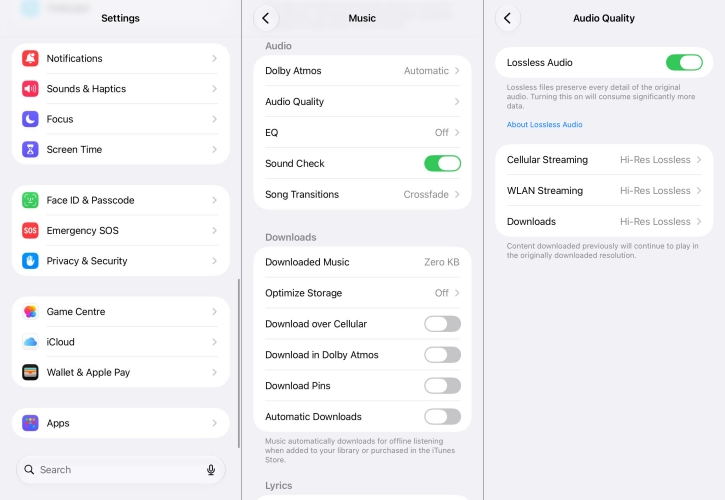
Step 1. Open Settings and go to Apps.
Step 2. Scroll down and select Music.
Step 3. Tap Audio Quality and toggle Lossless Audio off and back on.
Step 4. Go back to the Music settings, tap Dolby Atmos, and set it to Automatic or Off.
Solution 4. Re-download Corrupted Offline Songs
If Apple Music has no sound only when playing downloaded songs, local cache files may be corrupted. Try to delete and re-download offline songs.
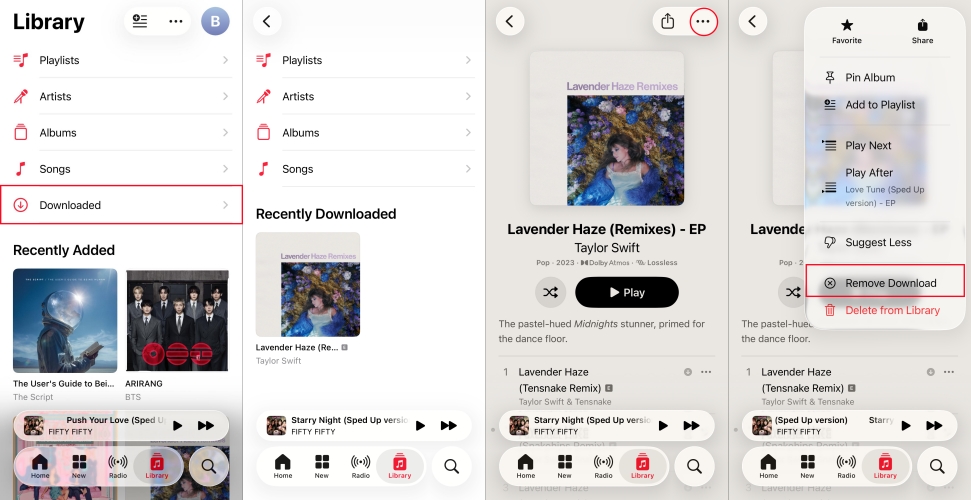
Step 1. Open the Apple Music app and go to Library > Downloaded.
Step 2. Find the silent track or album, then tap the three dots icon.
Step 3. Select Remove Download from the drop-down menu.
Step 4. Re-download the tracks over a stable WiFi network.
Part 2. How to Fix Apple Music Has No Sound on Android
Some users using Android devices also encounter the issue of Apple Music playing but no sound, which can be resolved by resetting system-level settings.
Solution 1. Clear the Apple Music Cache
Apple Music stores temporary files on your device to speed up loading times. Over time, these cached files can become corrupted, leading to Apple Music playing but no sound.
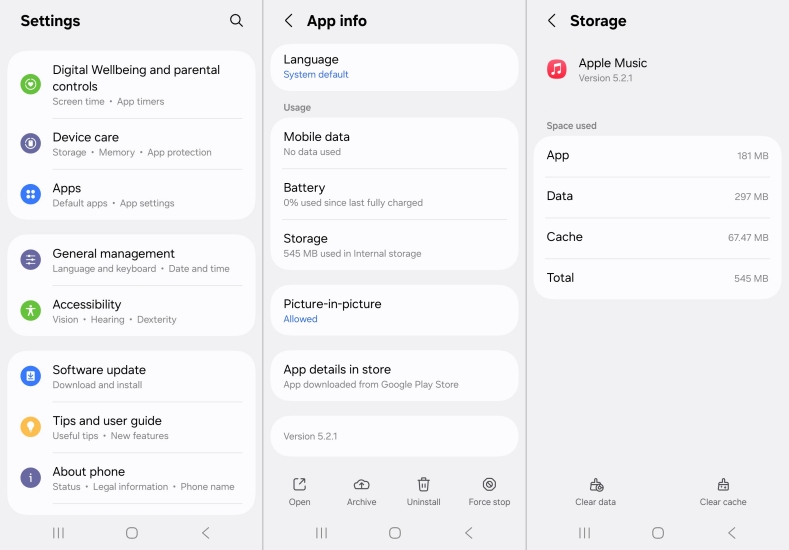
Step 1. Open Settings > Apps > See all apps > Apple Music.
Step 2. Tap Storage & cache.
Step 3. Select Clear Cache.
Solution 2. Turn Off Lossless Audio & Dolby Atmos
Because Android runs across thousands of different phone models with varying audio hardware, Apple's proprietary Lossless and Dolby Atmos codecs can trigger driver conflicts.
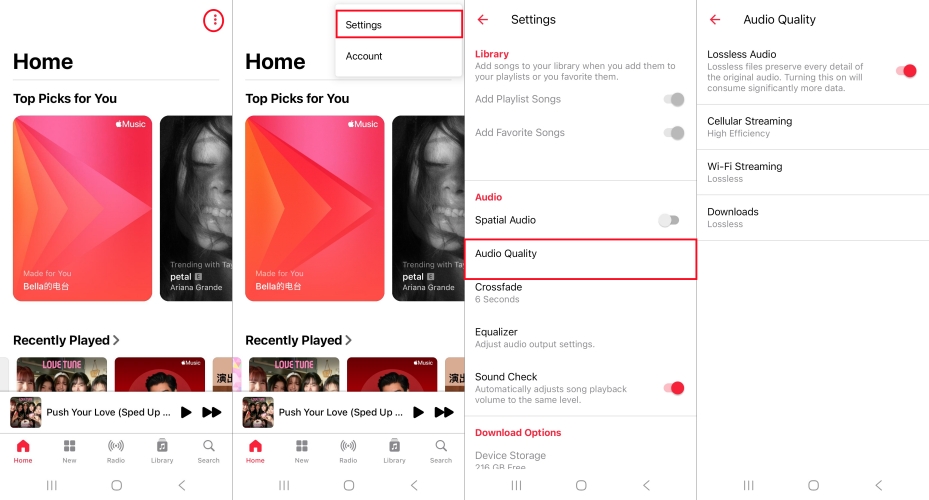
Step 1. Open Apple Music and tap the three-dot menu in the top-right corner.
Step 2. Go to Settings > Audio Quality and turn off Lossless Audio.
Step 3. Go back to Settings, tap Dolby Atmos, and set it to Off.
Solution 3. Disable Battery Optimization
If battery optimization is active, Android may put Apple Music's background audio rendering service to sleep while leaving the track visualizer running, causing silent playback.
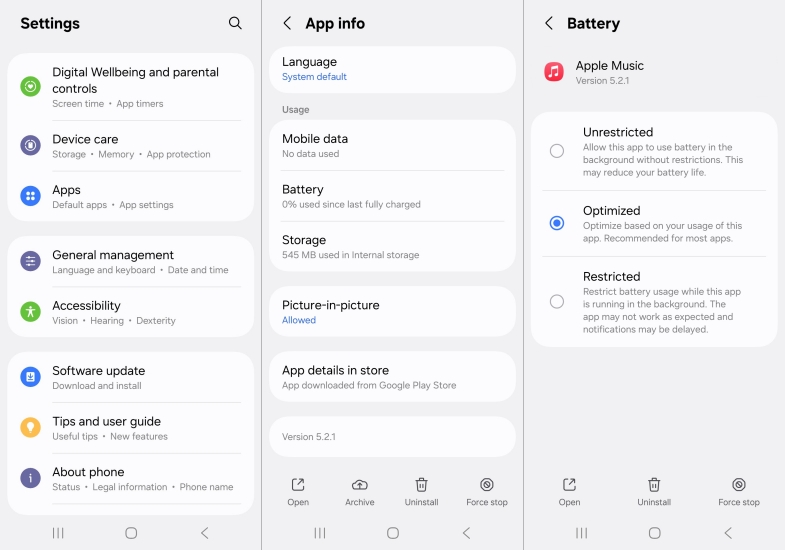
Step 1. Go to Settings > Apps > Apple Music.
Step 2. Select Battery.
Step 3. Change the setting from Optimized to Unrestricted.
Solution 4. Check Separate Media Volume Settings
Turning up your ringtone volume with the physical side buttons won't necessarily raise your media volume if the media slider was previously muted.
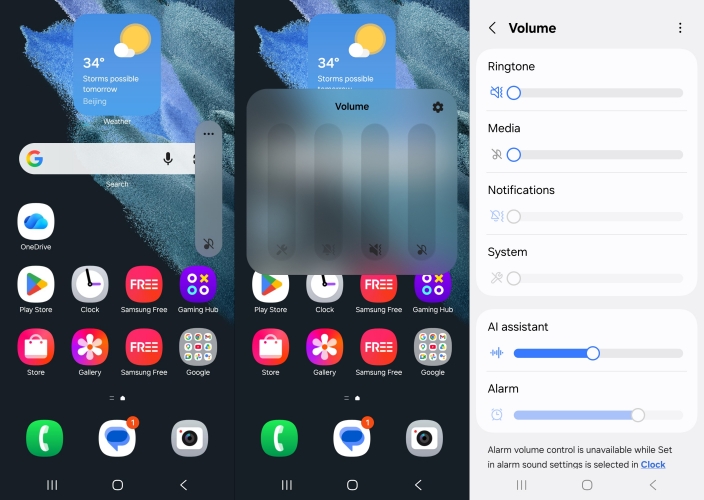
Step 1. Press a physical Volume button on your Android phone.
Step 2. Tap the three dots below the pop-up volume slider to expand all channels.
Step 3. Ensure the Media volume slider is turned up.
Part 3. How to Fix No Sound on Apple Music for Mac & Windows
When running Apple Music on a Mac or Windows PC, output device configurations, driver conflicts, and account permissions are the primary causes of Apple Music playing but no sound.
Solution 1. Verify Sound Output Device Settings
Ensure your Mac or Windows PC is sending audio to the correct hardware. If not sending to your preferred physic output, adjust system output settings.
On Mac:
Click Apple Menu > System Settings > Sound > Output. Select your built-in speaker or connected headphones. Ensure the Output Volume slider is turned up.
On Windows:
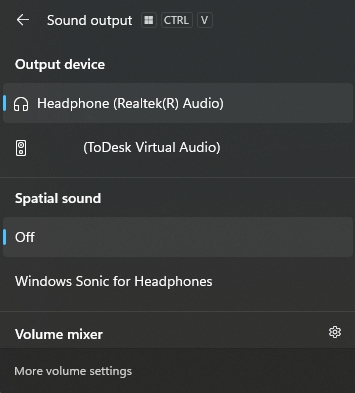
Click the Speaker icon on the system tray at the bottom right corner, then click the Select a sound output icon and pick your active playback device.
Solution 2. Reset Sample Rates via Audio MIDI Setup (Mac)
A mismatch in sample rates can lock the audio engine on the Mac, causing Apple Music to display playback progress with complete silence.
Step 1. Press Cmd + Space to open Spotlight Search, type Audio MIDI Setup, and press Enter.
Step 2. Select your active output device from the left panel.
Step 3. Change the Format or Sample Rate drop-down menu.
Step 4. Switch it back to your preferred default setting. This action resets the Core Audio daemon.
Solution 3. Reauthorize Computer for DRM Playback
If your computer fails to validate Digital Rights Management (DRM) keys, Apple Music will play tracks silently due to the expiration computer authorization.
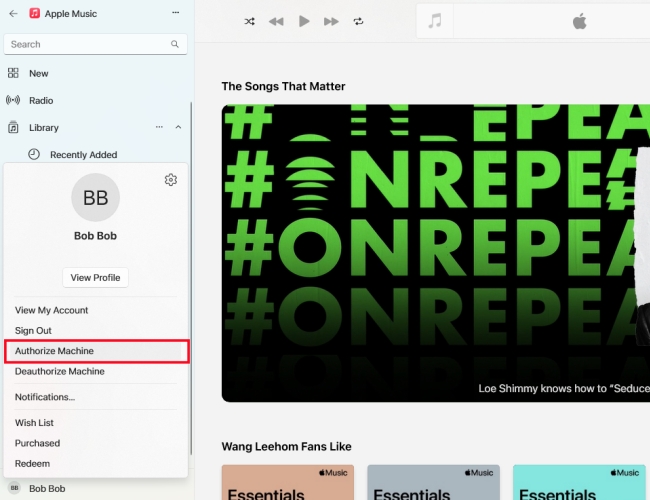
Step 1. Open the Apple Music app or iTunes.
Step 2. Click Account in the top menu bar.
Step 3. Hover over Authorizations and select Authorize This Computer.
Step 4. Enter your Apple ID credentials to renew DRM playback permissions.
Part 4. Ultimate Method to Apple Music Playing But No Sound
If system settings and restarts fail to solve the issue, persistent silent playback often points to broken DRM authorization tokens, corrupted local cache files, or player incompatibilities on non-Apple media players. Converting the tracks to standard formats like MP3 or M4A offers a permanent workaround.
Software tools like TunesMake Apple Music Converter can download and re-encode Apple Music tracks into standard audio formats such as MP3, FLAC, or WAV. By removing the DRM layer and high-res encoding locks, the converted files can be played back reliably on any device or media player without encountering silent playback or authorization errors.

Streaming Audio Recorder –
Download Apple Music songs for playing anywhere
- Download songs, albums, and playlists from Apple Music
- Convert Apple Music to MP3, M4A, M4B, WAV, FLAC, and AIFF
- Remove DRM protection from Apple Music completely and safely
- Preserve the original audio quality and ID3 tags for management
- Support downloading music from 10 popular streaming platforms
Security Verified. 100% Clean & Safe.
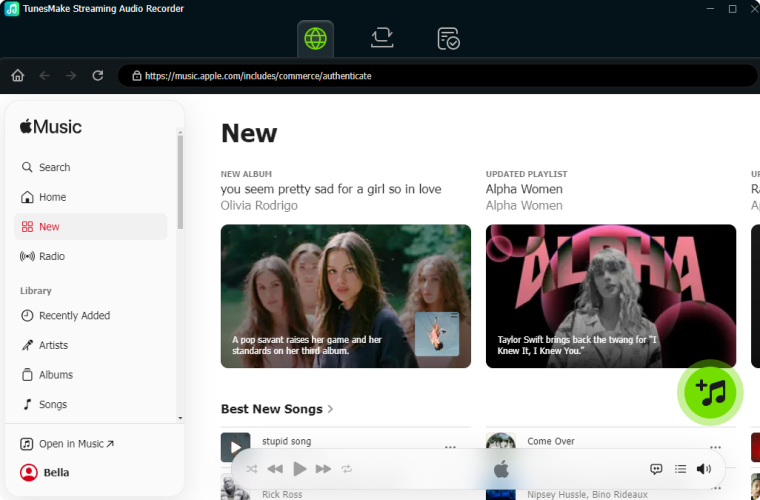
Step 1 Add Apple Music songs to Convert
Launch TunesMake Streaming Audio Recorder and you will see several streaming music services. Just select Apple Music, and the built-in Apple Music web player will work simultaneously. You can click the Sign In button on the upper right and log into your Apple Music account.
Step 2 Select the Output Audio Format
The setting is in the left corner of the bottom. You can click it to open the setting window where to change the output audio format and audio quality. Here you can select MP3 as the output format and set other audio parameters like channel, bit rate, and sample rate.

Step 3 Convert Apple Music to MP3
After all of the settings, now you can click the Convert button to start the conversion immediately. Just wait a few seconds till it is finished. Then you can locate them in your local folder or check them by clicking the History button in the left column.

Part 5. Conclusion
Troubleshooting Apple Music playing with no sound comes down to identifying whether the issue stems from system settings, audio routing, background cache files, or format decoding bugs like Lossless Audio and Dolby Atmos. By working through these step-by-step fixes systematically, you can quickly restore your playback and enjoy uninterrupted streaming on any device.
Related Articles

A professional writer at TunesMake, crafts in-depth tutorials, practical tips and expert advice focusing on streaming music, technology, and more.
- 1
- 2
- 3
- 4
- 5
- 6
- 7
 Leave Your Comment
(0)
Leave Your Comment
(0)

 Download Center

