








 Store
Store


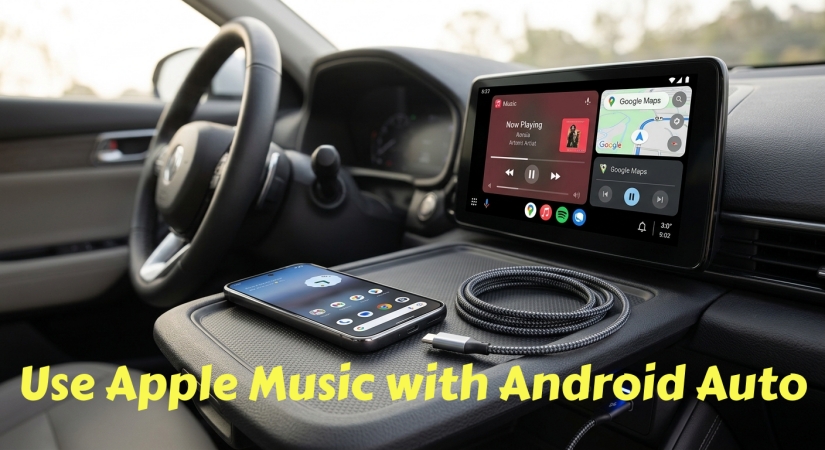
Apple Music is no longer exclusive to Apple devices. If you drive an Android Auto-compatible vehicle and prefer Apple's music streaming service, you can easily stream your favorite playlists, albums, and live radio stations directly from your car display. This guide provides a complete walkthrough for connecting Apple Music to Android Auto, managing hands-free Google Assistant voice commands, and resolving minor playback issues.
Part 1. How to Connect Apple Music to Android Auto
Using Apple Music with Android Auto delivers a full-featured, car-optimized experience. The interface features large touch targets, intuitive album art displays, and direct access to your personal cloud library and offline downloads.
Key Features of Apple Music with Android Auto:
-
Library Access: Access your saved playlists, albums, artists, and heavy-rotation mix stations.
-
Hands-Free Navigation: Use Google Assistant for searching tracks or shuffling albums.
-
Offline Playback: Play locally saved songs from your device offline while driving.
-
Lossless Audio: Experience ALAC audio output over supported wired connections.
Steps to Set up Apple Music on Android Auto:
Setting up Apple Music on Android Auto only takes a few minutes. Follow these three steps to ensure your phone and car communicate properly. Before heading to your car, make sure your mobile device and infotainment system meet these basic requirements.
- Android Phone: Running Android 8.0 or later (Android 10+ recommended for built-in Android Auto support).
- Apple Music App: Updated to the latest version via the Google Play Store with an active Apple Music subscription.
- Android Auto App: Built into Android 10 and above, or downloaded separately on older versions.
- Connection Cable: A high-quality, data-capable USB cable if using a wired connection.
- Head Unit Compatibility: A factory-installed or aftermarket head unit that supports Android Auto.
Step 1: Install Apple Music and Grant Permissions
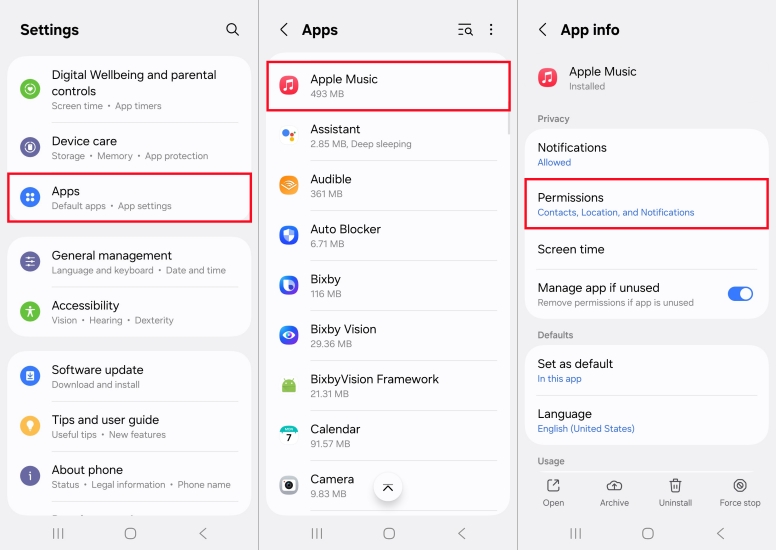
1. Open the Google Play Store on your Android phone, search for Apple Music, and tap Install.
2. Open the app and sign in with your Apple ID.
3. Accept the permissions for Notifications, Storage, and Nearby Devices so the app functions properly in the background.
Step 2: Enable Apple Music in Android Auto Launcher
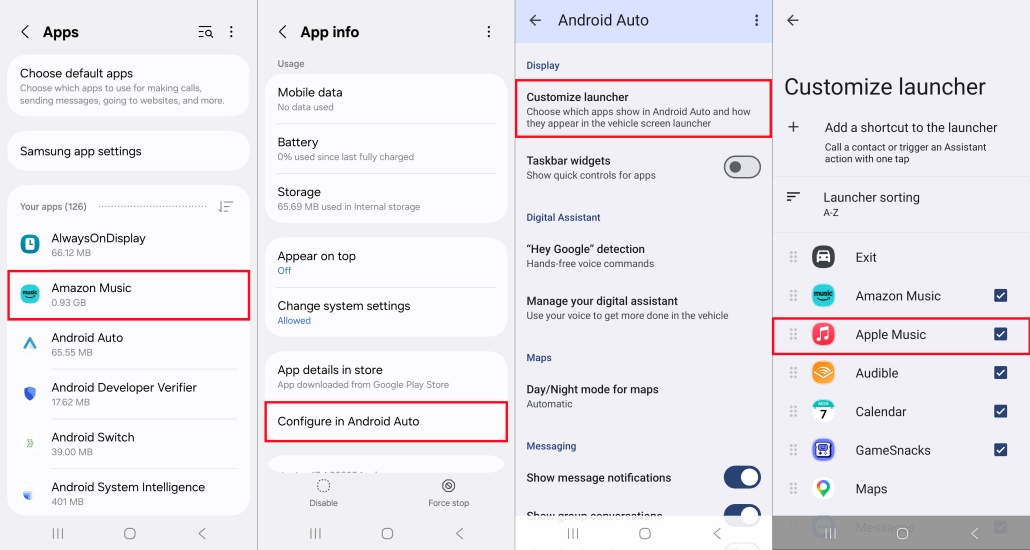
1. Open Settings on your Android phone.
2. Search for and select Android Auto.
3. Under the General section, tap Customize Launcher.
4. Scroll down and ensure the checkbox next to Apple Music is checked.
Step 3: Connect Your Phone to Your Car
Wired Connection:
Plug your phone into your car's USB media port using a certified USB cable.
Wireless Connection:
Turn on Bluetooth and Wi-Fi on your phone, then pair your device through your car's screen settings under Android Auto.
Once connected, launch Android Auto on your car display and select the Apple Music icon to access your music library.
Part 2. How Apple Music as Your Default Voice Service
Controlling your music hands-free keeps your eyes on the road. By default, Google Assistant may try to play songs on YouTube Music or Spotify. You can change this setting in a few taps.
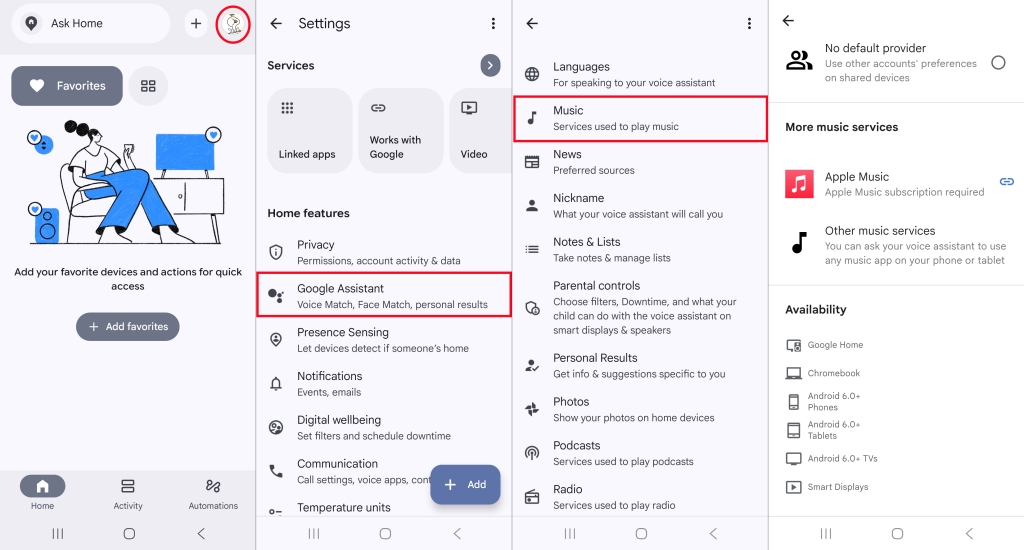
Step 1. Open the Google Home app on your phone.
Step 2. Tap your Profile icon in the top right corner and choose Home Settings.
Step 3. Scroll down and select Google Assistant > Music.
Step 4. Select Apple Music as your default provider.
Now you can use hands-free commands like:
"Hey Google, play my Favorites on Apple Music."
"Hey Google, play Taylor Swift on Apple Music."
"Hey Google, shuffle my library on Apple Music."
Part 3. Fixes for Apple Music Not Working on Android Auto
Connecting Apple Music to your car through Android Auto should be a seamless experience, but app crashes, missing icons, silent playback, and voice command failures can quickly turn a smooth drive into a frustrating one. If your Apple Music app is glitching, freezing, or failing to launch on your car's dashboard, try these solutions.
- Verify Subscription: Confirm your Apple Music subscription is active by playing a track directly on your phone speakers.
- Check Data Connection: Ensure your phone has active cellular data or that you are playing downloaded offline music.
- Test the USB Cable: If using a wired setup, ensure your cable supports high-speed data transfer.
- Restart Hardware: Turn off your car's head unit, restart your Android smartphone, and reconnect.
If those quick preliminary checks do not solve the problem, apply these step-by-step solutions to address the root software conflicts.
Fix 1: Unhide Apple Music in Android Auto Launcher
The most common reason Apple Music fails to show up on your car display is that it has been hidden or unselected in your phone's launcher settings.
Step 1. Open Settings on your Android device.
Step 2. Search for and open Android Auto.
Step 3. Tap Customize Launcher under the General section.
Step 4. Locate Apple Music in the app list and ensure its checkbox is enabled.
Step 5. Disconnect and reconnect your phone to the car.
Fix 2: Clear Apple Music Cache and Data
Corrupted cache files frequently cause Apple Music to freeze, display a blank screen, or crash immediately upon opening on Android Auto.
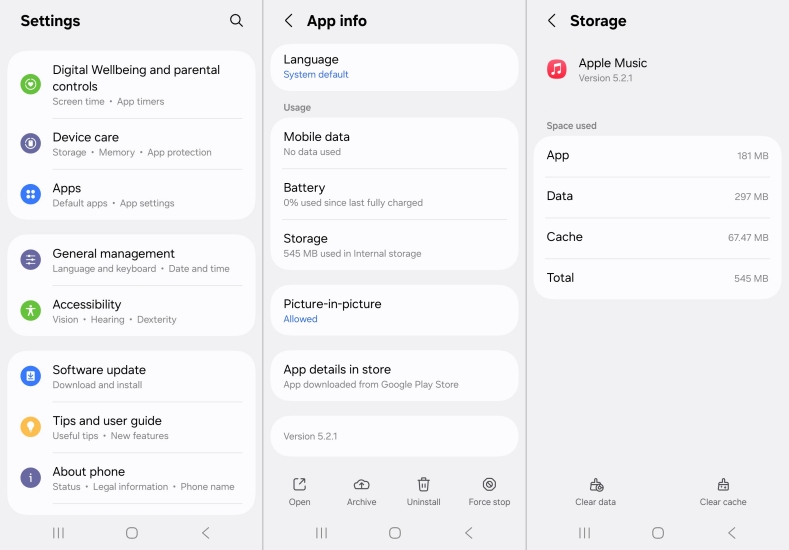
Step 1. Open Settings on your phone and go to Apps.
Step 2. Select Apple Music from the list.
Step 3. Tap Storage & Cache.
Step 4. Tap Clear Cache.
Fix 3: Turn Off Battery Optimization for Apple Music
Android's built-in battery management aggressively kills background processes. If battery saver mode stops Apple Music while driving, the app will freeze or crash on your dashboard.
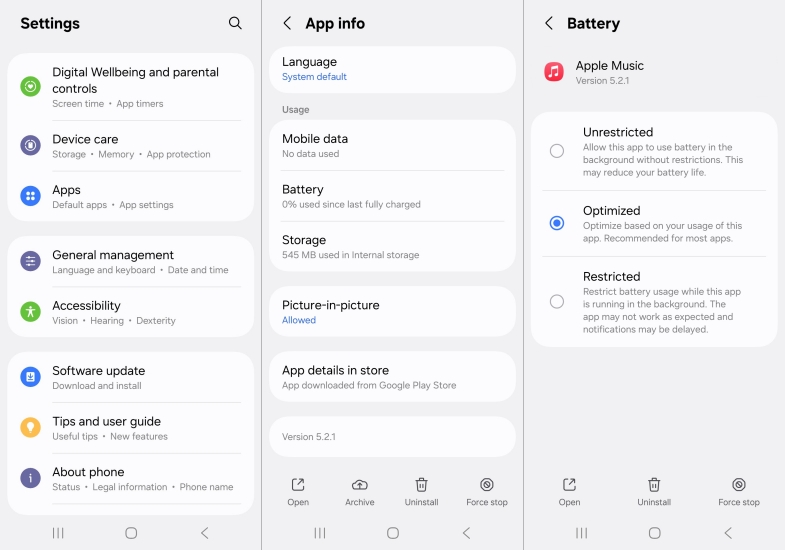
Step 1. Go to Settings > Apps > Apple Music.
Step 2. Tap Battery or Battery Usage.
Step 3. Select Unrestricted.
Fix 4: Set Apple Music as the Default Provider for Google Assistant
If saying "Hey Google, play music" causes Google Assistant to open YouTube Music, Spotify, or throw an error, your default voice provider needs to be updated.
Step 1. Open the Google Home app on your phone.
Step 2. Tap your Profile icon at the top right and select Home settings.
Step 3. Scroll down to tap Google Assistant and select Music.
Step 4. Tap Apple Music to set it as your primary music service.
Fix 5: Convert Apple Music Tracks for Offline Playback Limits
If you frequently drive through areas with poor cellular service, rely on local audio files instead of live app streaming. A practical workaround is using TunesMake Apple Music Converter on your computer. This utility allows you to download and convert your Apple Music tracks, playlists, or albums into standard open formats like MP3, FLAC, or WAV while preserving original audio quality and ID3 tags. Once converted, you can play your Apple Music songs from your Android phone's internal memory or a USB flash drive offline while driving.

Streaming Audio Recorder –
Download Apple Music tracks for playing anytime
- Download songs, albums, and playlists from Apple Music
- Convert Apple Music to MP3, M4A, M4B, WAV, FLAC, and AIFF
- Remove DRM protection from Apple Music completely and safely
- Preserve the original audio quality and ID3 tags for management
- Support downloading music from 10 popular streaming platforms
Security Verified. 100% Clean & Safe.
Part 4. FAQs about Apple Music with Android Auto
Can I listen to Apple Music offline on Android Auto?
Yes. Download tracks within the Apple Music app on your phone beforehand. On your car display, navigate to Library > Downloaded to access your offline music without using cellular data.
Why does Apple Music stop playing when my phone screen turns off?
This is caused by Android's background app restriction. Setting Apple Music's battery usage to Unrestricted in your phone's settings prevents the operating system from putting the app to sleep when the screen turns off.
Why are my custom Apple Music playlists not showing up on the car display?
Force stop the Apple Music app on your phone, clear its cache, and re-open it while connected to Wi-Fi. This forces the app to resync your cloud library before you reconnect to Android Auto.
Part 5. In Conclusion
Integrating Apple Music with Android Auto allows you to enjoy Apple's vast streaming library directly through your car's dashboard. By following the proper setup steps, you can prevent most common connection dropouts and playback freezes. If persistent software glitches or offline data limits disrupt your drives, converting your tracks for local storage or USB playback using TunesMake Apple Music Converter offers a seamless backup strategy. With your system properly configured, you can keep your focus on the road while enjoying a reliable, high-fidelity in-car listening experience.
Related Articles


An experienced freelance writer at TunesMake, specializes in using various streaming services from Spotify, Apple Music, to Amazon Music, and more other platforms.
- 1
- 2
- 3
- 4
- 5
- 6
- 7
 Leave Your Comment
(0)
Leave Your Comment
(0)

 Download Center

