








 Store
Store


Have native access to your favorite playlists while driving your Tesla makes every commute considerably better. Since Tesla introduced built-in Apple Music integration into its infotainment software, listening to your saved library, personal playlists, and live radio stations on the road has become seamless. Whether setting up Apple Music on Tesla for the first time, troubleshooting a frustrating Tesla Apple Music playback error, or trying to stream without paying for Tesla's Premium Connectivity, this step-by-step guide covers everything you need to know.
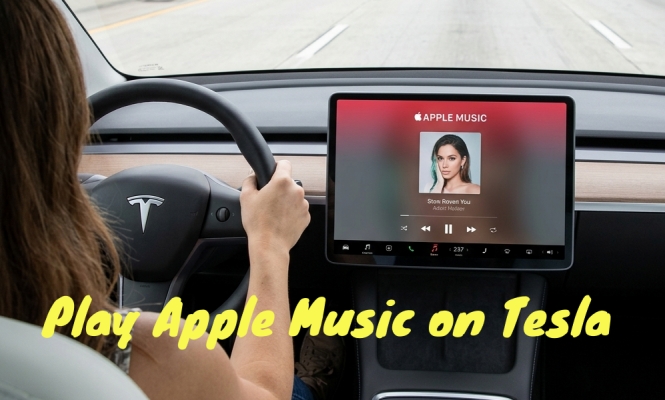
Part 1. Does Tesla Have Apple Music?
Yes, Tesla vehicles support Apple Music. Tesla added an Apple Music app to its infotainment system as part of the 2022 Holiday Update. This means that all Tesla users have the ability to listen to Apple Music while driving. But the methods to access Apple Music on Tesla varies depending on whether you meet the following requirements:
- Apple Music Subscription: An active individual, family, or student Apple Music plan.
- Internet Connection: An active Tesla Premium Connectivity subscription ($9.99/month).
- Software Version: Tesla vehicle software version 2022.44.25 or newer.
If you have the above requirements ready, you can directly log into Apple Music on your Tesla for playing music. However, when you don't have a Tesla Premium Connectivity subscription, you can try some other methods. Here is the four primary methods for playing Apple Music on your Tesla, regardless of whether you have a Tesla Premium Connectivity subscription.
| Feature | Direct Streaming | Mobile Hotspot Connection | Bluetooth Audio Streaming | Tesla Web Browser Integration | USB Drive Playback |
|---|---|---|---|---|---|
| Setup Complexity | Easy | Moderate | Very Easy | Easy | Moderate |
| Internet Required? | Yes | Yes | Yes | Yes | No |
| Subscription Needed? | Premium Connectivity | Mobile Data | None | Mobile Data | No |
| Control Interface | Full Touchscreen | Full Touchscreen | Basic Steering Wheel | Full Touchscreen | Full USB Media Player UI |
| Audio Quality | High-Bitrate AAC | High-Bitrate AAC | Compressed Bluetooth | High-Bitrate AAC | Lossless MP3 & FLAC |
Part 2. How to Link Tesla to Apple Music (Premium Connectivity Required)
The official Apple Music app runs directly inside Tesla's Custom Linux-based infotainment platform, giving you direct access to your library, live lyrics, queue management, and radio stations. With an active Tesla Premium Connectivity subscription, follow the steps below to set up Apple Music on your Tesla.
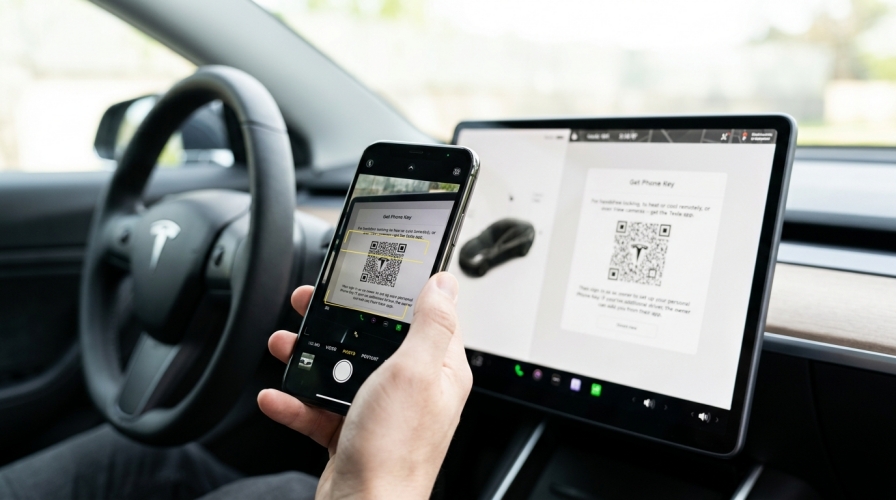
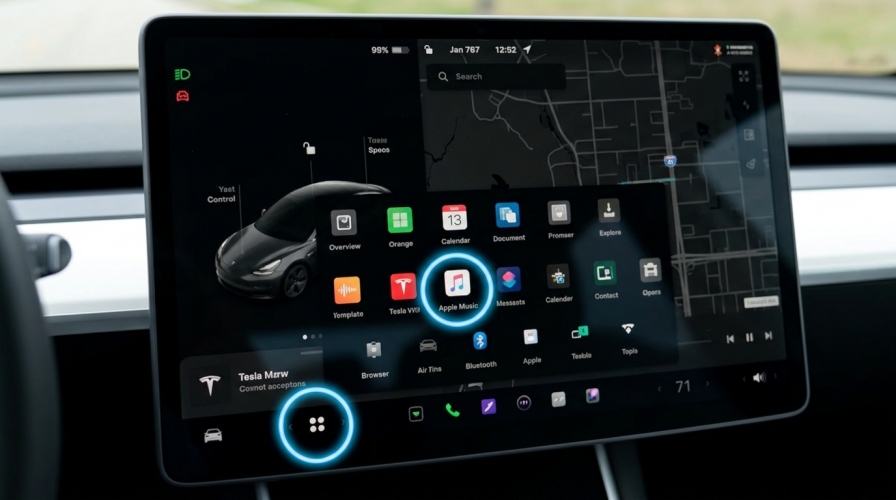
Step 1. Tap the App Launcher at the bottom of the main touchscreen display.
Step 2. Locate and tap the Apple Music icon.
Step 3. Once opened, the screen will display a unique QR Code alongside instructions.
Step 4. Open the Camera app on your iPhone or mobile device.
Step 5. Point your phone camera at the QR code and tap the link pop-up that appears.
Step 6. Sign in using your Apple ID and password or approve with Face ID or Touch ID.
Step 7. Tap Allow to authorize Tesla's software to access your Apple Music account.
Key Features of Apple Music in Tesla:
-
Full Library: Access your full cloud library, personal mixes, favorite artists, and custom playlists.
-
Live Lyrics: View time-synced lyrics directly on the touchscreen while parked or driving.
-
Queue Management: Swipe right on songs in search results or artist pages to add them directly to your playback queue.
-
Driver Profile Integration: Audio account credentials link directly to driver profiles, ensuring your personal recommendations load when you enter the vehicle.
Part 3. How to Play Apple Music on Tesla without Premium Connectivity
If you prefer not to pay $9.99 per month for Tesla's Premium Connectivity, you can still enjoy Apple Music in your car using four simple alternative methods.
Method 1. Mobile Hotspot Connection
Without paying for Tesla's Premium Connectivity package, you can still use the Tesla touchscreen Apple Music app. You can feed cellular data from your phone's personal hotspot directly to the car's WiFi receiver. Then you can use the Tesla Apple Music app normally.
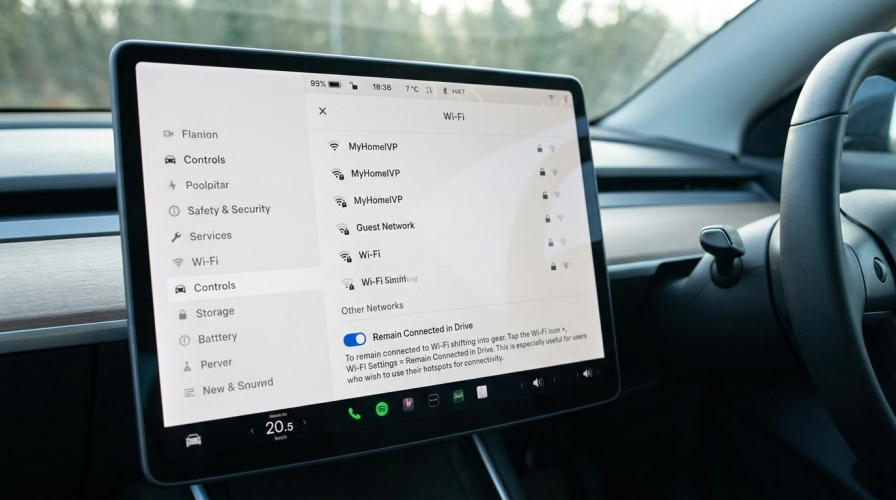
Step 1. On your smartphone, enable Personal Hotspot.
Step 2. On your Tesla display, tap the Wi-Fi status icon in the top-right corner.
Step 3. Select your smartphone's hotspot network and enter the password.
Step 4. Tap your connected hotspot and check the box that says "Remain Connected in Drive".
Step 5. Open the Apple Music app from the Tesla app launcher.
Step 6. Scan the QR code with your phone camera and sign in with your Apple ID.
-
😀 Pros
- Full native touchscreen integration
- Saves money
-
☹️ Cons
- Consume mobile hotspot data from your phone plan
- Manually check Wi-Fi connection settings every time
Method 2. Bluetooth Audio Streaming
Bluetooth streaming bypasses Tesla's internal apps entirely. It sends audio directly from the Apple Music app installed on your smartphone to your Tesla's speakers.
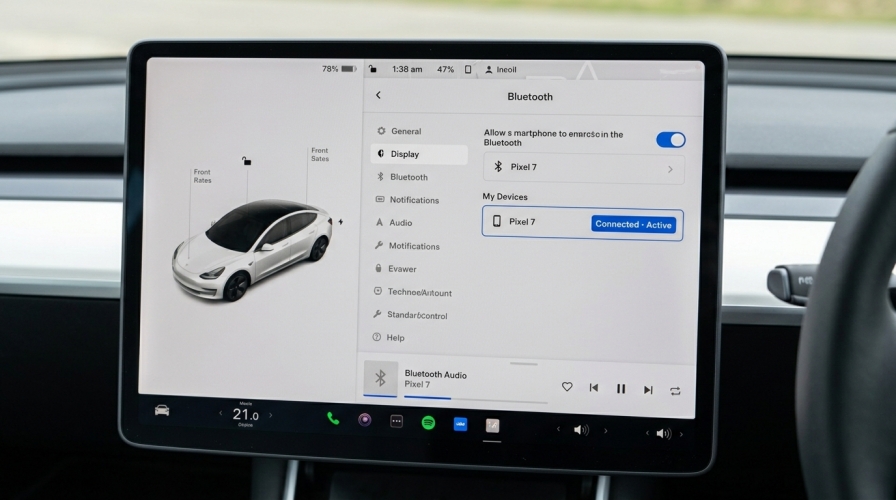
Step 1. On your Tesla display, navigate to Controls > Bluetooth > Add Device.
Step 2. Open Settings > Bluetooth on your iPhone and pair with your Tesla.
Step 3. Open the Apple Music app on your phone and start playback.
Step 4. Change the Tesla audio source input to Bluetooth.
-
😀 Pros
- Totally free
- No Tesla cellular subscription required
- Handle phone calls cleanly
-
☹️ Cons
- Slightly lower audio bandwidths
- Not support browsing folders or searching tracks
Method 3. Tesla Web Browser Integration
Tesla features a Chrome-based web browser on its central display. You can open the official Apple Music web player to stream music in the background while driving.
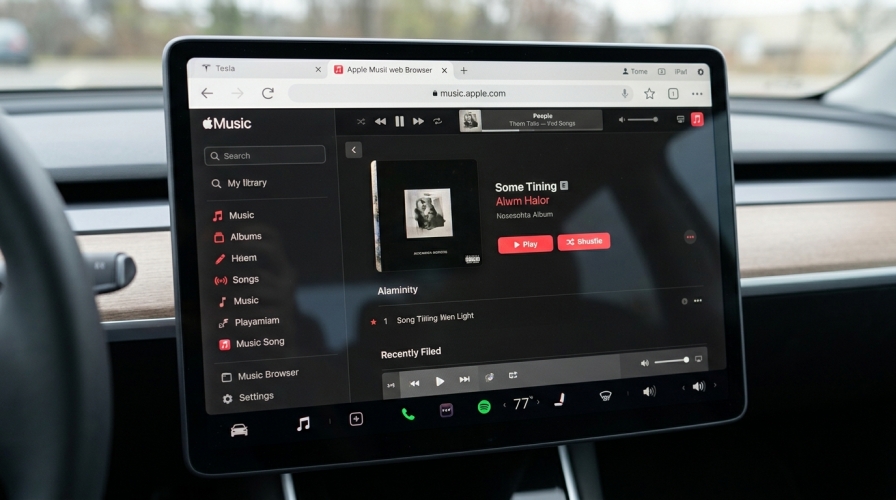
Step 1. Open the Browser app from the Tesla app tray while parked.
Step 2. Navigate to music.apple.com.
Step 3. Tap Sign In at the top right corner and log in with your credentials.
Step 4. Pick a track or playlist and hit Play.
-
😀 Pros
- Act as an effective backup workaround
- Provide access to your web-based Apple Music library interface
-
☹️ Cons
- Slower load times and clunkier performance
- Small and tricky to tap while managing vehicle controls
Method 4. Offline USB Playback (Recommended)
If you frequently drive through dead zones with no cellular signal, or if you prefer not to use phone hotspot data or Tesla's Premium Connectivity, you can download your Apple Music collection to a USB flash drive and then use the Tesla's Media Player to play them offline.
Because Apple Music tracks are protected by DRM, Tesla's built-in USB player cannot read raw streaming files directly from an Apple Music download folder. TunesMake Apple Music Converter addresses this constraint by converting your saved playlists into standard, DRM-free audio formats such as MP3, WAV, or FLAC while preserving ID3 tags and track metadata.

Streaming Audio Recorder –
Bakc up Apple Music tracks for playing anytime
- Download songs, albums, and playlists from Apple Music
- Convert Apple Music to MP3, M4A, M4B, WAV, FLAC, and AIFF
- Remove DRM protection from Apple Music completely and safely
- Preserve the original audio quality and ID3 tags for management
- Support downloading music from 10 popular streaming platforms
Security Verified. 100% Clean & Safe.
Step 1. Convert your target Apple Music playlists into MP3 or AAC format using TunesMake.
Step 2. Create a folder named Music on the USB drive and copy your converted audio files into it.
Step 3. Insert the flash drive into the USB data port located inside the glovebox or center console.
Step 4. On the Tesla display, open Media Player, tap Sources, select USB, and play your tracks.
-
😀 Pros
- 100% offline playback
- No data usage or monthly vehicle subscriptions required
- Reliable sound quality with no buffering delays
-
☹️ Cons
- Requires a computer to download and transfer tracks
Part 4. Troubleshooting Tesla Apple Music Playback Error
During the process of using Apple Music in Tesla, lots of users encounter Tesla Apple Music not working or Tesla Apple Music playback error. When Apple Music glitches, displays loading spinners, or throws playback license errors, use these step-by-step technical fixes.
1. Fix QR Code & Authentication Failures
If scanning the QR code leads to an error or an infinite login loop, your session tokens between Apple and Tesla may be corrupted.
- Reset Media Sources: Go to Controls > Audio Settings > Sources. Uncheck the box for Apple Music, wait 15 seconds, and re-check it. This forces the infotainment system to re-initialize the app cache.
- Reset Touchscreen Language: Go to Controls > Display > Touchscreen Language. Temporarily change the vehicle language to any alternate language, then switch it back to your primary language. The system will perform a partial UI restart and force a fresh authorization prompt.
2. Fix "Playback Error: Media License" & Stuttering Audio
If the playback of Apple Music in Tesla suddenly freezes or displays a licensing error, there would be a software or network error.
- Update System Software: Verify your vehicle software is fully updated under Controls > Software. Outdated firmware frequently causes media license handshake errors.
- Network Handshake Reset: Toggle your vehicle's Wi-Fi or cellular connectivity off and on again, or briefly toggle Airplane Mode on your smartphone if streaming via hotspot.
3. Fix Blank Screens or Missing Playlists
When the screen goes completely blank or your recent Apple Music playlists fail to load, it may be leaded by corrupted Apple Music cache.
- Perform a Soft Reboot: Hold down both scroll wheel buttons on the steering wheel simultaneously for about 10 seconds until the touchscreen shuts down and the Tesla "T" logo reappears. This clears local RAM without resetting your personal vehicle settings.
Part 5. FAQs about Apple Music for Tesla
Does Tesla Apple Music support Lossless Audio or Dolby Atmos?
Currently, the Tesla Apple Music app streams using standard AAC compressed formats to manage data consumption over vehicle cellular networks. It doesn't stream full Lossless Audio or Dolby Atmos spatial files, though hardware sound stage processing provides immersive audio quality.
Why is my Apple Music pausing continuously while driving?
This typically occurs due to poor cellular coverage or when switching between mobile hotspot Wi-Fi and LTE networks. Toggling your Wi-Fi off or soft-resetting the infotainment screen usually resolves buffer delays.
How do I add a song to my queue while driving?
Swipe right on any track listed on an album, playlist, or search results page to immediately add it to your current playback queue.
Can passengers control Apple Music from their phones?
Passengers can control music via Bluetooth streaming, or connect to the vehicle hotspot to browse and manage tracks on screen if authorized on the vehicle's driver profile.
Part 6. Conclusion
Playing Apple Music on your Tesla is easier and more versatile than ever. Whether you choose the seamless, feature-rich experience of the Tesla Apple Music app, stream via Bluetooth for a quick and free setup, or connect through a mobile hotspot to save on monthly connectivity costs, you can tailor your setup to match your needs and budget. For drivers who want reliable, 100% offline playback without relying on cellular signal or data plans, converting your favorite tracks for USB drive playback offers the ultimate backup. No matter which method you use, setting up your preferred method takes just a few minutes, giving you full access to your playlists, albums, and radio stations on every drive.
Related Articles

A passionate writer specialized in creating engaging content about music and entertainment, covering everything from the latest music trends and entertainment news to practical tutorials.
- 1
- 2
- 3
- 4
- 5
- 6
- 7
 Leave Your Comment
(0)
Leave Your Comment
(0)

 Download Center

