









 Store
Store


Have you ever noticed that awkward silence between songs when listening to a playlist? It completely breaks the energy of a party, a workout, or a deep-focus session. To fix this, Apple introduced Crossfade for Apple Music, eliminating gaps by fading out the ending song while fading in the next one. Recent updates even introduce AutoMix, an intelligent feature that seamlessly blends tracks based on tempo and key. Whether you want to build a continuous DJ-like mix or you're wondering why your crossfade settings suddenly stopped working, this comprehensive guide has you covered.
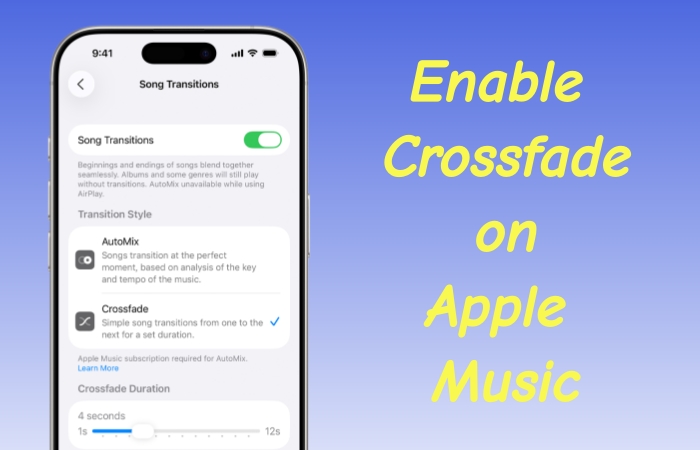
Part 1. What Is Crossfade on Apple Music?
Crossfade and Automix are designed to eliminate that awkward moment of dead silence between tracks, but they go about it in completely different ways. Before enabling Crossfade on Apple Music, it helps to understand the two transition styles Apple Music offers.
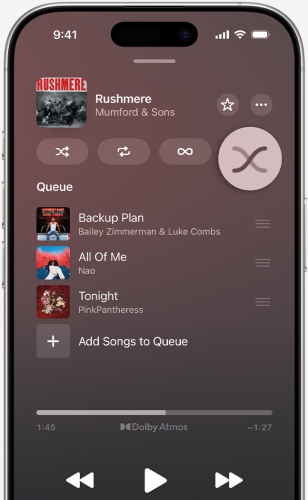
Crossfade:
Crossfade and Automix are designed to eliminate that awkward moment of dead silence between tracks, but they go about it in completely different ways. Before enabling Crossfade on Apple Music, it helps to understand the two transition styles Apple Music offers.
Best for:
Listeners who want total control. It is perfect if you know exactly how long you like your transitions to be like a tight 3-second blend for general listening, or a long 12-second blend for continuous dance music.
Downside:
Because it is a rigid setting, it treats a chaotic punk rock ending exactly the same way it treats a slow acoustic fade-out, which can occasionally lead to awkward, messy overlaps.
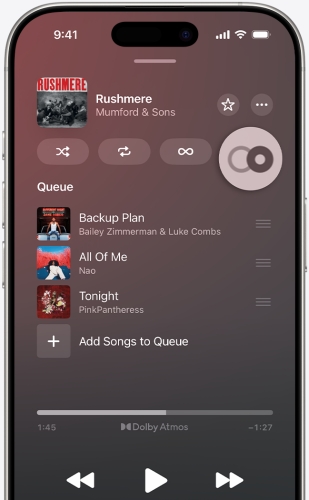
AutoMix:
AutoMix uses on-device machine learning to analyze the rhythm, key, and tempo of consecutive songs in your queue. Instead of forcing a set number of seconds onto every transition, it dynamically changes its behavior based on the specific songs playing.
Best for:
House parties, workouts, or shuffling massive, multi-genre playlists where you want a continuous, professional radio or club vibe.
Downside:
Because it aggressively tries to blend songs, it will frequently cut off the very beginning or final chords of a track. If you want to hear a song exactly how the artist recorded it, AutoMix can sometimes feel intrusive.
Comparison Table: Apple Music AutoMix vs Crossfade
| Feature | Crossfade | AutoMix |
|---|---|---|
| Control | Manual | Automatic |
| Consistency | Identical transition every single time | Varies wildly depending on the songs |
| Best Genres | Anything, provided you tune the seconds right | Electronic, Pop, Hip-Hop, Dance |
| Data Types | Works on your uploaded library and Apple catalog | Only works on the official Apple Music catalog |
| Behavior | Only fades volume | Fades volume, trims intros and outros, beat-matches |
Part 2. How to Turn on Crossfade on Apple Music
On iOS and iPadOS, Apple Music users can easily toggle on the Crossfade feature in the Settings. And Apple Music Crossfade isn't just for mobile Apple devices. You can enjoy gapless playback on desktops and Android devices as well. Follow these steps to enable Crossfade on Apple Music.
Enable Crossfade on Apple Music for iPhone & iPad
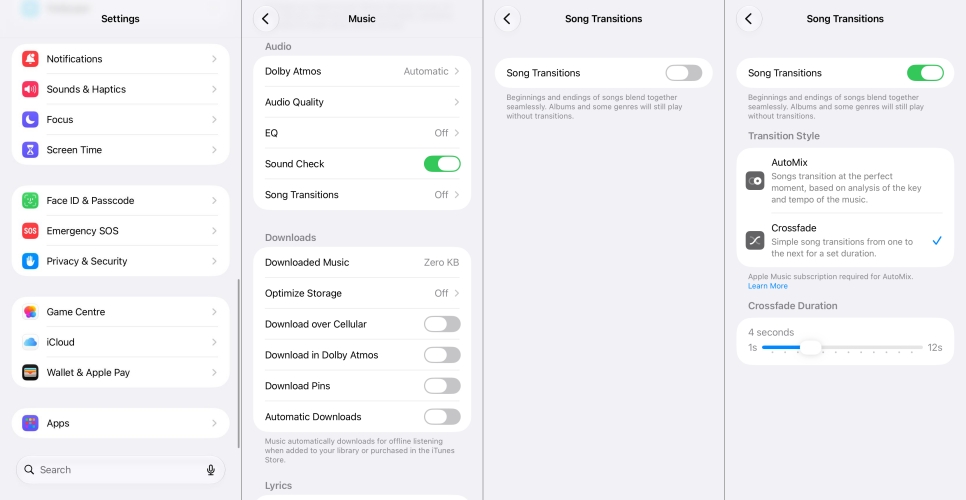
Step 1. Open the Settings app on your iPhone or iPad.
Step 2. Scroll down and tap on Apps.
Step 3. Find and select Music.
Step 4. Look for the Song Transitions section.
Step 5. Toggle the switch next to Crossfade to the On position.
Step 6. Use the slider that appears underneath to choose your transition duration.
Enable Crossfade on Apple Music for Mac
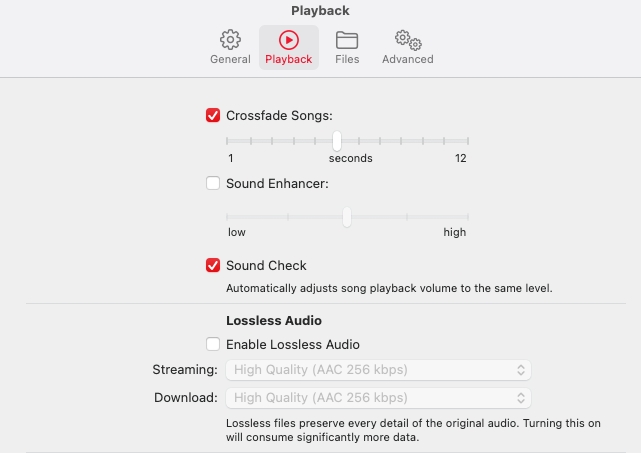
Step 1. Open the Apple Music app.
Step 2. In the top menu bar, click on Music and select Settings.
Step 3. Click on the Playback tab.
Step 4. Check the box next to Song Transitions.
Step 5. Select Crossfade, then adjust the seconds slider.
Enable Crossfade on Apple Music for Windows
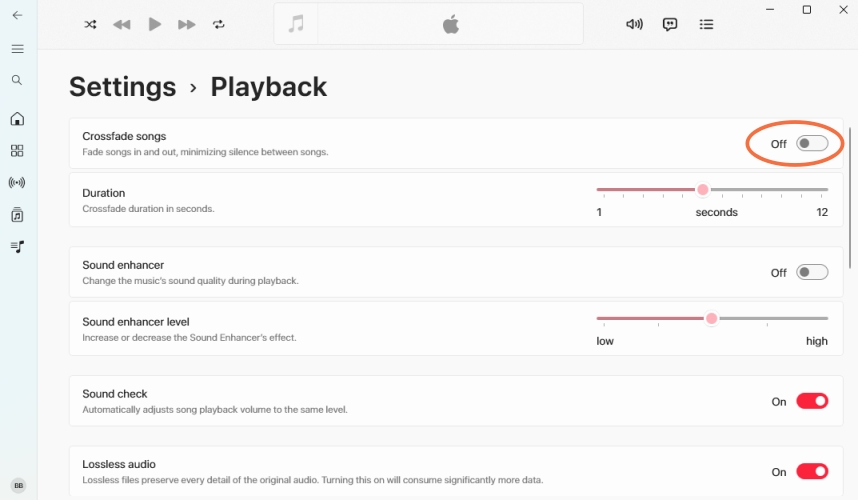
Step 1. Open the Apple Music app for Windows.
Step 2. Click your account name at the bottom of the sidebar.
Step 3. Click Settings, then select Playback.
Step 4. Toggle on Crossfade songs and choose your preferred duration.
Enable Crossfade on Apple Music for Android
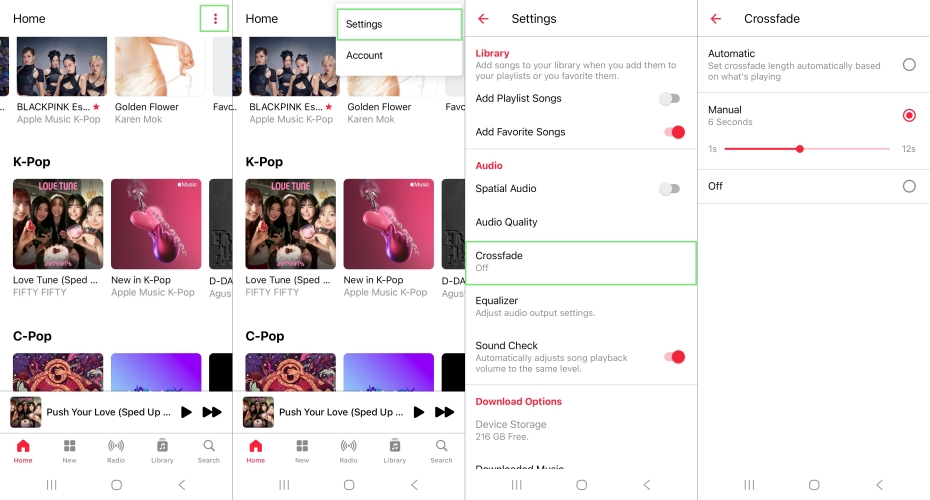
Step 1. Open the Apple Music app on your Android device.
Step 2. Tap the three-dot menu icon in the top right corner and select Settings.
Step 3. Scroll down to the Audio section and tap Crossfade.
Step 4. Select a manual time.
Part 3. Best Crossfade Settings for Apple Music
Finding the best crossfade setting for Apple Music depends entirely on how and where you are listening. Apple Music allows you to adjust the crossfade anywhere from 1 to 12 seconds. Here is a breakdown of the best crossfade settings based on your listening style.
The Sweet Spot: 4 to 5 Seconds (Best for Daily Listening)
For most playlists spanning pop, hip-hop, rock, and casual streaming, 4 to 5 seconds is the gold standard. It gives just enough time for the outgoing song to dim while the intro of the next track builds up, seamlessly removing that awkward "dead silence" gap without making you feel like you missed the ending of your favorite track.
The Club / Workout Mix: 8 to 12 Seconds (Best for High Energy)
If you are hosting a house party, hitting a heavy gym session, or listening to electronic or dance music, stretch that slider up to 8 to 12 seconds. This mimics a live DJ set. Electronic, house, and techno songs usually have long, instrumental intros and outros. A longer crossfade seamlessly blends the beats together so the rhythm never drops, keeping your energy or the party vibe going uninterrupted.
The Clean Cut: 1 to 2 Seconds (Best for Indie & Acoustic)
If your taste leans toward acoustic sessions, live recordings, indie rock, or singer-songwriter tracks, keep it tight at 1 to 2 seconds. These genres often rely on abrupt, artistic endings or brief moments of silence that are meant to be felt. A short crossfade simply trims the artificial digital gap between streaming files without stepping on the song's natural emotional wrap-up.
Part 4. Workarounds for Apple Music Crossfade Not Working
If you followed the steps above but your music still cuts off abruptly between tracks, you aren't alone. Apple Music handles crossfading through strict processing rules, which frequently cause the feature to fail silently without alerting the user. Here is how to fix Apple Music Crossfade not working on your device.
Fix 1. Turn Off Lossless Audio in Apple Music
The culprit behind a broken crossfade is high-fidelity audio. Apple Music cannot process Crossfade while Lossless Audio or Hi-Res Lossless is enabled. Because lossless files require direct, uncompromised audio streaming, the app's crossfade engine cannot overlay the tracks. To fix this on the iPhone, turn off Lossless Audio.
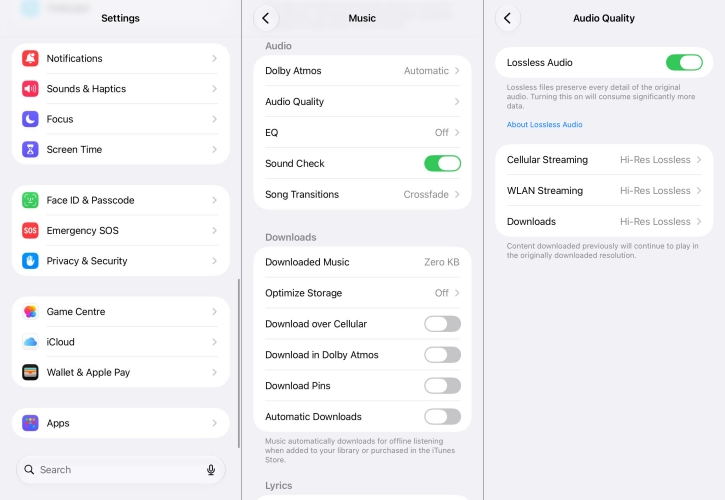
Step 1. Go to Settings > Apps > Music.
Step 2. Under the Audio section, tap Audio Quality.
Step 3. Toggle Lossless Audio to Off or set to High Quality.
Fix 2. Break AirPlay and External Device Restrictions
Crossfade relies heavily on local device processing. If you are casting your Apple Music via AirPlay to an external speaker like a HomePod, Apple TV, or smart TV, Crossfade will often be disabled automatically. It works flawlessly over built-in device speakers, wired headphones, and standard Bluetooth connections. If you want seamless transitions, stick to Bluetooth or local playback.
Alternative Solution for Persistent System Gaps:
If you find these ecosystem restrictions too limiting or if you want to use Crossfade on a device or third-party media player that Apple Music doesn't fully support, a common workaround is to convert your music library into standard local audio files. Utilizing a utility like TunesMake Apple Music Converter allows you to convert your playlists and albums into widely compatible formats such as MP3, FLAC, or WAV. Once your tracks are saved locally, you can import them into any advanced media player or DJ software that handles crossfading.

Fix 3. Not Play Albums in Apple Music Sequentiall
Apple Music respects the artistic integrity of full-length albums. If you select an album and play it sequentially from Track 1 to Track 2, Apple Music intentionally turns off crossfading. This ensures that gapless transitions originally engineered by the musical artist sound exactly as intended. Crossfade will instantly start working again if you turn on Shuffle, play a curated playlist, or listen to a personalized radio station queue.
Part 5. Conclusion
Music lovers can enjoy a better listening experience once setting up Crossfade on Apple Music. This feature is available on multiple devices, including the iPhone, iPad, Mac, Windows PC, and Android devices. With the steps and settings listed above, you can make your music crossfade well while listening on your device. When you encounter the Apple Music Crossfade not working issue, try those fixes to fix the issue. Or directly download and convert Apple Music with TunesMakle Apple Music Converter to crossfade freely.
Related Articles

A professional writer at TunesMake, crafts in-depth tutorials, practical tips and expert advice focusing on streaming music, technology, and more.
- 1
- 2
- 3
- 4
- 5
- 6
- 7
 Leave Your Comment
(0)
Leave Your Comment
(0)

 Download Center

