








 Store
Store


Playing Apple Music on your Google Home or Google Nest speaker gives you hands-free control over millions of tracks, curated playlists, and custom radio stations. While Google and Apple operate in different ecosystems, integrating Apple Music into your Google Assistant setup is straightforward. This guide covers every method to play Apple Music on a Google Home and troubleshooting step to get your music playing smoothly.
Part 1. How to Link Apple Music to Google Home
Linking your account lets you control Apple Music hands-free using Google Assistant voice commands. If you reside in a supported country such as the US, UK, Canada, Australia, France, Germany, or Japan, follow these steps to set up Apple Music on a Google Home.
What You'll Need:
-
An active Apple Music subscription
-
A Google Home speaker connected to a Wi-Fi network
-
Latest version of the Google Home app
-
Devices connected to the same Wi-Fi network
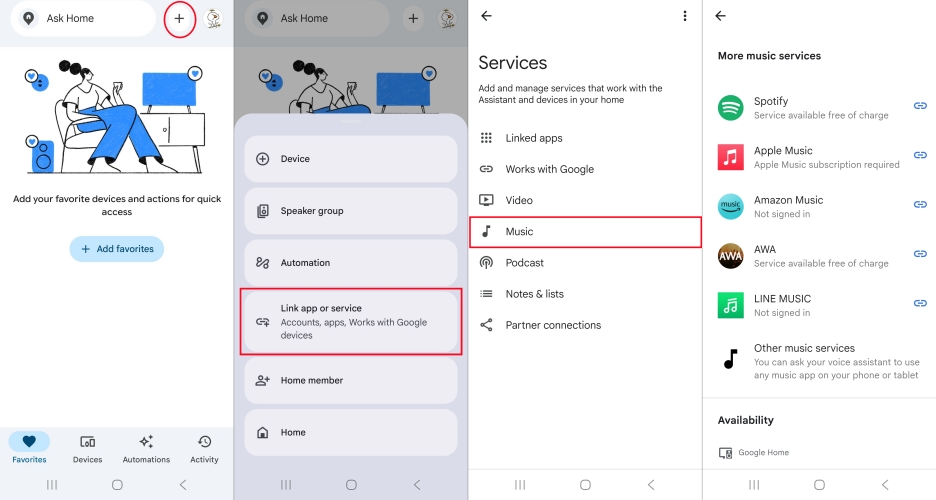
Step 1. Open the Google Home app on your iOS or Android device.
Step 2. Tap the + button on the main dashboard.
Step 3. Select Link app or service, then tap Music.
Step 4. Under More music services, locate Apple Music and tap the Link icon.
Step 5. Tap Link Account, then tap Continue > Agree and continue when prompted.
Step 6. Sign in with the Apple ID associated with your active Apple Music subscription.
Step 7. Grant Google Assistant permission to access your Apple Music library.
How to Set Apple Music as the Default Music Service
Setting Apple Music as your default music provider eliminates the need to say "...on Apple Music" at the end of every voice command.
Step 1. In the Google Home app, return to Link app or service > Music.
Step 2. Under Your music services, select Apple Music.
Step 3. A checkmark will appear next to Apple Music, confirming it as your primary provider.
Note on Regional Availability:
-
Apple Music integration with Google Assistant is supported in select regions, including the US, UK, Canada, Australia, France, Germany, Japan, India, Mexico, and South Korea.
Essential Google Assistant Commands for Apple Music
Once linked, use these voice commands to control Apple Music on your Google Home speaker:
| Action Category | Voice Command Example |
|---|---|
| Basic Playback | "Hey Google, play Apple Music." |
| Specific Track | "Hey Google, play [Song Title] by [Artist]." |
| Playlists | "Hey Google, play my [Playlist Name] playlist." |
| Curated Content | "Hey Google, play Today's Hits on Apple Music." |
| Library Control | "Hey Google, play my liked songs." |
| Multi-Room Audio | "Hey Google, play music on the Living Room speaker group." |
Part 2. How to Get Apple Music on Google Home without Linking
Apple Music integration via Google Assistant is restricted to select regions. If the Apple Music option does not appear in your Google Home app, use one of the following reliable workarounds.
How to Connect Apple Music to Google Home via Bluetooth
Every Google Home and Google Nest device functions as a standard Bluetooth receiver. This method works globally on iOS, Android, macOS, and Windows.
Pair via Voice Command
Step 1. Say, "Hey Google, pair Bluetooth."
Step 2. Your Google Home speaker will enter pairing mode, and its status lights will pulse.
Step 3. Open the Bluetooth settings on your iPhone, Android, or laptop.
Step 4. Select your Google Home speaker from the list of available devices to connect.
Pair via the Google Home App
Step 1. Open the Google Home app and tap your speaker's device card.
Step 2. Tap the + icon in the top right corner.
Step 3. Tap Device, then select Paired Bluetooth devices.
Step 4. Tap Enable pairing mode.
Step 5. Connect your device via your mobile system settings.
Step 6. Open the Apple Music app, and press play.
How to Cast Apple Music to Google Home via Google Cast
Almost Android devices feature casting capabilities. It allows Android users to stream audio directly from the Apple Music app to Google Nest speakers using Google Cast over Wi-Fi.
Step 1. Verify your Android device and Google Home speaker are on the same Wi-Fi network.
Step 2. Open Apple Music on Android and begin playing a track.
Step 3. Tap the Cast icon in the playback controls.
Step 4. Select your target Google Home speaker or Speaker Group.
How to Play Apple Music on Google Home via Local Audio
If you are located in an unsupported region, want to cancel your active Apple Music subscription, or prefer streaming personal media, converting Apple Music tracks offer an effective alternative. Because Apple Music tracks not in the standard format are only playable within its own app, a converting tool like TunesMake Apple Music Converter can help convert these tracks into universal, unprotected formats.
Once converted, you can upload the converted Apple Music files to your personal YouTube Music library via a browser. Then you can ask Google Assistant: "Hey Google, play my uploaded music." Also, you can stream the converted Apple Music files from any media player app on your phone or PC directly to Google Home via Bluetooth or a local casting server.

Streaming Audio Recorder –
Download Apple Music tracks for playing anytime
- Download songs, albums, and playlists from Apple Music
- Convert Apple Music to MP3, M4A, M4B, WAV, FLAC, and AIFF
- Remove DRM protection from Apple Music completely and safely
- Preserve the original audio quality and ID3 tags for management
- Support downloading music from 10 popular streaming platforms
Security Verified. 100% Clean & Safe.
Step 1 Add Apple Music Songs to Convert
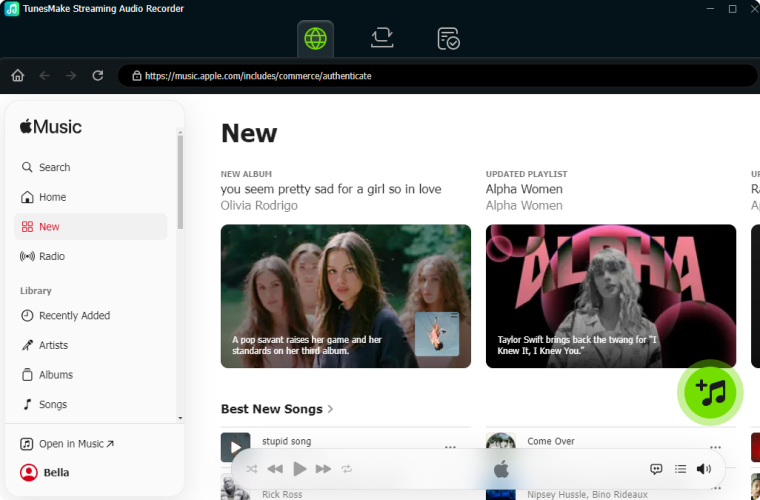
Launch TunesMake Streaming Audio Recorder on your computer, then select Apple Music from a list of streaming platforms. The software will load the built-in web player automatically. Sign in with your Apple ID credentials to access your library. Browse for the songs, albums, or playlists you want to convert. Click the + icon or drag and drop tracks directly into the conversion list.
Step 2 Configure Output Audio Preferences
Click the Settings button in the bottom left corner and open Preferences, then select the Conversion tab. Start to choose MP3, M4A, FLAC, or WAV and customize technical parameters like sample rate, bitrate, and audio channel if desired. Also, you can set your preferred local destination folder to save the output files.

Step 3 Convert and Save Apple Music Locally
Click the Convert button at the bottom right to start downloading and converting your tracks. Once completed, click the History icon at the left panel to browse all the converted Apple Music tracks. Once the conversion is complete, your Apple Music tracks are ready to be transferred to any device or uploaded to cloud services like YouTube Music for offline or smart home playback.

Part 3. How to Fix Apple Music Issues on Google Home
Cross-ecosystem integration frequently runs into frustrating friction points from Google Assistant failing to recognize voice commands to sudden streaming drops, missing account options in the Google Home app, or error messages like "Account Not Linked". The following are the cause and solution of common Apple Music issues on a Google Home.
Fix 1: Apple Music Option Is Missing in the Google Home App
- Cause: Regional availability limits or account locale mismatches.
- Solution: Verify your mobile device's system language, Google account region, and App Store or Play Store country are set to a supported region. Alternatively, use Bluetooth streaming.
Fix 2: Google Assistant Says "Account Not Linked" or Stops Playing
- Cause: Expired authorization token between Google and Apple.
- Solution: Open Google Home app > Settings > Music. Tap Unlink next to Apple Music. Restart your Google Home speaker by unplugging the power cord for 30 seconds. Then re-link your Apple ID.
Fix 3: Apple Music Drops or Unresponsive Apple Music Playback
- Cause: Wi-Fi network congestion or frequency mismatch.
- Solution: Ensure both your smartphone and Google Home speaker are connected to the same Wi-Fi frequency band. Reboot your router if playback buffers frequently. Or try to connect your devices to another network.
Part 4. FAQs about Apple music with Google Home
Can I AirPlay Apple Music to a Google Home speaker?
No. Google Home and Google Nest speakers do not support Apple AirPlay. To stream from an iPhone or iPad without account linking, connect your Apple Music via Bluetooth.
Do I need a paid Apple Music subscription to play music on Google Home?
Yes. Google Assistant integration requires an active individual, family, or student Apple Music subscription. Free trial accounts also work during the trial period.
Can multiple Apple Music accounts link to one Google Home?
Yes. Set up Voice Match in the Google Home app. Once configured, Google Assistant will recognize individual voices and access each family member's specific Apple Music library and personal recommendations.
Part 5. Conclusion
Integrating Apple Music into your Google Home ecosystem bridges two platforms, delivering hands-free access to your entire audio library. Whether you set up account linking for effortless Google Assistant voice commands, stream directly using Bluetooth or Android Google Cast, or rely on local audio conversion tools to bypass regional limitations, enjoying your favorite playlists across your home is straightforward.
Related Articles

A professional writer at TunesMake, crafts in-depth tutorials, practical tips and expert advice focusing on streaming music, technology, and more.
- 1
- 2
- 3
- 4
- 5
- 6
- 7
 Leave Your Comment
(0)
Leave Your Comment
(0)

 Download Center

