








 Store
Store


If you are a music lover, you are likely familiar with the concept of a "pre-save" campaign. It is the digital equivalent of pre-ordering a physical CD or vinyl record. However, if you have ever tried to set up or use a pre-save link for Apple Music, you might have run into a few confusing roadblocks. This is because Apple Music only uses something called a "pre-add" instead of a "pre-save" feature. While it serves the same ultimate purpose, the technical mechanics under the hood are completely different from other streaming platforms. This comprehensive guide breaks down how to pre-add on Apple Music and how to play pre-added Apple Music offline on any device.
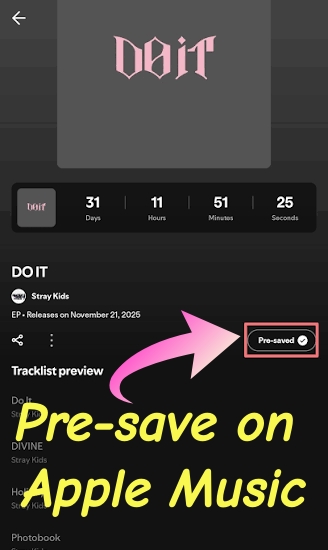
Part 1. What Is Apple Music Pre-save (Pre-add)?
For listeners, the difference between a pre-save and a pre-add is subtle but important. On platforms like Spotify, a third-party application requests permission to access your account and manually adds the songs to your library on release day.
Apple Music cuts out the middleman. When a fan uses an Apple Music pre-add, the upcoming album or EP is immediately injected directly into their music library. The tracks appear grayed out until the official release date. Once released, those songs automatically unlock, download if automatic downloads are enabled, and become streamable.
Part 2. How to Pre-save a Song on Apple Music
If an artist you love just announced a new project, locking it into your library ahead of time is incredibly simple. There are two primary ways to do this.
Method 1. Use an Artist's Smart Link
Most musicians will share a promotional link, often using services like Feature.fm, Linkfire, or DistroKid's HyperFollow, across their social media profiles.
Step 1. Click the smart link provided by the artist.
Step 2. Locate the Apple Music icon and tap the pre-add button next to it.
Step 3. If prompted, log into your Apple ID and authorize the app to access your music library.
Step 4. A confirmation screen will appear letting you know the album has been added.
Method 2. Inside the Apple Music App
If the artist has already made the project visible on the platform, you don't even need an external link. You can directly pre-add a song or an album in the Apple Music app.
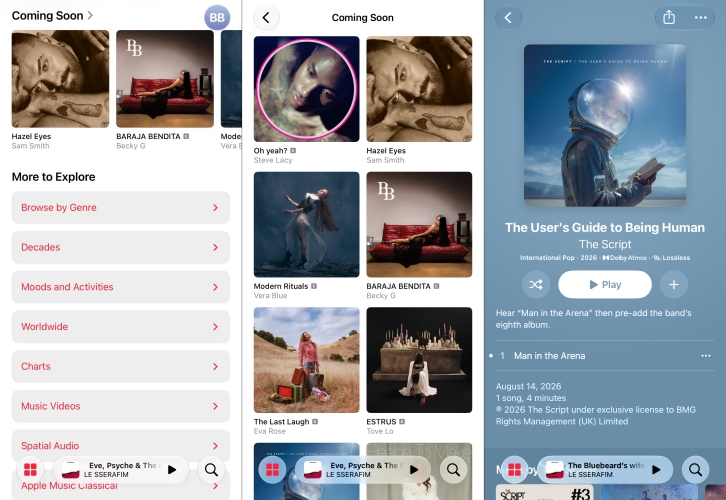
Step 1. Open the Apple Music app on your device.
Step 2. Use the search bar to find the artist or the name of the upcoming album.
Step 3. Tap on the upcoming album profile.
Step 4. Tap the + button or the cloud icon in the top right corner. The album is now in your library and will activate automatically on launch day.
How to Find Pre-saved Songs on Apple Music
When you pre-save an upcoming album or EP on Apple Music, the music is placed right into your main music collection. Finding it is simple, though it behaves a little differently before the official release date.
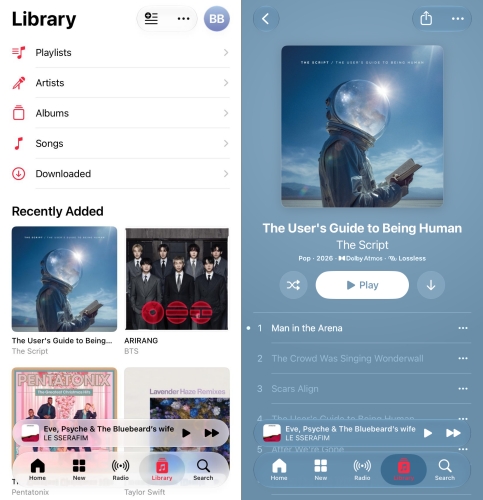
Step 1. Open the Apple Music app.
Step 2. Tap the Library tab at the bottom of the screen.
Step 3. Tap on Albums or Recently Added.
Step 4. Scroll through to find the album artwork.
Part 3. How to Play Pre-saved Apple Music on Any Device
Once an upcoming album officially drops and unlocks in your music library, you can download it for offline listening directly within the official Apple Music app. However, these files are strictly bound to the Apple platform. If you prefer to archive your library or listen to your Apple Music tracks on non-Apple hardware, such as smartwatches without the app, MP3 players, or local DJ software, you may need a third-party Apple Music downloading and converting tool.
Tools like TunesMake Apple Music Converter allows users to log in via an integrated Apple Music web player and convert their accessible tracks into standard, open audio formats like MP3, WAV, FLAC, AIFF, M4A, or M4B while preserving the original ID metadata tags and lyrics. This ensures that once your pre-add campaign drops, you aren't restricted to playing it on just one type of device. Then you can listen to your pre-added Apple Music offline on any device.

Streaming Audio Recorder –
Download pre-saved Apple Music songs for playing anywhere
- Download songs, albums, and playlists from Apple Music
- Convert Apple Music to MP3, M4A, M4B, WAV, FLAC, and AIFF
- Remove DRM protection from Apple Music completely and safely
- Preserve the original audio quality and ID3 tags for management
- Support downloading music from 10 popular streaming platforms
Security Verified. 100% Clean & Safe.
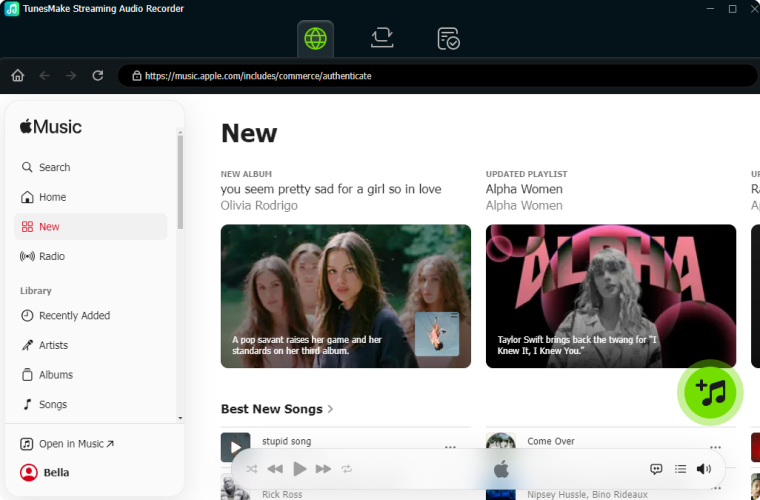
Step 1 Add Pre-saved Apple Music Songs
Install and launch TunesMake Streaming Audio Recorder on your computer, then select Apple Music from the main interface and log into the Apple Music web player with your Apple account. Find the pre-added songs or album in your library and click + button to add them to the conversion list for downloading and conversion.
Step 2 Personalize the Output Parameters
After your pre-saved Apple Music songs are added to the conversion list, click the Settings button at the bottom left corner. Then you can choose the output format and set other parameters like the channel, sample rate, and bit rate. You can choose one of the common format like MP3 to be compatible with more devices. Then save your settings with the OK button.

Step 3 Download Pre-saved Apple Music Songs
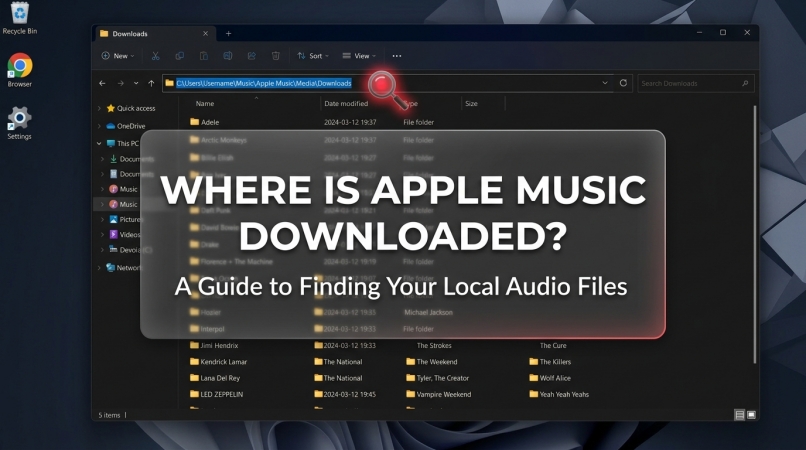
After all the settings are done, you can click the Convert button to start downloading and saving pre-saved Apple Music songs to your computer. Then TunesMake will automatically save them to the local folder on the computer. Remember that you can click the History button to check all the downloaded Apple Music local audio files.

Part 4. Conclusion
You can simply follow the above steps to pre-save the unreleased songs or album to your library in Apple Music. In that case, you won't forget to add your favorite artist's music to your library when it is released. You can also download and save those pre-saved Apple Music songs permanently to your device with TunesMake Apple Music Converter. With all these features and tools, it will really enhance your music experience.
Related Articles

A professional writer at TunesMake, crafts in-depth tutorials, practical tips and expert advice focusing on streaming music, technology, and more.
- 1
- 2
- 3
- 4
- 5
- 6
- 7
 Leave Your Comment
(0)
Leave Your Comment
(0)

 Download Center

