








 Store
Store


Apple Music has transformed the listening experience from passive background noise into an interactive, immersive session. Whether you want to follow along with real-time time-synced lyrics, host a karaoke night with Apple Music Sing, share an impactful lyric card to social media, or track down a song whose title you forgot, mastering Apple Music lyrics elevates how you experience your favorite music. This comprehensive guide covers everything you need to know about Apple Music lyrics from viewing and translating them across devices to fixing missing lyrics.
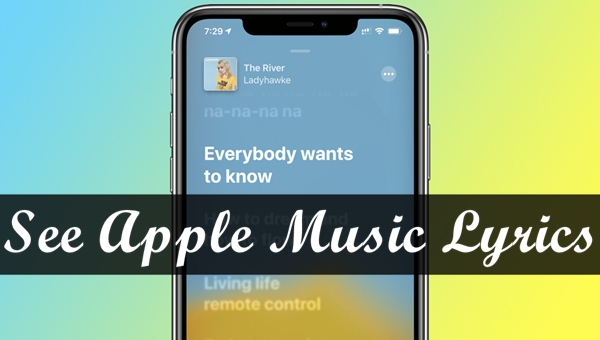
Part 1. How to See Lyrics on Apple Music across Devices
Apple Music provides real-time, time-synced lyrics that scroll automatically in time with the track. Here is how to get lyrics on Apple Music across all supported devices.
View Apple Lyrics on iPhone and iPad
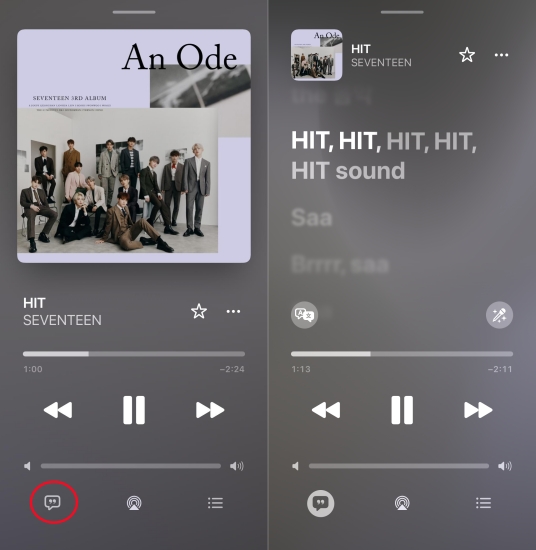
Step 1. Open the Apple Music app and play any song.
Step 2. Tap the Now Playing bar at the bottom of your screen to expand the full-screen player.
Step 3. Tap the Lyrics button in the bottom-left corner.
View Apple Music Lyrics on Android
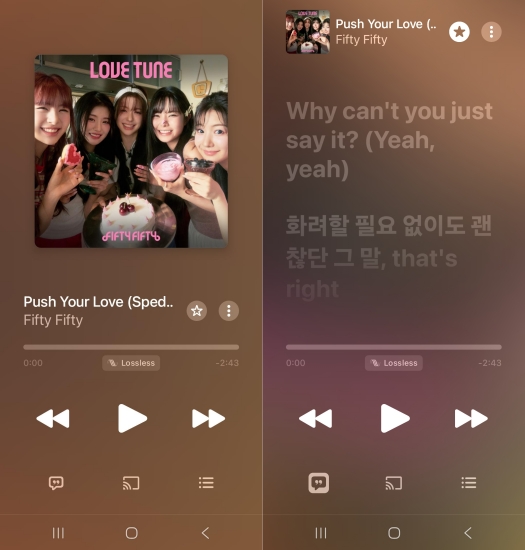
Step 1. Open Apple Music for Android.
Step 2. Tap the Now Playing bar at the bottom to expand the player.
Step 3. Tap the Lyrics icon at the bottom of the screen to toggle live scrolling text.
View Apple Music on Mac and Windows PC
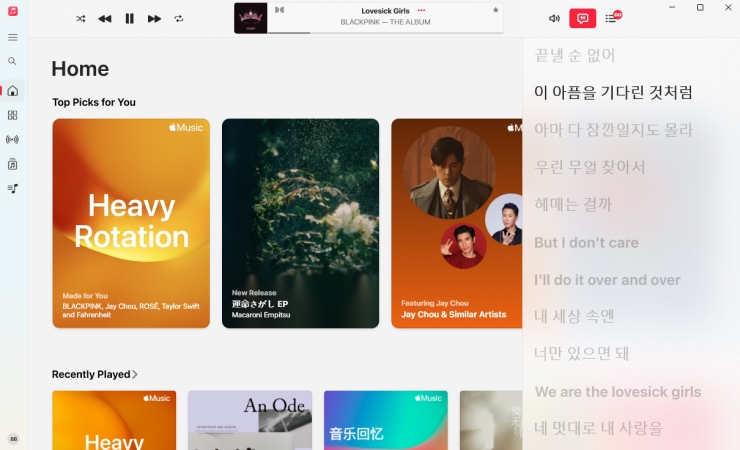
Step 1. Play a track in the Apple Music app on your computer.
Step 2. Click the Lyrics button in the top-right corner of the window.
Step 3. Click Window > Full Screen Player or MiniPlayer for a dedicated lyrics view.
View Apple Music Lyrics on Apple Music Web Player
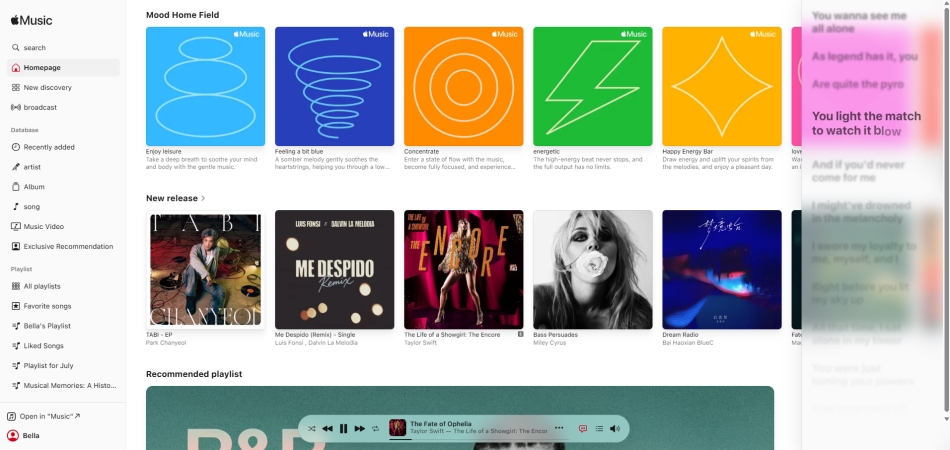
Step 1. Open your browser and navigate to the Apple Music Web Player.
Step 2. Play a song and click the speech bubble icon in the top-right control header.
View Apple Music Lyrics on Apple TV and Smart TVs
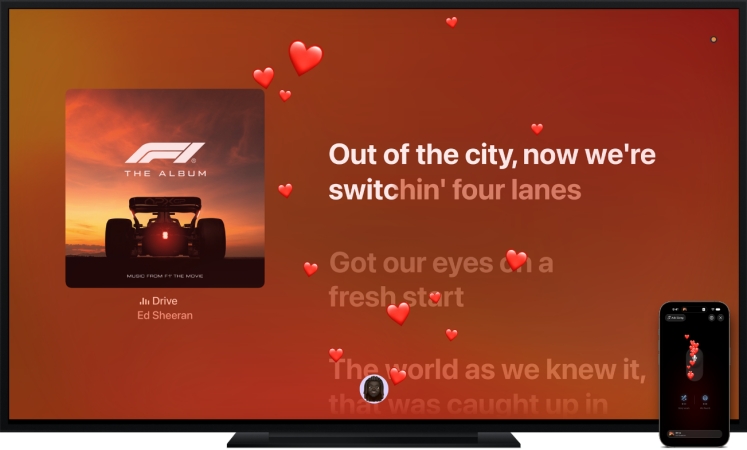
Step 1. Launch the Apple Music app on your Apple TV or supported Smart TV.
Step 2. Start playing a track and navigate to the full screen playback controls.
Step 3. Select the Lyrics button.
Part 2. Apple Music Lyric Features You Might Have Missed
Apple Music includes several powerful, built-in lyric tools designed to enhance accessibility, language learning, and social engagement. The following are the advanced Apple Music features you might have missed.
How to Translate Lyrics on Apple Music
When listening to foreign-language tracks such as K-Pop, J-Pop, or Latin music, Apple Music supports real-time lyrics translation and phonetic pronunciation guides.
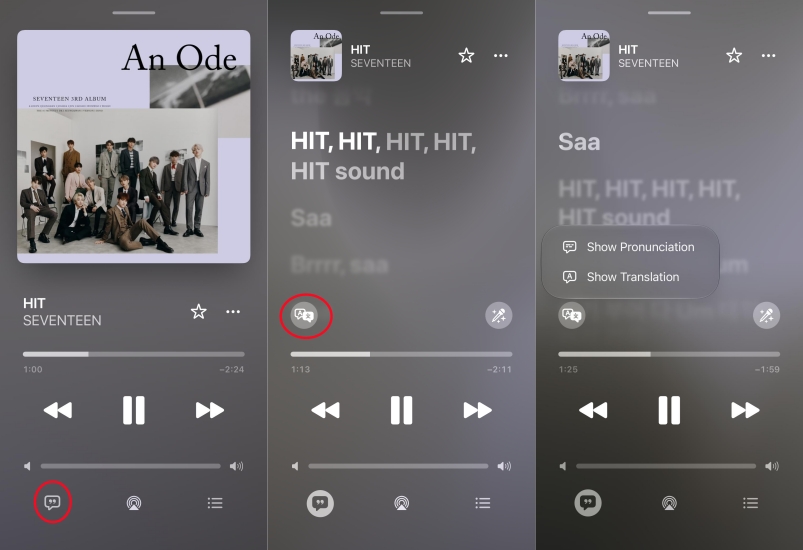
Step 1. Open the time-synced lyrics view for a song in a non-native language.
Step 2. Tap the Translation and Pronunciation button near the top or bottom of the lyrics panel.
Step 3. Toggle between the original text, phonetic script, or translated lines based on your device's Preferred Languages settings.
How to Turn Songs into Karaoke with Apple Music Sing
Apple Music Sing enables users to perform karaoke by adjusting track vocal levels independently and following beat-by-beat syllable tracking.
Hardware Requirements:
Apple Music Sing requires hardware with advanced Neural Engine processing capabilities, including:
-
iPhone 11 or later (excluding iPhone SE 2nd Gen)
-
iPad Air (4th Gen+), iPad mini (6th Gen+), iPad (9th Gen+), iPad Pro 11-inch (3rd Gen+), iPad Pro12.9-inch (5th Gen+)
-
Apple TV 4K (2022 / 3rd Gen)
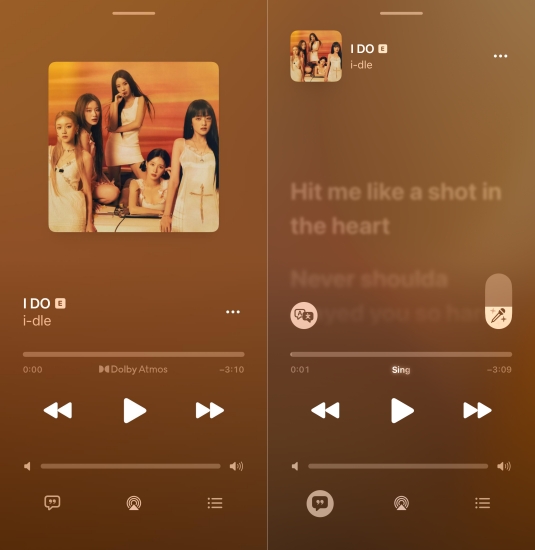
Step 1. Open the lyrics view on a supported song and tap the Sing button.
Step 2. Drag the slider up or down to adjust vocal volume.
How to Share Lyrics on Apple Music
You can turn meaningful Apple Music song lyrics into custom formatted image cards to share with friends or post on social media.
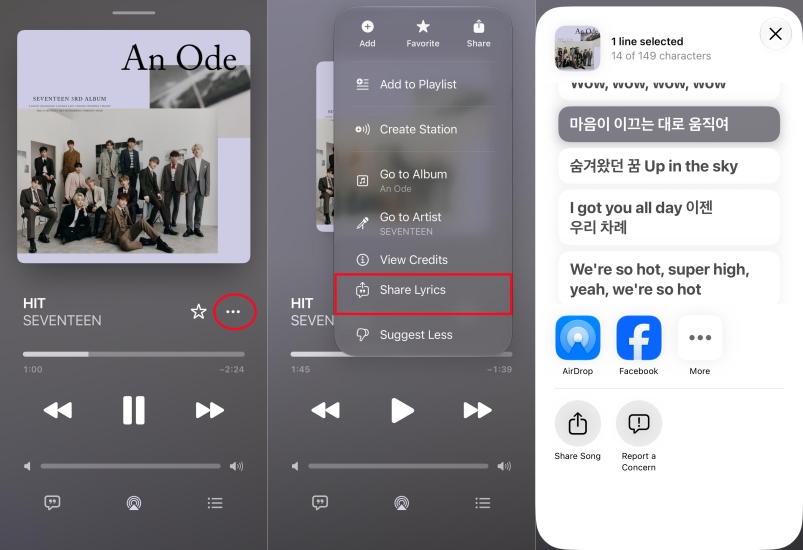
Step 1. Open the time-synced lyrics panel for any track.
Step 2. Long-press any line of text to enter Lyric Selection Mode.
Step 3. Tap additional lines to select up to 150 characters.
Step 4. Tap Share from the pop-up panel, select Instagram, Messages, or Facebook, and customize your lyric card preview before sending.
How to Search for Apple Music Songs Using Lyrics
If you have a song stuck in your head but cannot remember the title or artist name, you can search this song using lyrics in Apple Music.
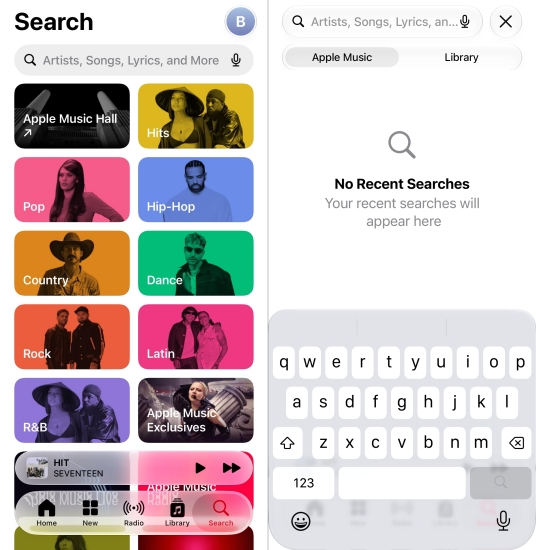
Step 1. Tap the Search tab in Apple Music.
Step 2. Type 3 to 7 consecutive words from the song's lyrics into the search bar.
Step 3. Look for results labeled "Lyrics Match" directly below the song title.
How to Add Lyrics to Apple Music
If you have uploaded personal audio files, live bootlegs, or non-catalog tracks to your Apple Music library, you can manually embed custom lyrics on desktop.
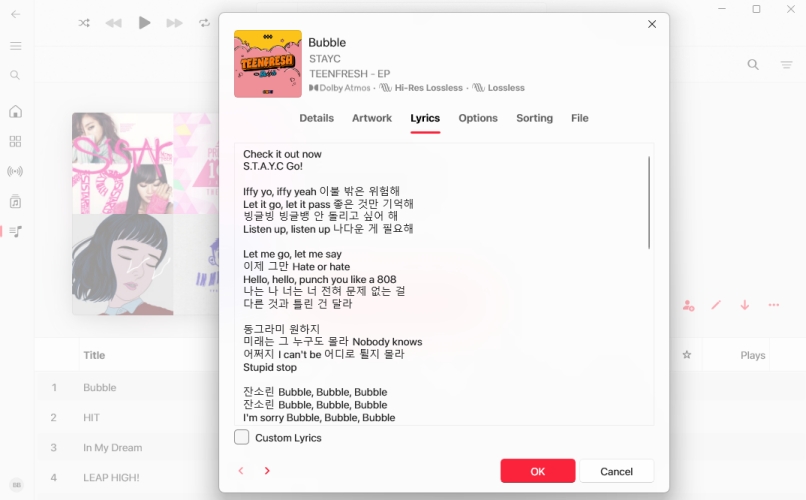
Step 1. Open the Apple Music app or iTunes on your computer.
Step 2. Right-click the imported track in your library and select Get Info.
Step 3. Click the Lyrics tab at the top of the dialog box.
Step 4. Check the box labeled Custom Lyrics.
Step 5. Paste or type your lyrics into the text area and click OK.
Part 3. How to Get Synced Lyrics on Apple Music Local Files
Time-synced lyrics rely on continuous connections or locally stored metadata. When playing tracks offline on non-supported MP3 players, smart car systems, or third-party devices, lyric access is often restricted due to platform DRM limitations.
If you need to play your Apple Music collection on non-Apple devices or traditional media players while keeping song information and lyrics intact, you can use TunesMake Apple Music Converter to get synced lyrics on Apple Music local files. It allows you to download and convert Apple Music tracks into standard MP3, FLAC, or WAV formats while preserving original ID3 tags, metadata, and embedded lyric files for offline listening anywhere.

Streaming Audio Recorder –
Download Apple Music tracks with lyrics retained
- Download songs, albums, and playlists from Apple Music
- Convert Apple Music to MP3, M4A, M4B, WAV, FLAC, and AIFF
- Remove DRM protection from Apple Music completely and safely
- Preserve the original audio quality and ID3 tags for management
- Support downloading music from 10 popular streaming platforms
Security Verified. 100% Clean & Safe.
Step 1 Access Apple Music and Add Songs to the Queue
Open TunesMake Streaming Audio Recorder on your computer. Select Apple Music within the built-in web player interface and sign in with your Apple ID. Browse the specific songs, albums, or playlists you want to download. Click the + button to load the tracks into the conversion list.
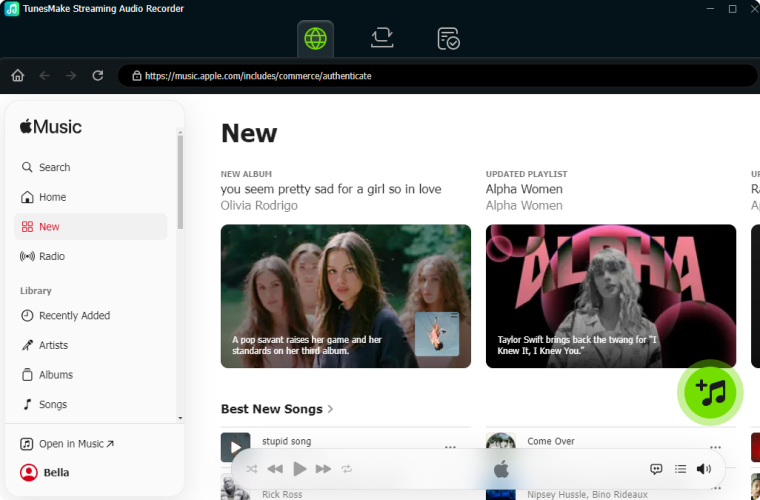
Step 2 Adjust Output Audio Parameters and Lyric Settings
Click the Settings button in the bottom left corner and select Music. Choose your desired audio output format like MP3, FLAC, or M4A. Ensure the option to Save Lyrics is enabled so lyric metadata is saved alongside your audio files.

Step 3 Download Apple Music with Embedded Lyrics
Review your queued songs in the conversion list. Click the Convert button to start downloading your selected tracks. Once completed, navigate to the History tab to access your offline audio files complete with embedded lyrics and ID3 tags.

Part 4. Troubleshooting Apple Music Lyrics Not Showing
If the lyrics button in Apple Music is grayed out, missing, or failing to load time-synced text, run through these quick solutions to restore them.
Solution 1. Check Explicit Content Restrictions
If a song contains explicit lyrics and Explicit Content is enabled, Apple Music automatically hides the lyrics. Simply go to disable Explicit Content in Apple Music or on the device.
Solution 2. Toggle off and on Network Connections
Lyrics stream directly from Apple's servers and require an active internet connection. Switch Wi-Fi off and on, or toggle Airplane Mode to reset the data connection.
Solution 3. Re-download Offline Apple Music Songs
If you are playing a downloaded track offline and lyrics fail to show, delete the download and re-download the song while connected to Wi-Fi.
Solution 4. Force Quit and Relaunch Apple Music
A simple app glitch often causes the lyrics icon to gray out. Swipe up from the bottom of your screen to open the App Switcher, swipe up on the Apple Music card to close it, and reopen it.
Solution 5. Verify the Track Source
Time-synced lyrics only work for tracks hosted in the official Apple Music catalog. Ripped CDs or local files will not show dynamic lyrics unless added manually in the app on a computer.
Solution 6. Try Alternate Album Versions
Search for the track directly on the artist's page or try a different version of the album like Deluxe or Remastered Edition, as lyrics might be linked to a different release.
Solution 7. Refresh Apple ID or Media & Purchases
Signing out of your media session clears cached account errors affecting streaming permissions. Navigate to your settings on your device or Apple ID to log out of your account.
Part 5. FAQs about Apple Music Lyrics
Can you view lyrics on Apple Music offline?
Yes, provided the track was downloaded with its lyric metadata intact while online. For offline playback on non-Apple hardware, converting Apple Music tracks via utilities like TunesMake to preserve embedded lyrics and audio data is a common workaround.
Why are some Apple Music songs missing time-synced lyrics entirely?
Time-synced lyrics depend on publisher permissions and manual time-coding delivery from artists or distributors such as Musixmatch. If an artist has not supplied synced timing data, Apple Music defaults to static lyrics or no lyrics at all.
Can you download lyrics on Apple Music?
Yes, but not as a separate text file. When you download a song or album for offline listening in the Apple Music app, its lyrics are automatically downloaded alongside the audio file into the app's cache. Then you can view Apple Music lyrics offline.
Part 6. Conclusion
Apple Music lyrics do far more than just let you follow along with a song's text. From tracking real-time line-by-line translations and hosting vocal-controlled karaoke with Apple Music Sing to sharing custom lyric cards on social media, these features unlock a whole new dimension of music streaming. If you want to get synced lyrics on Apple Music local files, consider using TunesMake Apple Music Converter.
Related Articles


A professional writer at TunesMake, crafts in-depth tutorials, practical tips and expert advice focusing on streaming music, technology, and more.
- 1
- 2
- 3
- 4
- 5
- 6
- 7
 Leave Your Comment
(0)
Leave Your Comment
(0)

 Download Center

