








 Store
Store


Enjoying your favorite playlists, albums, and live synchronized lyrics directly on a bigger display with room-filling sound is simple once you know the proper setup for your specific television. Whether you have a brand-new QLED model or an older Samsung television, this ultimate guide breaks down how to get Apple Music on Samsung TV setups working seamlessly across all model generations. Let's explore how to play Apple Music on Samsung Smart TV now.
Part 1. Can You Play Apple Music on Samsung TV?
Yes, you can play Apple Music on a Samsung TV. Currently, the official Apple Music app is supported on 2018 and newer Samsung Smart TVs and display devices, including QLED 4K/8K, Neo QLED, OLED, Crystal UHD, and FHD/HD 4 & 5 Series. Depending on your TV model year and setup preferences, there are three main ways to listen to Apple Music on a Samsung TV.
| Feature | Supported Samsung Models | Key Requirements |
|---|---|---|
| Apple Music App for Samsung TV | 2018 to Present Models | An active Apple Music subscription and an Samsung Account |
| Screen Mirror | 2018 to Present Models | An iOS or Android device on the same WiFi |
| USB Flash Drive | All Samsung TV models | An Apple Music converter |
Note
If your Samsung TV was manufactured before 2018, you won't find the Apple Music app in the Samsung Smart Hub. However, you can still stream using Method 3 below.
Part 2. How to Play Apple Music on Samsung Smart TV
No matter what year your Samsung Smart TV was made, playing Apple Music is straightforward. Owners of 2018 and later models can enjoy the built-in Apple Music or screen mirroring, while owners of older models can easily play Apple Music on a Samsung TV via a USB flash drive.
Method 1. Connect Apple Music to Samsung TV via Apple Music App
Apple Music is available on select 2018 and newer Samsung Smart TVs. If your Samsung Smart TV is within the scope of Apple Music's service, you can log into Apple Music on your TV to play music. The Apple Music app provides a full TV-optimized interface, complete with real-time synchronized lyrics and curated playlists. Before signing in, make sure that you have an active Apple Music subscription. Now follow the steps below to install the Apple Music app and sign into your Apple account on your Samsung TV.
Step 1 Install the Apple Music App
Once the app finishes downloading, open it and choose one of the following two ways to log in.
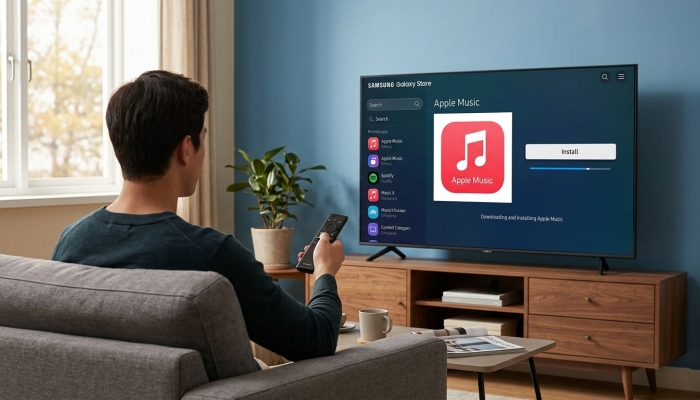
1) Press the Home button on your Samsung remote to launch the Smart Hub menu.
2) Select Apps from the navigation bar and select the search icon in the top right corner.
3) Type Apple Music into the search bar using the on-screen keyboard.
4) Scroll down and tap Apps > Music.
5) Select the official Apple Music app from the search results and click Install.
Step 2 Sign Into Your Apple Account
After ensuring that your Samsung TV is compatible with Apple Music, you can download it easily from the application store on your TV.
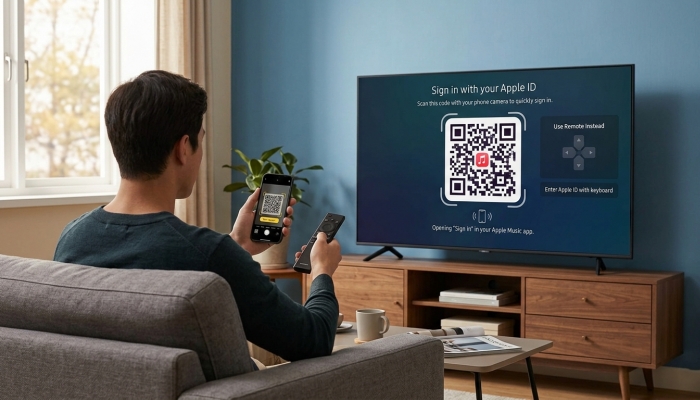
-
Mobile QR Code (Recommended): Scan the QR code shown on your TV screen using your smartphone camera. Follow the on-screen prompt on your phone to enter your Apple ID credentials or authenticate using Face ID.
-
Manual Sign-In: Select Sign In on This TV and manually enter your Apple ID email and password using the TV remote control.
Method 2. Stream Apple Music to Samsung TV via Screen Mirror
If your Samsung TV doesn't have a standalone app for Apple Music, don't worry, you can try to cast your playing music to your Samsung TV. Smartphones like iPhone and Android phone offer a screen mirroring feature, which allows users to mirror what's on the screen to a bigger TV or other screens. With this feature, you're able to stream your liked album or playlist from Apple Music to your Samsung TV. Here's how to cast Apple Music to a Samsung TV from iOS and Android devices.
Option 1. AirPlay Apple Music to Samsung TV (iOS Devices)
AirPlay is a screen mirroring feature on all Apple devices, including the iPhone, iPad, and Mac. With it, you can airdrop many contents like music, videos, and podcasts from your device.
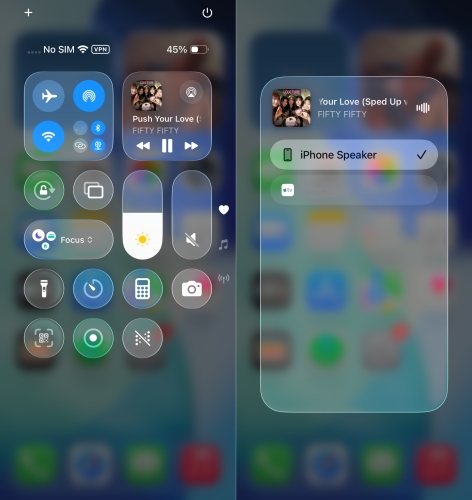
Step 1. Open Settings on your Samsung TV and go to General or Connection.
Step 2. Tap Apple AirPlay Settings and toggle AirPlay to On.
Step 3. Ensure your device and Samsung TV are connected to the same network.
Step 4. Open the Apple Music app on your device and start playing a track.
Step 5. Tap the AirPlay icon at the bottom of the playback controls.
Step 6. Select your Samsung TV from the list of available audio receivers.
Option 2. Cast Apple Music to Samsung TV (Android Devices)
For people who use Android devices, you can also utilize a similar feature called Smart View, Cast, or Quick Connect on different brands to mirror the music playback to Samsung TV sets.
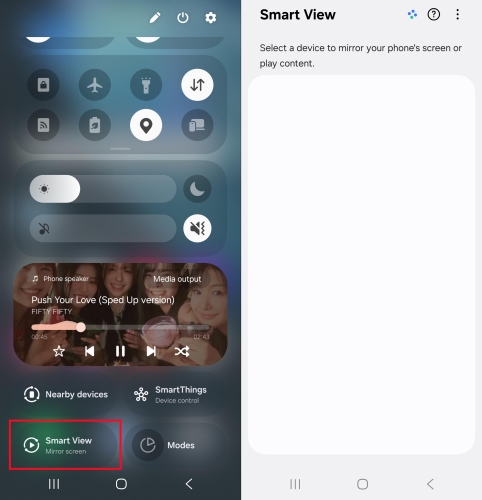
Step 1. Connect your Android device and Samsung TV to the same Wi-Fi network.
Step 2. Swipe down from the top of your phone's screen to open the Quick Settings panel.
Step 3. Tap Smart View or Screen Cast on different Android devices.
Step 4. Select your Samsung TV from the list of available devices.
Step 5. Open the Apple Music app on your phone and play your music.
Method 3. Play Apple Music on Samsung TV via USB Drive
If your Samsung TV does not support the Apple Music app, lacks screen mirror, or isn't connected to a reliable WiFi network, you can play your Apple Music tracks using a USB flash drive. Since Apple Music tracks are protected by streaming DRM, you cannot simply copy downloaded tracks to a flash drive. Using a tool like TunesMake Apple Music Converter, you can convert Apple Music into standard MP3 files and play them using your TV's built-in media player.

Streaming Audio Recorder –
Download Apple Music songs for playing on Samsung TV
- Download songs, albums, and playlists from Apple Music
- Convert Apple Music to MP3, M4A, M4B, WAV, FLAC, and AIFF
- Remove DRM protection from Apple Music completely and safely
- Preserve the original audio quality and ID3 tags for management
- Support downloading music from 10 popular streaming platforms
Security Verified. 100% Clean & Safe.
Step 1 Choose Apple Music Songs to Convert
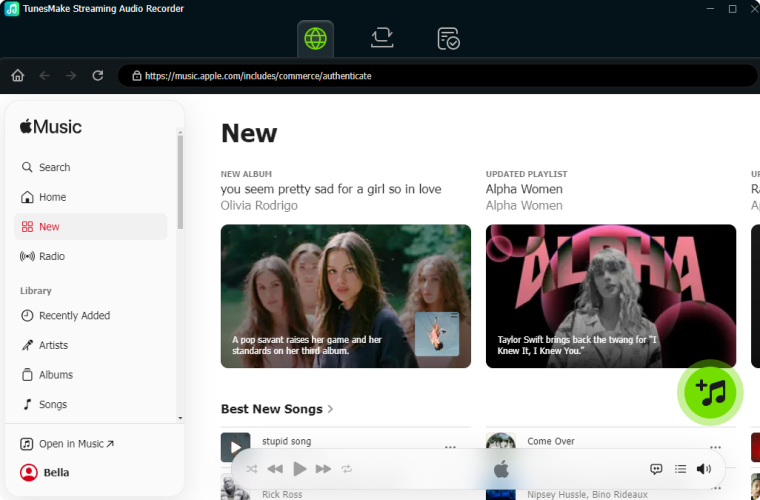
Launch TunesMake Streaming Audio Recorder on your computer, and then choose Apple Music in the main interface. Next, you need to sign in to the built-in Apple Music web player. Start browsing your personal library and select any song, album, or playlist to download and convert. Simply click the + button to add your target content into the conversion list.
Step 2 Customize the Output Audio Settings
Once your selected content are loaded into the conversion list, click the Settings button at the bottom left corner. A window of format setting will appear where you can set the output audio parameter per your need. You can set the output format as MP3 or FLAC. To retain the original audio quality, you also need to set the bit rate, sample rate, and channel.

Step 3 Start to Convert Apple Music to MP3
After all your settings are done, you can now click the Convert button, and TunesMake Streaming Audio Recorder will automatically convert Apple Music songs to MP3. You can then find all your converted Apple Music files by clicking the History button and prepare to transfer them to your USB drive for playing on your TV.

Step 4 Play Apple Music on Samsung TV
Now all your required songs have been converted to a playable format. You can transfer Apple Music songs to your USB and then insert the USB drive into the USB port of your TV. Press the Home button on the Samsung remote control to access the TV Home Screen. Then choose to play your Apple Music songs from the media player on the Samsung smart TV.

Part 3. How to Fix Apple Music Not Working on Samsung TV
If you run into issues where the Apple Music won't open, crashes, or fails to log in, use these troubleshooting steps to fix common issues.
- Perform a Restart on Your Samsung TV: Hold down the Power button on your Samsung remote for 5 seconds until the TV turns off and the Samsung logo appears on restart. This clears the system cache.
- Update TV Firmware: Go to Settings > Support > Software Update > Update Now. Outdated Tizen OS software can cause app incompatibility.
- Reinstall the Apple Music App: Navigate to Apps > Settings on your TV, select Apple Music, and click Reinstall. Then re-download it from the app store.
- Reset Apple Music Settings: If login problems persist, open the Apple Music app on your TV, go to Settings > Reset Apple TV and Apple Music. This resets your session data without removing your personal library.
- Check WiFi Network: If streaming via screen mirror, confirm that both your device and Samsung TV are connected to the exact same Wi-Fi band.
Part 4. FAQs about Apple Music App for Samsung TV
Is the Apple Music app free on Samsung TV?
The Apple Music app is free to download from the Samsung Smart Hub, but you must have an active Apple Music subscription to log in and stream music on a Samsung Smart TV.
Why can't I find Apple Music on my Samsung TV?
If Apple Music doesn't appear in search results of the app store, your Samsung Smart TV model is likely manufactured prior to 2018 or running an unsupported region setting. Check your model number or use an Apple Music converter to get Apple Music songs for playing.
Can I view time-synced lyrics on my Samsung TV?
Yes! The Apple Music app on 2018 and newer Samsung Smart TVs fully supports time-synced lyrics on screen during playback. You can view live synchronized lyrics while listening to music.
Does Samsung TV Apple Music Support Dolby Atmos?
No, the Apple TV app for Samsung TV doesn't support neither Dolby Atmos nor Lossless. While the Apple Music app for Samsung TV offers convenient access to your music library and time-synced lyrics, there are a few technical sound limitations.
Part 5. Conclusion
Setting up Apple Music on your Samsung Smart TV is straightforward. For most 2018 and newer models, downloading the Apple Music app directly from the Samsung App Store provides the best overall experience, featuring full playback controls and synchronized lyrics. If you prefer quick casting from your phone, the screen mirror feature offers a seamless wireless alternative. And on those older Samsung TV models, converting Apple Music tracks into a USB drive with TunesMake Apple Music Converter gives you instant access to your full music library.
Related Articles

A professional writer at TunesMake, crafts in-depth tutorials, practical tips and expert advice focusing on streaming music, technology, and more.
- 1
- 2
- 3
- 4
- 5
- 6
- 7
 Leave Your Comment
(0)
Leave Your Comment
(0)

 Download Center

