








 Store
Store


If you are a subscriber to Apple Music and own an Amazon streaming device, you have probably opened up the Amazon Appstore only to find a frustrating surprise: there is no native Apple Music app for Amazon Fire TV. While the missing app is an inconvenience, it doesn't mean you can't enjoy your favorite tracks on your home entertainment system. You can easily bridge the gap between Apple Music and Amazon Fire TV.
Whether you want to control your music using your voice or want to see full album artwork and lyrics on your television screen, this guide covers the most reliable, tested methods to stream Apple Music on your Fire TV or Fire Stick. Let's explore how to get Apple Music on Fire TV now.
Part 1. Is Apple Music on Fire TV?
There is no native Apple Music app available to download directly from the Amazon Appstore on Fire TV. However, you can still play your Apple Music through your Fire TV using a few easy workarounds. Because every listener has different preferences, some want quick, hands-free audio while others want to read time-synced lyrics on the big screen. Select the method that best matches your daily listening habits and enjoy your music.
| Feature | Alexa App | AirPlay / Mirroring | Amazon Silk Browser | Local USB Drive |
|---|---|---|---|---|
| Primary Control | Voice Commands | Smartphone / Tablet | Fire TV Remote Cursor | Fire TV Media Player Remote |
| Visual Interface | Basic Audio Overlay Only | Full App UI & Lyrics | Web Player Interface | Local Media Track List |
| Setup Difficulty | Easy | Medium | Medium | Easy |
| Phone Required? | Yes | Yes | No | No |
Part 2. How to Get Apple Music on Fire TV Online
The lack of an official app store entry won't stop you from turning your home theater system into the ultimate Apple Music speaker hub. Here are three online methods for you to listen to Apple Music on Amazon Fire TV.
Method 1. Listen to Apple Music on Fire TV via the Alexa App
The most seamless workaround to stream Apple Music on Amazon Fire TV is utilizing the Amazon Alexa ecosystem. Because Fire TV devices are deeply integrated with Alexa, linking your Apple account via the Alexa mobile app allows you to command your TV using just your voice.
Step 1 Link Apple Music in the Alexa App
To get started, you will need your smartphone with the Amazon Alexa app installed and signed into the same Amazon account as your Fire TV.
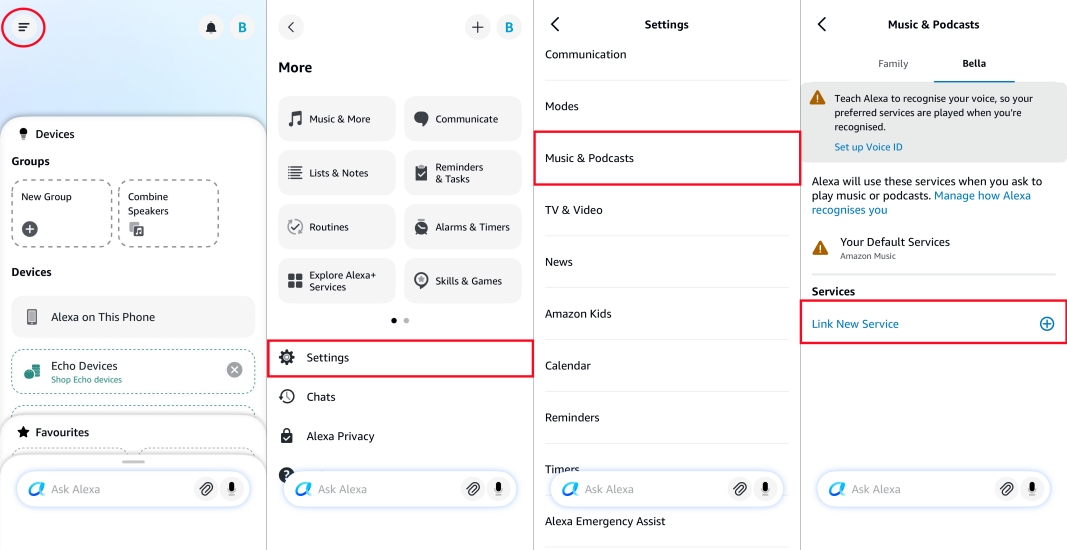
1) Open the Alexa app on your mobile device.
2) Tap More in the bottom-right corner, then select Music & More.
3) Scroll down and select Link New Services.
4) Select Apple Music from the list and tap Enable to Use.
5) Tap Settings > Link Account.
6) Sign in with your Apple ID and password, and grant Alexa permission to access your library.
Step 2 Set Apple Music as Your Default Provider (Highly Recommended)
To prevent having to say "on Apple Music" at the end of every single voice command, you set it as your primary streaming service on Alexa.
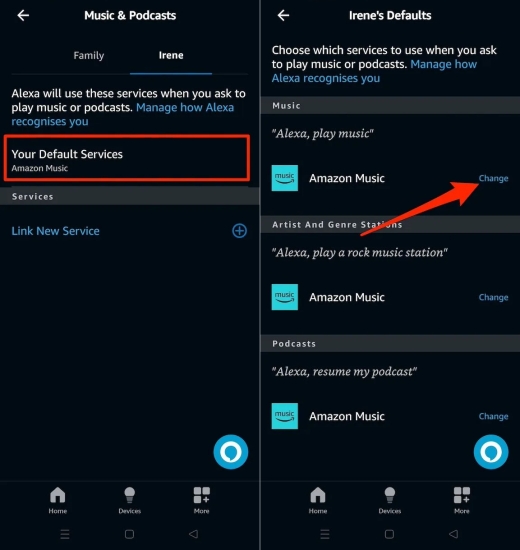
1) In the Music & Podcasts settings menu, tap Default Services.
2) Under Music, change the default selection from Amazon Music or Spotify to Apple Music.
3) Do the same under Artist and Genre Stations.
Step 3 Start Listening on Your Fire TV
Now, pick up your Fire TV Alexa Voice Remote, hold down the microphone button, and talk directly to your TV.
Voice Commands to Try:
"Alexa, play my driving playlist."
"Alexa, play the latest album by Taylor Swift."
"Alexa, pause the music."
-
😀 Pros
- Completely hands-free
- Incredibly convenient
- Consumes zero phone battery once playing
-
☹️ Cons
- No on-screen visual library navigation
- Scrolling song lyrics not available
Method 2. Cast Apple Music to Fire TV via AirPlay or Screen Mirroring
If you want to view album art, read time-synced lyrics, or manually browse your library using a visual interface, mirroring your device's screen to your Fire TV is the ideal option. Here are two options available to stream Apple Music to Fire TV.
Using AirPlay 2 (Premium Fire TV Models)
Some premium Fire TV smart TVs such as select Toshiba, Insignia, or Omni Series models come with Apple AirPlay 2 built right in.
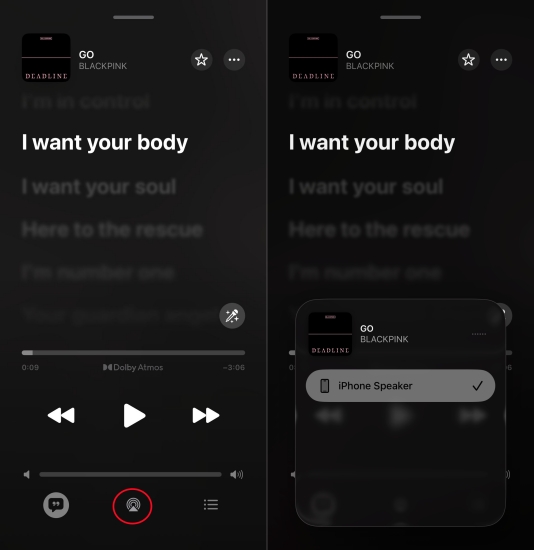
Step 1. Ensure your iPhone, iPad, or Mac is on the same Wi-Fi network as your Fire TV.
Step 2. On your Fire TV, go to Settings > Display & Sounds.
Step 3. Tap AirPlay & HomeKit and ensure AirPlay is turned On.
Step 4. Open the Apple Music app on your Apple device and start playing a song.
Step 5. Tap the AirPlay audio icon at the bottom of the playback screen.
Step 6. Select your Fire TV from the device list.
Using a Mirroring App (Standard Fire TV Sticks)
If you own a standard Fire TV Stick, it likely doesn't support AirPlay. You can easily bypass this hardware limitation by downloading a free receiver utility from the Amazon Appstore.
Step 1. Use the search function on your Fire TV home screen to find AirScreen.
Step 2. Download and install the app, then open it on your TV.
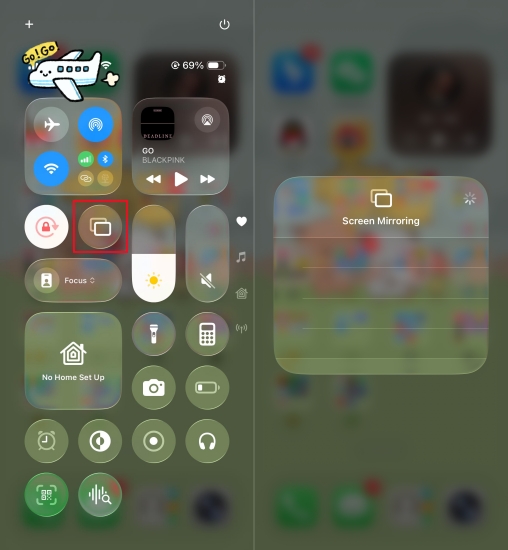
Step 3. On your iPhone or iPad, swipe down from the top right of the screen to open the Control Center.
Step 4. Tap Screen Mirroring and select the AirScreen device corresponding to your TV.
Step 5. Open Apple Music on your phone. Your TV will now mirror the app's full visual interface and output the audio through your television speakers.
-
😀 Pros
- Beautiful, full-screen visuals
- Complete access to lyrics and smart playlists
-
☹️ Cons
- Consume the device battery faster over time
- Minor casting latency
Method 3. Play Apple Music on Fire TV via the Amazon Silk Web Player
If you want a dedicated user interface directly controlled by your Fire TV remote and you don't want to drain your smartphone's battery by casting, you can use the built-in web browser. With the built web browser on your Fire TV, you can directly access the Apple Music Web Player.
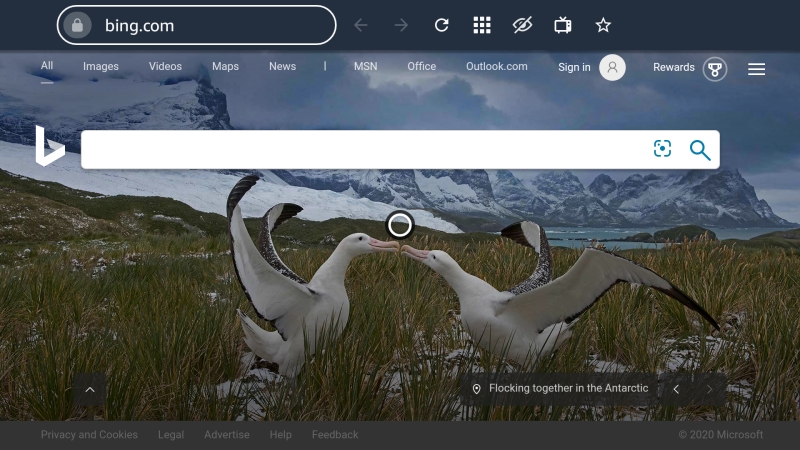
Step 1. From the Fire TV home screen, navigate to the search bar and type in Silk Browser.
Step 2. Download and launch the official Amazon Silk Web Browser.
Step 3. In the browser's address bar, type in music.apple.com and hit enter.
Step 4. Use the on-screen cursor to click Sign In in the top right corner, and log in using your Apple ID.
Step 5. Once authenticated, you can access your entire cloud music library, curated playlists, and radio stations using nothing but your standard Fire TV remote control.
-
😀 Pros
- Completely independent system
- Not require a phone or tablet
- Display a clean desktop-style interface
-
☹️ Cons
- Slow and tedious
Part 3. Best Method to Play Apple Music on Fire TV
If your home Wi-Fi is unreliable, or if you prefer to have permanent offline access to your like songs from Apple Music without relying on constant streaming, you can play your library via a physical USB drive plugged into your Fire TV.
Since standard subscription files cannot be copied directly to external storage, you can use a third-party tool like TunesMake Apple Music Converter on your computer beforehand. This tool allows you to convert your playlists, albums, or individual tracks into unprotected audio formats like MP3 or FLAC while keeping the original ID3 tags and audio quality intact. Just follow the steps below to get Apple Music on Fire TV via a USB drive.

Streaming Audio Recorder –
Convert Apple Music to unprotected audio files losslessly
- Download songs, albums, and playlists from Apple Music
- Convert Apple Music to MP3, M4A, M4B, WAV, FLAC, and AIFF
- Remove DRM protection from Apple Music completely and safely
- Preserve the original audio quality and ID3 tags for management
- Support downloading music from 10 popular streaming platforms
Security Verified. 100% Clean & Safe.
Step 1 Set the Audio Parameters for Apple Music
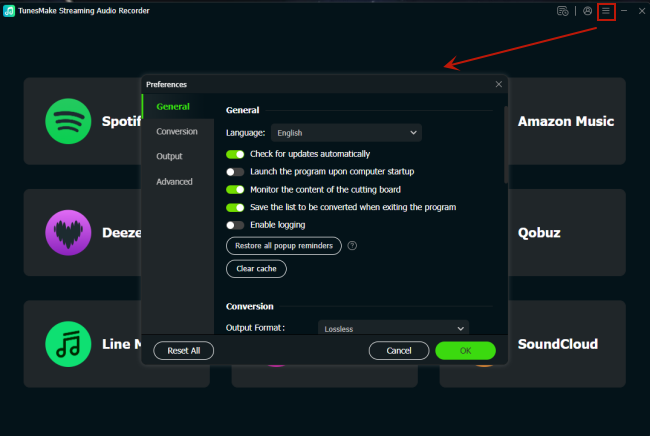
Launch TunesMake Streaming Audio Recorder on your computer. Go to set the output parameters by clicking the menu bar > Preferences. In this window, you can select MP3 from the list of audio formats. You can also set the bit rate, sample rate, and channel for getting better audio quality. Once you're satisfied with the settings, click the OK button to save all the settings.
Step 2 Add Apple Music Tracks to Download
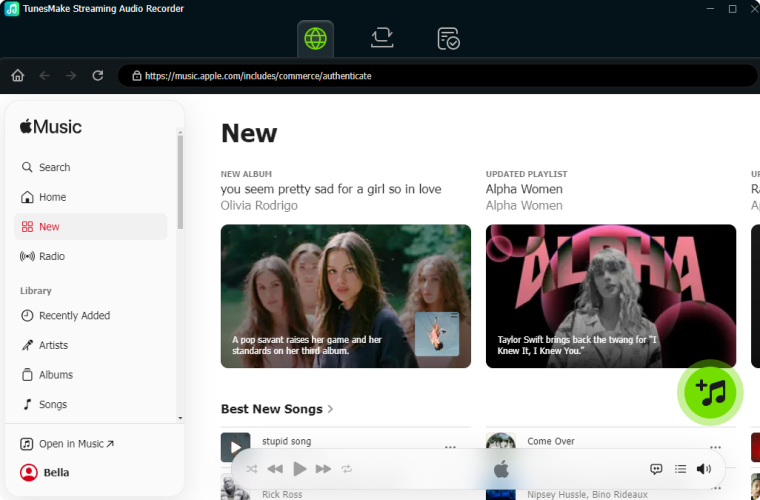
Go back to the interface of TunesMake software, select Apple Music from the main interface, and then it will load the Apple Music Web Player. In your music library, find any music track, album, playlist, podcast, and radio station to download and convert. Then you can click the + button to add your preferred songs to the conversion list.
Step 3 Start to Convert Apple Music to MP3
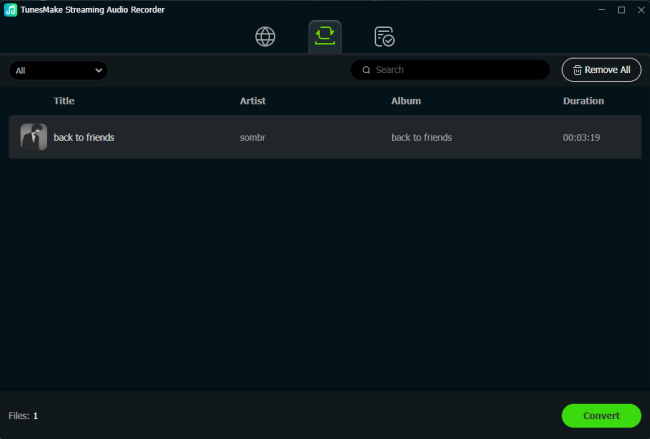
Click the Convert button on the bottom right corner to initiate the conversion of Apple Music songs. When the conversion process is finished, your files will be saved to your default converted folder. By clicking on the Converted icon, you'll browse the converted Apple Music songs in the history list. Now you can prepare to transfer Apple Music songs to a USB drive with ease.
Step 4 Play Apple Music on Fire TV
Once your Apple Music songs are converted to a playable format, you can easily copy them to your USB drive for playing on Amazon Fire TV. So, it's time to proceed with the playback of Apple Music on Amazon Fire TV.
1) Insert your USB flash drive into your computer and then copy your converted Apple Music songs to the USB drive.
2) Connect the USB drive to your Amazon Fire TV and choose to play your Apple Music songs.
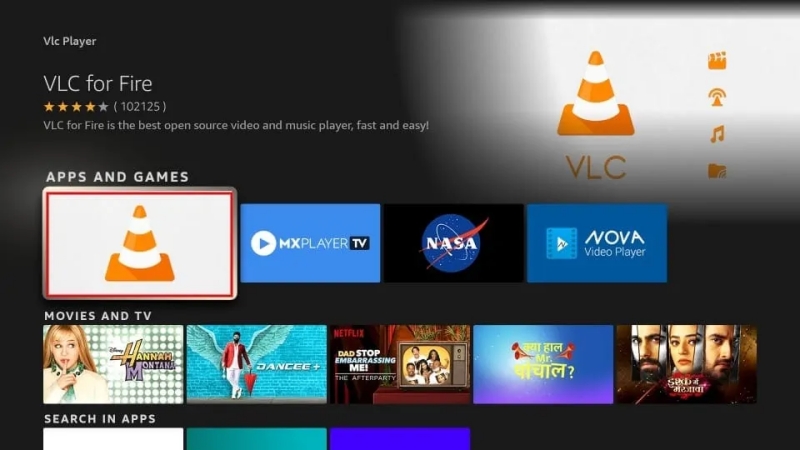
3) Launch a player like VLC Media Player on the Amazon Fire TV and start to preview which songs you want to play.
4) Select your preferred songs to play and use your remote to control the music playback.
Part 4. Conclusion
Apple Music doesn't open its service to those users who own an Amazon Fire TV. And you follow the above methods to set up Amazon Music for playing on your Fire TV. Meanwhile, if you're not located in the U.S., you can try using a USB flash drive to get Apple Music on Amazon Fire TV. With the help of TunesMake Apple Music Converter, it's pretty easy to download your liked songs, albums, and playlists from Apple Music. Then you can listen to your downloaded Apple Music songs on your TV at any time.
Related Articles

A professional writer at TunesMake, crafts in-depth tutorials, practical tips and expert advice focusing on streaming music, technology, and more.
- 1
- 2
- 3
- 4
- 5
- 6
- 7
 Leave Your Comment
(0)
Leave Your Comment
(0)

 Download Center

