








 Store
Store


Many music lovers are turning to dedicated MP3 players for a digital detox, a way to enjoy workouts, commutes, or travels without constant smartphone notifications. However, if you are an Apple Music subscriber, you have likely run into a frustrating roadblock when trying to transfer your favorite tracks or playlists to a standard MP3 player. In this comprehensive guide, we will break down exactly why this compatibility issues exists and provide verified, practical methods to get Apple Music on MP3 player flawlessly.
Part 1. Why Doesn't Apple Music Work on Standard MP3 Players?
If you try to simply drag and drop downloaded tracks from your Apple Music library onto a traditional MP3 player via a USB cable, the device will fail to recognize or play the files. This happens because of two core technical reasons:
-
Audio Format: Apple Music tracks are streamed and downloaded in a format known as AAC (Advanced Audio Coding) or ALAC (Apple Lossless Audio Codec).
-
FairPlay DRM: More importantly, these files are wrapped in a proprietary layer of Digital Rights Management (DRM) called FairPlay. This encryption prevents the files from being played on any unauthorized hardware that lacks the Apple Music app or integration keys.
To bypass this hurdle, you either need a modern MP3 player that works with Apple Music, or a secure way to convert Apple Music for legacy MP3 players. Let's look at the best ways to get Apple Music on MP3 players.
| Device Type | Example Models | Apple Music Access Method | Audio Quality Potential |
|---|---|---|---|
| Modern MP3 Players | FiiO JM21, HiBy R4, Sony NW-A306, HIFI WALKER G7 Pro | Apple Music for Android App | Hi-Res Lossless (ALAC) |
| Traditional MP3 Players | iPod Classic, Sony NW-E394, SanDisk Clip | Apple Music Converter | High-Quality 320kbps MP3 |
| Purchased iTunes Music | Any USB-compatible storage player | iTunes | Standard 192kbps - 320kbps MP3 |
Part 2. 4 Best MP3 Player Compatible with Apple Music (Android DAPs)
The traditional MP3 player has evolved into the Digital Audio Player (DAP). Unlike traditional MP3 players that could only hold local files, modern DAPs run customized, lightweight version of the Android operating system. This lets you download official streaming apps while enjoying high-fidelity hardware components. If you want to stream or download Apple Music without any complicated file conversion, these top-tier devices are built for the job.
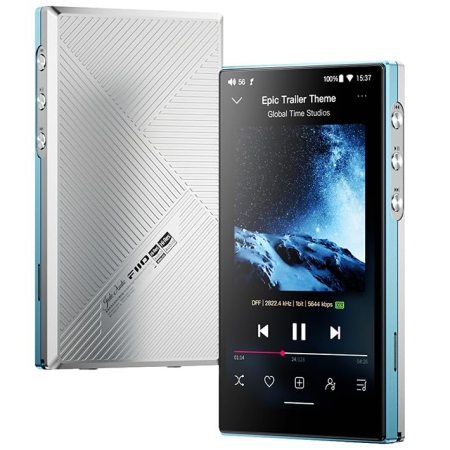
No.1 FiiO JM21
FiiO JM21 redefines the entry-to-mid-tier audiophile market. It delivers flagship-adjacent features, like a snappy smartphone-grade processor and fully balanced audio outputs at a fraction of the cost of premium players.
Key Features:
-
Snapdragon 680 processor running open Android.
-
Dual Cirrus Logic CS43198 DAC chips for true Hi-Res audio decoding.
-
Dual headphone outputs, including Standard 3.5mm and Balanced 4.4mm.
-
Up to 2TB expandable MicroSD storage slot.
-
😀 Pros
- Highly responsive user interface
- Effortlessly drive demanding studio headphones
- Excellent structural build quality
-
☹️ Cons
- Less compact for tight gym pockets

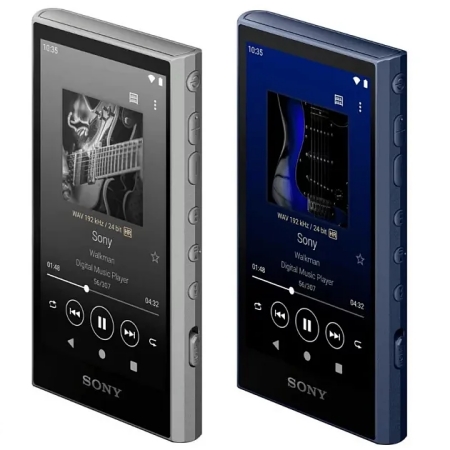
No.2 Sony NW-A306
Sony's modern Walkman bridges the gap between old-school portability and new-school streaming. It is remarkably small and lightweight, yet features a clean Android build optimized entirely for high-resolution cloud audio.
Key Features:
-
Ultra-compact chassis roughly the size of a deck of cards.
-
Native Android OS with Google Play Store functionality.
-
Sony DSEE Ultimate AI audio upscaling technology.
-
Sony DSEE Ultimate AI audio upscaling technology.
-
😀 Pros
- Highly pocketable and lightweight
- Tactile, premium physical side-control buttons
- Long lasting battery lifespan
-
☹️ Cons
- A bit sluggish interface navigation
- Limited internal amplification power for larger headphones
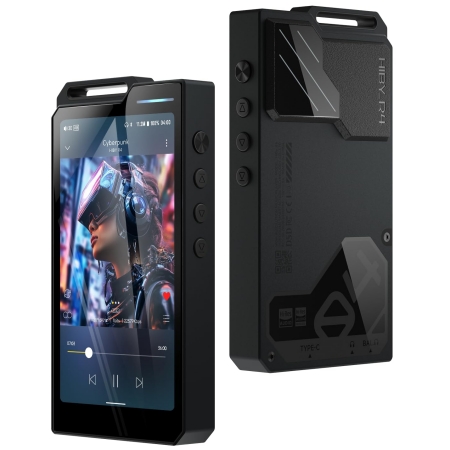
No.3 HiBy R4
The HiBy R4 targets audiophiles looking for a standout piece of gear. It features a bold, industrial cyberpunk aesthetic backed by a customized Android architecture engineered to bypass standard internal audio processing boundaries.
Key Features:
-
Allow bit-perfect, uncompressed audio streaming straight out of the Apple Music app.
-
Quad-DAC circuit array layout.
-
Custom user interface formatting with robust theme integration.
-
😀 Pros
- Impeccable audio accuracy and wide soundstage configuration
- Striking, highly original physical design
- Clean amplification
-
☹️ Cons
- Notably heavy and bulky
No.4 HIFI WALKER G7 Pro
If your primary goal is a straightforward "digital detox" or a dedicated media device away from phone distractions, the G7 Pro acts as a focused, highly accessible gateway to streaming without an astronomical price tag.
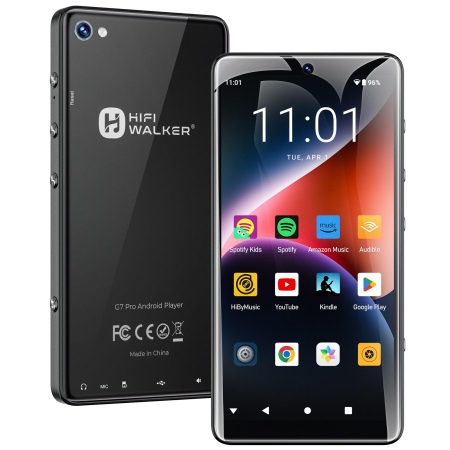
Key Features:
-
5.2-inch HD touchscreen display for clean playlist layout navigation.
-
8-Core processing architecture.
-
Open Android system framework supporting direct streaming app installation.
-
😀 Pros
- Large, highly readable screen layout displaying expansive album art
- Incredibly easy to navigate
- Reliable Bluetooth 5.2 and Wi-Fi stability
-
☹️ Cons
- More standard internal audio components and DAC capabilities
How to Play Apple Music on Android-Based MP3 Players & DAPs
If you purchase or own one of the modern Android-based MP3 players mentioned above, setting up Apple Music takes only a few quick steps. Because these devices feature the official Apple Music app support, you don't have to break any DRM constraints.
Step 1. Turn on your Android-based MP3 player and connect it to Wi-Fi.
Step 2. Open the Google Play Store on the device and search for Apple Music.
Step 3. Download and install the Apple Music app.
Step 4. Launch Apple Music and sign in using your Apple ID credentials.
Step 5. Go to settings to configure your preferred audio quality.
Step 6. Tap the download icon next to your favorite playlists to save them for offline listening.
Part 3. How to Play Apple Music on MP3 Player (For Traditional MP3 Players)
If you own a classic, non-Android MP3 player like a SanDisk Clip, an older iPod, or a standard Sony Walkman, you cannot install the Apple Music app for playing music. For these devices, the most effective solution is using a reputable Apple Music converter to convert your Apple Music tracks into standard, DRM-free MP3 files.
A popular, highly rated tool for this include TunesMake Apple Music Converter. It works by utilizing a built-in Apple Music web player to securely download and convert your liked Apple Music songs, albums, and playlists into high-quality audio formats. Then you can transfer your Apple Music songs to your MP3 player for listening anytime.

Streaming Audio Recorder –
Download Apple Music songs for playing on MP3 player
- Download songs, albums, and playlists from Apple Music
- Convert Apple Music to MP3, M4A, M4B, WAV, FLAC, and AIFF
- Remove DRM protection from Apple Music completely and safely
- Preserve the original audio quality and ID3 tags for management
- Support downloading music from 10 popular streaming platforms
Security Verified. 100% Clean & Safe.
Step 1 Set MP3 as the Output Audio Format
Open TunesMake Streaming Audio Recorder and navigate to the software's settings menu. Click the three-line icon and select the Preferences option to open the Preferences window. In the pop-up window, select MP3 as the output audio format and set other audio parameters like the bit rate, sample, and channel. Then click the OK button to save the settings.

Step 2 Choose Apple Music Songs to Convert
After saving the settings, select Apple Music from the main interface. Go to sign into the embedded Apple Music web player using your active subscription account. Browse your library within the software and select the tracks or complete playlists you wish to transfer to your MP3 player. Just click the + button to add them to the conversion list.
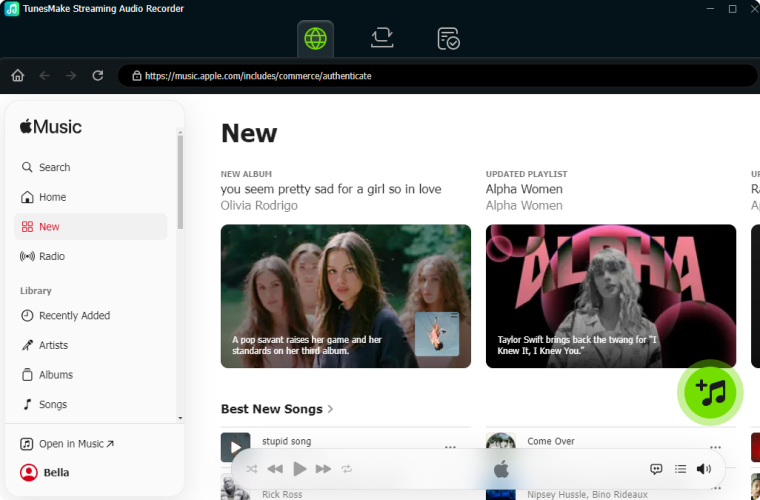
Step 3 Start to Convert Apple Music to MP3
Click the Convert button to initiate the conversion of Apple Music to MP3. The software will process the files at accelerated speeds, saving the DRM-free MP3 versions into a local folder on your computer's hard drive. Wait for a while, and you can click the Converted tab at the top of the software to browse all the converted audio files.

Step 4 Transfer Apple Music Songs to MP3 Player
Once you have your DRM-free Apple Music MP3 files saved on your computer, moving them to your portable player takes less than two minutes.
1. Connect your MP3 player to your computer using a compatible USB data cable.
2. On a Windows PC, open File Explorer and click on your player's drive icon under "This PC". On a Mac, open Finder and select your player listed under "Locations" in the left sidebar.
3. Open the computer folder where your converted Apple Music songs are stored.
4. Select the music folders, then drag and drop them directly into the root "Music" folder of your MP3 player's storage drive.
5. Wait for the transfer status bar to clear, right-click the device to hit Eject, and unplug your player.
Part 4. How to Add Apple Music to MP3 Player (For iTunes Purchased Songs Only)
If you want to transfer digital tracks that you individually bought and paid for on the iTunes Store in the past, rather than streaming them via a monthly Apple Music subscription, you do not need any third-party tools. Purchased iTunes songs are already DRM-free and can be converted to MP3 audio files within the app for free.
Step 1. Open the Apple Music app on a Mac or iTunes on a Windows PC.
Step 2. Go to the top menu bar and select Preferences or Settings.
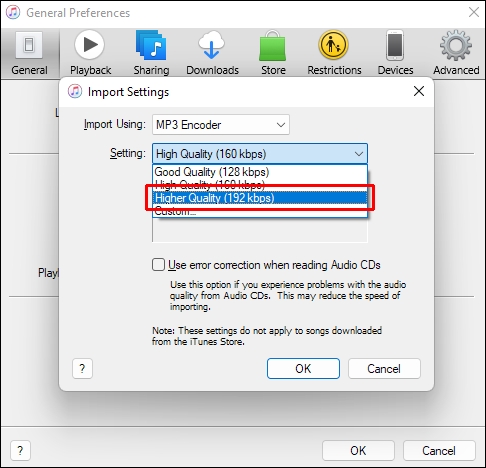
Step 3. Click on the Files tab and open Import Settings.
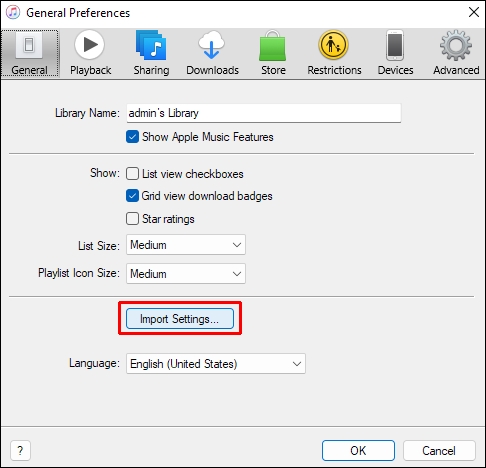
Step 4. Change the Import Using drop-down menu to MP3 Encoder.
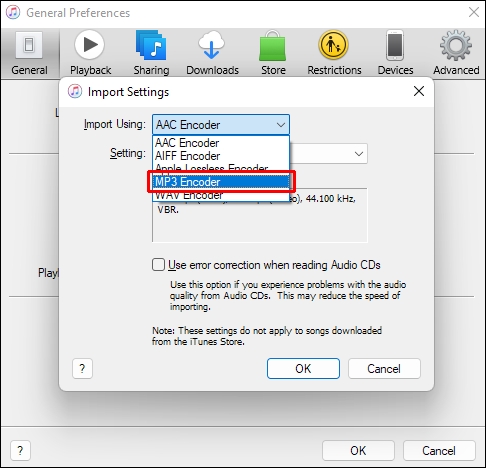
Step 5. Set the quality setting to Higher Quality or customize it to 320 kbps, then click OK.
Step 6. Go back to your music library and select the purchased songs you want to change.
Step 7. Click File > Convert > Create MP3 Version.
The app will instantly generate a duplicate copy of the song in standard MP3 format right next to the original file. Then you can transfer your songs purchased from iTunes to your MP3 player.
Part 5. Conclusion
If you have an MP3 player compatible with Apple Music, you can directly download and install the Apple Music application for playing music. But for traditional MP3 players like a Sony Walkman or an iPod, you can use a third-party tool like TunesMake Apple Music Converter to get DRM-free Apple Music MP3 files. Then you can listen to Apple Music offline on your MP3 player anytime. Go to have a try, and you'll find it out.
Related Articles


A professional writer at TunesMake, crafts in-depth tutorials, practical tips and expert advice focusing on streaming music, technology, and more.
- 1
- 2
- 3
- 4
- 5
- 6
- 7
 Leave Your Comment
(0)
Leave Your Comment
(0)

 Download Center

