








 Store
Store


If you are wondering how to get Apple Music on a Chromebook, the good news is that Apple's music streaming service runs smoothly on ChromeOS. Whether you want to stream directly from your browser or download songs for offline listening while traveling, there are a few simple ways to set it up. Let's explore how to listen to Apple Music on Chromebook now.
Part 1. Can you Listen to Apple Music on Chromebook?
Depending on whether your device is a personal Chromebook, a school-managed laptop, or an older model, the best method to get Apple Music on a Chromebook for you may vary. Below is a quick comparison table to help you choose the right approach before diving into the step-by-step instructions.
| Feature | Apple Music Web Player | Apple Music Android App | Local Audio Playback |
|---|---|---|---|
| Best For | School or work Chromebook | Offline listening | Owned local Apple Music tracks |
| Require Google Play Store | No | Yes | No |
| Offline Downloading | No | Yes | Yes |
| Setup Difficulty | Easy | Easy | Moderate |
| ChromeOS Compatibility | 100% of Chromebooks | Most modern Chromebooks | 100% of Chromebooks |
Part 2. How to Listen to Apple Music on Chromebook via Web Player
The fastest way to stream Apple Music on ChromeOS is through the official web player. This method requires no installation, takes up zero internal storage space, and works even if your Chromebook has Google Play Store restrictions enabled by a school or employer. To turn the Apple Music web player into a Progressive Web App (PWA) that opens in its own window like an Apple Music desktop app, follow these steps.
What You Need Before You Start:
-
Any Chromebook with a modern web browser
-
An active internet connection
-
An active Apple Music subscription
Step 1: Open the Apple Music Web Player
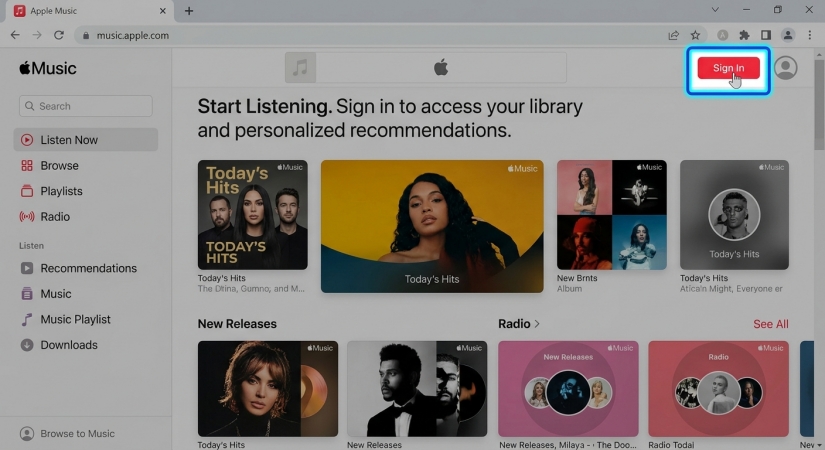
1. Launch Google Chrome on your Chromebook.
2. Navigate to music.apple.com.
3. Click Sign In in the top right corner and enter your Apple ID credentials.
Step 2: Install Apple Music as a Desktop Shortcut
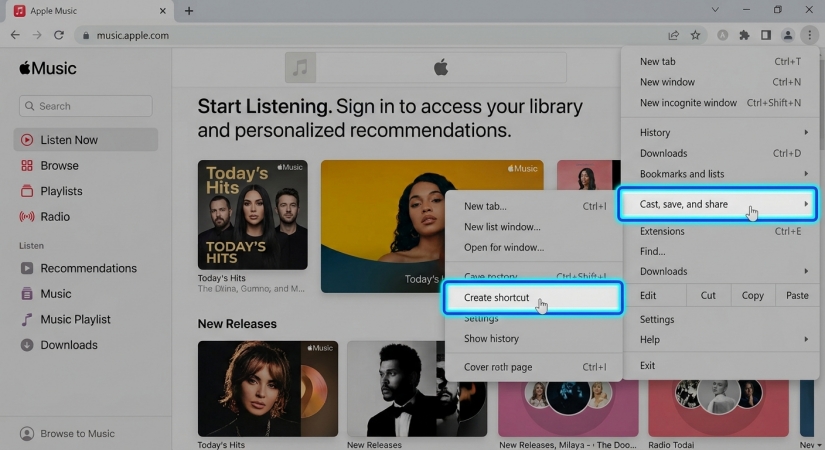
1. On the Apple Music page, click the three-dot icon in the top right corner of Chrome.
2. Hover over Cast, save, and share, then select Create shortcut.
3. If prompted with a dialog box, check the box that says Open as window.
4. Click Install or Create to confirm.
Step 3: Pin Apple Music to Your Chromebook Shelf
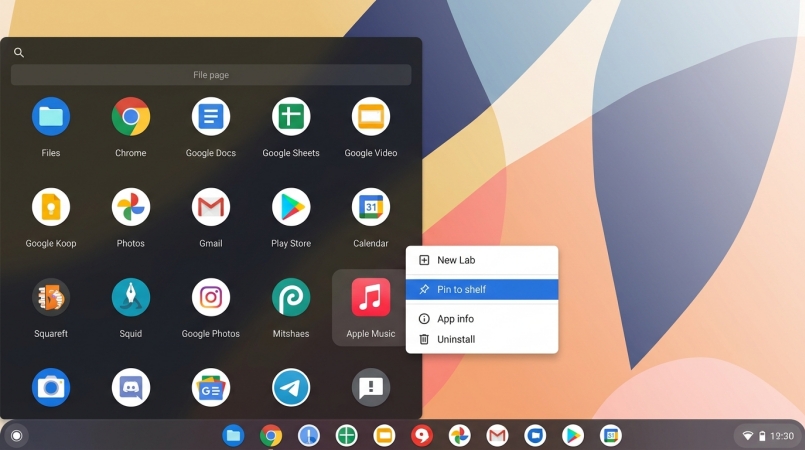
1. Open your Chromebook App Launcher on the bottom left of your screen.
2. Right-click or two-finger tap the newly created Apple Music icon.
3. Select Pin to shelf.
Now you can launch Apple Music directly from your taskbar in a clean, standalone window without browser tabs distracting you.
😀 Pros
- Work on 100% of Chromebooks
- Not occupy any storage space
- Easy access with a shortcut
☹️ Cons
- Not support offline mode
- Only offer standard AAC streaming
Part 3. How to Download Apple Music on Chromebook via Google Play Store
If you plan to use your Chromebook on flights, road trips, or places without reliable Wi-Fi, the official Apple Music for Android app from the Google Play Store is your best option. It is the only method that supports downloading tracks, albums, and playlists from Apple Music directly to your local Chromebook storage.
What You Need Before You Start:
-
A Chromebook supporting Google Play Store
-
Google Play Store enabled in ChromeOS settings
-
Active Apple Music subscription
-
Sufficient local storage space
Step 1: Enable Google Play Store on Your Chromebook
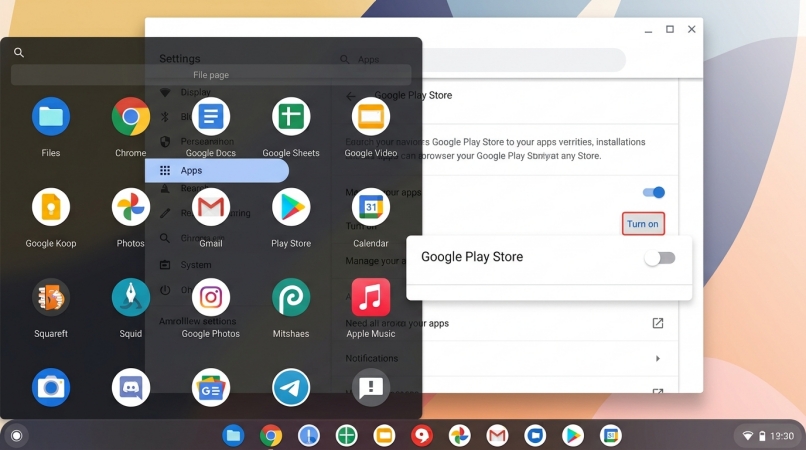
1. Open Settings on your Chromebook.
2. Scroll down the left sidebar to Apps.
3. Locate Google Play Store and click Turn on.
4. Accept the terms of service to complete setup.
Step 2: Download Apple Music from Google Play Store
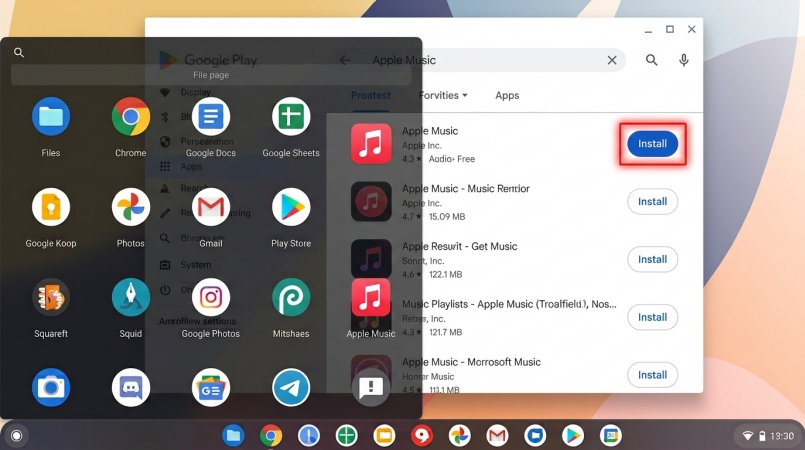
1. Open the Google Play Store app from your launcher or shelf.
2. Search for Apple Music and click Install.
Step 3: Sign In and Configure Offline Downloads
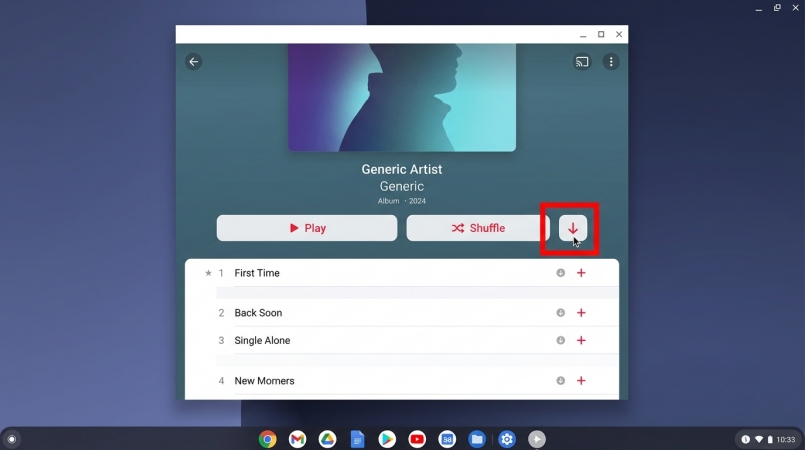
1. Launch the Apple Music app from your launcher.
2. Sign in with your Apple ID.
3. Navigate to any album or playlist in your library.
4. Click the Download button to save music for offline playback.
Before downloading, you can go to Settings inside the Apple Music app to customize download quality or store downloads on an SD card if your Chromebook supports expansion slots.
😀 Pros
- Support offline downloads
- Full mobile app features
- Allow background media controls
☹️ Cons
- Blocked on school-issued Chromebooks
- Consume local storage space for the app
- Clunky to navigate with a trackpad and mouse
Part 4. How to Get Offline Apple Music on Chromebook via Audio Conversion
It's easy to get the playback of Apple Music on a personal Chromebook with the Apple Music web player or via the Apple Music for Android app. However, those school-managed Chromebooks are restricted by the administrator, not allowing to access the Google Play Store and install any app. Or the older Chromebook lacks the Google Play Store support. Playing local audio files is a reliable workaround to break all the limitations.
With a third-party tool like TunesMake Apple Music Converter on a PC or Mac, you can download and convert an existing collection of Apple Music tracks or iTunes purchases into universal formats such as MP3, M4A, or FLAC while retaining original ID3 tags. Later, you can move these tracks onto a Chromebook for offline use without worrying about format protections.

Streaming Audio Recorder –
Download Apple Music tracks for playing anytime
- Download songs, albums, and playlists from Apple Music
- Convert Apple Music to MP3, M4A, M4B, WAV, FLAC, and AIFF
- Remove DRM protection from Apple Music completely and safely
- Preserve the original audio quality and ID3 tags for management
- Support downloading music from 10 popular streaming platforms
Security Verified. 100% Clean & Safe.
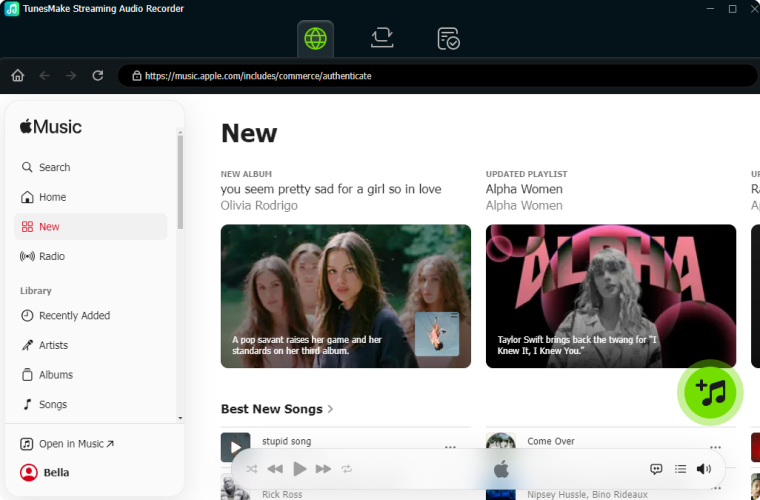
Step 1 Select Apple Music to Download
Upon launching TunesMake Streaming Audio Recorder on your computer, navigate to click Apple Music on the main dashboard and log into the built-in Apple Music web player. Browse your library or search in the catalog, then choose any music track, album, or playlist to download. Click the + button to add the target item into the conversion list.
Step 2 Customize the Output Parameters
The settings icon is at the bottom left of the interface. To customize the output audio parameters, open the settings and scroll down to the Conversion part. Here you can set MP3 as the output audio or select any other supported audio formats. Also, you can change the bit rate, channel, and sample rate according to your personal need.

Step 3 Convert Apple Music to MP3
Now you can click the Convert button at the bottom right corner, and TunesMake will immediately start the conversion task. Wait for a while, and you can browse all the converted Apple Music tracks by clicking the History button at the left panel. If you cannot fin the converted files in the local folder, you can click the search icon.

Step 4 Transfer to Cloud or External Drive
Copy the converted Apple Music audio files to a USB flash drive, external hard drive, or upload them directly to your Google Drive. Plug the USB drive into your Chromebook or open Google Drive inside the ChromeOS Files app.
😀 Pros
- Flexible offline access without limits
- No active subscription for playback
- Keep for permanent playback
☹️ Cons
- Require a PC or Mac
- Need multi-step process
Part 5. FAQs about Apple Music for Chromebook
Why is the Google Play Store missing on my Chromebook?
If you are using a school-issued or enterprise-managed Chromebook, your administrator may have disabled access to the Google Play Store and Android app installation. In this case, use the Apple Music web player to access your music library, which runs inside the Chrome browser and bypasses Play Store restrictions.
Can I stream Apple Music Lossless on a Chromebook?
The Apple Music Web Player streams standard high-quality AAC audio. While the Apple Music for Android app on ChromeOS supports high-resolution playback settings in its menu, output quality depends on your Chromebook's DAC hardware and connected headphones. Spatial Audio with dynamic head tracking is generally limited to Apple hardware.
Why can't I download songs on the Apple Music Web Player?
Progressive Web Apps and browser-based media players do not support direct offline file caching for Apple Music content due to digital rights management restrictions. You can only save songs offline using the Apple Music for Android app on a Chromebook.
Part 6. Conclusion
Streaming Apple Music on ChromeOS is simple once you choose the right approach for your specific device. For maximum flexibility and offline listening, install the official Apple Music Android app through the Google Play Store. If you are on a school or work-issued Chromebook where app downloads are restricted, the Apple Music Web Player offers a lightweight streaming experience that takes up zero storage space.
For complete cross-platform control, converting Apple Music tracks using a third-party tool like TunesMake lets you back up your music as local audio files to play anytime off a USB drive or Google Drive. Pick the setup that matches your hardware, sign into your Apple ID, and take your music library wherever your Chromebook goes.
Related Articles

A professional writer at TunesMake, crafts in-depth tutorials, practical tips and expert advice focusing on streaming music, technology, and more.
- 1
- 2
- 3
- 4
- 5
- 6
- 7
 Leave Your Comment
(0)
Leave Your Comment
(0)

 Download Center

