








 Store
Store


If you are trying to stream your favorite playlists on an iPod or sync offline songs to an older model, you might have run into unexpected sync errors or grayed-out tracks. Millions of music lovers still adore the classic hardware feel of Apple's iconic portable players, but playing Apple Music on an iPod isn't always straightforward. Whether you own a modern iPod Touch or a classic legacy device like an iPod Nano, iPod Shuffle, or iPod Classic, this guide breaks down exactly what works, why certain limitations exist, and how to get your favorite tunes playing smoothly.
Part 1. Do iPods Still Work with Apple Music?
Yes, you can still use your iPod with Apple Music. Not every iPod is left out in the cold. Depending on the model you hold in your hand, the playback of Apple Music might be fully supported.
| iPod Model | Support Apple Music | Primary Solution |
|---|---|---|
| iPod Touch (6th & 7th Gen) | Yes | Download songs directly via Wi-Fi |
| iPod Touch (1st to 5th Gen) | No | Purchase tracks in iTunes or convert Apple Music into unprotected music files |
| iPod Classic (All Generations) | ||
| iPod Nano (All Generations) | ||
| iPod Shuffle (All Generations) |
Why Don't Legacy iPods Work with Apple Music?
Apple Music is a subscription streaming service protected by FairPlay DRM. Older iPod models lack WiFi to check into Apple's servers, can't verify an active subscription token, and run older firmware that cannot decode Apple Music's streaming files.
Also, when you try to sync downloaded Apple Music tracks to an older model like an iPod Nano, iPod Shuffle, or iPod Classic using iTunes or Finder, you will likely encounter an error stating that "Apple Music songs cannot be copied to an iPod."
Not fret! For those older iPod models, you can still sync standard MP3 audio files purchased from iTunes or Apple Music tracks converted with a third-party Apple Music converter from your computer. Then you can use the media player on your iPod to listen to them freely.
Part 2. How to Play Apple Music on iPod Touch (Official Method)
If you have a 6th Generation or 7th Generation iPod Touch, playing Apple Music is seamless because these models support iOS 10 or later and feature built-in Wi-Fi connectivity. You can not only stream tracks over Wi-Fi but also save them directly for offline playback.
Step 1: Set Up Your Account and Library Sync
To access your personal library and saved playlists on your iPod, you need to sign into your Apple ID associated with your active Apple Music subscription and enable cloud synchronization first.
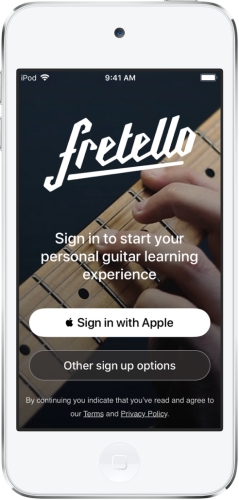
1) Connect your iPod Touch to a stable Wi-Fi network.
2) Open the Settings app and tap Sign in to your iPod Touch.
3) Enter your Apple ID credentials associated with an active Apple Music subscription.
4) Scroll down and tap Apps > Music.
5) Toggle the Sync Library switch to the ON position.
Step 2: Download Tracks for Offline Listening
When your iPod is connected to a stable WiFi network, you can play your liked songs in Apple Music seamlessly. Also, you can download songs for offline listening on your iPod.
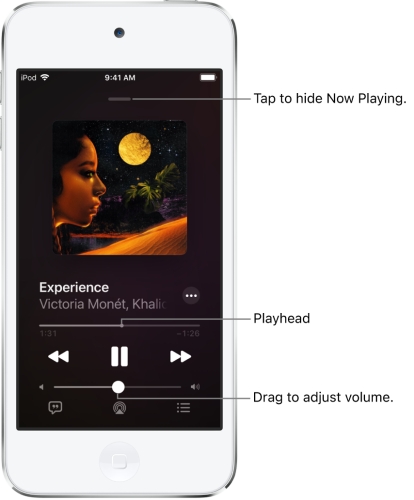
1) Launch the Apple Music app.
2) Search for any artist, album, or playlist in the catalog.
3) Tap the + Add button to add tracks to your library.
4) Tap the Download icon next to any song or album to store it for offline playback.
Note
Make sure your device has enough free storage space before downloading large losslessly compressed audio files or long playlists.
Part 3. How to Play Apple Music on iPod Classic/Nano/Shuffle
If you own an older model, don't worry, and you don't have to throw away your favorite click-wheel player. While you neither directly use the Apple Music app nor transfer DRM-protected subscription tracks to your older iPod using iTunes, you can still enjoy an incredible music library using these practical workarounds.
| Method | Supported iPod Models | Requirements | Best For |
|---|---|---|---|
| iTunes Sync | All models (Classic, Nano, Shuffle, Touch) | DRM-free Audio Files (Purchased MP3 tracks) | Loading owned, non-DRM personal audio collections |
| Apple Music Converter | All models (Classic, Nano, Shuffle, Touch) | A computer with an Apple Music converter | Playing any Apple Music song, album, or playlist on older models |
Method 1. Sync Purchased Store Files, Local MP3s, and Ripped CDs
While subscription tracks from Apple Music won't sync, DRM-free audio files work perfectly on all iPod models. You can add these to your library via:
- Purchased iTunes Music: Songs bought directly from the iTunes Store are unprotected AAC files that sync seamlessly.
- CD Ripping: Insert physical audio CDs into your computer's disc drive and use iTunes or the Apple Music app to rip them into MP3 or AAC format.
- Personal Audio Collections: Any MP3, WAV, or AAC files saved on your computer hard drive can be imported directly into your library.
How to Sync Purchased iTunes Tracks to iPod
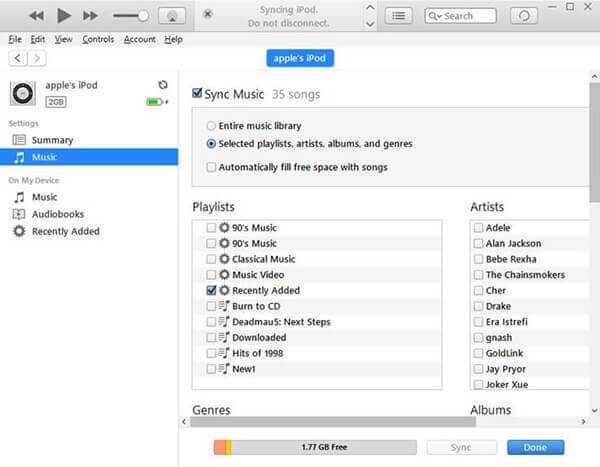
Step 1. Connect your legacy iPod to your computer using a USB cable.
Step 2. Open Finder on a Mac or iTunes on a Windows PC.
Step 3. Select your iPod from the sidebar menu.
Step 4. Check Sync music onto your iPod and select your playlists or songs.
Step 5. Click Apply or Sync. Wait to complete the syncing process.
Method 2. Convert Apple Music Tracks Using TunesMake Apple Music Converter
If your primary music collection is stored in Apple Music, specialized conversion tools like TunesMake Apple Music Converter offer a practical way to get Apple Music tracks. Because those older iPod models cannot process DRM-protected streams, TunesMake Apple Music Converter solve this core limitation by converting Apple Music tracks, albums, or playlists into open, unprotected audio formats like MP3, FLAC, M4A, or AIFF. Once converted, you can easily sync them to your iPod for playing anytime.

Streaming Audio Recorder –
Download Apple Music songs for playing on iPod
- Download songs, albums, and playlists from Apple Music
- Convert Apple Music to MP3, M4A, M4B, WAV, FLAC, and AIFF
- Remove DRM protection from Apple Music completely and safely
- Preserve the original audio quality and ID3 tags for management
- Support downloading music from 10 popular streaming platforms
Security Verified. 100% Clean & Safe.
Step 1 Select Apple Music Songs, Albums, or Playlists
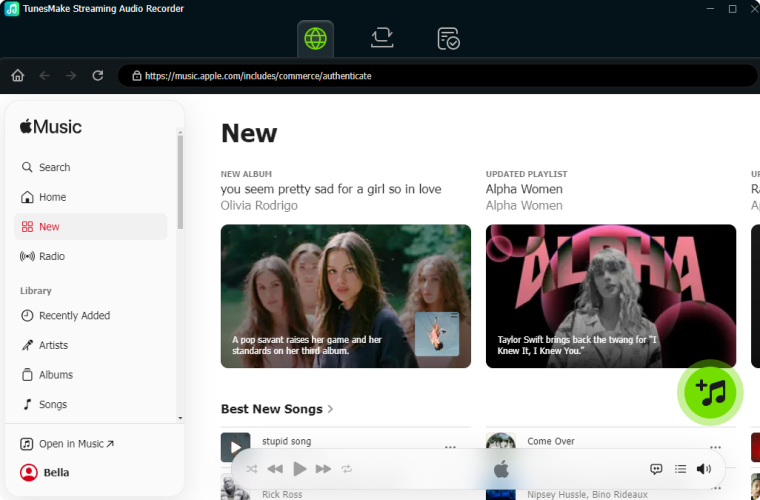
Launch TunesMake Streaming Audio Recorder on your computer, and choose Apple Music. Then you will be directed to the built-in Apple Music web player. Here you can sign into your Apple Account credentials and find any song, album, or playlist to download. Simply click the + button to add the target item into the conversion list.
Step 2 Set MP3, WAV, and More as the Output Format
Once your selected Apple Music content are added into the conversion list, you can click the Settings button at the bottom left corner. A window of format setting will appear where you can set the output format, channel, sample rate, and bit rate. The iPod can play several audio file formats including MP3, AAC, M4A, and WAV. You can set the output format like MP3 or WAV.

Step 3 Convert Apple Music into Unprotected Audio Files
After all your settings are done, you can now click the Convert button and TunesMake Streaming Audio Recorder will automatically convert Apple Music songs to MP3 or other audio formats you want. You can then view all your converted tracks by clicking the History button and begin to transfer them to your iPod.

Step 4 Sync Converted Apple Music Audio Files to iPodFiles
Once converted to iPod-supported formats, you can start to move the converted Apple Music audio files to your iPod. There are two ways for you to transfer them to your iPod. You can use Apple's official solutions like iTunes and Finder to complete it or directly copy and paste them to your iPod using a USB cable.
Way 1. Transfer Music from Apple Music to iPod with iTunes
1) Connect your iPod to your computer using a USB cable.
2) Launch iTunes or Finder, then click the iPod icon to load the device management screen.
3) Click Music and check the box next to Sync Music.
4) Choose to Add entire music library or Sync selected playlists, artists, albums, and genres.
5) Click the Apply button at the bottom of the screen to start syncing.
6) Eject your iPod and play the synced Apple Music songs.
Way 2. Put Music from Apple Music on iPod with USB
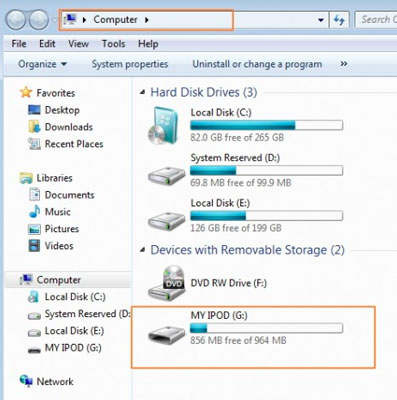
1) Use a USB cable to connect your iPod to your computer.
2) Navigate to your computer and choose your iPod.
3) Choose the Tool option, go down to the folder, and click Show hidden files and folders.
4) Find the folder named iPod control and go to the music folder.
5) Copy and paste the converted audio files to the folder.
Part 4. Conclusion
While Apple Music streaming is exclusive to modern iPod Touch models, owning an iPod Classic, Nano, or Shuffle doesn't mean your device has to gather dust. By relying on DRM-free local audio files, iTunes purchased, CD imports, or TunesMake Apple Music Converter, you can keep your beloved iPod playing your favorite soundtracks for years to come.
Related Articles


A professional writer at TunesMake, crafts in-depth tutorials, practical tips and expert advice focusing on streaming music, technology, and more.
- 1
- 2
- 3
- 4
- 5
- 6
- 7
 Leave Your Comment
(0)
Leave Your Comment
(0)

 Download Center

