








 Store
Store


Long road trips, daily commutes, and bumper-to-bumper traffic are infinitely better with a good audiobook. For years, Tesla drivers had to rely on phone mounts and basic Bluetooth to listen to their favorite Audible titles. Fortunately, with recent over-the-air updates, enjoying audiobooks in your EV has become much smoother.
Whether you want to set up the Tesla Audible app or need an offline workaround when driving through areas with spotty cellular coverage, this comprehensive guide walks you through every method to play Audible on your Tesla.
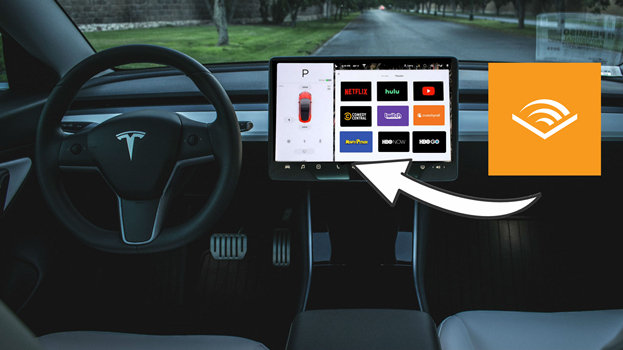
Part 1. Can You Play Audible on Tesla?
Yes, you can play Audible on your Tesla using several methods. Here are the primary methods to listen to Audible in Tesla, whether you are online or offline.
| Method | Need Software Update | Need Premium Connectivity | Work While Driving | Offline Support |
|---|---|---|---|---|
| Audible for Tesla App | ✔️ | ✔️ | ✔️ | Limited |
| Bluetooth Audio | ❌ | ❌ | ✔️ | ✔️ |
| Audible Cloud Player | ❌ | ✔️ | Restricted | ❌ |
| USB Flash Drive | ❌ | ❌ | ✔️ | Full |
 TunesMake Streaming Audio Recorder
An all-in-one audio downloader and converter, allowing to convert and save Audible books locally in the format of MP3, AIFF, and more.
Part 2. How to Listen to Audible in Tesla
To set up the Tesla Audible app, use voice commands while driving, or find offline workarounds when driving through zero-cellular dead zones, follow the steps below to get started.
Method 1. Use the Audible App for Tesla
Beginning with Tesla's 2024.14 software update, an Audible app is officially integrated directly into the vehicle's touchscreen interface. This player offers seamless cross-device sync, allowing you to pick up an audiobook in your car right where you stopped listening on your smartphone or smart speaker. Here's how to use the Audible app for Tesla to listen to audiobooks while driving.
Requirements for the Audible App on Tesla:
-
Vehicle Software: Version 2024.14 or newer installed
-
Connectivity: Active Tesla Premium Connectivity or a mobile hotspot connection
-
Audible Account: An active Amazon or Audible subscription
How to Connect Audible to Tesla
Step 1. On your vehicle touchscreen, open Media Player and tap Audio Settings.
Step 2. Select Sources and ensure Audible is toggled ON.
Step 3. Open your App Launcher and tap the Audible icon.
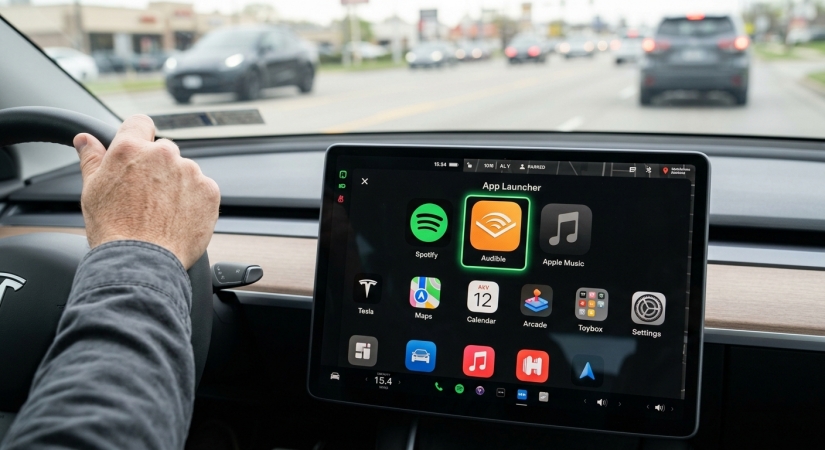
Step 4. Open your smartphone camera and scan the on-screen QR code in Tesla.
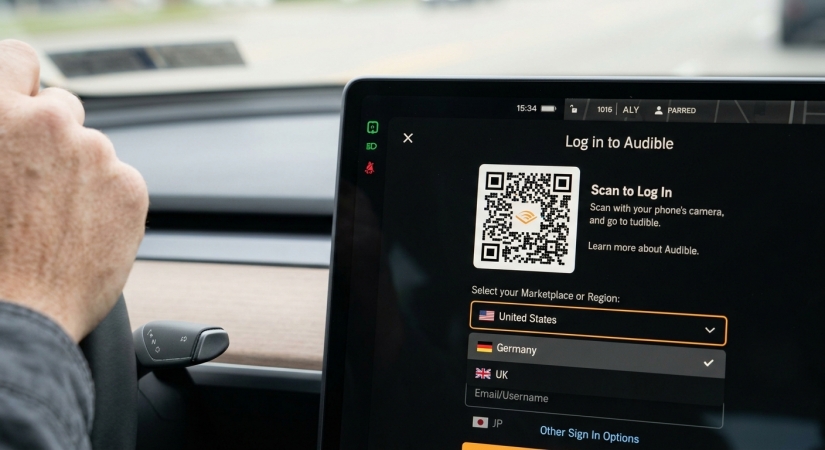
Step 5. Tap the link to open the Amazon sign-in portal.
Step 6. Ensure you choose your correct marketplace region.
Step 7. Once authenticated, start playing your favorite audiobook.
Use Voice Controls & Steering Vehicle Shortcuts
Using the touchscreen while driving can be distracting. Fortunately, Tesla's media ecosystem allows you to manage audiobooks safely using physical controls and voice commands.
Steering Wheel Hardware Controls
- Left Scroll Wheel (Press): Toggle between Play and Pause.
- Left Scroll Wheel (Tilt Left / Right): Skip backward 30 seconds or skip forward 30 seconds.
- Left Scroll Wheel (Roll Up / Down): Turn volume up or down.
Voice Command Automation
You can initiate playback without taking your hands off the wheel or your eyes off the road.
1) Press the Right Scroll Wheel on your steering wheel to trigger the voice command prompt.
2) Wait for the audio chime and speak clearly.
Recommended Audio Commands:
"Play Project Hail Mary"
"Search Audible for Julie"
"Skip forward"
"Skip backward"
"Pause audio"
"Resume audio"
Method 2. Stream Audible via Bluetooth Connection
If your vehicle hasn't received the latest software update, or if you don't subscribe to Tesla's Premium Connectivity, Bluetooth streaming is the simplest fallback solution.
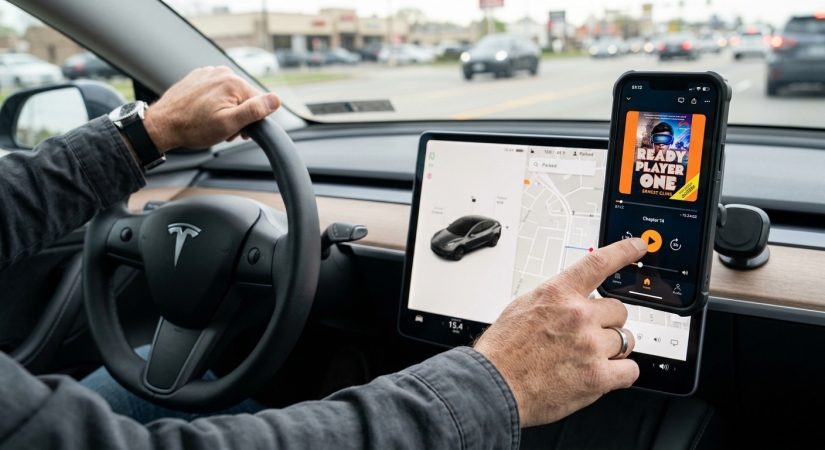
How to Set up Audible for Tesla via Bluetooth Connection
Step 1. Park your Tesla and open Controls > Bluetooth on the touchscreen.
Step 2. Tap Add New Device to make your vehicle discoverable.
Step 3. On your smartphone, open Settings > Bluetooth and select your Tesla from the list.
Step 4. Confirm the pairing key on both your phone and the car screen.
Step 5. On the Tesla touchscreen, select Bluetooth as your primary media source.
Step 6. Open the Audible app on your smartphone and hit play.
Pro Tip:
Using Bluetooth allows you to play audiobooks that you have downloaded offline on your mobile device, making this method ideal for road trips across remote areas with limited cellular signal.
Method 3. Play Audible via the Tesla's In-Car Web Browser
If you want to access your cloud library on the car's display without installing the Audible app, you can stream directly from Audible's web player using the Tesla's in-car web browser.
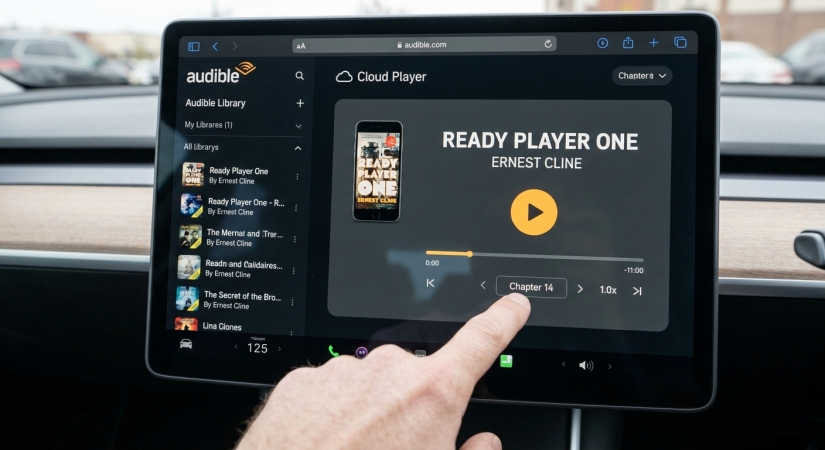
How to Play Audible in Tesla from Audible Cloud Player
Step 1. Ensure your vehicle is parked.
Step 2. Open the Web Browser app from the bottom dock.
Step 3. Navigate to the official Audible website and log in to your Amazon account.
Step 4. Go to your Library and tap Listen Now to launch the Audible Cloud Player.
Safety Notice:
Tesla restricts full web browser video and interactive playback features while the vehicle is shifted into Drive. This method is best utilized while parked at Supercharger stations.
Method 4. Listen to Audible in Tesla via USB Drive
For drivers who prefer complete offline access without relying on cellular data or Bluetooth connections, you can play audiobooks directly from a USB flash drive inserted into your Tesla's center console. Follow the steps below to start your offline playback of Audible in Tesla.
Understand Limitations & Format Requirements
Purchased Audible audiobooks are encoded in proprietary .AAX formats. Because Tesla's local USB Media Player only reads standard audio files like MP3, M4A, or M4B, playing your purchased audiobooks directly from a flash drive requires converting them into a compatible open format using a third-party tool like TunesMake Audible Converter first.
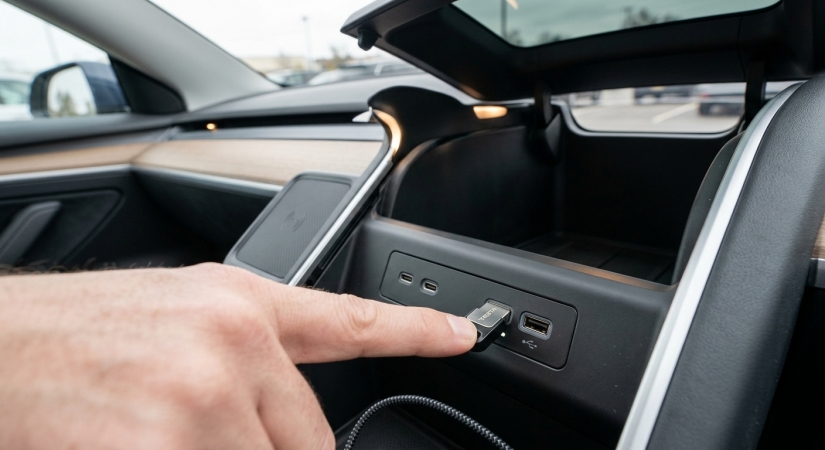
Step 1. Convert Audible audiobooks to MP3 or other formats using TunesMake.
Step 2. Format a USB drive to exFAT or FAT32 using your computer.
Step 3. Copy the converted audiobook files into designated folders on the USB drive.
Step 4. Insert the flash drive into the USB data port inside your Tesla's glovebox or center console.
Step 5. Open the Tesla Media Player and select the USB source tab.
Step 6. Browse your audiobook folders and start playing.
Part 3. How to Fix Tesla Audible Not Syncing
When the Audible app on your Tesla isn't syncing your audiobook progress with your phone or other devices, it is usually caused by network delays, disabled sync toggles, or an account region mismatch. Follow these steps in order to resolve the Tesla Audible app not syncing issue.
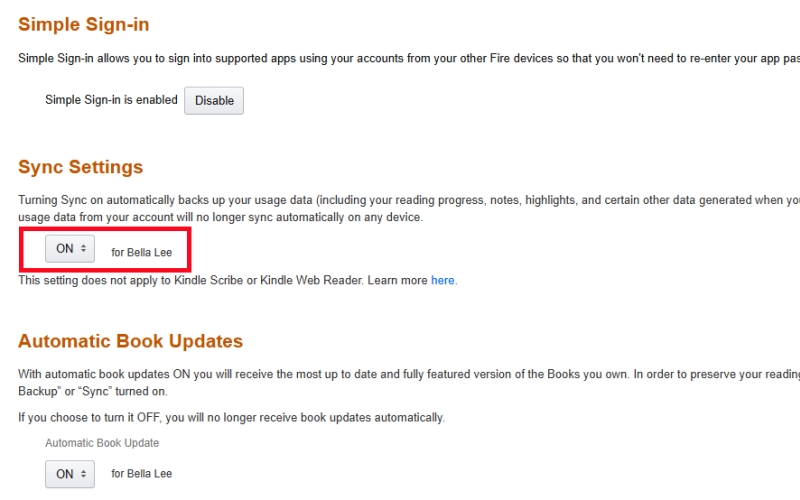
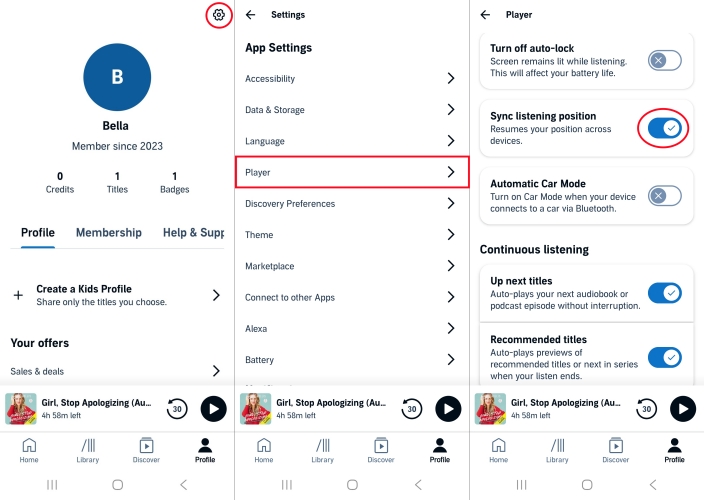
Step 1: Enable Whispersync & Sync Toggles
If Amazon's cross-device synchronization is turned off, your progress will not upload to the cloud from any device.
- On Amazon Web: Go to Amazon.com > Account & Lists > Content & Devices > Preferences. Scroll down to Device Synchronization and ensure it is set to ON.
- In the Audible App: Go to Profile > Settings > Player. Scroll down and make sure Sync Listening Position is toggled ON.
Step 2: Use the "5-Second Pause" Rule
Tesla's cellular or Wi-Fi connection needs a brief moment to upload your timestamp to Audible's servers when you stop listening. When you reach your destination, press Pause on the Tesla screen and wait 3 to 5 seconds before opening the door or walking away from the car.
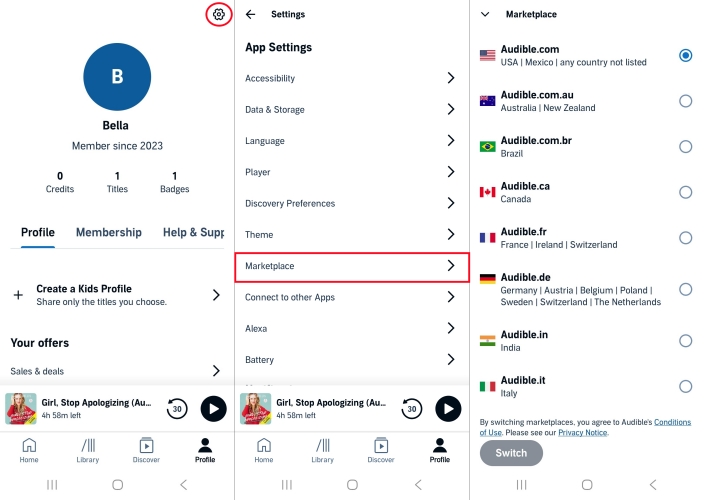
Step 3: Verify Account & Marketplace Regions
If your Tesla library looks completely different or never updates, check your Audible account and marketplace regions.
- Check Marketplace: Make sure your Audible mobile app and Tesla Audible app are logged into the exact same region.
- Check Amazon Household: If you use Amazon Household sharing, verify that both the car and your phone are using the same primary account profile that owns the book.
Step 4: Reboot the Tesla Touchscreen & Re-authenticate
If the Tesla Audible app is frozen or failing to ping cellular data, hold down both scroll wheel buttons on your steering wheel until the main display turns black and restarts. Once rebooted, open Audible in the car, tap the profile icon, and select Sign Out. Then scan the QR code with your phone and log back in.
Part 4. FAQs about Audible App for Tesla
Does Tesla Audible require Premium Connectivity?
Yes. Streaming content directly through the vehicle app requires an active data connection. You can use either Tesla's Premium Connectivity subscription or connect your car to your phone's personal Wi-Fi hotspot.
Can I download Audible books to my Tesla for offline listening?
The Tesla Audible app relies heavily on cloud streaming and caching. For guaranteed offline listening across dead zones, it is best to download books onto your smartphone and play them via Bluetooth Connection.
Why does Audible stop playing when I get out of the car?
Tesla automatically pauses media when the driver's seat sensor detects you have exited the vehicle. When you return and press the brake pedal, Audible will automatically resume the playback where you left off.
Can I buy new books directly on the Tesla screen?
No. The in-car app allows streaming and library browsing, but purchasing new titles or spending Audible credits must be done via your phone, tablet, or web browser.
Part 5. Conclusion
Listening to your favorite audiobooks in a Tesla is now easier than ever. With the introduction of the Audible app in recent software updates, drivers can enjoy a clean interface, hands-free voice controls, and automatic cloud syncing across devices.
If your car is on an older software version or you regularly travel through areas with limited cellular reception, practical alternatives like Bluetooth streaming and local USB playback ensure you never lose access to your library. For offline USB listening, TunesMake Audible Converter helps prepare standard MP3 or M4B files for seamless playback directly through your Tesla's media player. Choose the method that best matches your connectivity setup and enjoy uninterrupted stories on every drive.
Related Articles

A professional writer at TunesMake, crafts in-depth tutorials, practical tips and expert advice focusing on streaming music, technology, and more.
- 1
- 2
- 3
- 4
- 5
- 6
- 7
 Leave Your Comment
(0)
Leave Your Comment
(0)

 Download Center

