








 Store
Store


Do you like discovering new music from independent artists and DJs? If so, SoundCloud is your ultimate playground. With the SoundCloud app or its web player, you can easily stream millions of tracks. While streaming is convenient, many users prefer downloading SoundCloud songs on iPhone for offline listening, especially when traveling and commuting. Downloading SoundCloud songs ensures you can have a consistent listening experience. In this guide, you will learn how to download SoundCloud songs on iPhone with three effective methods, from official subscription feature, using iPhone shortcuts, and leveraging a professional music downloader for more flexibility. Now, let’s explore them together.
Method 1. Download SoundCloud Songs to iPhone via Subscriptions
Since SoundCloud offers the download feature for its subscribers, the most straightforward method to download SoundCloud songs on an iPhone is through the official SoundCloud app installed on your iPhone. All you need is a valid SoundCloud Go or Go+ subscription. This method is the safest option because it is fully supported by the platform.
Note
When you subscribe to SoundCloud, you can save tracks for offline listening directly in the app. But these downloads are encrypted files that can only be played within SoundCloud. Once your subscription ends, you will lose access to them. If you want to get the actual audio files of your SoundCloud songs, you should try Method 3.
Step 1. Install and open the SoundCloud app on your iPhone. Then, sign in to your Go or Go+ account.
Step 2. Browse the SoundCloud music library and find the song you like. You should tap the three-dot icon > Add to playlist to add this song to your library. Or, you can tap the heart icon to like this song.
Step 3. Next, head to Library > Your likes or a playlist. Now, tap the download icon at the top to download SoundCloud songs.
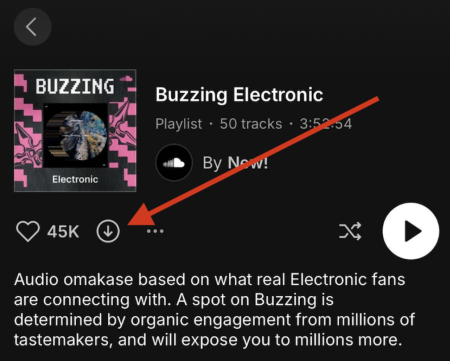
Step 4. You can see a download process bar. When the bar finishes, you can listen to your SoundCloud songs on your iPhone offline by heading to the Downloads section.
-
😀 Pros
- Easy and secure method
- Official support
- No third-party tool required
-
☹️ Cons
- Requires a paid subscription
- Downloads are only available within SoundCloud
- Not all tracks are available for downloading
- Lose access to downloads once the subscription expires
Method 2. Download SoundCloud Songs to iPhone via iPhone Shortcuts
For users who prefer a free method, iPhone Shortcuts can sometimes be an available workaround. The Shortcuts app on your iPhone can help you automate complex tasks, including ripping SoundCloud songs from the web. With a customized shortcut, you can download SoundCloud songs to your iPhone as MP3 files without paying for a subscription. However, this method doesn’t work all the time as SoundCloud frequently updates its platform.
Note
Since shortcuts are created by third-party developers, you should get shortcuts from trusted sources.
Step 1. Open any browser on your iPhone and grab a reliable SoundCloud downloader shortcut from a reliable source, such as RoutineHub.
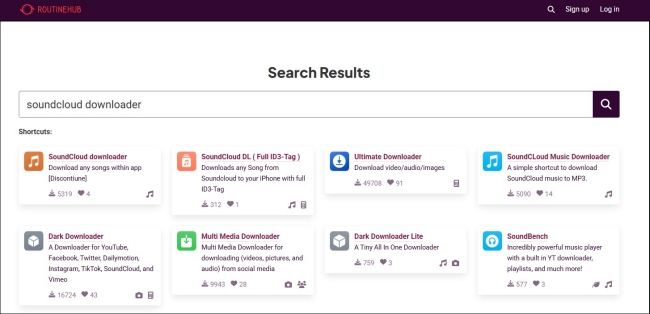
Step 2. Then, choose Get Shortcut to get this SoundCloud downloader shortcut on your iPhone. You should follow the on-screen instructions to finish all the necessary settings.
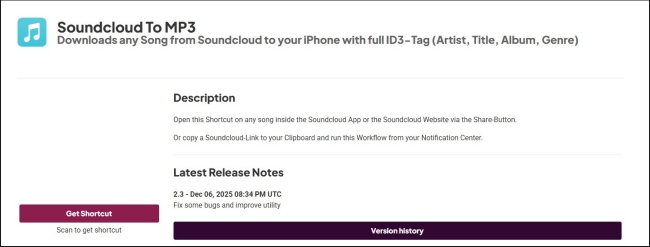
Step 3. Once done, you can head to the SoundCloud app or web player on your iPhone.
Step 4. Find the track you want to download. Then, tap the Share button and select the SoundCloud downloader shortcut from the available options.
Step 5. When it prompts, you should select Allow and Save to Files to download this song.
Step 6. When the song is downloaded successfully, you can find this music file on the Files app and listen to it on your iPhone offline.
-
😀 Pros
- Free to use
- Save SoundCloud songs to MP3
-
☹️ Cons
- Not always work
- A little bit complex to set up
- Lossy audio quality
Method 3. Download Songs from SoundCloud to iPhone via a Downloader
If you are a music lover who values audio quality, using a dedicated SoundCloud downloader is the gold standard. This method allows you to download SoundCloud tracks as local files and play them on other media players or devices offline without limits. The best SoundCloud music downloader you can get is the TunesMake SoundCloud Music Converter.
TunesMake SoundCloud Music Converter is popular among SoundCloud users with its advanced features and powerful decryption technology. You can use it to download your favorite SoundCloud songs, playlists, albums, and podcasts to local audio files in diverse formats, including MP3, M4A, M4B, WAV, FLAC, and AIFF. During the whole download process, the TunesMake tool will retain all the original sound quality and ID3 tags for an uninterrupted offline listening experience on your iPhone. If you want personalized music files, the TunesMake program even allows you to change the audio parameters as you want.

Streaming Audio Recorder –
Best SoundCloud to iPhone Downloader
- Unlimitedly download streaming music songs, playlists, and podcasts
- Losslessly convert streaming music to MP3, M4A, M4B, WAV, FLAC, and AIFF
- Remove DRM protection from many streaming music platforms
- Convert streaming songs with original sound quality and ID3 tags kept
Security Verified. 100% Clean & Safe.
-
😀 Pros
- Download songs, playlists, albums, and podcasts
- Diverse output formats
- Lossless audio quality
- Customize audio settings
- Easy to use
-
☹️ Cons
- Can’t be installed on iPhone directly
Step 1
Set the Output Audio Settings
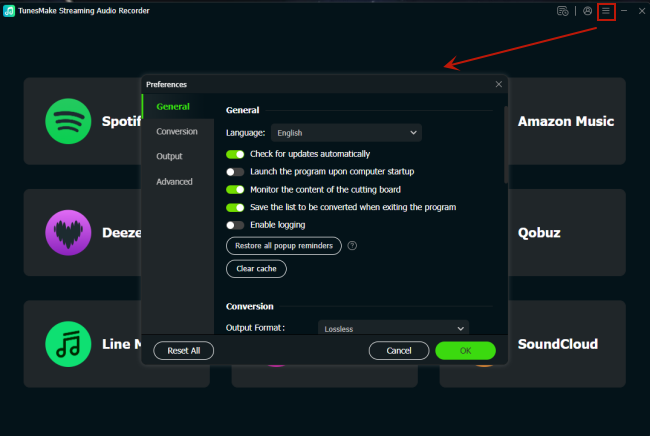
After installing the TunesMake SoundCloud Music Converter on your desktop, you can launch it to set the output settings of SoundCloud songs. Click the top Menu icon at the top, and then select Preferences > Conversion. Here, you need to select the output format and output quality. If you want, you can change other parameters, like codec, channel, bit rate, and sample rate. When you finish, click OK and go back to the interface.
Step 2
Select SoundCloud and Sign in to Your Account
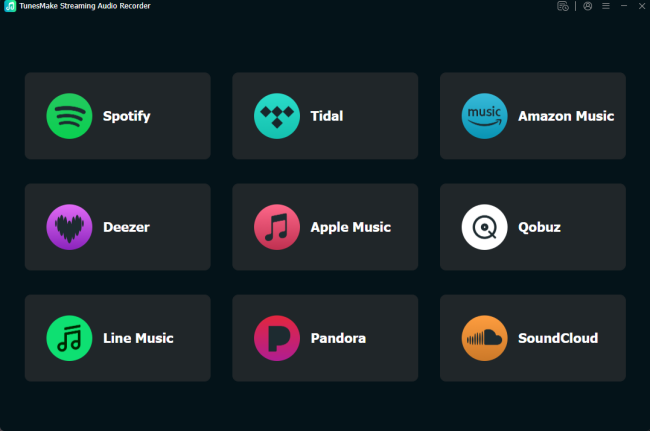
In the TunesMake’s interface, you need to click the SoundCloud icon to visit its official web player. Then, you should sign in to your SoundCloud account to browse music.
Step 3
Load Songs from SoundCloud to TunesMake
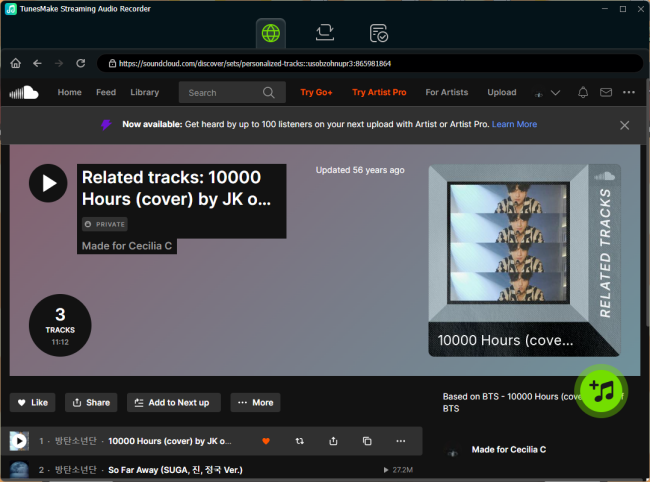
Now, you are in the SoundCloud music library. You can select any playlist or album you want to download. After entering the detailed page of this playlist/album, you should click the Add icon > Add to List. Therefore, you can load all the songs included in this playlist/album to the conversion list.
Step 4
Begin Downloading SoundCloud Songs
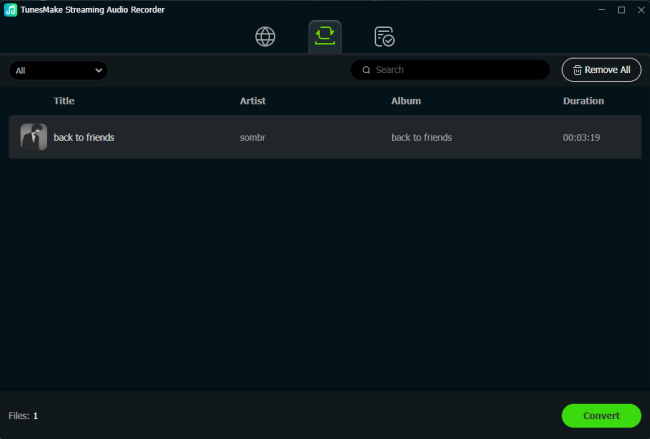
Now, everything is ready. You can begin downloading the SoundCloud songs you added via the Convert button. Wait for a while, and you can save your favorite SoundCloud songs as local audio files. To find the downloads’ location, just click the top Converted icon.
Step 5
Transfer SoundCloud Downloads to iPhone
Once you find all your downloaded music files, you can add them to the iTunes or Music app on your computer. Then, follow the steps below to transfer them to your iPhone for unlimited offline listening:
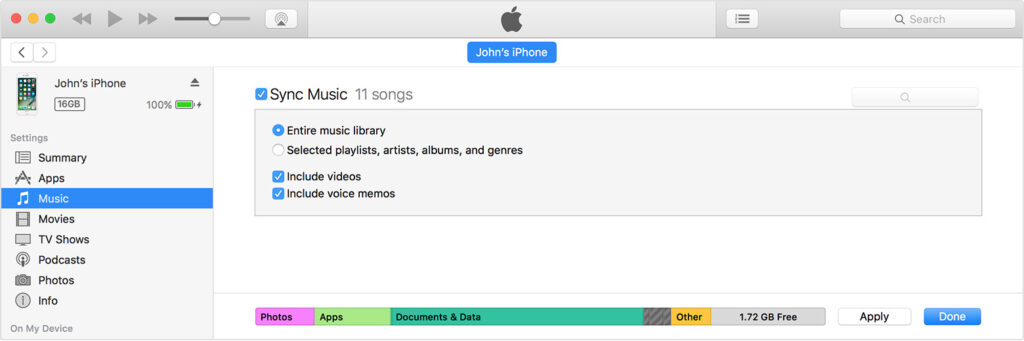
1. Make a connection between your computer and your iPhone via a compatible USB cable.
2. Open iTunes or Finder on your computer. Then, click the device icon in the sidebar to choose your iPhone.
3. Go to the Music section, and then toggle on the Sync Music box.
4. Enable the Selected playlists, artists, albums, and genres option.
5. When it prompts, you can select your downloaded SoundCloud songs and sync them to your iPhone by clicking Apply.
Conclusion
Downloading SoundCloud songs on iPhone is easy. This post offers three available methods for you to choose from. The method to choose depends on how you value your music. If you want a quick offline listen, the official app should be your choice. But if you want to save your favorite SoundCloud songs to high-fidelity local files for more flexibility, we recommend you use the TunesMake SoundCloud Music Converter.
Related Articles

A senior editor from TunesMake, dedicated to sharing professional tutorials and solutions of software, movies, and music.
- 1
- 2
- 3
- 4
- 5
- 6
- 7
 Leave Your Comment
(0)
Leave Your Comment
(0)

 Download Center

