








 Store
Store


Offering millions of great music tracks from independent artists, SoundCloud has become more and more popular in the world. However, many listeners, especially free users, have complained about SoundCloud ads, which interrupt the music listening experience. That’s why many users search for a reliable SoundCloud ad blocker. If you are also looking for an available method to enjoy uninterrupted music, you are in the right place. In this comprehensive guide, we will walk you through how to block SoundCloud ads and reclaim your listening experience. Whatever device you are using, you can find a valid tool. Now, let’s explore all the details you need to know.
Part 1. Does SoundCloud have Ads?
First of all, let’s be clear: yes, SoundCloud has ads like other music streaming services. If you are using a free SoundCloud account, you’ve likely noticed that there are not only audio ads but also display banner ads. These ads generate revenue for the artists and creators you love. However, they can certainly break the "vibe" of your carefully curated playlist. Luckily, there are available methods to help you block SoundCloud ads. You can read the following parts for exploring more details.
How often do ads play on SoundCloud?
The frequency of SoundCloud ads depends on your location and listening behavior. Typically, you may head an ad every 2-3 tracks with your free plan. On mobile phones, ads are often more frequent than on desktops.
Is SoundCloud ad blocker safe?
It depends on which ad blocker you are using. Most ad blockers that you get from official websites and the Chrome Web Store are safe. It’s better to avoid installing modded APKs or cracked versions of the SoundCloud app, as these tools often have potential risks.
Is it legal to use an ad blocker on SoundCloud?
Using an ad blocker on your device for personal use is legal. However, using an ad blocker violates SoundCloud’s Terms of Service, which prohibits circumventing ads. While you’re unlikely to face legal consequences, using an unofficial ad blocker may lead to playback issues.
Part 2. How to Block SoundCloud Ads via Official Subscriptions
Ads during your music playback is frustrating, but SoundCloud offers a way to let you block ads officially without violating platform rules. That is to upgrade to a SoundCloud Go or Go+ account. If you are hesitant, you can try the SoundCloud free trial first. Both the Go and Go+ subscription offer ad-free listening.
Step 1. Open any browser on your device and visit the official SoundCloud website.
Step 2. Now, you can log in to your account and click the top Try Go+ option.

Step 3. Once done, you will be led to the detailed subscription page.
Step 4. Scroll down to choose the plan you need and follow the on-screen instructions to finish the subscription process.
Part 3. How to Block SoundCloud Ads via Offline Playback
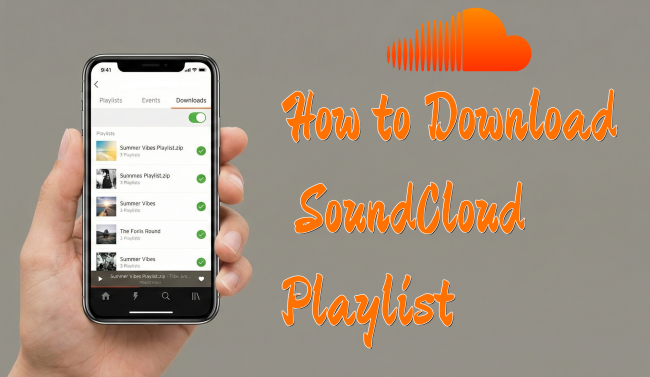
If you don’t want to keep paying for the subscription, there is another effective way to help you avoid SoundCloud ads. That is to download your favorite SoundCloud playlists to local files, so that you can easily get an uninterrupted offline music experience. However, not all SoundCloud songs are available to download unless the creator has enabled the download option. In this case, you will need a dedicated music downloader to save SoundCloud music locally. Why don’t you try the TunesMake SoundCloud Music Converter?
TunesMake Streaming Audio Recorder, also known as TunesMake Streaming Audio Recorder, is designed to help users save their favorite songs, playlists, albums, and podcasts. It supports downloading SoundCloud to MP3, M4A, M4B, WAV, FLAC, or AIFF without quality loss. When the downloading process is finished, you can save these downloaded songs forever and transfer them to other media players or devices for offline playback. Now, you will never be bothered by SoundCloud ads again.

Streaming Audio Recorder –
Download SoundCloud Music Locally for Ad-free Listening
- Unlimitedly download streaming music songs, playlists, and podcasts
- Losslessly convert streaming music to MP3, M4A, M4B, WAV, FLAC, and AIFF
- Remove DRM protection from many streaming music platforms
- Convert streaming songs with original sound quality and ID3 tags kept
Security Verified. 100% Clean & Safe.
Step 1
Customize the Audio Output Settings
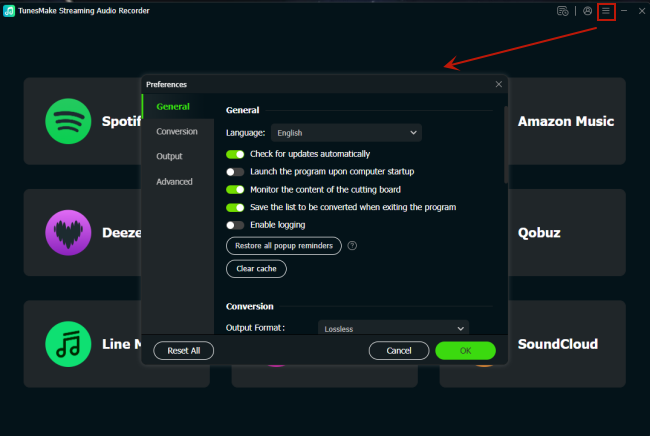
TunesMake SoundCloud Music Converter allows you to change the audio settings as you wish. After installing, you can launch the TunesMake tool and click the top Menu icon. Then, select Preferences to open the settings window. Once it pops up, you need to switch to the Conversion tab. Here, you can pick an output format. If you need, you can also set the output quality, channel, bit rate, and sample rate. When you finish, don’t forget to save your changes by clicking the OK button.
Step 2
Visit the SoundCloud Web Player
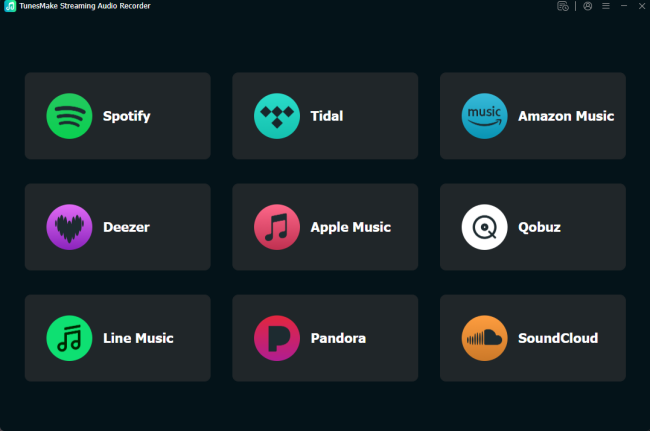
Now that you already set the audio settings, it’s time to go back to the interface of the TunesMake program. In the interface, you can see various music streaming platforms. Select SoundCloud, and you will be led to its official website directly. Then, you can sign in to your account.
Step 3
Load Songs from SoundCloud to the TunesMake Tool
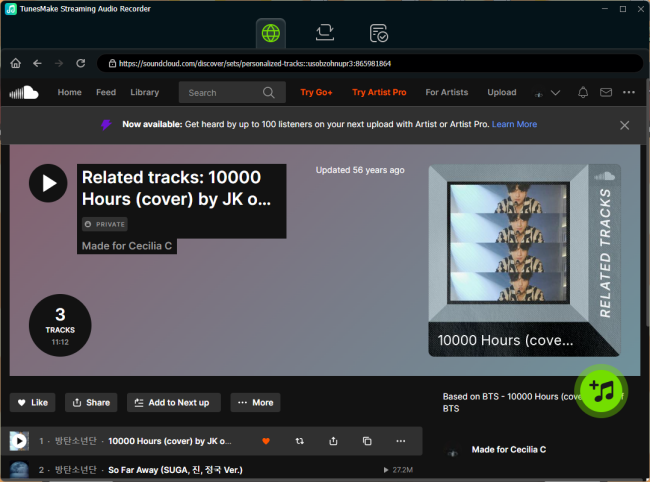
In the SoundCloud music library, feel free to find the songs you want to download. Just select a playlist or album, and then click the Add icon in the lower-right corner. Thus, the TunesMake tool will analyze this playlist/album and show all the songs. After picking the songs you like, you can add them to the conversion list by clicking the Add to List option.
Step 4
Begin Downloading SoundCloud Music for Ad-free Listening
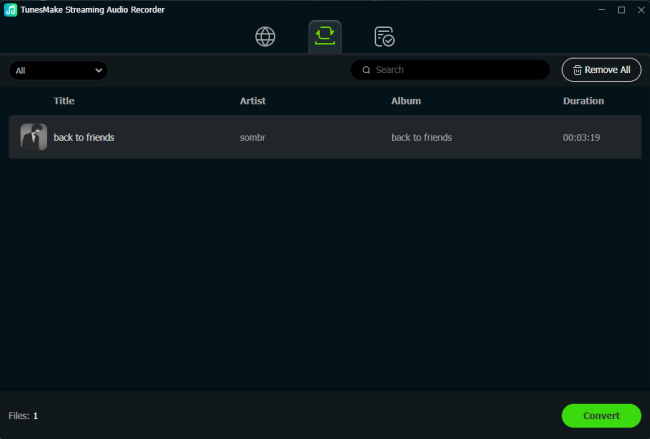
Whenever you are ready, you can click the Convert button to begin downloading the SoundCloud songs you choose. The TunesMake tool will do all the things automatically. You just need to wait for a while, and you can browse the downloaded SoundCloud songs by clicking the top Converted icon. If you need to find the detailed location of these downloads, click the little file icon next to each song.
Part 4. How to Utilize a SoundCloud Ad Blocker Chrome Extension
If you primarily listen to music on your laptop or desktop and don’t want to install extra applications, a browser extension is the easiest and most effective way to block ads on SoundCloud. They are easy to access and often promise instant results. You can find many helpful ad blocker extensions on the Chrome Web Store. Here, we will take AdLock as an example.
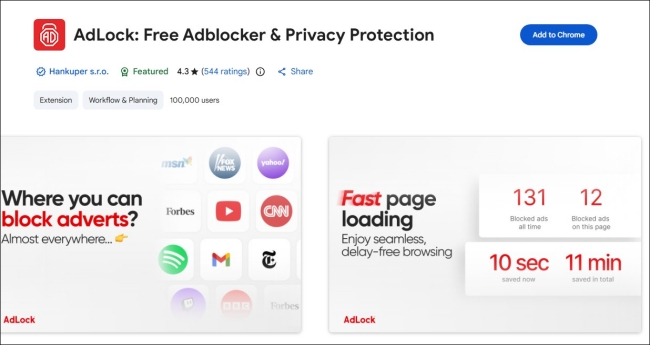
Step 1. Open Chrome on your desktop and head to the Web Store.
Step 2. Search for a reliable ad blocker like AdLock, and then enter its detailed page.
Step 3. Click the Add to Chrome button to get this extension. Then, you need to follow the on-screen instructions to finish all necessary settings.
Step 4. Once done, you can visit the SoundCloud website and play any song you like.
Step 5. After that, click the Extensions icon in the top menu bar. Select AdLock and click its icon to enable it for ad-free SoundCloud listening.
Part 5. How to Block Ads on SoundCloud iPhone/Android
Compared to blocking SoundCloud ads on desktop, blocking ads on mobile is trickier, mainly due to system restrictions. Luckily, there are some available methods worth trying.
The first and most reliable method is to download SoundCloud songs via the TunesMake SoundCloud Music Converter on your desktop. Then, you can import the downloaded SoundCloud songs to your iPhone or Android for ad-free listening. Alternatively, you can try the ad blocker that offers iPhone and Android versions. In this part, we will introduce two of them - AdGuard and AdBlock.
Option 1. AdGuard
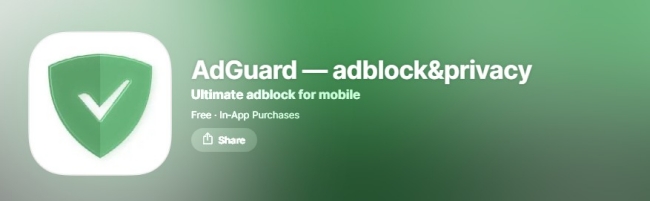
AdGuard is a popular ad-blocker, offering official apps for both iPhone and Android users. Unlike basic filters, AdGuard offers a robust DNS Protection feature that intercepts ad requests before they even reach the SoundCloud platform. It works across multiple apps and websites. For users who care about privacy and tracking protection, AdGuard is a on-go choice.
Step 1. If you are using iPhone, head to the App Store to install AdGuard.
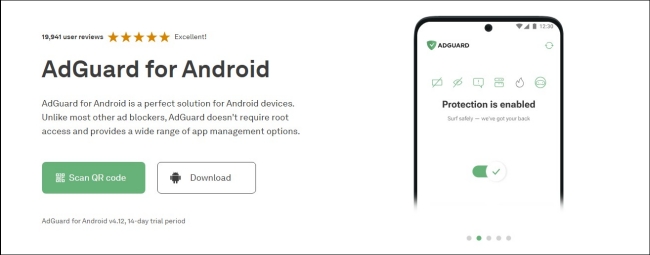
Step 2. For Android users, you should visit its official website and click the Download button to get it. Or, you can scan the QR code to install it.
Note
To ensure a smooth installation process, you need to allow your Android device to install from unknown sources. Just go to Settings > Install unknown apps, and then grant permission for the browser you’ve used to download the file.
Step 3. When it is finished, you can open AdGuard on your mobile phone. Follow the on-screen wizard to finish all necessary settings.
Step 4. Next, tap the ENABLE option at the bottom of the main screen to enable HTTPS filtering.
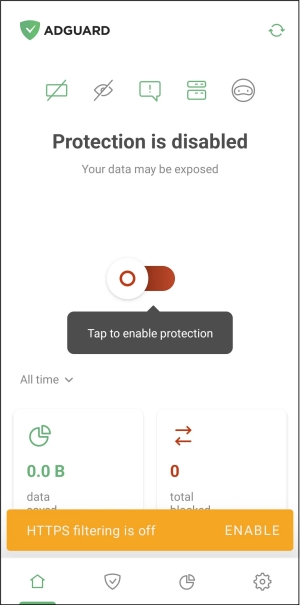
Step 5. Now, you should follow the on-screen steps to install the necessary certificate.
Step 6. Once done, you can enable this ad-blocker and head to the SoundCloud platform for enjoying ad-free listening.
Option 2. AdBlock

AdBlock is another popular name users search for when looking for a reliable SoundCloud ad blocker. If you are looking for a lightweight, free solution without diving into complex network settings, you should not miss this tool. Besides, AdBlock excels at content blocking within your mobile browser. For users who usually use the SoundCloud web player, the effect is better.
Step 1. Download the AdBlock app from the App Store or the Google Play Store from on your smartphone.
Step 2. Once done, head to the Settings app on your phone and enable the extension feature. If you are using an iPhone, choose Safari > Extensions and toggle on the button next to AdBlock.
Step 3. Now, you can open the AdBlock app on your phone and set the configuration by following the onboarding steps.
Step 4. Go to the SoundCloud web player on your Safari or other browsers and begin playing SoundCloud music without ads.
Part 6. Summary
SoundCloud ad blocker is a great choice to reclaim your SoundCloud experience, especially for users who don’t want to keep paying for the subscription. You can seek help for both Chrome extensions and dedicated apps. If you want a permanent fix that works across all devices, TunesMake SoundCloud Music Converter is the most robust strategy. By downloading your favorite SoundCloud songs, you can easily bypass the ad server and ensure your music stays uninterrupted.
Related Articles

A senior editor from TunesMake, dedicated to sharing professional tutorials and solutions of software, movies, and music.
- 1
- 2
- 3
- 4
- 5
- 6
- 7
 Leave Your Comment
(0)
Leave Your Comment
(0)

 Download Center

