








 Store
Store


For many gamers, the perfect session is playing a high-stakes game while streaming a curated playlist. If you are a big fan of both SoundCloud and PlayStation, you may wonder: Can I play SoundCloud on PS5? If you search the PlayStation Store for the SoundCloud app, you likely come up empty-handed. But don’t worry. Where there’s a will, there’s a workaround. This guide provides three workarounds to get SoundCloud on PS5 so you can enjoy your favorite SoundCloud underground tracks in the background.
Part 1. Is SoundCloud on PS5?
Is there a SoundCloud app on PS5? Unfortunately, the answer is no. Although some music platforms have official integration with Sony devices, SoundCloud is not one of them. When you search for the SoundCloud app on the PlayStation 5 media store, you can find nothing. This is a frustrating issue for many users, because SoundCloud offers remixes, indie artists, and exclusive content that aren’t available elsewhere.
Therefore, you can not get SoundCloud on your PS5 directly. Instead, you must utilize alternative methods to achieve your goal. Available workarounds include using a USB drive, a hidden web browser, and the SoundCloud Discord connection. Let’s walk through each one below.
Part 2. How to Play SoundCloud on PS5 via USB Drive
If you want a stable, uninterrupted, and high-quality music experience on PS5, the best method is to download SoundCloud songs locally. Then, you can transfer these downloaded songs to a compatible USB drive and play them on your PS5 device seamlessly. Since using a USB drive uses the PS5’s built-in media player, it can ensure a smooth background playback, whatever game you play.
However, there is a restriction if you decide to do so - DRM protection. Just like other music streaming services, SoundCloud encrypts its streaming music. You can’t import the downloads to other platforms, even if you downloaded them. This is where the TunesMake SoundCloud Music Converter works.
TunesMake SoundCloud Music Converter is a powerful and easy-to-use downloader designed for all music lovers. With its help, you can easily download and convert SoundCloud music to normal audio formats, including MP3, M4A, M4B, WAV, FLAC, and AIFF. After downloading, you can get the DRM-free files of your preferred SoundCloud songs and listen to them on any platform or device offline without limits.
What’s more, the TunesMake software automatically retains original sound quality and metadata. That is to say, you can have the same high-quality listening experience as online. To help you get a personalized experience, TunesMake allows you to configure the audio parameters according to your demands. Now, just click the Free Download button below, and you can install this great tool on your Windows or Mac computer.

Streaming Audio Recorder –
Best SoundCloud to PS5 Downloader
- Unlimitedly download streaming music songs, playlists, and podcasts
- Losslessly convert streaming music to MP3, M4A, M4B, WAV, FLAC, and AIFF
- Remove DRM protection from many streaming music platforms
- Convert streaming songs with original sound quality and ID3 tags kept
Security Verified. 100% Clean & Safe.
Step 1
Configure the Output Audio Settings
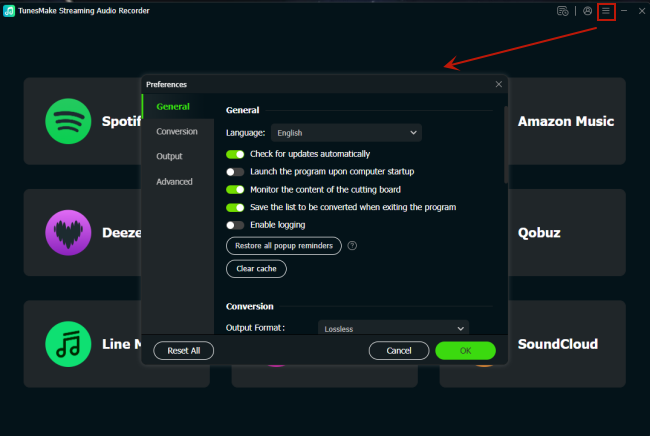
Once you install the TunesMake SoundCloud Music Converter on your desktop, you can head to the audio window to set the output audio settings. Click the Menu icon at the top right, and then select Preferences > Conversion. When the audio settings window pops up, you can choose the audio format you need. Taking compatibility issues into consideration, MP3 is a great option.
Step 2
Sign in to Your SoundCloud Account
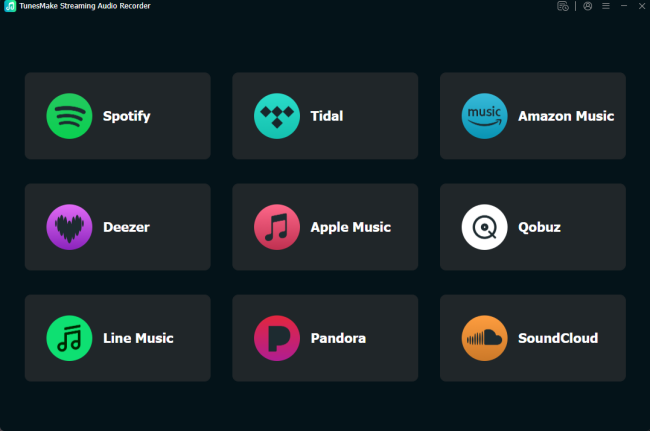
After finishing the settings, you should go back to the interface. Then, select SoundCloud. You will then be navigated to the official SoundCloud web player. Sign in to your SoundCloud Music account.
Step 3
Load Songs from the SoundCloud Music Library to TunesMake
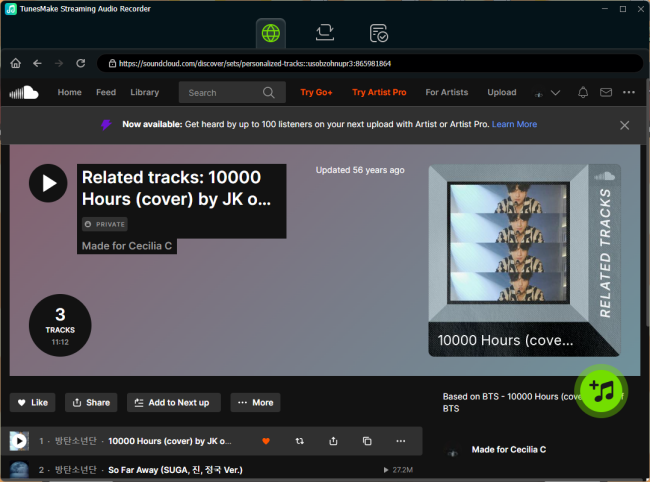
Feel free to browse the SoundCloud Music library and find the songs you want to download. To load songs to the conversion list on TunesMake, you can first select a playlist or album you like. Then, click the Add icon at the bottom and select Add to List.
Step 4
Download and Convert SoundCloud Songs to USB
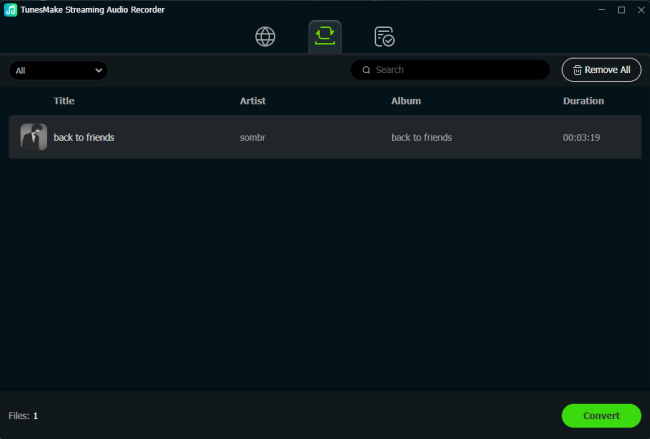
Whenever you are ready, click the Convert button to download the SoundCloud songs you added. Just wait for a while, and then you can find all the downloads by clicking the top Converted icon. To find the exact location of the SoundCloud downloads, you can click the file icon next to each song.
Step 5
Play SoundCloud Music on PS5 via USB
Next, insert a compatible USB table drive into your computer. To make sure that your PS5 device can recognize the downloaded files smoothly, you’d better create a new folder named Music. Then, you can sync these SoundCloud music files to the USB by dragging and dropping. Once done, you should plug the USB drive into your PS5 and then press the PS button on your controller to open the Control Center. After that, choose Music > USB Drive to enjoy SoundCloud music in the background.
Part 3. How to Get SoundCloud on PS5 via Web Browser
Although there is no dedicated SoundCloud app for PS5, you can utilize the hidden web browser on PS5 to visit the official SoundCloud web player. This method is suitable for users who prefer to stream music directly without downloading music files in advance. However, you should notice that the browser is a hidden feature that only offers limited functions on PS5, and it is not like a traditional open browser.
Option 1. Using the System Settings Page
Step 1. Fire up your PS5 device and visit the Settings page by selecting its icon at the top right corner.
Step 2. Then, you should enable both the Allow Cookies and Enable JavaScript options.
Step 3. Scroll down to choose Network > View PlayStation Network Status.
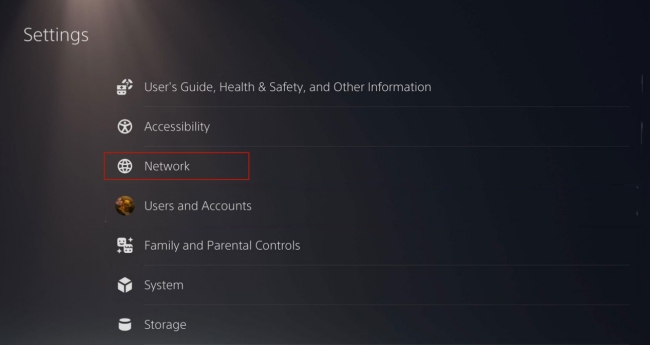
Step 4. Once done, a new window will pop up. Here, you should click the YouTube icon under the Follow us on social media section.
Step 5. After that, you will be redirected to the official PlayStation YouTube page. Here, you should click the Sign in button in the upper-right corner.
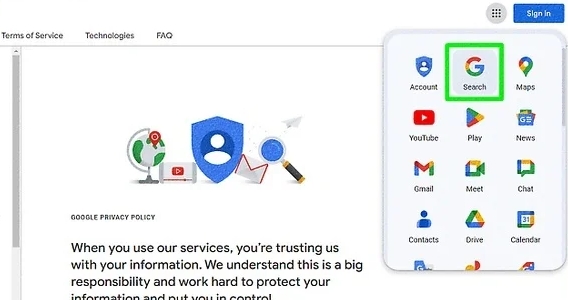
Step 6. Then, you can sign in to your account with YouTube. Click the Google Apps icon next to your profile icon.
Step 7. Next, click Search from the drop- down menu. Once finished, you can enter soundcloud.com into the address bar for streaming music.
Option 2. By Sending a Link
Step 1. Open the Game Base section on your PS5.
Step 2. Then, click Messages and begin a chat with any of your friends.
Step 3. Send a message that says “soundcloud.com”, and it will become a clickable link after sending.
Step 4. Now, you can click the link to browse the SoundCloud web player.
Part 4. How to Listen to SoundCloud on PS5 via Discord
Another available workaround to listen to SoundCloud music on PS5 is to utilize Discord, since Discord is officially integrated with PS5. You can link your PlayStation Network account to Discord, and then use a Discord Music Bot to listen to SoundCloud tracks while in a voice channel on your console, making your listening experience more social.
Step 1. Open your PS5 and navigate to Settings > Users and Accounts > Linked Services. Here, you should choose Discord from the list.
Step 2. Then, follow the on-screen instructions to finish the linking process.
Step 3. After that, you need to open Discord on your computer or mobile phone. Add a Discord server that contains a music bot, like FredBoat.
Step 4. When the music bot is installed, you can join the voice channel and play SoundCloud songs by using the command /play [the URL or the name of a SoundCloud track].
Step 5. Now, go back to your PS5 and open Game Base. Go to the Discord tab, and select Join to enter the voice channel where you played SoundCloud songs.
Part 5. FAQs about SoundCloud on PS5
Can you download the SoundCloud app on PS5?
Unfortunately, no. There is no official SoundCloud app for you to use in PS5. If you want to enjoy SoundCloud Music on your PS5, you will need to download the songs locally via the TunesMake SoundCloud Music Converter first. Then, you can play them on your PS5 as local media files.
What music apps are on the PS5?
Currently, the music apps that are integrated on the PS5 are Spotify and Apple Music. You can find them from the All Apps section on your media home.
Will SoundCloud release a PS5 app in the future?
As for now, there is no official announcement from SoundCloud or Sony yet. If you want to get an official SoundCloud app on PS5 as soon as possible, you could try to leave a message on either the Sony or the SoundCloud official community.
Can I play SoundCloud in the background while gaming?
Yes, but this is possible only when you play SoundCloud songs as local music files through the USB drive or using a music bot on your Discord voice channel.
Conclusion
SoundCloud doesn’t offer a native app for PS5 devices. This is frustrating news for users who want to play SoundCloud on PS5. But don’t worry. There are still workarounds that can help you reach it. Whether you choose to utilize Discord or the hidden web browser on PS5, you can easily stream your favorite SoundCloud songs on PS5 online. However, if you want stable playback while gaming, TunesMake SoundCloud Music Converter is the best option. It can ensure your offline access and full compatibility with SoundCloud content by downloading it locally.
Related Articles

A senior editor from TunesMake, dedicated to sharing professional tutorials and solutions of software, movies, and music.
- 1
- 2
- 3
- 4
- 5
- 6
- 7
 Leave Your Comment
(0)
Leave Your Comment
(0)

 Download Center

