








 Store
Store


When you are listening to your favorite music, do you want to share it with your friends or family and listen to the same playlist with them in real time? Here, Spotify Jam provides you with such a chance to do that. Spotify Jam is a real-time listening session on the Spotify app, which allows a group to collaborate on what they’re listening to. By starting a Spotify Jam, you can enjoy music together with your friends. Friends who join a Jam can listen and add songs to the playlist queue together in person and virtually. Sometimes, many users find that Spotify Jam not working correctly or is unavailable altogether. Here we provide you with some solutions to use Spotify Jam smoothly.
Part 1. Why Is Spotify Jam Not Working?
Incompatible Devices
If you’re unable to host or join a Jam, that might be because you are using an incompatible device. The Spotify Jam session can only work on mobile or tablets. Many Spotify users ask about how to start a jam on Spotify PC. The fact is that Jam is only available in mobile versions currently.
Disconnection from the Network
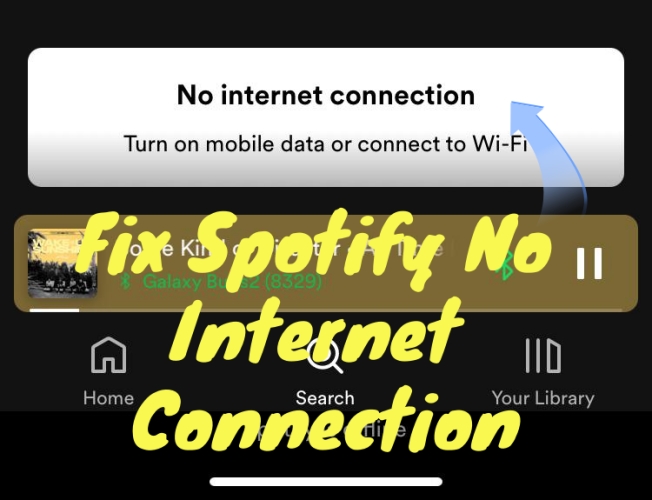
A stable internet connection is the foundation of a smooth Spotify experience. No matter whether your internet connection is not stable, too weak, not reliable, or not working properly, it might cause issues with the Spotify Jam feature and cause disruptions in your collaborative playlist.
Without a Spotify Premium Subscription
To start and host a Jam, first, you need to have an active Premium subscription. If you are a free user of Spotify, that means you can only listen to and add songs to the queue together, but you cannot start a Jam.
Outdated Spotify App
Spotify frequently update their app to improve performance, fix bugs, and add new features. If your Spotify app is outdated, features may fail to load, including Jam.
Cache or App/Device Glitches
Corrupted cache files can interfere with your Spotify Jam session. So, you’d better make sure there is no cache data in the Spotify app or your device.
Part 2. Solutions to Issue 1: Unable to Host a Spotify Jam
Hosting a Spotify Jam is the privilege typically reserved for Premium subscribers. If you are having trouble starting a Jam session, the issue usually lies within your account status or your device’s current connection to the Spotify ecosystem. In this part, we’ll walk you through the most effective solutions to get Spotify Jam up and running again.
Solution 1. Check Device Compatibility
Before diving into complex fixes, it’s important to confirm that you are using a device that supports the Spotify service to start a Spotify Jam. With the latest version of the Spotify app, you can start a Spotify Jam session on a smartphone, computer, TV speaker, and car (with Android Auto or CarPlay). If you're using an outdated device or operating system, the Start a Jam option may not appear at all.
Solution 2. Check Your Premium Subscription Status
One of the most common reasons you can not host a Spotify Jam is the subscription limit. As aforementioned, a Spotify Premium subscription is a must-have precondition. Whether an expired Spotify subscription or a free account doesn’t support starting a Jam session.
Solution 3. Check the Internet Connection
Make sure you are connected to a reliable and stable WiFi or mobile data network. To check this, you can run a speed test. If the speed is not ideal, turn on and off Airplane Mode. Then, check again to see if the internet speed has stabilized.
Solution 4. Connect to the Right Speaker
Check if you are connecting to the right speaker from the list of available devices. The Jam feature works with smart speakers and most Bluetooth speakers. And remember to check if the speaker you connected to is available to use properly.
Solution 5. Force Close and Restart Spotify
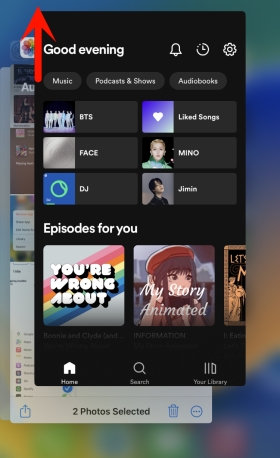
Sometimes, the Spotify app on your Android or iPhone will crash or freeze. Just try to force close it to make sure all app functions stop running in the background. And restart it and try hosting or joining a collaborative session again.
Solution 6. Clear Spotify Cache
Spotify will store temporary data to improve performance. However, these data files can be corrupted over time. Corrupted or overwhelming files can cause the Jam feature on Spotify fail to load. Thus, it’s always a good idea to clear Spotify cache on your device.
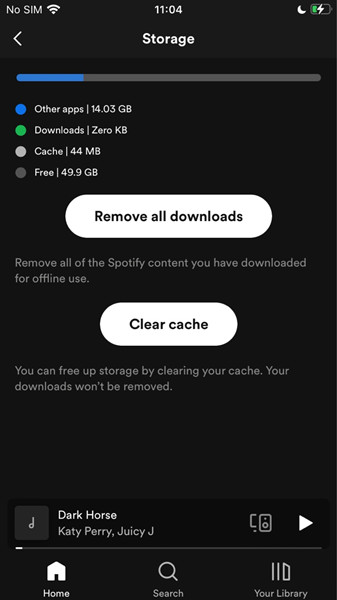
Step 1. If you are using Spotify on your mobile phone, you can go to the Settings section on this app.
Step 2. Then, select Storage > Clear Cache.
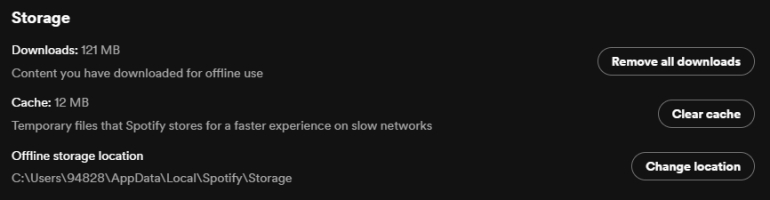
Step 3. If you are using Spotify on your desktop, you should click your profile icon. Then, select Settings > Storage > Clear Cache.
Solution 7. Test Spotify Jam on Other Devices
If none of the above solutions work, the issue may be related to your device instead of the Spotify app. You can try to start a Spotify Jam on another device. This step helps determine whether the issue is device-specific. If Jam works well on another device, the problem likely lies with your original device’s settings. In this case, you can try to reboot your device.
Part 3. Solutions to Issue 2: Unable to Join a Spotify Jam
Spotify Jam allows users to create and collaborate on playlists in real-time, virtually and in person. It changed the traditional music listening experience and turned it into a more interactive experience. However, there are still many issues that a lot of users are facing, such as being unable to join a Jam. Here are some practical fixes.
Fix 1. Check Spotify Service Status
When you fail to join a Jam session, the first thing to check is the Spotify status. It’s important to confirm whether the issue is actually on Spotify’s end. Sometimes, Spotify servers experience temporary outages or syncing problems that affect collaborative features like Jam. To check if Spotify is down, you can use third-party tools like Downdetector. If so, you can do nothing but wait until Spotify resolves it.
Fix 2. Log out and Log Back in to Spotify Account
One possible reason why you cannot join a Spotify session is that your account session has expired, or the authentication data is corrupted. Under these circumstances, logging out and back in refreshes your account and often resolves joining issues instantly.
Fix 3. Try a New Invite Link or QR Code
Invite links and QR codes can expire or become invalid. Thus, if you can’t join a Spotify Jam session, try to ask the host to send you a fresh new invitation link or code. If possible, open the invite link directly in your browser and select Open in Spotify when prompted.
Fix 4. Uninstall and Reinstall Spotify
When Spotify Jam won’t let you join, you should consider that the issue stems from app corruption. In this case, reinstalling the Spotify app on your device provides a clean installation and clears all hidden bugs and glitches. More so, you can try to re-download Spotify from another source. For example, if you used to install the Spotify app from the Google Play Store, you can try to get Spotify from its official website this time instead. Once reinstalled, try hosting or joining Jam again.
Fix 5. Update the Spotify App
Spotify will roll out updates from time to time to improve app stability and performance. If you are using an outdated version of the Spotify app, you can encounter issues when using Spotify Jam. So, it’s recommended to update the Spotify app installed on your device. Simply go to the app store on your device, and then search for Spotify. When you see an Update button, tap it. You can also enable the automatic updates option in the settings to prevent this issue from recurring.
Part 4. Solutions to Issue 3: Unable to Control the Jam Volume
The biggest praised aspect of Spotify Jam is that everyone can add songs to contribute to the vibe. But if you can not change the volume of the Jam session, the vibe is quickly ruined. When you find that you can’t control the music playback volume, here are the solutions you can try.
Way 1. Check the Speaker You Connected
Check if you are connecting to the right speaker from the list of available devices. The Jam feature works with smart speakers and most Bluetooth speakers. And remember to check if the speaker you connected to is available to use properly.
Way 2. Adjust Your Device Volume Settings
Sometimes the issue isn't the app, but the system-level permissions on your device. For Android users, you should make sure that the volume control settings aren’t being restricted by the Battery Saver or Low Power Mode. For iOS users, you can go to Settings > Music and make sure there are no volume limits.
Way 3. Enable the Shared Volume Control
Make sure that your connected speaker supports shared volume control; otherwise, only the host can control the volume or other people can’t control it. Go to the settings of the speaker to check if it supports shared volume control.
Way 4. Disconnect and Reconnect Bluetooth
When you play Spotify Jam to a Bluetooth speaker from your mobile phone, the connection between the two devices might glitch. Bluetooth conflicts frequently cause volume control on Spotify Jam. Therefore, you can turn off the Bluetooth of your mobile device for at least 10 seconds. Then, reconnect to the speaker and try to control the Spotify volume again.
Way 5. Restart the Jam Session
If all solutions above fail and you are the host of the current Jam session, one practical solution is to restart the Jam session. This method is helpful when the session connection is corrupted.
Part 5. Ultimate Fix to Spotify Jam Not Working on Any Device
Spotify Jam enables people to listen to music in real time, whether face-to-face or remotely. You can share your curated playlists with your friends. It puts people together through music. We can also view this as a new social activity. However, many users find that the Jam feature often fails to work. Plus, some users want to share music with people who do not use Spotify. In this case, why don’t you try a better method to share your playlist without using Spotify Jam? That is to download your preferred Spotify songs to local audio files. Once done, you can share Spotify music by sending its original files. To do so, you will need the best tool - TunesMake Spotify Music Converter.
By using TunesMake Spotify Music Converter, you can share your playlists with everyone, not only Spotify users. Just install this tool on your desktop, and then you can download songs, playlists, albums, or podcasts from Spotify to your local computer, whether you have a Premium subscription or not. Additionally, you can decide the output formats, choosing from MP3, M4A, M4B, WAV, FLAC, or AIFF. You can also customize other parameters like channel, bit rate, and sample rate. When the songs are downloaded, you can listen to them offline on any device, or share them to your friends and family without limits.

TunesMake Spotify Music Converter –
Best Spotify to MP3 Downloader for Windows & Mac
- Unlimitedly download Spotify songs, playlists, and podcasts
- Losslessly convert Spotify music to MP3, FLAC, WAV, AIFF, etc.
- Remove ads from Spotify music tracks even with Free accounts
- Convert Spotify songs at 12X faster speed with ID3 tags kept
Security Verified. 100% Clean & Safe.
Part 6. Conclusion
Spotify Jam is a powerful feature for collaborative listening, but it’s not perfect. If you find the Spotify Jam not working on your device, you can try the effective solutions in this post. However, if you want a more stable, restriction-free, and together listening experience, TunesMake Spotify Music Converter is a better option. It allows you to save your preferred songs as local music files and get full control over them.
Related Articles

A passionate writer specialized in creating engaging content about music and entertainment, covering everything from the latest music trends and entertainment news to practical tutorials.
- 1
- 2
- 3
- 4
- 5
- 6
- 7
 Leave Your Comment
(0)
Leave Your Comment
(0)

 Download Center

