








 Store
Store


Is Spotify taking up gigabytes of storage space on your phone or computer? Or maybe the app is lagging, skipping songs, or refusing to load album artwork? Clearing your Spotify cache is the quickest, most effective solution to fix playback glitches and instantly free up storage. In this step-by-step guide, you will learn how to clear the Spotify cache across all major devices without losing your downloaded songs or playlists.

Part 1. What Does Clearing Spotify Cache?
When you stream music on Spotify, the app temporarily downloads fragments of songs, album covers, and operational logs to your device. This allows tracks to buffer faster and saves mobile data when replaying recent songs. Clearing Spotify cache using the in-app settings only removes temporary files. Your offline downloads, saved playlists, and account settings remain completely intact on your device.
Part 2. How to Clear Spotify Cache on Mobile Devices
Whether you use an iPhone, iPad, or Android phone, clearing Spotify cache takes less than a minute directly inside the app settings.
How to Clear Spotify Cache on iPhone & iPad
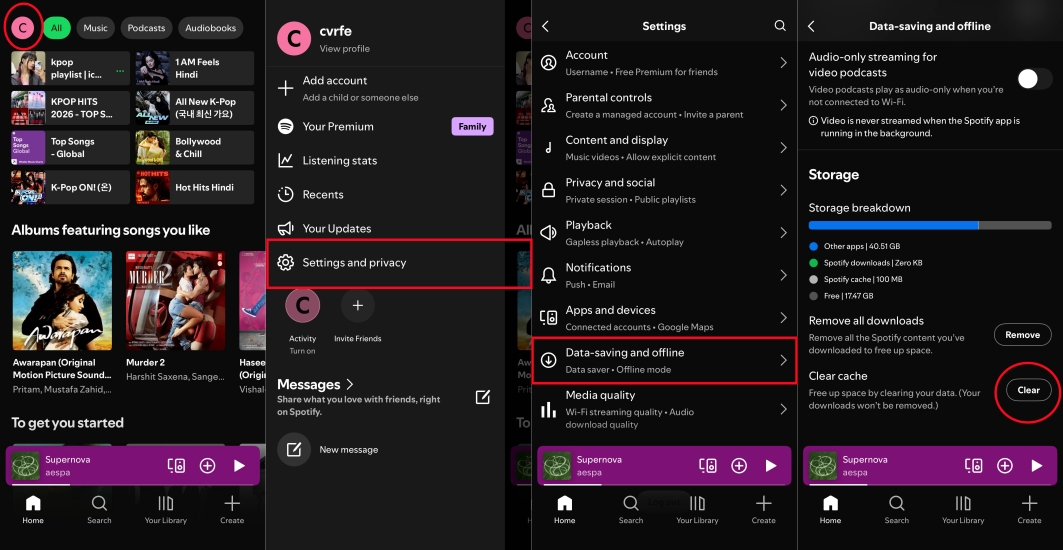
Step 1. Open the Spotify app on your iPhone.
Step 2. Tap your profile picture in the top left corner.
Step 3. Select Settings and privacy.
Step 4. Scroll down and tap Data-saving and offline.
Step 5. Tap Clear cache, then tap Clear cache again in the pop-up menu.
If Spotify is still taking up significant space under iPhone Storage in your system settings, you can open the Settings app, tap General > iPhone Storage > Spotify, and select Offload App. This removes the app binary while preserving your data and offline tracks.
How to Clear Spotify Cache on Android
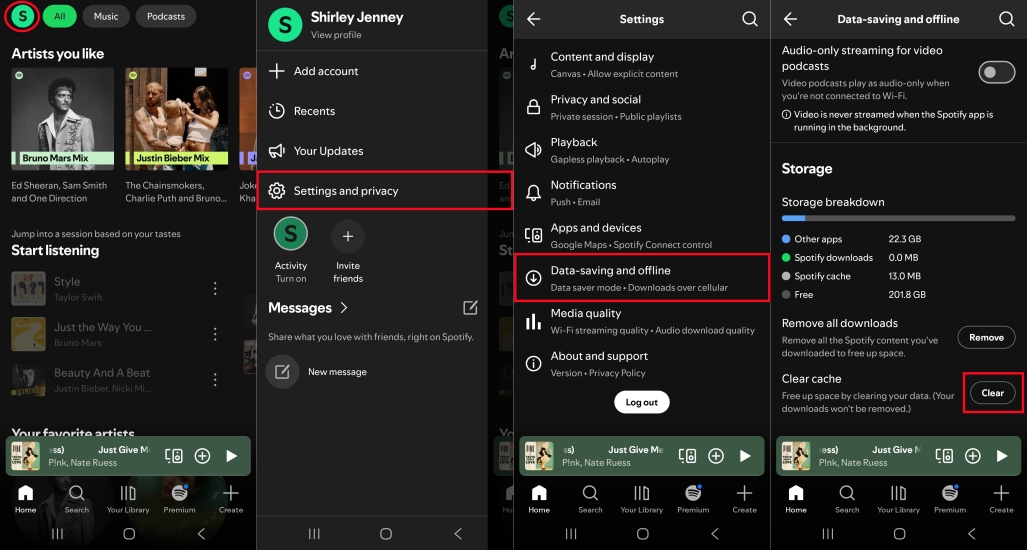
Step 1. Launch the Spotify app on your Android phone.
Step 2. Tap your profile picture in the top left corner.
Step 3. Select Settings and privacy.
Step 4. Scroll down to the Storage section.
Step 5. Tap Clear cache.
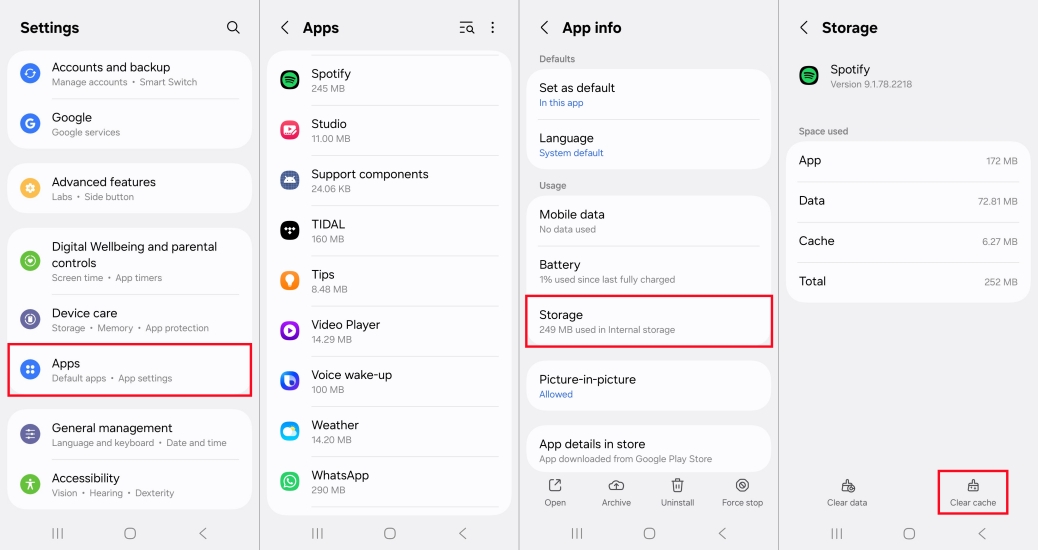
You can also clear the Spotify cache in your system settings. Simply open the Settings app, tap Apps > Spotify > Storage, and select Clear Cache. Don't tap Clear Data unless you want to log out and delete all downloaded songs.
Part 3. How to Clear Spotify Cache on Desktop Devices
Desktop versions of Spotify accumulate cache rapidly, especially if you stream high-quality audio or keep the app running in the background while working.
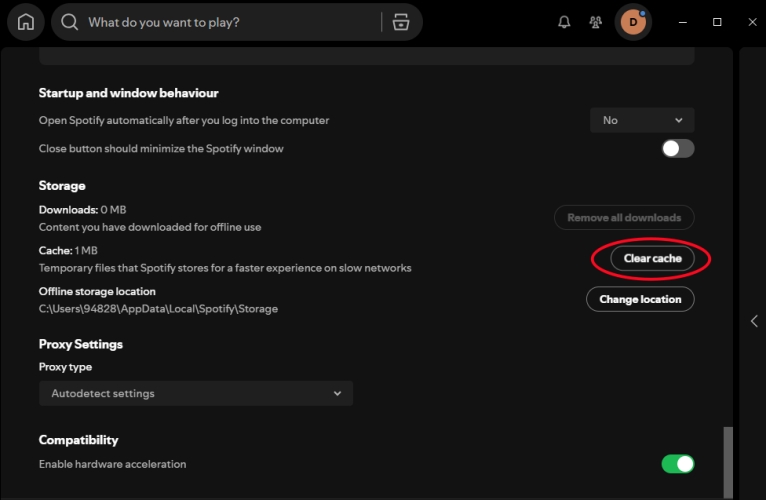
Step 1. Open the Spotify app on your PC or Mac.
Step 2. Click your Profile picture in the top-right corner and select Settings.
Step 3. Scroll down to the Storage section.
Step 4. Next to Cache, click the Clear cache button.
Step 5. Click Clear cache again to confirm.
If the Spotify app is frozen, won't launch, or fails to clear files through settings, you can manually delete the cache files from your system directories.
Windows Location:
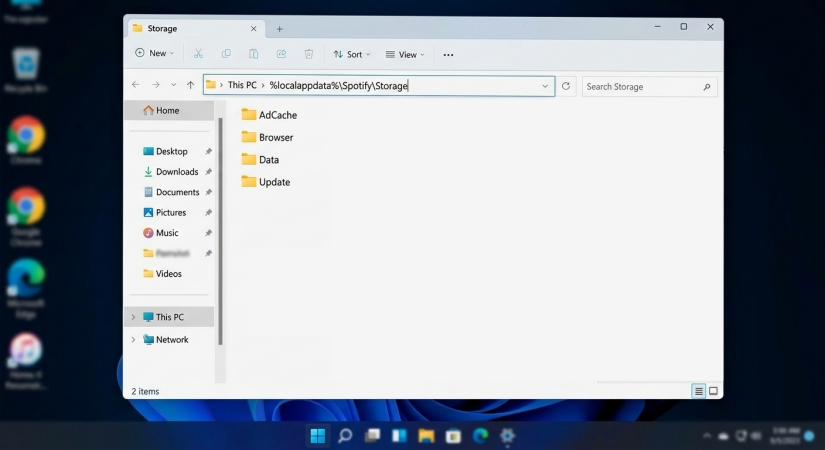
Step 1. Press Win + R to open the Run dialog.
Step 2. Type %localappdata%\Spotify\Storage and press Enter.
Step 3. Select all files in the folder and delete them.
macOS Location:
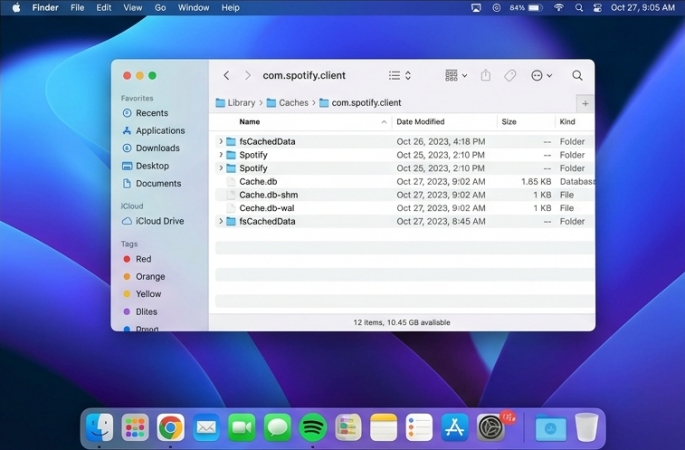
Step 1. Open Finder and press Cmd + Shift + G.
Step 2. Paste ~/Library/Caches/com.spotify.client and press Return.
Step 3. Delete the contents inside the folder.
Step 5. Select your Vizio SmartCast TV from the list.
Part 4. How to Clear Spotify Cache on Browsers
To clear the Spotify cache when using the Spotify Web Player, you need to clear the browser cache and site data specifically for Spotify.
How to Clear Spotify Cache in Google Chrome
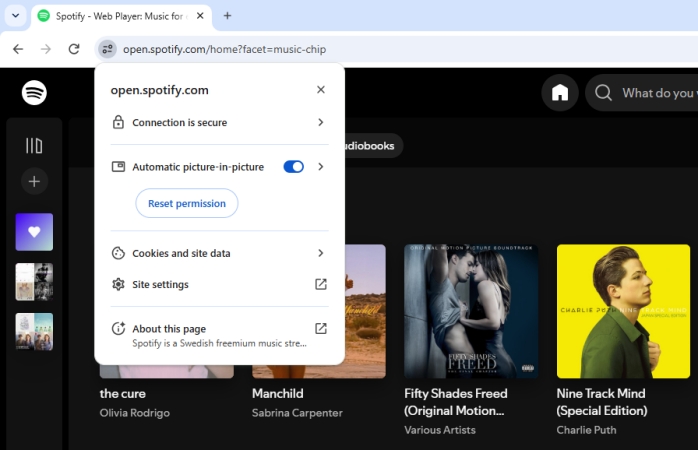
Step 1. Open Google Chrome and go to the Spotify Web Player.
Step 2. Click the Tune icon to the left of the URL in the address bar.
Step 3. Select Site settings.
Step 4. Click the Clear data button under the Usage section.
Step 5. Confirm by clicking Clear when prompted.
Step 6. Refresh the Spotify Web Player tab.
How to Clear Spotify Cache in Safari
Step 1. Open Safari and navigate to open.spotify.com.
Step 2. Click Safari in the top menu bar and select Settings.
Step 3. Switch to the Privacy tab.
Step 4. Click the Manage Website Data... button.
Step 5. In the search box, type spotify.
Step 6. Select spotify.com from the list and click Remove.
Step 7. Click Done and reload the Spotify Web Player.
How to Clear Spotify Cache in Microsoft Edge
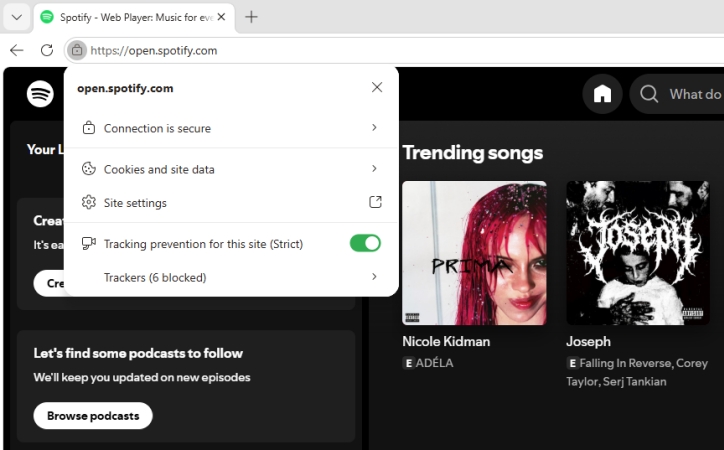
Step 1. Open Microsoft Edge and go to the Spotify Web Player.
Step 2. Click the Padlock icon to the left of the URL in the address bar.
Step 3. Select Permissions for this site.
Step 4. Under the Usage section at the top, click Clear data.
Step 5. Confirm the action and refresh your Spotify Web Player tab.
How to Clear Spotify Cache in Mozilla Firefox
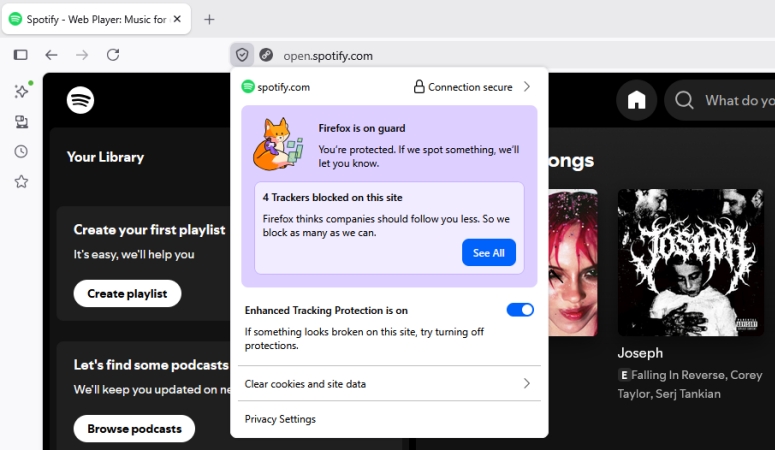
Step 1. Open Firefox and navigate to open.spotify.com.
Step 2. Click the Padlock icon to the left of the address bar.
Step 3. Click Clear cookies and site data....
Step 4. Ensure spotify.com is selected and click Remove.
Step 5. Refresh the page to reload a clean version of the Web Player.
Part 5. How to Prevent Spotify from Occupying Too Much Storage
If you frequently run out of space on your device, clearing the Spotify cache is only part of the solution. Here are proactive ways to manage Spotify's storage usage.
Method 1. Lower Download Quality
Unchecked offline downloads can quietly consume 10 GB to 50+ GB of internal storage. High-quality audio files take up significantly more room than standard streams.
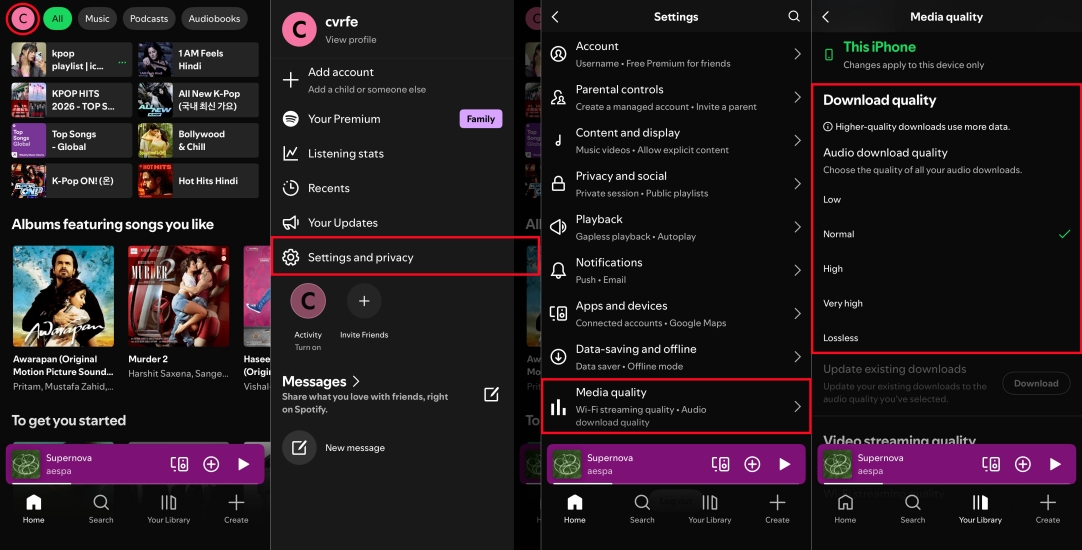
Step 1. Open Spotify and tap your Profile picture in the top left corner.
Step 2. Select Media Quality or Data-saving and offline.
Step 3. Under Download, change the quality to High or Normal.
Method 2. Remove Unused Downloads
Downloaded playlists take up far more space than cache files. Review your offline downloads regularly and remove tracks you no longer listen to.
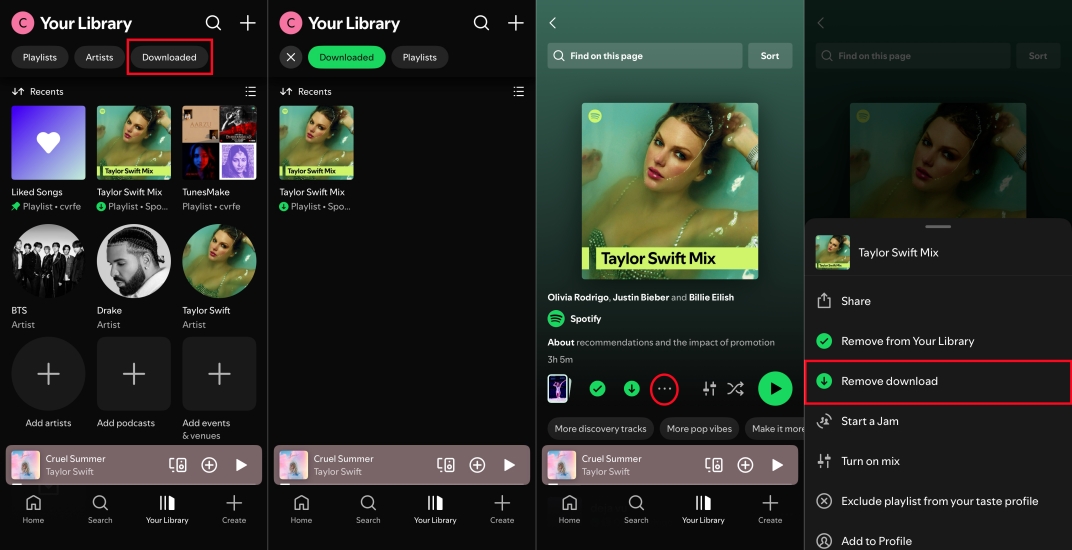
Step 1. Go to Your Library in Spotify and tap the Downloaded filter.
Step 2. Open old or rarely used playlists.
Step 3. Tap the green Download icon to remove the offline files.
Method 3. Offload Storage to External Drives
If your computer's disk space is tight, you can redirect Spotify's storage location to an external hard drive or secondary storage partition.
Step 1. Open Settings in Spotify and scroll down to the Storage panel.
Step 2. Next to Offline storage location, click Change Location.
Step 3. Point Spotify to a secondary internal partition or external hard drive.
Method 4. Store Local Audio Files
If you are dealing with strict device limits and want to avoid Spotify's ongoing cache and storage accumulation entirely, you can download and save your liked Spotify songs into local files. TunesMake Spotify Music Converter allows you to export Spotify music into open audio formats like MP3 or FLAC. By saving these converted files directly onto an external hard drive, USB flash drive, or cloud storage, you can stream your music via third-party media players. It completely eliminates Spotify's internal cache on your primary drive.

TunesMake Spotify Music Converter –
Download music from Spotify without premium
- Download Spotify songs, albums, playlists, audiobooks, and podcasts
- Losslessly convert Spotify music to MP3, FLAC, WAV, AIFF, and more
- Remove ads from Spotify music tracks even with a Free account
- Convert Spotify music at 15× faster speed in batch with ID3 tags kept
Security Verified. 100% Clean & Safe.
Part 6. Conclusion
Clearing your Spotify cache is one of the simplest, most effective ways to reclaim gigabytes of storage space and fix common playback glitches like song skipping, app lag, or missing album artwork. Whether you stream on mobile, desktop, or through a web browser, taking a few seconds to purge temporary files ensures the app runs smoothly without deleting your offline music library or saved playlists.
If you find yourself constantly battling low storage, combining routine cache cleanups with proactive habits, such as lowering your audio download quality, moving cache directories to an external drive, or converting Spotify tracks to local files will keep your device running efficiently while keeping your favorite music instantly accessible.
Related Articles




A senior editor from TunesMake, dedicated to sharing professional tutorials and solutions of software, movies, and music.
- 1
- 2
- 3
- 4
- 5
- 6
- 7
 Leave Your Comment
(0)
Leave Your Comment
(0)

 Download Center

