








 Store
Store


Spotify adding random songs when playing my playlist. I have noticed lately that all of a sudden when playing my playlist from my phone, Spotify will start playing random songs that are not in my playlist. These are NOT songs in my playlist. It happened twice yesterday on the same playlist and I saw it the other day on a different playlist. This is very frustrating and annoying.”
– From Spotify CommunitySpotify is a giant streaming service that welcomes all users to listen to its massive catalog of music, podcasts, radio, and more. But when you vibe in a playlist, Spotify playing songs not in playlist ruins the groove you have going on. This issue has been prevalent since 2021. So what do you do when this happens to you? Look no further, this time I will walk you through the possible causes of this problem and the workable solution.
Part 1. Why Does Spotify Play Songs Not in My Playlist?
The main reason Spotify playing random songs not in my playlist is due to improper settings, overloaded caches, or app bugs. It includes the following things you need to care about:
1. Active Autoplay
Autoplay is the root of the Spotify play songs not on playlist issue. When you turn on Autoplay on Spotify, Spotify will automatically play similar songs at the end of an album, playlist, or selection of songs. So you’ll get non-stop listening to undiscovered songs that are not in your playlist.
2. Enabled Enhance
Spotify rolled out a feature called Enhance for playlists to boost user’s experience. By enhancing your playlist, you can keep your playlists populated with fresh music without spending hours. And these songs match others in your playlist. Thus, why is Spotify playing songs not on my playlist, you may be clear with this Enhance feature.
3. Smart Shuffle
In addition to the Autoplay and Enhance on Spotify, sometimes you encounter this issue when you have Smart Shuffle on. As soon as you turn it on, the play queue will have a refresh of their own and you’ll listen to your playlist mixed with new recommendations.
4. System bugs
Spotify glitches and bugs are inevitable, which affect our listening experience and disrupt the flow of our favorite songs by causing Spotify not playing songs in playlist and other playback issues. Usually, to get these bugs within Spotify fixed, you have to reinstall it or wait for the updates.
Part 2. How to Fix Spotify Playing Songs Not in Playlist
Now, you may know the issue mostly occurs with Settings like Autoplay, Enhance, and Smart Shuffle. Although Spotify’s recommendation algorithm does an excellent job of suggesting songs based on your interests, it is time to disable these features when Spotify keeps playing songs not in my playlist.
Solution 1. Turn Off Autoplay
Autoplay keeps your now-playing playlist going with recommendations based on your liking. Turning off Autoplay on Spotify helps you dive into the current playlists with no other unknown songs. Here’s how.
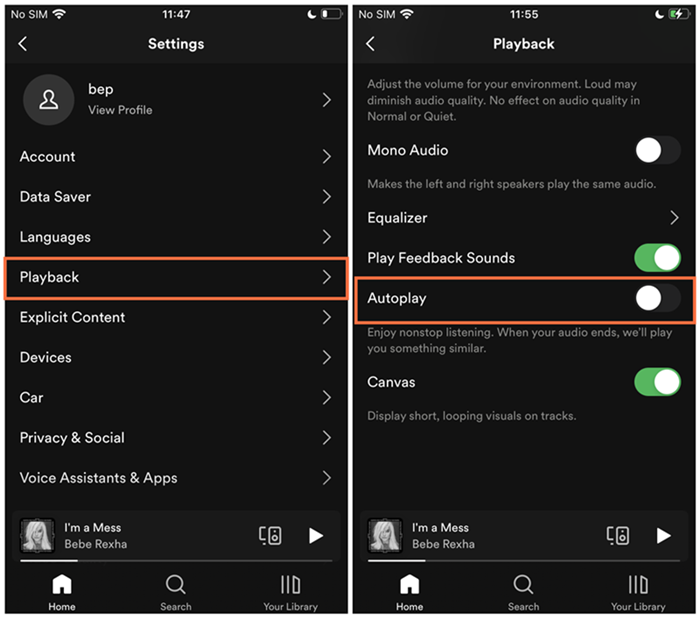
Step 1. On the Spotify app, head to Settings from your Profile icon.
Step 2. Scroll down and you’ll find the Autoplay option on your desktop or Autoplay similar content under the Playback section on your phone.
Step 3. Just toggle off this option.
Solution 2. Disable the Enhance Feature
If Spotify not playing songs not in playlist happens due to Enhance, you can block this utility on Spotify with these steps:
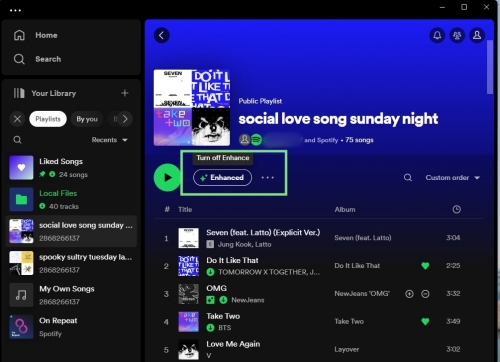
Step 1. Launch the Spotify app and tap on a playlist in Your Library.
Step 2. Hit on the Enhanced button beside the Play button.
Solution 3. Deactivate Smart Shuffle
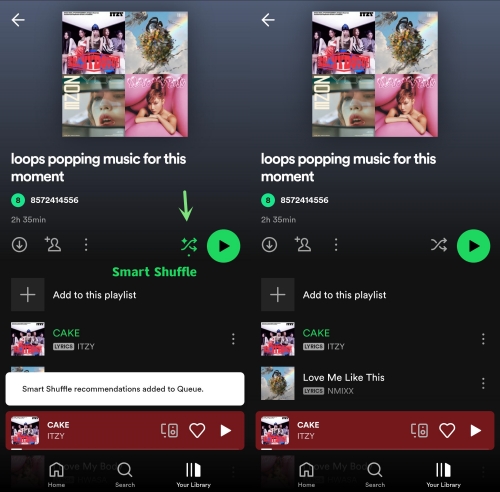
First off, you have to check if the shuffle button with a sparkle symbol in your playlist, which shows you enabled Smart Shuffle. Now, try to disable it to stop Spotify playing songs not in playlist.
Note
Normal shuffle mode won’t add suggested songs to your queue automatically. So you can still keep shuffling songs in this playlist but not Smart Shuffle.
Step 1. Tap on the playlist with the Smart Shuffle mode turned on.
Step 2. Hit on the Smart Shuffle button under the name of the playlist to turn it off.
Solution 4. Clear Play Queue Manually
Some users who managed to fix Spotify playing random songs not in my playlist shared that clearing unwanted songs from the play queue works. But this solution takes a lot of time.
On Desktop:
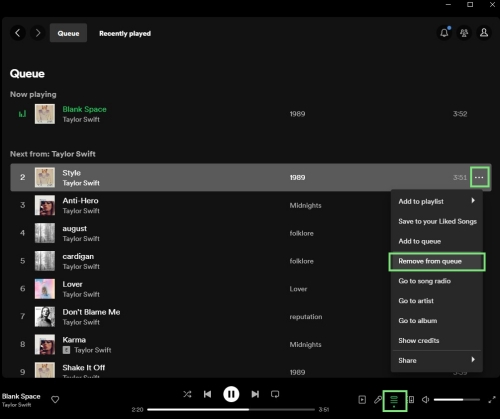
Step 1. On Spotify, pick a playlist to start listening.
Step 2. Highlight the queue icon to view all songs up-next.
Step 3. Click on the three dots next to your unwanted song and select Remove from queue. You can also select multiple songs to remove by using the Ctrl/Shift/Comd key.
On Mobile:
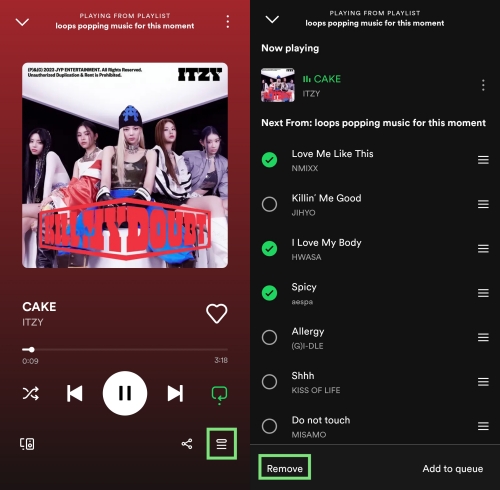
Step 1. After starting playing, bring up the Now Playing view from the bottom bar.
Step 2. Tap the hamburger button at the bottom right corner to access the play queue.
Step 3. Toggle the songs not in your playlist and select Remove.
Solution 5. Clear Spotify Caches
Accumulated and corrupted Spotify cache files can interfere with the playback as well as cause Spotify to malfunction. Hence, you’re expected to delete Spotify caches regularly.
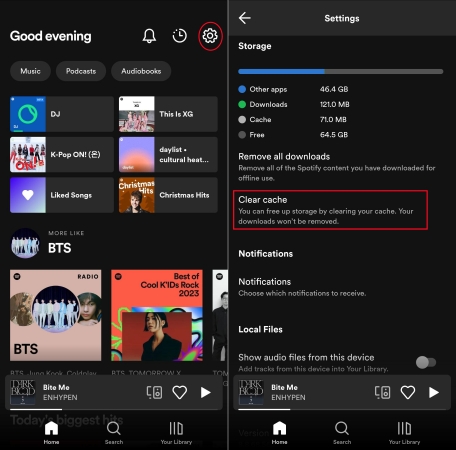
Step 1. Open the Spotify app either on a phone or a desktop.
Step 2. Navigate to Settings from the top-right corner.
Step 3. Scroll through Settings and locate the Storage section.
Step 4. Hit on Clear cache to remove some unnecessary cache files.
Solution 6. Log Out and Back In
If you experienced the Spotify playing songs not in playlist issue after adding songs to this playlist on different devices, you may need to log out of your Spotify account to re-sync your newly added songs. Furthermore, this action sometimes solves issues due to your account.
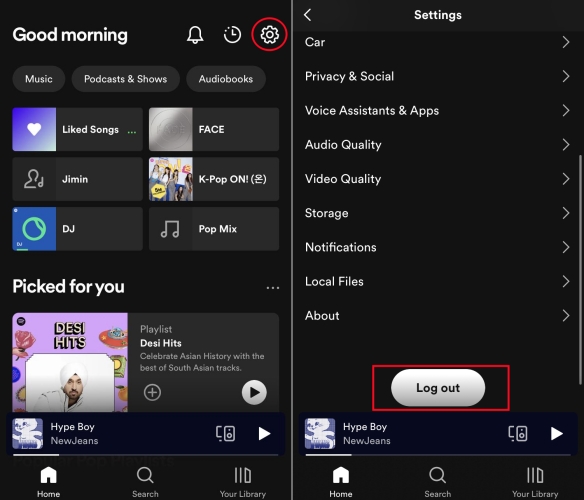
On Desktop:
Step 1. Open the Spotify app and click on your Profile.
Step 2. Select Log out.
On Mobile:
Step 1. Head to Spotify Settings on your smartphone.
Step 2. Scroll down to the bottom and tap on Log out.
After logging out, Spotify will prompt you to sign in with your email address and password.
Solution 7. Update the Spotify App
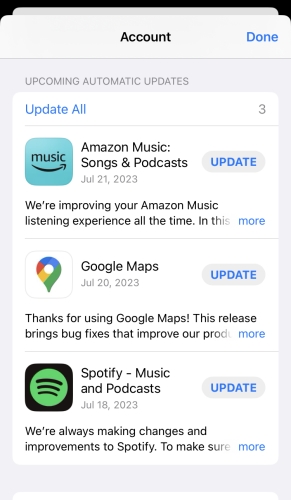
It is known that the new version of the Spotify app often includes bug fixes and performance improvements. If you keep encountering this issue, consider updating Spotify to the latest version for a beter use experience. You can find updates in the app store on your device.
Solution 8. Perform a Clean Reinstall
If none of the above fixes works, now come to the ultimate solution – uninstall the buggy Spotify app.
On Desktop:
Step 1. Uninstall the Spotify app with Settings on PC or Finder on Mac.
Step 2. Then visit the download page for Spotify and select the right version of Spotify to have an installation.
On Mobile:
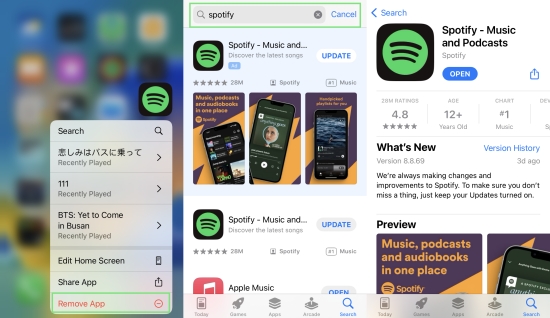
Step 1. Long press the Spotify app icon on the Home screen and select Uninstall or Remove App.
Step 2. Launch App Store or Google Play Store on your smartphone.
Step 3. Search for Spotify and tap Get to install it.
Provided you don’t want to delete Spotify data, you can check if the update is available. Updating and uninstalling are effective ways to get rid of app bugs.
Part 3. Ultimate Fix: Save Spotify Playlists Offline to Play on Demand
Hope all the 7 fixes are useful to address Spotify not playing songs in playlist. If the issue persists, and you want to fix it once and for all. Here is the ultimate solution: downloading your Spotify playlists and playing them offline on other media players. This method ensures you only hear the songs in the playlist without interruptions.
However, there is a obstruction when you try to do so - DRM protection. Like other streaming music platforms, Spotify applies encrypted formats on its all music. You are not allowed to play the downloaded Spotify songs without its app. Luckily, you can use a reliable downloader to bypass it. Here, we’d like to recommend the best tool ever - TunesMake Spotify Music Converter.
TunesMake Spotify Music Converter is a powerful yet easy-to-use music downloader designed especially for Spotify users. Whether you have a Premium subscription or not, it can help you download and convert Spotify songs, playlists, albums, and podcasts to plain audio files without sound quality loss. You can choose to download your playlists in different formats, such as MP3, M4A, M4B, WAV, FLAC, and AIFF. After downloading, all the Spotify files will be saved on your local device, and you can access them even if your subscription ends. It’s also a piece of cake to transfer them to other media players or devices for offline playback.

TunesMake Spotify Music Converter –
Download Spotify Playlists Locally for Unlimited Playback
- Unlimitedly download Spotify songs, playlists, and podcasts
- Losslessly convert Spotify music to MP3, FLAC, WAV, AIFF, etc.
- Remove ads from Spotify music tracks even with Free accounts
- Convert Spotify songs at 12X faster speed with ID3 tags kept
Security Verified. 100% Clean & Safe.
Bottom Line
To fix Spotify not playing songs on playlist, you need to know where your problem is first. After that, with the above 9 corresponding fixes, you will be able to fix this issue immediately. If you want to download Spotify playlists without Premium, don’t forget TunesMake Spotify Music Converter will be your best assistant.
Related Articles

An experienced freelance writer at TunesMake, specializes in using various streaming services from Spotify, Apple Music, to Amazon Music, and more other platforms.
- 1
- 2
- 3
- 4
- 5
- 6
- 7
 Leave Your Comment
(0)
Leave Your Comment
(0)

 Download Center

