








 Store
Store


You're offline, expecting your carefully curated playlists to keep your company, but instead, you are greeted by an unyielding loading wheel, skipping tracks, or total silence. When Spotify is not playing your downloaded songs, it is incredibly frustrating, especially when you've paid for a Premium subscription specifically for offline access.
Unlike basic media players that play standard, independent MP3 files, Spotify relies on highly encrypted cache data wrapped in strict Digital Rights Management protocols. If any part of that complex security and storage chain breaks, your offline playback fails. To help you fix the issue at its source, this guide breaks down the root causes and offers actionable solutions to get your offline music working immediately.
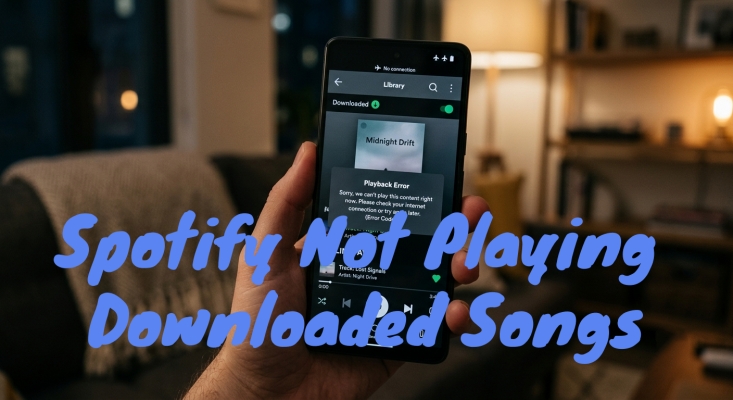
Part 1. Why Is Spotify Not Playing Downloaded Songs?
If Spotify is not playing your downloaded songs while offline, it is usually caused by one of the following common issues.
Cause 1. Active "Enhance" or Smart Features
Enabling features like the "Enhance" option on playlists can conflict with offline playback, preventing downloaded songs from loading properly.
Cause 2. Automatic Cache Clearing
Some devices are configured to automatically clear application caches or temporary data, which can silently delete your older downloaded music files.
Cause 3. App Bugs or Signal Glitches
If the app is set to online mode but encounters a weak signal, it may freeze trying to connect to a server rather than reading local files.
Cause 4. Subscription or DRM Validation
Spotify requires an active Premium subscription and a periodic internet connection to validate your offline download licenses.
Part 2. Quick Fixes to Downloaded Songs on Spotify Not Playing
Before diving into deep device settings, try these rapid-fire fixes that resolve the vast majority of instant playback failures.
Toggle In-App Offline Mode
If your device loses internet but Spotify is still set to Online, the app will continuously hang trying to ping a server. Force it to look only at your local files by turning on the specific Offline Mode toggle inside Spotify's settings.
Check Your Storage Space
Spotify requires a absolute minimum of 250MB of free space on your device to read its cache. If your phone is completely full, the Spotify app cannot process local audio files. Go to check whether your device has enough storage space.
Verify Premium Status
Spotify offline playback is strictly a Premium feature. If your Spotify subscription has recently lapsed or failed to renew, your downloaded files are instantly locked. Make sure that your Premium account is active.
Offline Search Glitch
A known Spotify bug prevents downloaded tracks from playing if you access them via the search bar while offline. Go directly to Your Library, open the downloaded playlist manually, and tap the song there to play.
5-Device Limitations
You can only keep offline files on a maximum of 5 devices simultaneously. Downloading tracks on a sixth device will silently revoke offline access on the oldest logged-in device. Try logging out of your Spotify account on some unused devices.
Part 3. How to Fix Downloaded Spotify Songs Not Playing (iOS & Android)
Most users encounter the issue of downloaded songs not playing on Spotify while using their iOS or Android devices. If the quick checklist didn't solve the issue, work through these deep troubleshooting steps sequentially.
Solution 1. Force the In-App "Offline Mode"
If your iPhone detects a weak cellular network or a broken public Wi-Fi signal, it will try to prioritize that connection. This prevents Spotify from opening your local, encrypted downloads because it is stuck trying to ping a non-responsive server.
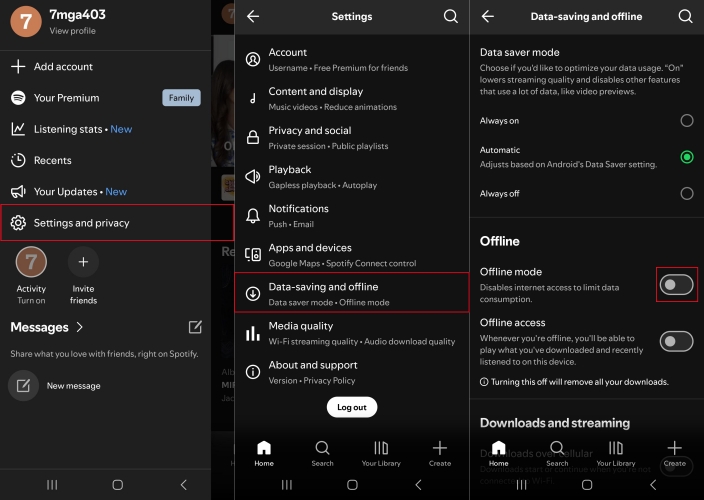
Step 1. Open Spotify and tap your profile picture.
Step 2. Select Settings and Privacy > Playback.
Step 3. Toggle the Offline switch to On.
Solution 2. Enable Background App Refresh
If you lock your iPhone screen or switch to another app while a large playlist is downloading, iOS will instantly freeze Spotify's background processes if permissions aren't properly set. This leads to fractured, corrupted audio files that refuse to play offline.
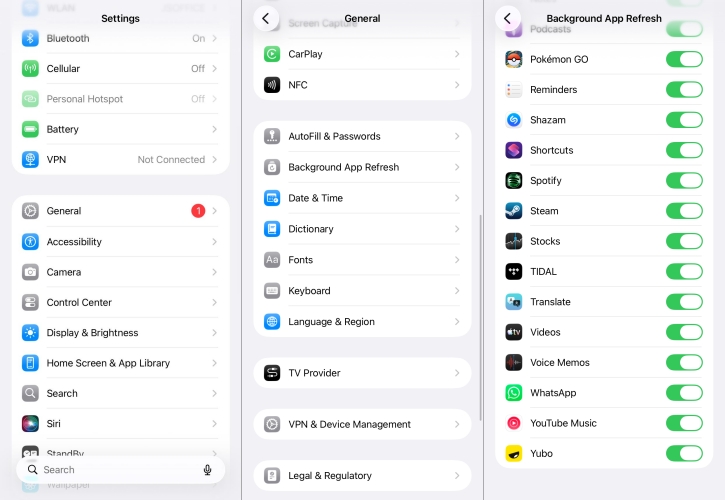
Step 1. Open your iPhone's main Settings app.
Step 2. Scroll down and select General > Background App Refresh.
Step 3. Locate Spotify in the list and ensure the toggle is turned On.
Solution 3. Remove Battery Optimization Restrictions
Android's "Battery Optimization" tool automatically limits an app's hardware usage if it detects high power consumption. Because unencrypting downloaded audio files requires processing power, Android will sometimes crash the Spotify audio engine mid-song to save battery.
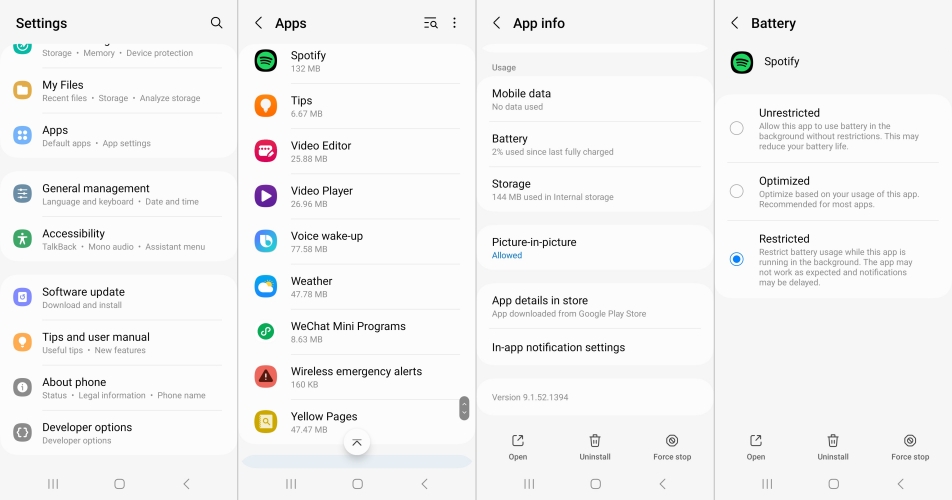
Step 1. Long-press the Spotify app icon on your home screen and tap the Info (i) icon.
Step 2. Select Battery or App Battery Usage.
Step 3. Change the setting from "Optimized" or "Restricted" to Unrestricted.
Solution 4. Move Files Away from MicroSD Cards
While saving music to an SD card saves space, external cards are highly prone to read/write lag, formatting glitches, and file corruption. If your downloaded songs are skipping or throwing errors on Android, the SD card path is likely compromised.
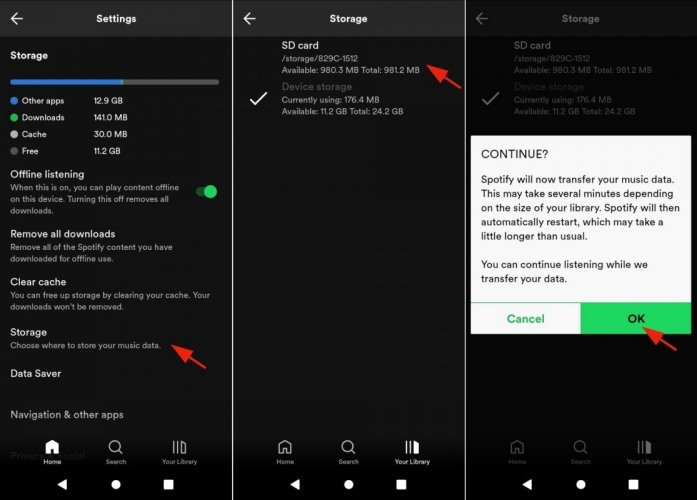
Step 1. Open Spotify and go to Settings and privacy.
Step 2. Scroll down to the Storage section.
Step 3. Tap Storage Location.
Step 4. Switch the setting from "SD Card" to Device Storage.
Note:
This will delete existing downloads, requiring you to safely re-download them to your internal storage.
Solution 5. Perform a Double Logout
Spotify requires your device to connect to its servers at least once every 30 days to verify your Premium subscription status and refresh your security tokens. If this sync is interrupted, your offline files will freeze. Do a consecutive double log-out to force a hard server re-sync.
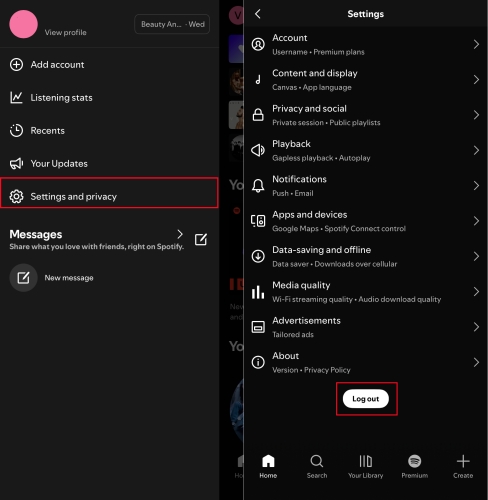
Step 1. Connect to a stable Wi-Fi network.
Step 2. Go to Spotify Settings, scroll to the bottom, and tap Log out.
Step 3. Log back into your account.
Step 4. Immediately log out a second time.
Step 5. Log back in once more and allow your library to load completely.
Solution 6. Clear the App Cache
If specific tracks are skipping or throwing an error, the local data for those songs is likely corrupted. You can choose to clear the cache in Spotify. This removes temporary listening files without deleting the music you have explicitly saved for offline use.
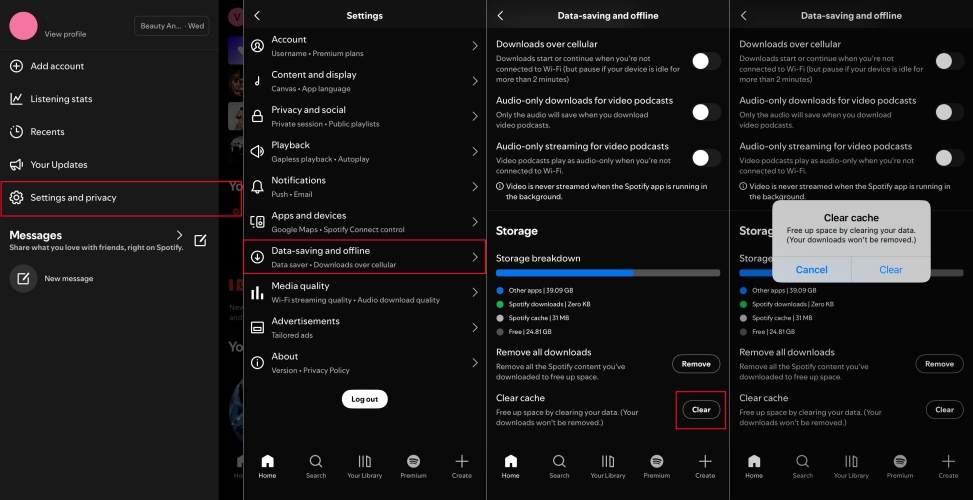
Step 1. Go to Spotify Settings.
Step 2. Scroll down to Storage.
Step 3. Tap Clear Cache.
Solution 7. Perform a Clean Uninstall
If clearing the cache fails, the core application files are compromised. A standard reinstall can help to delete hidden system data folders. To resolve the downloaded songs not playing on Spotify, just perform a clean uninstall.
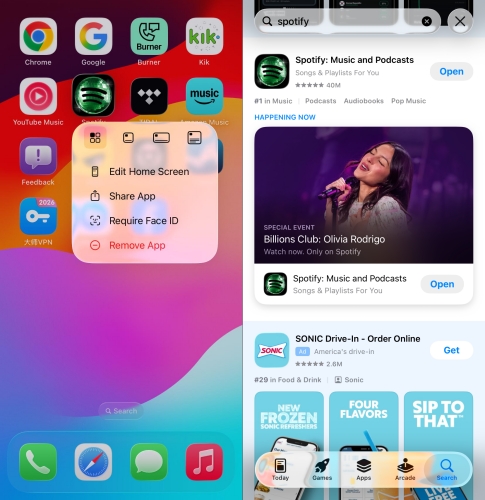
Step 1. Go to Spotify Settings.
Step 2. Restart your device completely.
Step 3. Re-download Spotify from the official App Store or Google Play Store.
Step 4. Re-download your playlists while connected to strong Wi-Fi, ensuring your screen does not lock during the download process.
Part 4. How to Fix Spotify Downloaded Songs Not Playing (Wins & Mac)
On desktop computers, offline playback failures are typically caused by local storage directories being altered or security firewalls blocking internal network communication.
Solution 1. Re-Link Corrupted Local File Pathways
If you use Spotify desktop app to listen to local audio files alongside downloaded tracks, a change in your computer's folder structure can cause the app to lose track of the underlying data files.
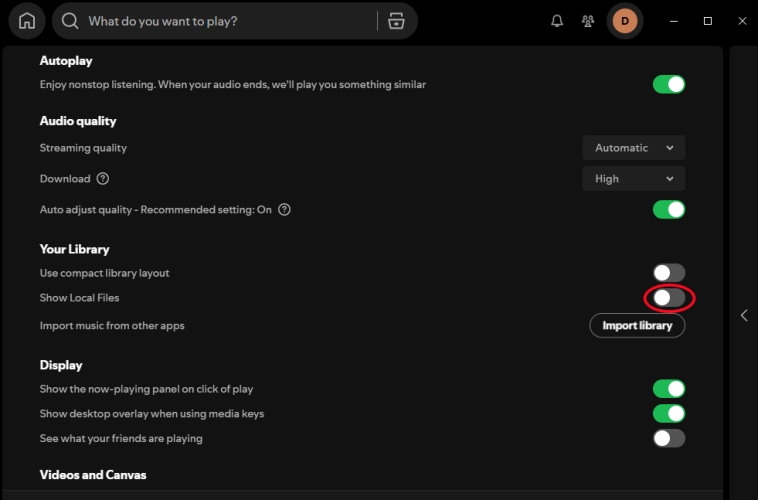
Step 1. Click your Profile Picture in the top right of the desktop app and select Settings.
Step 2. Scroll down to the Local Files section.
Step 3. Toggle "Show Local Files" off and then back on to reset the cache pathway.
Step 4. Ensure the source folder containing your tracks is explicitly added to the list.
Solution 2. Clear the Offline Cache Folder Manually
When the desktop app experiences a hard crash, its temporary storage folders can retain broken file fragments. Clearing this manually forces the software to create a clean database structure.
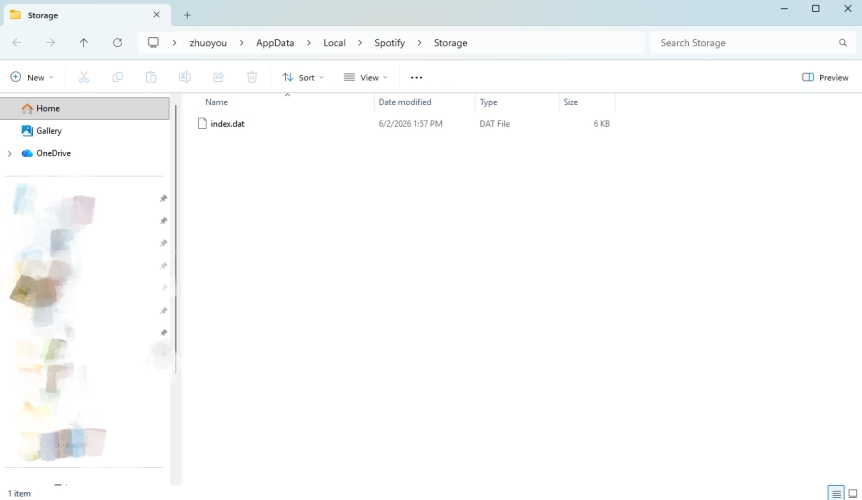
On Windows: Close Spotify. Press Windows Key + R, type %localappdata%\Spotify\Storage\, and delete everything inside that folder.
On Mac: Close Spotify. Open Finder, press Cmd + Shift + G, type ~/Library/Caches/com.spotify.client/, and clear the contents of the folder.
Solution 3. Move Past DRM Restrictions
If you frequently encounter corrupted cache issues, local device storage errors, or find the 30-day online check-in requirement too restrictive for long-term travel, the fundamental root cause is the proprietary DRM wrapper surrounding Spotify's default offline files.
An effective alternative workaround to avoid the official app's playback glitches entirely is to use an external tool to convert the tracks into standard audio files. Tools like TunesMake Spotfify Music Converter can download and save playlists from Spotify directly onto your computer or phone as unencrypted audio formats such as MP3, FLAC, or WAV.
Because this approach exports the tracks as standard, independent media files, it sidesteps the in-app DRM authorization engine entirely. You can then play the songs using any standard offline media player on your phone or PC, eliminating common app bugs, subscription check-in limits, or background data saving conflicts.

TunesMake Spotify Music Converter –
Download music from Spotify without premium
- Download Spotify songs, albums, playlists, audiobooks, and podcasts
- Losslessly convert Spotify music to MP3, FLAC, WAV, AIFF, and more
- Remove ads from Spotify music tracks even with a Free account
- Convert Spotify music at 15× faster speed in batch with ID3 tags kept
Security Verified. 100% Clean & Safe.
Part 5. Conclusion
The Spotify not playing downloaded songs issue is not unusual. It's possible for you to encounter this issue while using Spotify on your iPhone or Android device. But now the good news is you don't need to worry about it anymore because we have found the best solutions to give you a hand. Thanks to the TunesMake Spotify Music Converter, you can even download the music you like from Spotify to any other device. Then, you will avoid many bugs and glitches in the Spotify app. What are you waiting for? Just come to download this powerful tool and enjoy your music without any interruption!
Related Articles

A senior editor from TunesMake, dedicated to sharing professional tutorials and solutions of software, movies, and music.
- 1
- 2
- 3
- 4
- 5
- 6
- 7
 Leave Your Comment
(0)
Leave Your Comment
(0)

 Download Center

