








 Store
Store


Nowadays, streaming service has become one of the major parts of our life. For music lovers, bringing Spotify music to a big screen like Apple TV is a great option, since it can transform your living room into a concert hall with high-fidelity sound and immersive visuals. Thus, the issue arises naturally - how to play Spotify on Apple TV? This post is prepared for users who want to easily enjoy their playlists, albums, and podcasts on a bigger screen. No matter what Apple TV model you have, you can find possible methods in the following content.
Part 1. How to Get the Spotify Apple TV App [4th Generation]
Can you play Spotify on Apple TV? The answer is yes. For users who own an Apple TV HD (4th Generation), there is nothing easier than streaming Spotify music on your Apple TV. All you need is the official Spotify app, which is available on the tvOS App Store. Once installed, you can browse your library, search for new artists, and view stunning album art directly on your television with ease.
How to Download Spotify on Apple TV
Step 1. Power on your Apple TV and open the App Store.
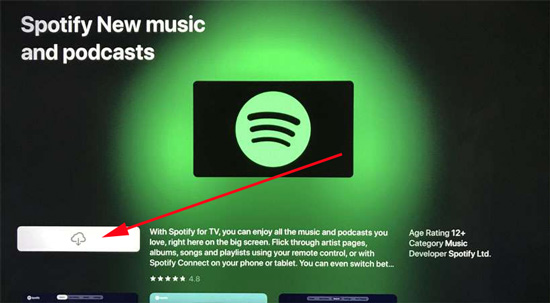
Step 2. Search for the Spotify app and navigate to the Get option.
Step 3. Press the download arrow to begin downloading and install the app.
How to Connect Spotify to Apple TV for Playing
Step 1. Launch the Spotify app on your Apple TV, then select Log in with PIN.
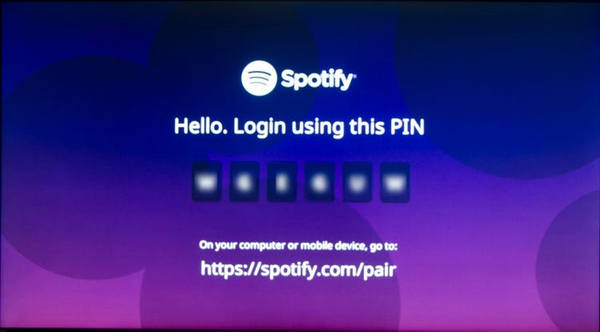
Step 2. Open a web browser on your phone and go to https://www.spotify.com/pair.
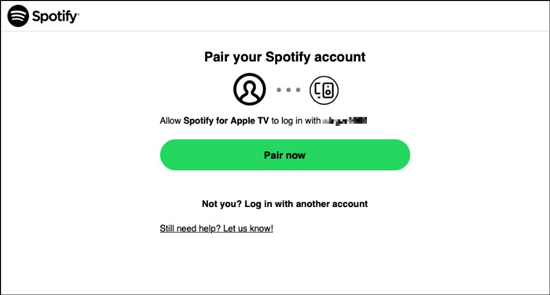
Step 3. Enter the pin you see on your screen and proceed to tap the Next button after entering the activation code from Apple TV.
Step 4. Confirm by tapping the Pair Now button at the bottom and the Apple TV has been granted access to your Spotify account.
Step 5. All of your playlists, albums, and favorite songs are now available on Apple TV, and you can play your favorite Spotify songs on Apple TV now.
In addition to using the activation code, you can enter your Spotify credentials to log into your Spotify account on your Apple TV.
How to Get Spotify Lyrics on Apple TV
Method 1. Using the Official Spotify App
In some regions or app versions, Spotify includes built-in lyrics on Apple TV. If available:
Step 1. Log in to your Spotify account within the Spotify app on your Apple TV. Once done, find any song you like and play it.
Step 2. Head to the Now Playing screen. If this song has lyrics available, you can see a Lyrics icon on the right side.
Step 3. Select it to see time-synced lyrics scroll.
Method 2. Using Screen Mirroring
Step 1. Go to the Spotify app installed on your phone or computer and play any song you like.
Step 2. Tap the Now Playing bar at the bottom of the screen in Spotify. Then, select the Lyrics icon.
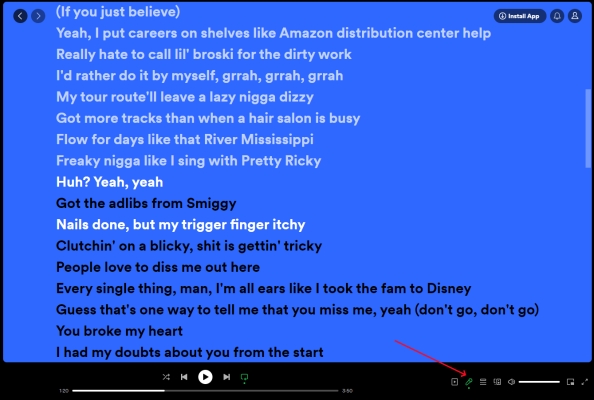
Step 3. Open Control Center on your device and tap the Screen Mirroring button.
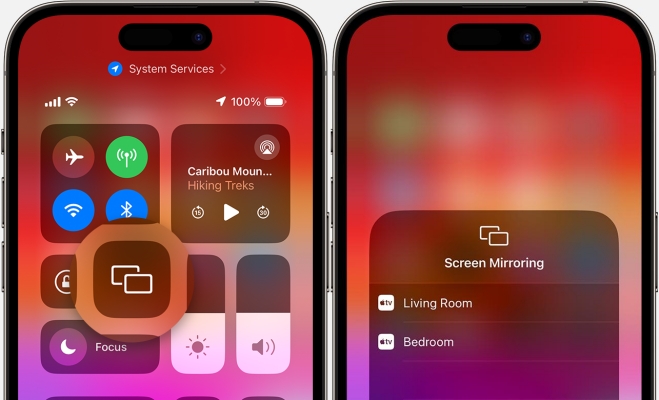
Step 4. From the device list, select your Apple TV. Now you’ll see Spotify lyrics on your Apple TV.
Part 2. How to Cast Spotify to Apple TV [1st, 2nd, 3rd Generation]
Utilizing the Spotify app is a quick and painless way to play Spotify music on Apple TV. However, if you have an older Apple TV like 1st, 2nd, or 3rd generation, you cannot access the Spotify for Apple TV app. It doesn’t matter. You can still cast Spotify to Apple TV via Spotify Connect or Apple AirPlay. Now you can follow the below steps to get Spotify to play on Apple TV.
Option 1. Apple AirPlay
With Apple’s AirPlay technology, you can share Spotify music on your Apple TV. And it doesn’t have any limit to your devices. It is used for Mac, iPhone, iPad, and iPod touch. But before casting Spotify music to Apple TV, make sure your device with the Spotify app and Apple TV are on the same internet network. Here you can stream Spotify to Apple TV from iPhone or Mac.
Step 1. If you have the Spotify app installed on your iPhone or Mac, just turn on your Apple TV.
Step 2. Open Spotify on your device, then open Control Center by clicking it in the menu bar on your Mac or swiping up from the bottom of the iPhone’s screen.
Step 3. After ensuring that your WiFi and Bluetooth are enabled, tap the AirPlay button and choose your Apple TV.

Step 4. Now your device is synced with your TV, and you can access and play Spotify music on the TV.
Step 5. Search for Spotify songs you wish to listen to on the TV, and the Spotify music you select will then be sent to the TV.
Option 2. Spotify Connect
Unlike iPhone and Mac, you cannot cast Spotify to Apple TV from your Android device or Windows PC as the AirPlay feature is not available. To make Spotify play on Apple TV, you can use the Spotify Connect feature. Provided that your device and Apple TV are under the same WiFi network, you can find your Apple TV from the list in the Spotify app. So, you can stream Spotify to Apple TV from Android or PC via Spotify Connect.
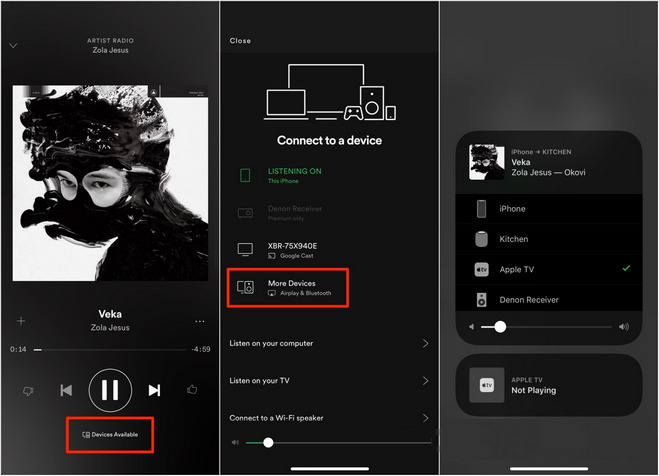
Step 1. Make sure that your device and Apple TV are connected to the same WiFi network, then turn on Bluetooth.
Step 2. Launch Spotify on your Android device or Windows PC and select any music to play.
Step 3. Press the Connect to a Device icon at the bottom of the screen on your Android device or click it at the bottom right corner of the Spotify app on your Windows PC.
Step 4. From the device list, pick your Apple TV to play your Spotify music. Now you can listen to Spotify music on the TV.
Part 3. How to Play Spotify on Apple TV Offline [All Models]
Streaming is convenient, but it’s not always reliable. Network interruptions, ads, or playback restrictions can disrupt your listening experience—especially if you rely on Spotify Free or have unstable internet. This is why many users look for ways to play Spotify on Apple TV offline. It is a pity that Spotify does not support offline playback on Apple TV. Even Premium users cannot download songs directly to the device. In this case, a dedicated and effective Spotify music downloader is what you need. Here, we recommend the TunesMake Spotify Music Converter.
TunesMake Spotify Music Converter is designed for all Spotify users. Even if you don’t have a Premium subscription, you can use it to download your preferred songs, playlists, albums, and podcasts to normal audio files in diverse formats, such as MP3, M4A, M4B, WAV, FLAC, and AIFF. Furthermore, this tool smartly retains the original sound quality and ID3 tags to ensure your listening experience. After downloading, all the songs will be stored as local files on your computer. It’s a piece of cake to import them to your Apple TV or other devices for unlimited offline playback.

TunesMake Spotify Music Converter –
Best Spotify to Apple TV Downloader
- Unlimitedly download Spotify songs, playlists, and podcasts
- Losslessly convert Spotify music to MP3, FLAC, WAV, AIFF, etc.
- Remove ads from Spotify music tracks even with Free accounts
- Convert Spotify songs at 12X faster speed with ID3 tags kept
Security Verified. 100% Clean & Safe.
Step 1
Add Spotify Music to TunesMake Software

Launch TunesMake Spotify Music Converter on your computer, and it should automatically load the Spotify web player. Then log into your Spotify account, head to the Library tab, and select Spotify songs that you want to listen to on your Apple TV. Drag and drop Spotify songs to the Add icon in the lower right corner. Or, you can select a playlist/album, and then click the Add icon > Add to List.
Step 2
Set the Output Format and Preferences

Once you add the selected music from Spotify to the converter, you can customize the output parameters. Simply click the menu option, choose the Preference category, and lastly switch to the Conversion tab to set the output format. Apple TV- compatible formats include MP3, FLAC, AIFF, and WAV. You can also set the bit rate, sample rate, and channel according to your own demand. After setting the parameters, click the OK button to save the settings.
Step 3
Download Music from Spotify to MP3

Once you are done with the settings setup, you can click the Convert button at the bottom right corner. Then TunesMake Spotify Music Converter will start downloading music from Spotify to the format you choose. Likewise, it will save your converted Spotify music to your computer. You can find these converted Spotify music tracks in the converted list by clicking the Converted button.
Step 4
Start to Play Spotify Music on Apple TV
You’ve removed the DRM protection from Spotify songs. You can now play Spotify on Apple TV without limits. Before playing Spotify music, you have to transfer Spotify music to iTunes. After that, you can listen to Spotify music via Home Sharing.
1) In iTunes, click the File button from the menu bar, then select Home Sharing.
2) Continue to click Turn On Home Sharing and enter your Apple ID credentials.
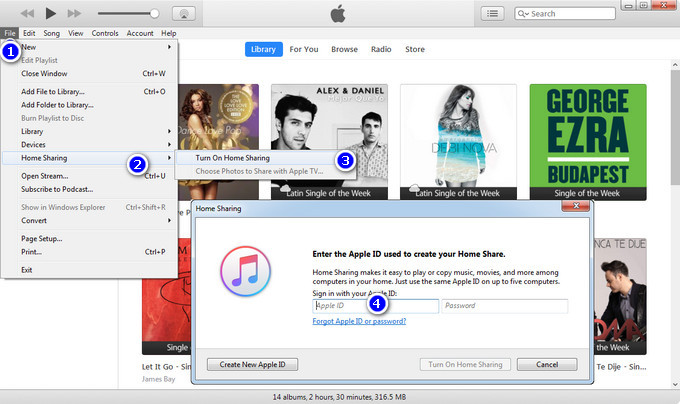
3) On Apple TV, go to Settings > Accounts > Home Sharing, and enter your credentials to turn on Home Sharing.
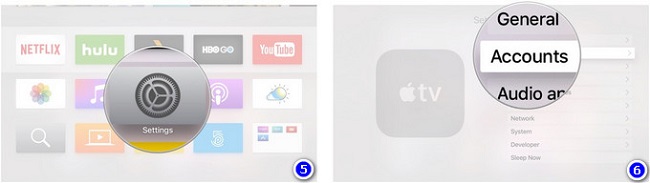
4) Now you can start to stream Spotify music to your Apple TV even though your TV is in offline mode.
Part 4. Troubleshooting: Spotify Not Working on Apple TV
As with any technological endeavor, issues may arise. Fear not! This section is a troubleshooting haven, addressing common problems users encounter and offering effective solutions to ensure uninterrupted Spotify playback on Apple TV.
Issue 1. Spotify App Won’t Open
This usually happens due to outdated software or temporary glitches. You can try these simple fixes:
Make sure your Apple TV is connected to the internet.
Check any updates to the Spotify app in the App Store on your TV.
Check the software of your Apple TV is up-to-date.
Restart the Spotify app or your Apple TV.
Remove the Spotify app, then install it on your Apple TV again.
Issue 2. Spotify Not Connecting to Apple TV
This issue is often related to Spotify Connect connection or account pairing. Try the following steps to resolve it:
Make sure your Spotify account is active.
Make sure your Apple TV and the device you're casting from are connected to the same Wi-Fi network.
Log out of your Spotify account on both your casting device and the Spotify app on Apple TV, then log back in to refresh the connection.
Delete the Spotify app on your device and reinstall it.
Conclusion
If you are bothered about whether you can play Spotify on Apple TV, then this article has shown you possible ways. You can either use the AirPlay feature to play Spotify music or use the Home Sharing feature to first transfer your music to Apple TV before you can play it. Nonetheless, TunesMake Spotify Music Converter will make it easy for you. It has a cutting-edge ability to save Spotify music to various formats like MP3. With this converter, the music originality won’t be degraded, and you can also play it on any device, including Apple TV.
Related Articles


A senior editor from TunesMake, dedicated to sharing professional tutorials and solutions of software, movies, and music.
- 1
- 2
- 3
- 4
- 5
- 6
- 7
 Leave Your Comment
(0)
Leave Your Comment
(0)

 Download Center

