








 Store
Store


The availability of external devices like USB, SD cards, CDs, and the like makes it easy to transfer music to other devices like computers, cars, and even laptops. Many users opt for a USB flash drive because of its tiny nature. However, more and more users choose streaming services like Spotify to enjoy music nowadays. Many users wonder if it is possible to download Spotify songs to a USB for offline listening on other devices or media players. In this guide, we will walk you through how to download music from Spotify to USB in two practical methods. Plus, you can find step-by-step instructions to make your offline music journey smooth on any device.
Part 1. Can I Download Music from Spotify to a USB?
No, you cannot download music from the Spotify app to a USB directly. When you click "Download" in the Spotify app, the files are stored as encrypted cache data. You cannot directly move those Spotify downloads to a USB stick. This is mainly caused by two reasons. After diving into the causes, you can find a workaround to this technical barrier.
Format: Spotify uses an encrypted Ogg Vorbis format, which most car stereos and MP3 players cannot read. However, USB drives for audio playback generally support MP3, AAC, WMA, WAV, FLAC, AIFF, ALAC, and DSD.
Encryption: All the downloaded Spotify songs are locked to your specific Spotify account and protected by Digital Rights Management (DRM), which ensures that they can only be played by the Spotify app itself.
To successfully download music from Spotify to a USB drive, you need to remove DRM protection and convert the stream into a standard MP3, FLAC, or WAV file. Once the Spotify tracks are saved as local files on your computer’s hard drive, transferring them to a USB drive is a piece of cake.
Part 2. Best Tool to Download Spotify Music to USB (High Quality)
As we mentioned above, the key step to move Spotify music to USB is to convert Spotify tracks into common audio formats. This is where a reliable and professional third-party tool becomes useful. Here, we’d like to recommend the TunesMake Spotify Music Converter.
When quality and efficiency are your priorities, TunesMake Spotify Music Converter is your best choice. It is a powerful music downloader and converter designed for all Spotify users. Whether you have a Premium subscription or not, you can use it to download Spotify songs, playlists, albums, and podcasts to a compatible USB drive. The TunesMake tool supports multiple audio formats, such as MP3, M4A, M4B, WAV, FLAC, and AIFF. If you have no idea which formats to choose, take the table below as a reference:
| Format | Compatibility | Quality | File Size |
|---|---|---|---|
| MP3 | ⭐⭐⭐⭐⭐(Best chioce) | High | Small |
| WAV | ⭐⭐⭐⭐ | Very High | Very Large |
| FLAC | ⭐⭐⭐(Limited support) | Lossless | Medium |
What counts most is that the TunesMake tool smartly keeps the original sound quality and ID3 tags to ensure your offline listening playback. If you want, you can even personalize the audio output settings as you wish within the TunesMake software.

TunesMake Spotify Music Converter –
Best Spotify to USB Downloader
- Unlimitedly download Spotify songs, playlists, and podcasts
- Losslessly convert Spotify music to MP3, FLAC, WAV, AIFF, etc.
- Remove ads from Spotify music tracks even with Free accounts
- Convert Spotify songs at 12X faster speed with ID3 tags kept
Security Verified. 100% Clean & Safe.
Let’s uncover how to download Spotify songs to MP3 and transfer them to the USB drive for offline listening using TunesMake Spotify Music Converter.
Step 1
Add Spotify Music to the Converter

First, install and launch TunesMake Spotify Music Converter on your computer and it will load the Spotify web player immediately. Then log in to your Spotify account and open the Library section to select the playlist or album you need to copy to your USB stick. You can load all the songs in this playlist/album by clicking the lower Add icon > Add to List button.
Step 2
Set the Audio Format for USB Playback

This step lets you set the output audio parameters once you’ve successfully added Spotify songs to the converter. To do this, go to menu > Preferences and switch to the Conversion tab. In the pop-up window, you can set the preferences such as the output audio format, sample rate, and channel.
Step 3
Convert Spotify Music to the Selected Format

Confirm whether your preferences are alright, and then click the Convert button. TunesMake Spotify Music Converter will download and convert your music to MP3 and save it to the computer. When it is finished, you can click the Converted icon to find the downloaded files’ location.
Step 4
Transfer the Converted Music to USB
When the conversion process is finished, you can now copy Spotify songs to the USB stick. Since the converted music is already saved on your computer, follow these steps to move Spotify music to a USB.
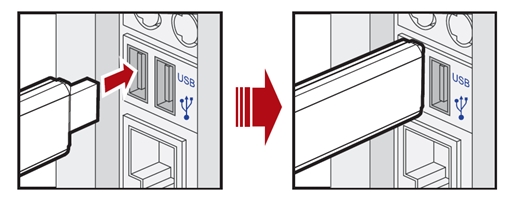
1) Connect the USB to the PC: Plug your USB stick drive into your computer via the USB port. Then you can choose to transfer a single song or the entire music folder to your USB.
2) Copy and paste music to USB: Copy the converted Spotify music files that you wish to transfer and paste them into the folder in the USB flash drive.
3) Listen to offline Spotify music: You can now use your USB drive to listen to offline Spotify songs. Furthermore, you are able to use it in your car or other devices with a USB port.
Part 3. How to Download Music from Spotify to USB for Free
If you are looking for a completely free way to get your Spotify tunes on a USB and don’t care about the sound quality, there are several workarounds. One of the most popular options is to utilize a free music downloader. While a free tool often lacks the batch-downloading feature, it is excellent for grabbing a few specific tracks. You can search for a free Spotify music downloader on the Internet. But taking the stability issue into consideration, we’d like to recommend a free, professional audio recording and editing tool - Audacity.
Audacity is a free, open-source audio recording and editing software. You can set Spotify as the recording source, and then record the song you like as it plays from the Spotify app installed on your desktop. This creates a digital recording file that you can export as an MP3. Just notice that this recording process happens in real-time, which may consume too much time when you need to save multiple songs.
| TunesMake Spotify Music Converter | Audacity | |
|---|---|---|
| Supported OS | Windows, Mac | Windows, Mac, Linux |
| Output Formats | MP3, M4A, M4B, WAV, FLAC, AIFF | MP3, AAC, WAV, FLAC, Ogg Vorbis |
| Music Quality | Lossless | Lossy |
| Keep ID3 Tags | ✔ | ✘ |
| Personalize Audio Settings | ✔ | ✘ |
| Conversion Speed | 12X | Real-time |
| Batch Download | ✔ | ✘ |
| Rating | ⭐⭐⭐⭐⭐ | ⭐⭐⭐ |
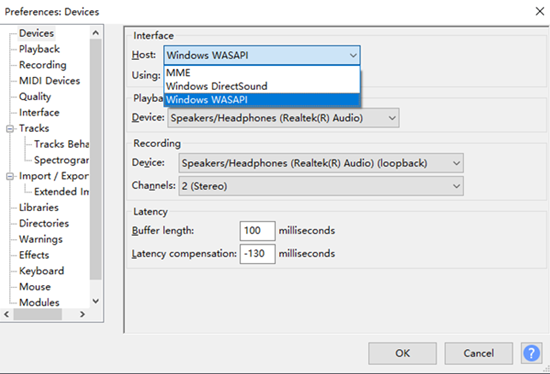
Step 1. Head to the Audacity software installed on your computer. Then, move your cursor at the top tool bar and click Preferences > Audio Settings.
Step 2. You should select Windows WASAPI in the Host box.
Step 3. Then, you can open Spotify and play the song you want to save on your USB. Just click the Record button at the top to start recording.
Step 4. When the song ends, click the Stop button.
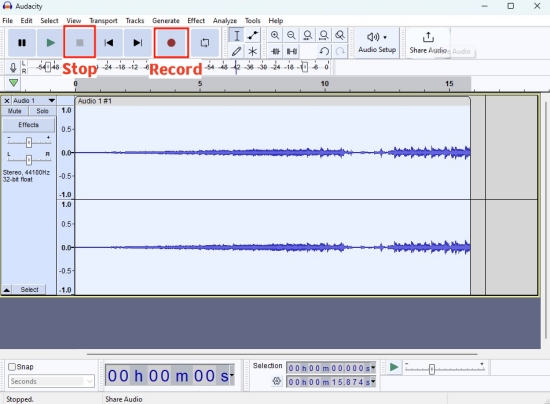
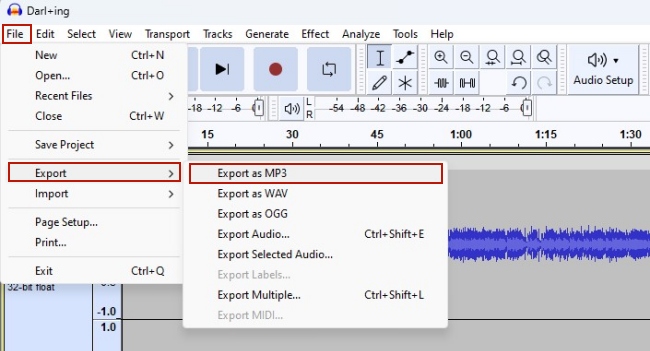
Step 5. Now you can save this recording by clicking the top File > Export > Export as MP3.
Part 4. FAQs about Spotify to USB
Can I download Spotify songs to USB without Premium?
Yes, TunesMake Spotify Music Converter allows both Premium and Free users to download songs from Spotify to a USB. If you choose to use tools like Audacity to record a Spotify song with a Free account, you may record the ads as well.
Is it legal to download Spotify music to a USB drive?
Basically, this depends on how you use the downloaded Spotify music. If you get Spotify songs as local files for personal use only, it is generally legal and acceptable.
How to play Spotify music from a USB in my car?
If you have a car with a USB port, you can play music from Spotify in the car through a USB flash drive. Simply plug your USB flash drive into the USB port, and then browse the downloaded Spotify music files on the touchscreen of your car. Choose one song you like and tap it to start enjoying your music in your car offline.
Why is my USB not playing Spotify songs?
If your USB isn’t playing your downloaded Spotify songs, the most common reason is the wrong format. You should check the downloaded music files and make sure they can be played normally. Plus, you should make sure that your USB drive is functioning properly. If your USB is not working in your car, you can try to update your car’s infotainment system.
Part 5. Conclusion
It would be a wish for everyone to carry along with Spotify music wherever they go. However, it may not be easy, especially because of DRM protection from Spotify. Using portable devices like USBs, SD cards, and others is the best option, but it may prove futile with the enforced DRM protection. This post has tackled the best option to help you quickly copy Spotify songs to a USB in a few steps with the TunesMake Spotify Music Converter. For users who prefer free methods, Audacity is also a great option.
Related Articles




A senior editor from TunesMake, dedicated to sharing professional tutorials and solutions of software, movies, and music.
- 1
- 2
- 3
- 4
- 5
- 6
- 7
 Leave Your Comment
(0)
Leave Your Comment
(0)

 Download Center

