








 Store
Store


You are deep into editing your latest video project in iMovie, and you have the perfect background track picked out on Spotify. You attempt to drag the song into your timeline or import it from your files, but nothing happens. The file might be completely unselectable, or it simply refuses to load into your timeline.
It is a frustrating roadblock, but there is a clear technical reason for it. In this guide, we will break down exactly why Spotify music won't import to iMovie, look at the technical requirements for video editing audio, and explore the safest, most reliable ways to add Spotify music to iMovie. If you are wondering how to add music to iMovie from Spotify, go on reading.

Part 1. Why Can't You Directly Import Spotify Music to iMovie?
Before diving into the solution, it helps to understand the technical barrier. Even if you have a Spotify Premium account and have downloaded your favorite playlists for offline listening, you cannot directly drag and drop those files into iMovie. This boils down to two main constraints.
Digital Rights Management (DRM):
Spotify is a streaming music service, not a music store. The songs downloaded within the app are encrypted with DRM protection to ensure they can only played inside the authorized Spotify application on supported devices.
Unsupported File Formats:
iMovie only supports standard, open audio container formats such as MP3, M4A, WAV, AAC, and AIFF. Spotify downloads its tracks using a protected format like Ogg Vorbis or protected AAC which iMovie cannot read or parse.
Note:
A similar restriction applies to Apple Music streaming tracks. Even though both iMovie and Apple Music are made by Apple, streaming files protected by DRM will appear dimmed or greyed out if you attempt to access them through the internal iMovie audio browser.
Part 2. How to Screen Record Spotify Music for Use in iMovie
While you cannot directly add music from Spotify to iMovie, there is a completely free, built-in workaround that requires no risky third-party software downloads, that is, to use screen recording method. By recording your device's screen while playing Spotify music, you generate a video file that can be imported into iMovie, where you can then easily extract the audio track. Here is how to screen record Spotify music on iPhone, iPad, and Mac for use in iMovie.
On iPhone and iPad
If you are editing your project in iMovie on an iPhone or iPad, follow these steps to capture and extract your audio from Spotify.
Step 1. Launch Spotify and find the exact song you want to use.
Step 2. Pull down your Control Center from the top right corner of your screen.
Step 3. Tap the circular Record icon, then quickly play the track on Spotify.
Step 4. Once completing, tap the red recording bar at the top of your screen to stop.
Step 5. Open your project in iMovie and tap the + button to select Video.
Step 6. Tap All to find your recent screen recording, then tap the recording file.
Step 7. Select the Audio Only icon to get the recorded Spotify audio for use.
On Mac
If you are working on a Mac desktop or laptop, the built-in screen capture system in macOS works just as seamlessly.
Step 1. Launch Spotify on your Mac and cue up your chosen track.
Step 2. Press Command + Shift + 5 on your keyboard to bring up the screen recording overlay.
Step 3. Click on Record Selected Portion or Record Entire Screen.
Step 4. Hit Record and press play on your Spotify track.
Step 5. When the desired segment is finished, click the Stop button in the top menu bar.
Step 6. Open your iMovie project, then drag and drop the newly recorded video file into your project timeline.
Step 7. Right-click on the video clip in your timeline and select Detach Audio.
Part 3. Better Alternative for Adding Music to iMovie from Spotify
Since the core problem of adding Spotify music to iMovie is a lack of native format support and encryption, many editors look for tools specifically built to bridge the gap between streaming platforms and local editing software. One dedicated utility designed for this scenario is TunesMake Spotify Music Converter.
With TunesMake Spotify Music Converter, both Spotify Free and Premium users can download and convert Spotify music into several plain audio formats that are mostly compatible with iMovie. Also, this tool can remove DRM protection from Spotify, while maintaining the original sound quality and ID3 tags to ensure the music organization. Follow the steps below to download and convert Spotify music to MP3 or other iMovie supported audio formats.

TunesMake Spotify Music Converter –
Download music from Spotify without premium
- Download Spotify songs, albums, playlists, audiobooks, and podcasts
- Losslessly convert Spotify music to MP3, FLAC, WAV, AIFF, and more
- Remove ads from Spotify music tracks even with a Free account
- Convert Spotify music at 15× faster speed in batch with ID3 tags kept
Security Verified. 100% Clean & Safe.
Step 1 Add Spotify Music to the Conversion List

Launch TunesMake Spotify Music Converter on your computer, and then it will automatically load the Spotify web player. Go to log into your Spotify account and browse your music library. To add Spotify music to your project in iMovie, choose any music track you want, then click the + button to load them into the conversion list.
Step 2 Configure the Output Audio Parameters

Then click Menu > Preferences > Conversion, and you can adjust the output audio settings. As only very few audio formats like MP3 can be compatible with iMovie, you need to select MP3, WAV, M4A, or AAC as the output format. To get better audio quality, you can change other audio parameters, including the bit rate, audio channel, and sample rate.
Step 3 Begin to Download Spotify Songs to MP3

Once all the settings are completed, you can click the Convert button to download and convert music from Spotify to MP3. Wait for a while, and TunesMake Spotify Music Converter will save the converted Spotify music tracks to your computer. After conversion, you can browse all the converted Spotify music in the converted list by clicking the Converted icon.
Part 4. How to Add Music to iMovie from Spotify on iPhone, iPad, and Mac
TunesMake Spotify Music Converter will strip the DRM protection and convert Spotify songs into iMovie supported audio formats. It is time to add the converted Spotify music to iMovie. Here is how to put music from Spotify to iMovie on the iPhone, iPad, and Mac.
On Mac
In iMovie for Mac, you can drag Spotify music files right into the timeline of your video from the Finder. You can also use Spotify songs from your music library and other locations using the media browser in iMovie. Follow the steps below to put music from Spotify to iMovie for Mac.
Step 1. Launch iMovie on your Mac and click the Create New button in the Project browser.
Step 2. Click the Movie button to create a new project, then add video clips or photos.
Step 3. After creating your project, click the Video & Audio button at the top of the window.

Step 4. To access your music library, click the Music button, then select Import Media.
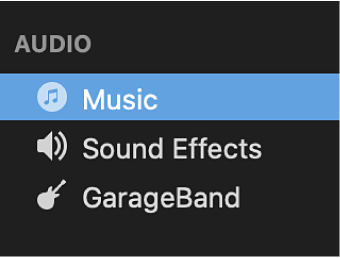
Step 5. Before adding a Spotify song to the timeline, click the Play button to preview it.
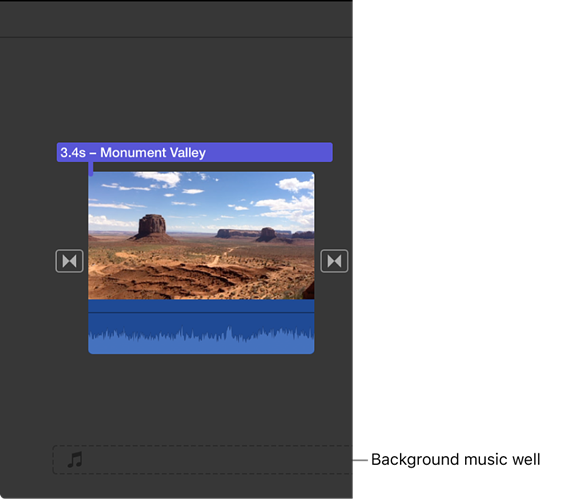
Step 6. Drag it from the media browser to the timeline. Then your selected Spotify song will be added to your project in iMovie.
Note
After conversion, you can choose to upload your converted Spotify music tracks to Apple Music. Then in iMovie, you can find the converted Spotify music tracks in the track list by clicking Music > Refresh Playlists.
On iPhone and iPad
Before adding Spotify music to iMovie, you need to move the converted Spotify music to your iPhone, iPad, or iPod touch by using iTunes or Finder first. Then you can add Spotify music files to your project in iMovie. Perform the following steps to put music on iMovie from Spotify.
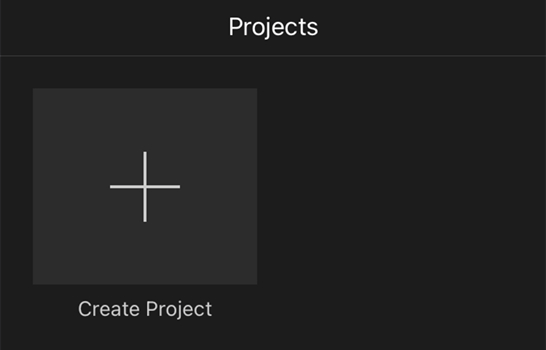
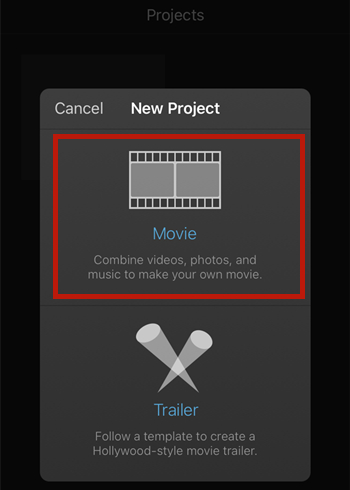
Step 1. Open iMovie on your iPhone, then tap on Create Project and select Movie in the pop-up window. Or you can tap on the three-dot icon at the bottom of the screen to import your project.
Step 2. After selecting your photos and video clips, tap on Create Movie to enter into the editing page.
Step 3. With your project opening in the timeline, tap on Add Media+ on your screen.
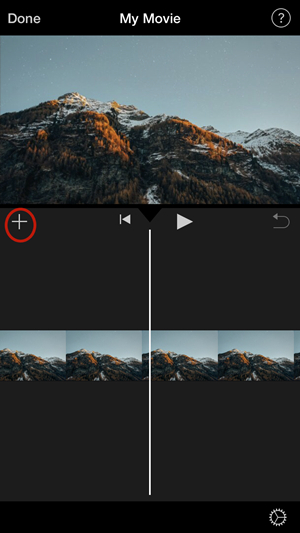
Step 4. Tap on Audio, then tap on My Music to browse Spotify songs you've transferred to your device.
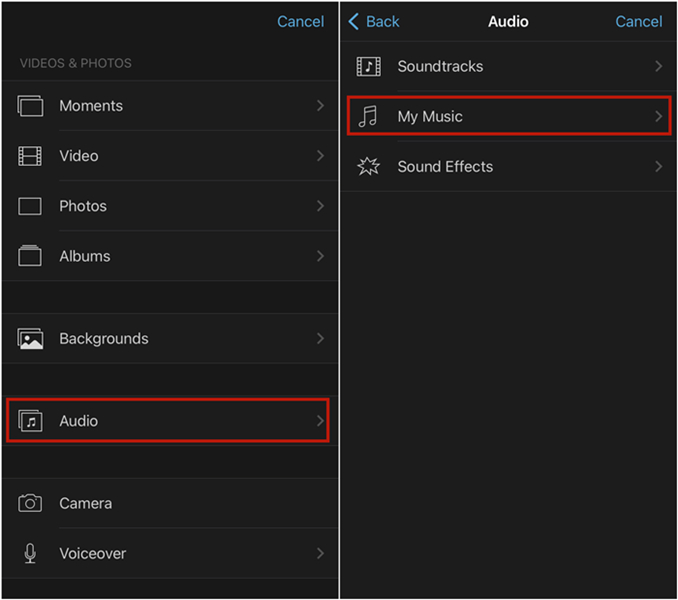
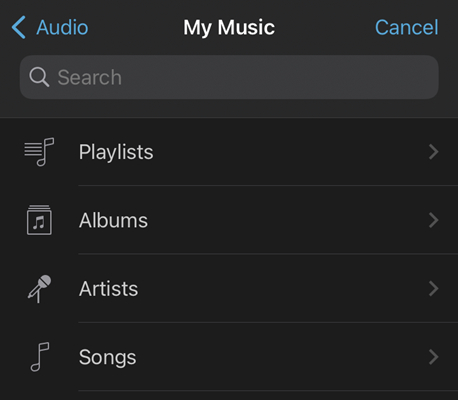
Step 5. Select a Spotify song you'd like to add to your project in iMovie and tap it to preview.
Step 6. To add it to your project, tap on the Plus button next to the song. Then your Spotify song will be added at the bottom of the project timeline, starting at the beginning of your project.
Note
You could choose to add Spotify music to your project from iCloud Drive. Also, tap Add Media + > Files. Now start browsing Spotify songs you've uploaded into iCloud.
Part 5. How to Trim Spotify Music in iMovie on iPhone, iPad, and Mac
After adding Spotify music to iMovie, you can trim it to fit the length of your video. By trimming it into different clips for your project, you can move these independent Spotify clips to different positions in the timeline. You also can adjust the volume to ensure it doesn't overpower the dialogue or sound effects. Let's dive into the details.
On Mac
To trim Spotify music in iMovie on Mac, you can use the clip trimmer or shortcut menu. Here we will show you how to trim music in iMovie on Mac.
Option 1. Use the Clip Trimmer
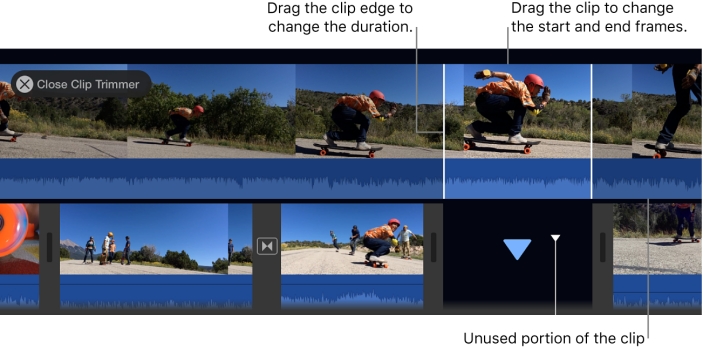
Step 1. In the iMovie app on your Mac, locate the Spotify music in the timeline.
Step 2. Click Window > Show Clip Trimmer, and then there will appear the clip trimmer.
Step 3. Drag the clip to adjust the Spotify music according to your video.
Step 4. Press Return to close the clip trimmer.
Option 2. Use the Shortcut Menu
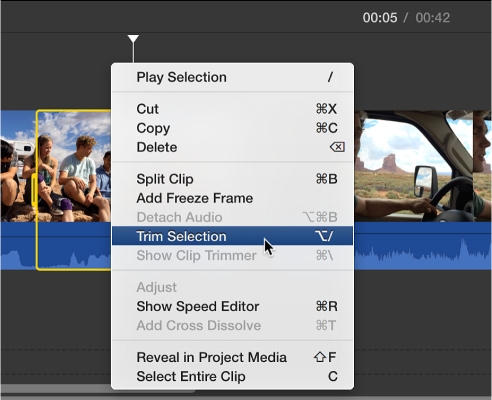
Step 1. In the iMovie app on your Mac, press and hold the R key.
Step 2. Then drag across the Spotify music in the timeline to select the range of frames you need.
Step 3. Control-click the clip, then select Trim Selection from the shortcut menu.
On iPhone and iPad
There are also two ways to cut an audio clip in a movie project on your iMovie for iPhone. You can learn how to cut Spotify music in iMovie by following the steps below.
Step 1. In the iMovie app on your iPhone, scroll the timeline to position the Spotify music.
Step 2. Tap the audio clip in the timeline to load the inspector at the bottom of the screen.
Step 3. Tap the Actions button, then tap Split.
Part 6. Conclusion
iMovie enables you to make your own unique movies at no additional cost. But if you wan to add Spotify music to iMovie as background music on your iPhone, iPad, or Mac, you should make Spotify songs playable in iMovie. The best method is to convert and save Spotify music to MP3 or other iMovie-supported formats by using TunesMake Spotify Music Converter.
Related Articles




A senior editor from TunesMake, dedicated to sharing professional tutorials and solutions of software, movies, and music.
- 1
- 2
- 3
- 4
- 5
- 6
- 7
 Leave Your Comment
(0)
Leave Your Comment
(0)

 Download Center

