








 Store
Store


Spotify, aiming to provide the best audio streaming subscription service, has attracted more than 410 million users, including 180 million premium subscribers worldwide. With a Spotify account, you can discover, manage, and share over 82 million tracks, including 3.6 million podcast titles. And Spotify is available on all kinds of devices such as computers, smartphones, smart TV, smart speaker, smartwatch, and game console. Does Spotify work on Linux? The answer is sure. Over here, we will show you how to install Spotify on Linux for playing your favorite songs.
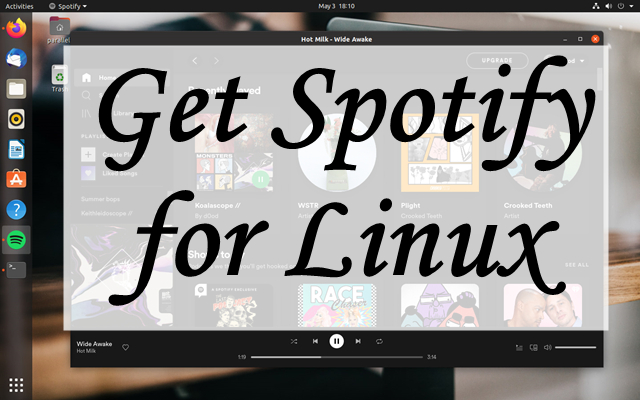
Part 1. How to Install the Spotify App on Linux
Is Spotify on Linux? In fact, Spotify is only compatible with Windows and Mac computers now. So, you are not able to install Spotify from its official website or the App Store on your Linux computer. However, those engineers from Spotify spent their spare time developing a way of installing Spotify on Linux. If you want to install Spotify on Linux, you can follow the below steps.
Method 1. Install Spotify for Linux Using Snap Package
Recently, Spotify has released a Snap package. So, if you don’t have access or don’t want to use Ubuntu Software, you have the chance to install Spotify from the command line with a snap. Go to install Spotify directly from the Software Center where Spotify is available as a Snap app. Run the following command in your terminal to install Spotify.
snap install spotify

However, if you don’t have the snap installed on Linux, you can install snap first, then run the command above. To install snap, you can go to https://snapcraft.io/ and install it.
Method 2. Install Spotify for Linux Using Deb Package
In addition, you can install Spotify using the Deb package. Spotify also released the app for Linux as a Deb package. To install the Spotify for Linux app, open a terminal and enter the following commands:
      curl -sS https://download.spotify.com/debian/pubkey_5E3C45D7B312C643.gpg | sudo apt-key add -
echo "deb http://repository.spotify.com stable non-free" | sudo tee /etc/apt/sources.list.d/spotify.list
After configuring the Debian repository, then you can install the Spotify client with the following commands:
sudo apt-get update && sudo apt-get install spotify-client

Part 2. How to Get Spotify Web Player on Linux
The experience of listening to Spotify on Linux may differ from other Spotify Desktop clients, such as Windows and Mac. With Spotify for Linux, you cannot enjoy lots of features that are available on other Spotify Desktop clients. But you can use Spotify Web Player and then access the music library of Spotify. Here’s how to listen to music with Spotify Web Player on Linux.
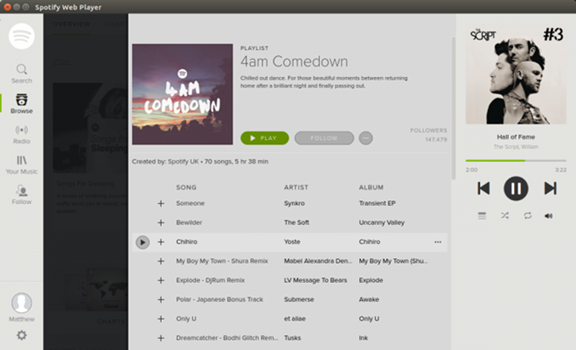
Step 1. Open a browser on your Linux computer and then go to launch the Spotify web player.
Step 2. Log into your Spotify account by entering your account credentials and password.
Step 3. Browse your music library and select any music, album, or playlist to play.
Part 3. How to Download Music from Spotify to Linux
Sometimes, it would fail to download and install Spotify on Linux with the above methods. Also, it requires a stable network connection to stream music from Spotify web player on Linux. To get an uninterrupted listening experience, you can try downloading Spotify music to your Linux computer for offline playback.
To download music from Spotify to a local file, the best way is to use a Spotify music downloader. Then, you can freely manage and play your Spotify songs. Here we do recommend TunesMake Spotify Music Converter. It is a professional and powerful music downloader and converter for both Spotify Premium and Free users.
With the help of TunesMake software, you can not only download any music, album, playlist, artist, podcast, radio, and audiobook from Spotify but also save the downloads into six popular audio formats like MP3. In addition, it can keep the music with ID3 tags and lossless audio quality. Once downloaded, you can freely play Spotify songs anywhere and anytime.

TunesMake Spotify Music Converter –
Best Spotify to Linux Downloader
- Unlimitedly download Spotify songs, playlists, and podcasts
- Losslessly convert Spotify music to MP3, FLAC, WAV, AIFF, etc.
- Remove ads from Spotify music tracks even with Free accounts
- Convert Spotify songs at 12X faster speed with ID3 tags kept
Security Verified. 100% Clean & Safe.
How to Download Spotify Music Locally
TunesMake Spotify Music Converter supports Windows and Mac computers, then you can install it on your computer. The following are the steps that guide you on how to download music from Spotify by using TunesMake Spotify Music Converter.
Step 1
Select Spotify music to download
Once launching TunesMake Spotify Music Converter on your computer, it will automatically load the Spotify web player. Then, you can go to browse the Spotify music library and find the music you want to download. To add the target items to the converter, you can select a playlist and click the Add icon > Add to List.

Step 2
Configure the output audio format
Now, you need to set the output audio parameters for Spotify before the conversion. Click the menu bar, select the Preferences option then there will pop up a window. In the window, switch to the Conversion tab and then adjust the bit rate, channel, and sample rate and change the output format.

Step 3
Start to download music from Spotify
Once completing the settings, then click the Convert button to initiate the download and conversion of Spotify music. TunesMake Spotify Music Converter will save Spotify music into your preferred formats. After that, you can click the Converted icon to launch the history list and view the converted Spotify music.

How to Play Spotify Music on Linux via Clementine
Now you have downloaded and converted Spotify music into a widely-supported audio format. You can transfer Spotify music files to your Linux computer and use a media player to play those Spotify songs on the computer. Clementine is a very popular media player available on Linux, and you can listen to Spotify music through Clementine.
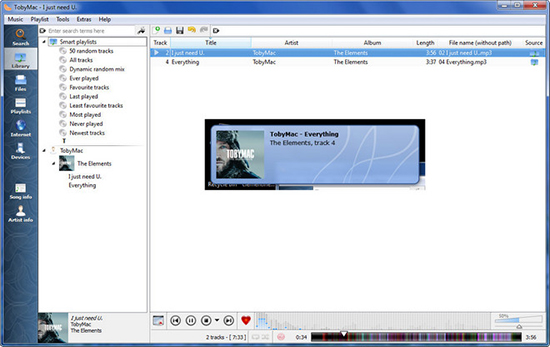
Step 1. Open Clementine and under the menu bar, select Tools.
Step 2. Click on the Preferences button to load a new window.
Step 3. Find Music Library and click it then choose to add the music files.
Step 4. Locate the folder where you save the converted Spotify music files.
Step 5. Select the converted Spotify music files and add them to Clementine for playing.
Conclusion
It is not easy to install Spotify on Linux as Spotify doesn’t offer its service to Linux directly. However, you can try installing Spotify for Linux via the command line. Or you can use Spotify web player to play music on Linux. Besides, you can choose to download Spotify music to Linux by using Audacity and AllToMP3. TunesMake Spotify Music Converter is another option for you to download Spotify music for playing.
Related Articles




A senior editor from TunesMake, dedicated to sharing professional tutorials and solutions of software, movies, and music.
- 1
- 2
- 3
- 4
- 5
- 6
- 7
 Leave Your Comment
(0)
Leave Your Comment
(0)

 Download Center

