








 Store
Store


The iPod is an iconic music player to listen to music. Although Apple had already discontinued the production of the iPod series, the iPod remains a beloved music device for many music lovers due to its simplicity, portability, and the focused listening experience it provides. In 2026, the gap between iPod and streaming music platforms like Spotify continues to grow. For users who have an iPod, one bothersome question is how to play Spotify on iPod. If you are also looking for the answer, don’t miss this post. This is a comprehensive guide that will walk you through the technical requirements and the professional workarounds needed to turn your iPod into a high-fidelity Spotify player. Without further ado, let’s explore all the effective methods in detail.
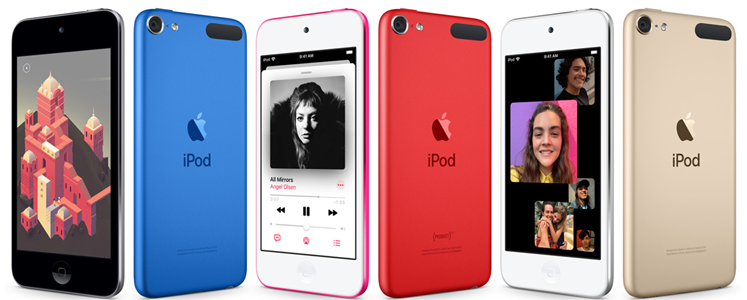
Part 1. What Is the iPod that Can Play Spotify?
Can you use an iPod with Spotify? Yes, but with conditions. Since Spotify is a streaming service that requires an Internet connection, not every iPod is compatible with the Spotify app. Only newer iPod Touch models that feature a Wi-Fi connection and run iOS 15 can run the Spotify app. Here is the table that shows the compatibility issues between Spotify and iPod model.
| iPod Model | Official Spotify App Support | Workaround Required? |
|---|---|---|
| iPod Touch (5th-7th Gen) | Limited (Requires iOS 15.8) | No (if previously owned) |
| iPod Touch (1st-4th Gen) | No (iOS version too old) | Yes |
| iPod Classic | No (No Wi-Fi) | Yes |
| iPod Nano/Shuffle | No (No Wi-Fi) | Yes |
Part 2. How to Use iPod Touch with Spotify (5th-7th Generation)
If you own an iPod Touch (5th, 6th, or 7th generation), the official Spotify app is a viable option. Your music experience will be a little different with your Free or Premium account.
What features can you use iPod with Spotify app?
| iPod Spotify Premium | iPod Spotify Free | |
|---|---|---|
| Offline listening | ✅ Download up to 10,000 songs | ❌ Not available |
| Ad interruptions | ✅ Completely ad-free | Ads between songs |
| Playback control | ✅ On-demand (play any song) | Shuffle-only |
| Skip limits | ✅ Unlimited skips | Max 6 skips per hour |
| Audio Quality | Very High (Up to 320kbps) | Standard (up to 160kbps) |
 Spotify Music Converter
A powerful tool to help you download songs from Spotify to iPod for unlimited offline playback, even without a Premium susbcription.
How to get the Spotify app on iPod
To get started, ensure your iPod device is updated to the latest possible version of iOS available for that model. Then, try the following steps to stream Spotify on iPod.
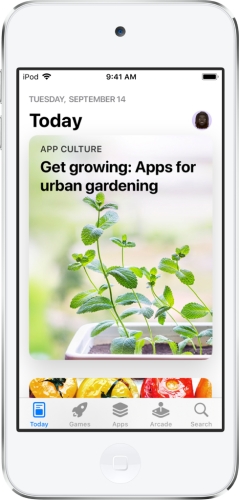
Step 1. On your iPod touch, open the App Store app.
Step 2. Search for Spotify and tap the Get button to install it.
Step 3. If you have a Spotify Premium account, you can proceed to download Spotify music on your iPod touch.
Step 4. Just find albums, playlists, or podcasts you want to download on Your Library.
Step 5. Then, tap the downward-facing arrow to download songs in the playlist or album.
Once done, you can listen to Spotify music on your iPod touch without an internet connection. But note you have to keep your Spotify Premium account logged every 30 days.
Troubleshooting: fail to log in to Spotify on iPod
When using Spotify on an iPod, many users have encountered the issue of failing to log in to their Spotify account even when Wi-Fi is active. This is often due to old iOS versions or outdated security certificates. Here are some helpful solutions you can try.
1. Reset network settings on your iPod. You can try to toggle Airplane Mode on and off or use your mobile hotspot.
2. Update the iOS system on your iPod. Go to Settings > General > Software Update.
3. Delete the Spotify app and reinstall it from the App Store.
4. Make sure your iPod’s date and time are correct. Head to Settings > General > Date & Time and toggle Set Automatically to ON.
Part 3. How to Download Spotify Songs for iPod (All Models)
Unfortunately, except for the iPod touch, older iPod models like the iPod Nano, iPod Classic, and iPod Shuffle do not support the Spotify app. These devices were designed before music streaming became mainstream and don’t have WiFi or app installation capabilities. Although Spotify isn’t available on older iPod models, there is an alternative method to play Spotify songs on an iPod. That is to download and convert Spotify music into local files, and then sync them to any iPod model. The essential step is to choose an audio format that is compatible with iPod devices.
| Spotify | iPod Models | TunesMake Spotify Music Converter | |
|---|---|---|---|
| Supported Audio Formats | Ogg Vorbis (encrypted) | MP3, AAC, WAV, AIFF, Apple Lossless | MP3, M4A, M4B, WAV, FLAC, AIFF |
Now, you already know the iPod-supported formats. Here comes the question: how to remove the DRM protection and convert Spotify music to a compatible format and import them to your iPod for offline playback? The answer is simple. All you need is the TunesMake Spotify Music Converter.
TunesMake Spotify Music Converter is a professional and powerful music downloader for all Spotify users. Whether you have a Premium account or not, you can use it to download any Spotify song, playlist, album, or podcast to your local computer in any of the following formats: MP3, M4A, M4B, WAV, FLAC, and AIFF. Furthermore, the TunesMake tool smartly keeps the original sound quality and ID3 tags to ensure your listening experience.
TunesMake Spotify Music Converter –
Best Spotify to iPod Converter on Windows & Mac
- Unlimitedly download Spotify songs, playlists, and podcasts
- Losslessly convert Spotify music to MP3 for iPod
- Remove ads from Spotify music tracks even with Free accounts
- Convert Spotify songs at 12X faster speed with ID3 tags kept
Security Verified. 100% Clean & Safe.
How to Download Music from Spotify Locally
To start downloading music from Spotify to your iPod, make sure that you have installed TunesMake Spotify Music Converter on your computer first. Then follow the steps below to download any music track, album, playlist, or podcast from Spotify in 3 steps.
Step 1
Select Your Favorite Spotify Songs

After launching TunesMake Spotify Music Converter on your computer, the Spotify web player will be automatically loaded. Then, you can navigate to your music library and choose your favorite Spotify playlist or album. After selecting, you can load all your desired songs to the conversion list by clicking the lower Add icon > Add to List. If you only need to download a single song, you can also try to drag and drop it to the Add icon directly.
Step 2
Customize the Output Audio Parameters

Once all the selected Spotify songs are added to the TunesMake main screen, click Menu > Preferences, then select Conversion, and you can set the output audio format, such as MP3. Also, you can adjust the bit rate, sample rate, and audio channel to get better audio quality.
Step 3
Start Downloading Spotify Music to Local Files

When you’re ready, click the Convert button and the TunesMake program will begin to download and convert Spotify music to your computer. After downloading, you can browse all the converted Spotify songs in the history folder by clicking the Converted icon.
Part 4. How to Put Spotify Songs on iPod for Playing
Once your selected Spotify songs have been downloaded to iPod-compatible audio formats, you can transfer the converted tracks to your iPod for listening anytime. Here are three methods for syncing Spotify music to an iPod, available for both Windows and Mac users.
Method 1. Get Spotify Music on iPod from Finder on Mac
To use the Finder to transfer Spotify songs to iPod, macOS Catalina is required. With macOS Catalina, syncing with the Finder is similar to syncing with iTunes.
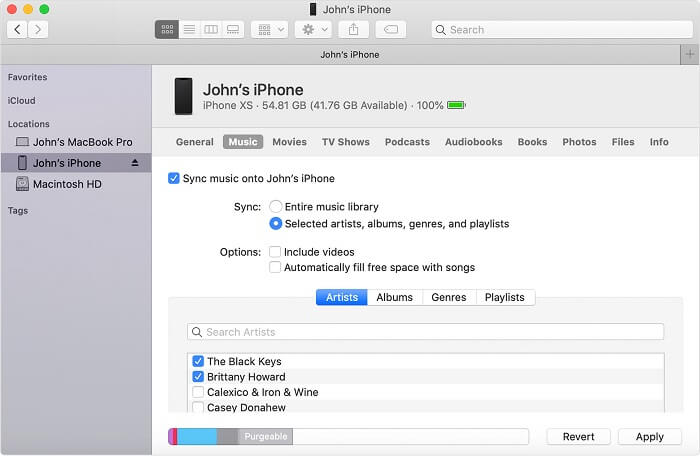
Step 1. Connect your iPod to your Mac using a USB cable, or if you set up WiFi syncing, you can use a WiFi connection.
Step 2. Open Finder on your Mac, and then select your iPod in the Finder sidebar.
Step 3. At the top of the Finder window, click Music, then check “Sync music onto [your iPod’s name]”.
Step 4. Choose a Spotify music file or a selection of Spotify music files you want to sync from a Finder Window, then click Apply to start the transfer.
Method 2. Put Spotify Music on iPod with iTunes on PC
If you’re using macOS Mojave or earlier or a Windows PC, use iTunes to sync local songs to your iPod. Make sure that iTunes has been installed on your computer before syncing.
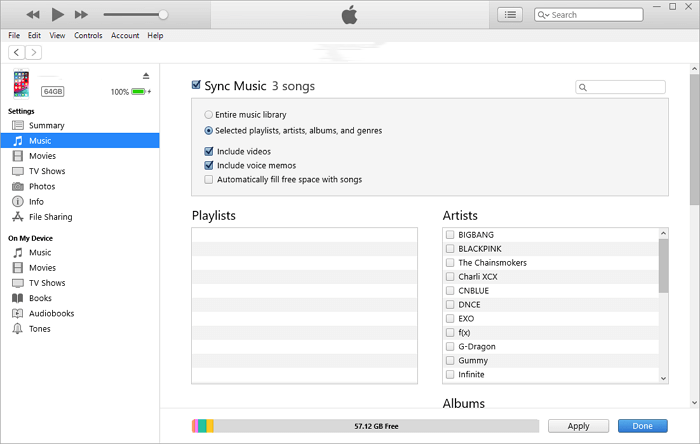
Step 1. Connect your iPod to your Windows PC using a USB cable, or if you set up WiFi syncing, you can use a WiFi connection.
Step 2. Launch iTunes on your Windows PC, and create a new playlist in iTunes for saving Spotify songs by clicking File > New > Playlist.
Step 3. Click the iPod touch near the top left of the iTunes windows and choose Music.
Step 4. Check Sync Music and select Entire music library or Selected playlists, artists, albums, and genres.
Step 5. After selecting Spotify songs that you want to sync, click Apply to start transferring Spotify music from your Windows PC to your iPod.
Method 3. Move Spotify Music to iPod Using Apple Music
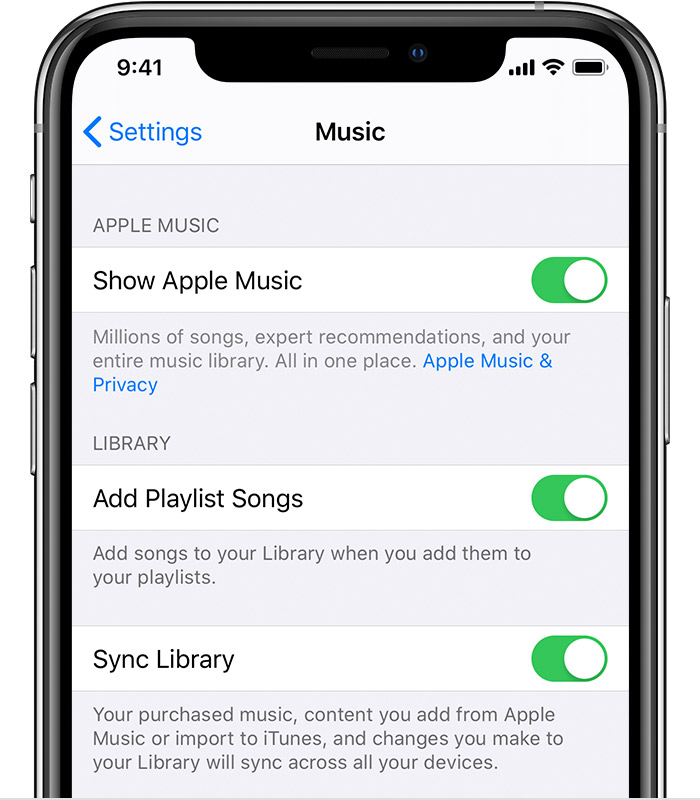
If you subscribe to Apple Music, you can turn on Sync Library to access your Spotify music by downloading it from Apple Music on your iPod.
Step 1. Open Apple Music on your Mac or iTunes on your Windows PC.
Step 2. From the menu bar at the top of your screen, choose Music > Preferences on your Mac or Edit > Preferences on your Windows PC.
Step 3. Go to the General tab and for Mac users, select Sync Library to turn it on; as for Windows users, select iCloud Music Library to turn it on.
Step 4. Then transfer Spotify music to Apple Music or iTunes to make Spotify music sync on all of your devices.
Step 5. Go to Settings > Music on your iPod and turn on Sync Library, then download Spotify songs from Apple Music on your iPod.
Part 5. Conclusion
Trying to figure out how to play Spotify on your iPod? After reading the post, you do know how to get it done. If you have an iPod touch, you can control the music playback directly from the iPod touch. With an iPod Nano, Shuffle, or Classic, you can use TunesMake Spotify Music Converter to download Spotify songs first and then transfer them to your iPod for playing without any hassle.
Related Articles

A senior editor from TunesMake, dedicated to sharing professional tutorials and solutions of software, movies, and music.
- 1
- 2
- 3
- 4
- 5
- 6
- 7
 Leave Your Comment
(0)
Leave Your Comment
(0)

 Download Center

