









 Store
Store


If you are a high-fidelity audio lover, you know that Tidal Max and HiFi tracks offer unparalleled sound quality. However, that quality comes at a cost: storage space. A single Hi-Res FLAC album can easily exceed 1GB, quickly filling up your phone's internal memory.
The good news? You can easily download Tidal music to an SD card. Whether you want to free up space on your Android device or use your music on a dedicated Digital Audio Player, this guide covers the official methods and expert workarounds to manage your Tidal library like a pro.
Part 1. Can You Download Tidal to SD Card?
Yes, you can download Tidal music to an SD card, provided you are using an Android device that supports expandable storage. This feature is a lifesaver for audiophiles since high-fidelity Max tracks can quickly eat up internal phone memory. However, how you do it depends on whether you want to use the official Tidal app or a third-party converter for more flexibility.
To help you decide the best way to manage your library, here is a professional between the official Tidal app and using a specialized tool like TunesMake Tidal Music Converter. Depending on your demands, choose a suitable way to download Tidal music to an SD card.
| Feature | Official Tidal App | TunesMake Tidal Music Converter |
|---|---|---|
| Primary Goal | Save internal phone storage | Full music ownership and device portability |
| File Format | Encrypted (Only playable in Tidal) | Open-source (FLAC, MP3, WAV, etc) |
| Subscription | Requires active paid subscription | Files kept forever (Even if you cancel) |
| Device Support | Only on the device that downloaded it | Any device like MP3 player, car, speaker, and more |
| Speed | Known for Indexing Lag on SD cards | Fast playback |
Part 2. Official Way to Get Tidal Download to SD Card (Android Devices)
For most users, the goal is simply to shift the storage burden from the phone's internal memory to an external MicroSD card. Tidal's Android app includes a built-in setting for this, but there is a hidden step most people miss that prevents the switch from working correctly. Here's how to make Tidal store in the SD card.
Step-by-Step to Change Tidal Download to SD Card
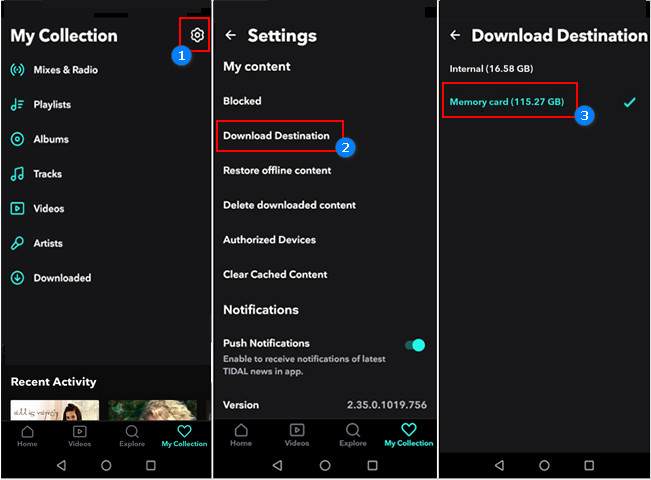
Step 1. Open the Tidal app on your Android device.
Step 2. Tap the Settings in the top right corner.
Step 3. Scroll down to the Download Destination section.
Step 4. From the two options, select Memory Card.
⚠️ Pro-Tip for Existing Tidal Downloads
If you have already have Tidal music downloaded, simply switching the toggle will not move your Tidal music files. To successfully migrate your Tidal music library, do the following steps.
Step 1. On your Android phone, go to Settings > Help > Clear Cache.
Step 2. Then tap Settings > Downloads > Delete Download Content in the Tidal app.
Step 3. Go back to Settings and change the destination to Memory Card.
Step 4. Search for your playlists and hit the download toggle again.
Part 3. Freedom Way to Download Tidal Music to SD Card (No Limitations)
Non-Android users often find that the Tidal app doesn't allow saving to an SD card. Furthermore, official downloads are DRM-protected, meaning they won't play on a Sony Walkman or a car stereo without the Tidal app. To bypass these limits, you can use a dedicated tool like TunesMake Tidal Music Converter. This is particularly useful because it converts Tidal's encrypted cache into open-source formats like FLAC or MP3. Here's how to download Tidal music to SD card.

TunesMake Tidal Music Converter –
Download Tidal music to SD card
- Download songs, albums, playlists, and artists from Tidal without premium
- Convert Tidal music to MP3, FLAC, WAV, AIFF, M4A, and M4B losslessly
- Handle the conversion of Tidal music up to 25× faster speed and in batch
- Save a whole set of ID3 tags during the conversion process automatically
- Preserve the original audio quality up to HiRes FLAC or 320kbps MP3
Security Verified. 100% Clean & Safe.
Step 1 Add Target Tidal Songs to TunesMake
Start by opening TunesMake Tidal Music Converter, then the Tidal web player will be loaded automatically. Locate your library in the Tidal web play and find any content like tracks, albums, or playlists to download. Then simply click the + button to add them to the conversion list. After adding Tidal songs to the conversion list, proceed to the next step.

Step 2 Select MP3 as the Output Format
Before downloading Tidal songs, you need to set the output parameters for Tidal music. You can click the menu bar and select the Preferences option. In the pop-up window, you can set the output format, bit rate, sample rate, and channel. As TunesMake supports six audio formats such as MP3 and FLAC, you can select MP3 as the output format.

Step 3 Download Tidal Music as Local Files
Now you can click the Convert button at the bottom right of the converter. Then TunesMake Tidal Music Converter will download and save Tidal songs to your computer. By clicking the converted icon, you can browse the converted songs in the history list. Then you can move those converted Tidal songs to an SD card.

Step 4 Move Tidal Music Files to SD Card
Go to insert your SD card into a card reader and plug the reader into the USB port of your computer. Create a folder in the SD card to store Tidal music files and locate the folder where you store the converted Tidal songs. Then you can move those converted Tidal music files to the newly created folder in the SD card.
Part 4. FAQs about Tidal Download to SD Card
Why can't I move Tidal to SD card on my iPhone?
If you are an iPhone user, you've likely noticed there is no Download Destination option. Because Apple device don't have SD card slots. To save space on iOS devices, go to Settings > Downloads > Audio and switch your Download quality from Max to High. This reduces file sizes by up to 90% while still providing excellent mobile sound.
Will my Tidal music disappear if I eject the SD card?
Yes. If the SD card is removed, the Tidal app will show the songs as Unavailable. They will reappear once the card is re-inserted, though the app may take a moment to re-index them.
Does downloading Tidal to an SD card drain the battery?
Slightly. Reading data from an external card requires a tiny bit more power than internal memory. If you're worried about battery life, keep your screen brightness down while listening.
Can I play these Tidal files in my car's SD slot?
No. Files downloaded via the official app are encrypted for security. If you need to play music in a car or MP3 player, you would need to use a third-party converter like TunesMake Tidal Music Converter to save the tracks as standard FLAC files first.
Part 5. Conclusion
While the official Tidal app method is find for casual phone listening, using a third-party tool like TunesMake Tidal Music Converter is the gold standard for enthusiasts. It provides the freedom to use high-end Digital Audio Players and dedicated playback hardware without the limitations of a locked ecosystem. By owing your Tidal FLAC files, you ensure your music sounds its best, regardless of the device.
Related Articles

A senior editor from TunesMake, dedicated to sharing professional tutorials and solutions of software, movies, and music.
- 1
- 2
- 3
- 4
- 5
- 6
- 7
 Leave Your Comment
(0)
Leave Your Comment
(0)

 Download Center

