









 Store
Store


For audiophiles, the partnership between Tesla and Tidal is a match made in heaven. While most car audio systems rely on compressed streams, Tesla's premium sound architecture combined with Tidal's lossless library offers a true studio-quality experience on wheels. If you are trying to play Tidal on Tesla and running into roadblocks, this guide is designed to solve your problems fast. From initial setup to fixing common connectivity glitches, here is everything you need to know to get your Tesla Tidal moving.

Part 1. What Is Tidal on Tesla?
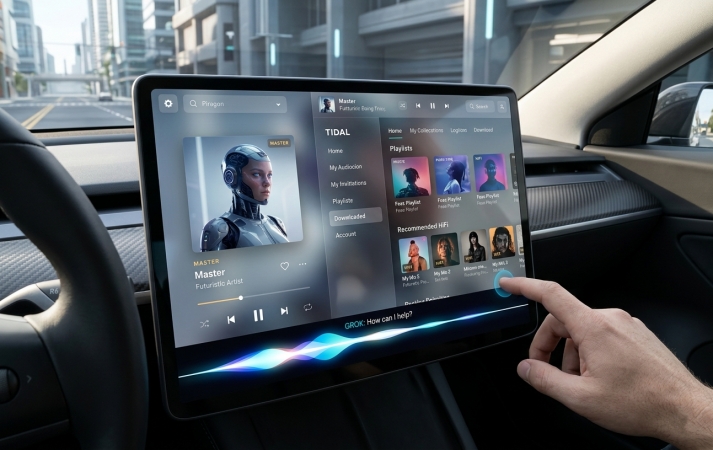
Tidal on Tesla is a high-fidelity music streaming integration that allows owners to listen to lossless audio directly through the vehicle's infotainment system. It is widely considered the best streaming option for Tesla's Premium Audio systems because it offers significantly higher sound quality than Spotify and Apple Music. Here are the core features of Tidal on Tesla.
Feature 1. High-Fidelity Audio Mastery
The primary reason to use Tidal over other services like Spotify or Apple Music is the access to lossless audio formats. Tesla supports HiFi and Max quality, but it typically limits streaming quality to a lower bitrate over cellular data, even with Premium Connectivity. To get Tidal Max or HiFi quality while driving, use a mobile hotspot and toggle the Remain Connected in Drive setting in the WiFi menu of Tesla.
Feature 2. Native Offline Mode
One of Tidal's standout features on Tesla is the ability to download music directly to the car's internal storage. With a Tidal paid account, you can download your liked Tidal music while parked on a WiFi network. Once downloaded, you can listen to your library without needing any cellular or WiFi connection. But a Tesla Premium Connectivity subscription is required to listen to downloaded content while not connected to any network.
Feature 3. Smart Integration
The software update has streamlined how you interact with the Tidal for Tesla app. Using the new hands-free wake word, you can now control Tidal with natural language. For example, you can say, "Hey Grok, play my Discovery playlist on Tidal" or "Shuffle my downloaded Tidal tracks."
Key Limitations to Keep in Mind
While enjoying lots of conveniences of Tidal on Tesla, there are still some limitations. One is mainly related to a Tesla Premium Connectivity subscription; others are due to differences from the Tidal app for other devices.
Premium Connectivity:
While you can use a hotspot, most native streaming features required like Offline Mode require Tesla's Premium Connectivity ($9.99 per month) for a seamless experience.
Interface Differences:
The Tesla Tidal app is a streamlined version of the mobile and desktop app. Some extremely large library management tools are simplified for driver safety.
No Dolby Atmos:
While Tidal supports Dolby Atmos, Tesla's current audio hardware is optimized for proprietary Immersive Sound spatial processing rather than native Atmos decoding.
Part 2. How to Get Tidal on Tesla Online
Tesla added Tidal as a native integration to provide a premium alternative to standard streaming. And the process of setting up Tidal on Tesla has been streamlined by using QR codes to avoid tedious on-screen typing. Here is how to add Tidal to Tesla for playing music.
Requirements:
-
Tidal Premium Subscription. You must have an active Tidal Individual account. The native Tesla app doesn't support the Tidal Free tier.
-
Tesla Premium Connectivity. A Tesla's Premium Connectivity ($9.99/month or $99/year) subscription is required to stream Tidal over the car's built-in 5G or LTE.
-
WiFi or Hotspot. Without a Tesla Premium Connectivity subscription, you have to connect your Tesla to your phone's hotspot for playing music.
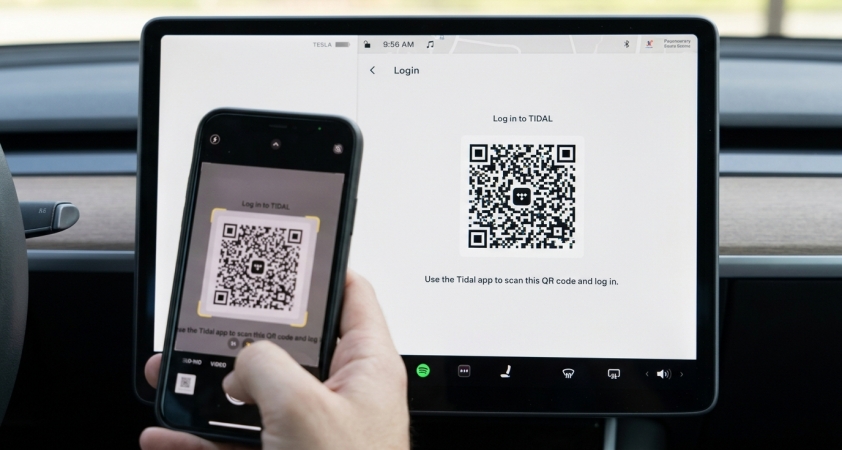
Step 1. Tap the Application Launcher at the bottom of your Tesla touchscreen.
Step 2. Select Tidal, then a QR code will appear on the screen.
Step 3. Scan this QR code with your phone's camera.
Step 4. Log in to your Tidal account on your phone and authorize the Tesla integration.
Step 5. Once authorized, your playlists and My Collection will sync instantly.
Note
If using a hotspot, go to your WiFi settings in the car and toggle Remain Connected in Drive. Otherwise, the car will kick you off the internet as soon as you put it in Gear.
Don't take your eyes off the road. Use voice search to control your audio experience.
"Play [Artist Name] on Tidal."
"Next track."
"I like this song."
"Switch media source to Tidal."
Part 3. How to Listen to Tidal on Tesla Offline
One of the best feature of playing Tidal on Tesla is the ability to listen without a data connection. To listen to Tidal on your Tesla without an internet connection, you can use the native Offline Mode within the Tesla Tidal app. Additionally, you can download Tidal music to a USB drive for playing in Tesla. Follow these two expert methods to get offline Tidal on Tesla now.
| Feature | Native App Offline | USB Drive Method |
|---|---|---|
| Setup Ease | Easy | Easy |
| Audio Quality | Up to HiRes FLAC | Lossless Audio |
| Internet Needed | Yes (For periodic verification) | No |
| Subscription Required | A Tidal premium subscription A Tesla Premium Connectivity subscription |
A Tidal premium subscription (Only when downloading music) |
Method 1. Get Native Tidal Offline Mode on Tesla
Using the native Tidal Offline Mode is the most seamless way to listen without a signal, but it requires a few prerequisites: a paid Tidal subscription, a Tesla Premium Connectivity subscription, and a one-time WiFi connection to download Tidal tracks.
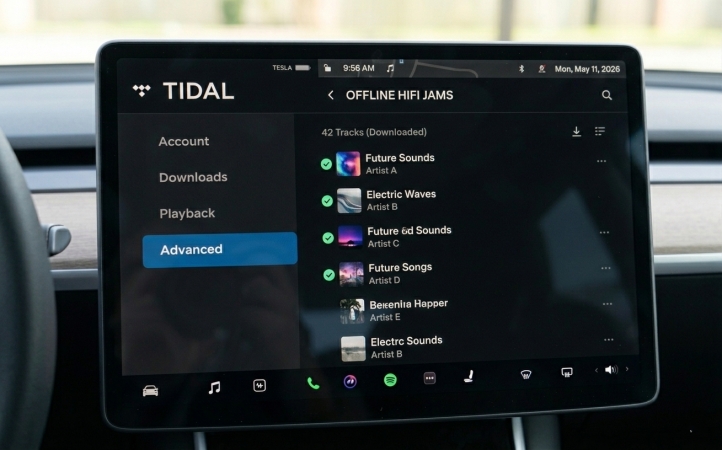
Step 1. Ensure your Tesla is connected to a stable WiFi network.
Step 2. Navigate to the Tidal app on your Tesla touchscreen.
Step 3. Go to your Playlists or Albums under the My Collection tab.
Step 4. Tap the Download icon on the album or playlist page.
Step 5. Go to the Downloaded section within your library and start offline listening.
Crucial Note:
Even if you have music downloaded, the native Tidal app requires to verify your subscription is still active every few days.
Method 2. Use TunesMake for USB Offline Playback
If you want to avoid Tesla's cellular data requirements or the bugs that occasionally plague the native app, you can download your Tidal music library for playing via the Tesla USB port. Because Tidal's standard offline downloads are encrypted for use only within its app, many Tesla owners use a Tidal music downloader like TunesMake Tidal Music Converter.
With TunesMake Tidal Music Converter, you can download and convert Tidal tracks into 16-bit or 24-bit FLAC files that the Tesla media player can read normally. Once your Tidal music is on a USB drive, you don't need Tesla Premium Connectivity or a mobile hotspot to listen. Follow the steps below to download Tidal music onto a USB drive for playing in Tesla.

TunesMake Tidal Music Converter –
Download Tidal music for playing in Tesla
- Download songs, albums, playlists, and artists from Tidal without premium
- Convert Tidal music to MP3, FLAC, WAV, AIFF, M4A, and M4B losslessly
- Handle the conversion of Tidal music up to 25× faster speed and in batch
- Save a whole set of ID3 tags during the conversion process automatically
- Preserve the original audio quality up to HiRes FLAC or 320kbps MP3
Security Verified. 100% Clean & Safe.
Step 1 Select Tidal Music to Download
Once you launch TunesMake Tidal Music Converter, you will see the Tidal web player where you can log into your Tidal account and browse your music collection. Go to find any music track, album, playlist, or artist to download. Then click the + icon to add your liked content into the conversion list for downloading and converting.

Step 2 Configure the Output Audio Parameters
Before initiating the conversion of Tidal music, you need to set the output audio parameters on demand. Click the menu bar at the top right corner and select the Preferences option. There are some audio parameters, such as the output format, bit rate, sample rate, and channel, that you can personalize. Here you can choose one format as TunesMake supports 6 popular formats.

Step 3 Download Tidal Music to Plain Formats
After setting the formats, you can click the Convert button to start the conversion. It's no problem to convert a batch of music files. You'll only need to wait for a short time till it is finished. When the conversion is over, you can access the converted music files easily in your local folder by clicking the Converted icon.

Step 4 Stream Downloaded Tidal Music on Tesla
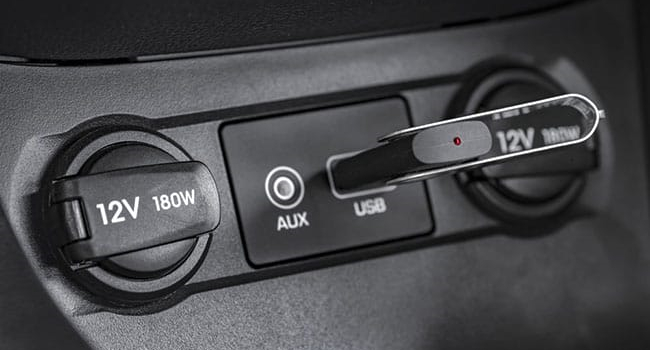
Now insert your USB drive into your computer and transfer the downloaded Tidal music to the drive. Then plug it into the Tesla USB port. Next, navigate to the Tesla media player and find the folder where you store the downloaded Tidal music. You can listen to your Tidal music on Tesla without Tesla Premium Connectivity.
Part 4. Fixes for Common Tesla Tidal Problems
Even with the latest software updates, Tesla users occasionally run into bugs while playing music from Tidal. Here is how to solve the most frequent frustrations.
Fix 1: Music Won't Load or App is Frozen
The black screen is a known bug. The fastest fix is a soft reset. Hold down both scroll wheels on your steering wheel for 10 seconds until the screen turns black and the Tesla "T" logo appears.
Fix 2: "Low Quality" Sound
If your Tidal tracks sound thin, check your settings. By default, the car may lower quality to save data. To get the best sound, you must download tracks via Wi-Fi to the car's internal storage.
Fix 3: The Missing Shuffle/Repeat Buttons
The Tesla's user interface sometimes hides these icons. If you can't find them, use Voice Commands. Press the right scroll wheel and say, "Shuffle my music on Tidal."
Fix 4: Buffering and Skipping
This usually occurs in areas with poor cellular reception. To prevent this, navigate to your favorite album and tap the Download icon. This saves the music directly to the car's hardware.
Part 5. Conclusion
The process of playing Tidal on Tesla is pretty easy. With the above steps, you can easily get Tidal on Tesla whether you're online or offline. If you have both Tidal premium subscription and Tesla Premium Connectivity subscription, you can download your Tidal music library for offline listening in Tesla at any time. For a better offline listening experience, download Tidal music tracks to a USB drive with TunesMake Tidal Music Converter. Then you can enjoy offline Tidal music tracks, even without a Tesla Premium Connectivity subscription. Don't hesitate, and start your listening of Tidal on Tesla now.
Related Articles


A senior editor from TunesMake, dedicated to sharing professional tutorials and solutions of software, movies, and music.
- 1
- 2
- 3
- 4
- 5
- 6
- 7
 Leave Your Comment
(0)
Leave Your Comment
(0)

 Download Center

