







 Store



Driving a Tesla without your favorite music can feel incomplete. Fortunately, Tesla's infotainment system offers deep integration with popular streaming services, with Spotify taking center stage. Whether you want to stream directly from the dashboard, use your mobile phone's internet connection, or play music offline, setting up Spotify on your Tesla is straightforward once you understand the connectivity and account requirements. This guide walks you through every method to play Spotify on Tesla, breaks down account requirements, and provides simple troubleshooting solutions for common playback errors.
Part 1. Does Tesla Have Spotify?
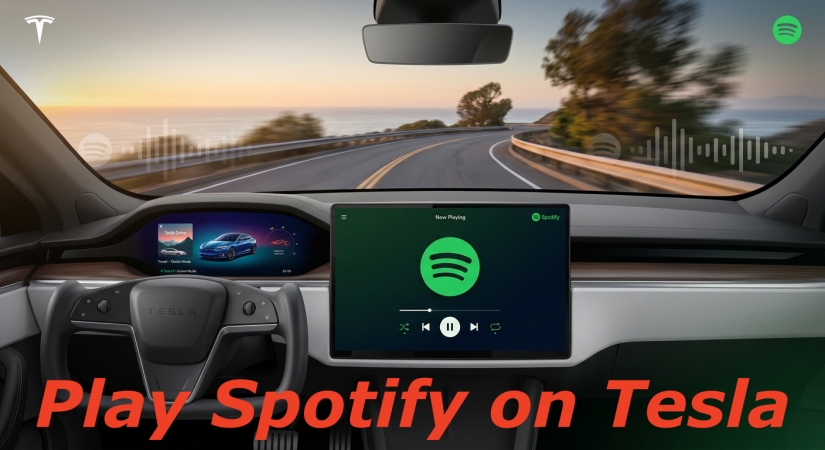
Yes, Tesla vehicles have a built-in Spotify app integrated directly into the dashboard touchscreen. With this built-in Spotify app, you can access your music library and start your listening when meeting the account requirements. Also, there are some other methods available for you to play Spotify on Tesla. Here are all the methods of getting Tesla Spotify playback.
| Method | Account Required | Internet Required | Key Advantage |
|---|---|---|---|
| Touchscreen App | Spotify Free or Premium | Tesla Premium Connectivity or Wi-Fi | Integrated touchscreen experience and voice control |
| Mobile Hotspot | Spotify Free or Premium | Smartphone Cellular Data | Use the Spotify mobile app without paying for Premium Connectivity |
| Bluetooth Audio | Spotify Free or Premium | Smartphone Cellular Data | Simple setup for any mobile device |
| USB Media Drive | Any Spotify account | None (100% Offline) | Play anywhere without cellular data or subscription fees |
Part 2. How to Connect Spotify to Tesla for Playing
Depending on your internet subscription and personal setup, you can connect Spotify to your Tesla using three reliable methods. Here is how to connect Spotify to Tesla for playing.
Method 1. Connect Spotify to Tesla via the Built-in App
The built-in Spotify application provides the cleanest user experience, allowing full control through Tesla's central screen and steering wheel controls.
Account & Connectivity Requirements:
-
Spotify Account: Tesla software updates support both Spotify Free and Premium accounts directly within the vehicle's app.
-
Internet Access: Streaming via the touchscreen requires an active internet connection through either Tesla Premium Connectivity ($9.99/month) or an active Mobile Hotspot.
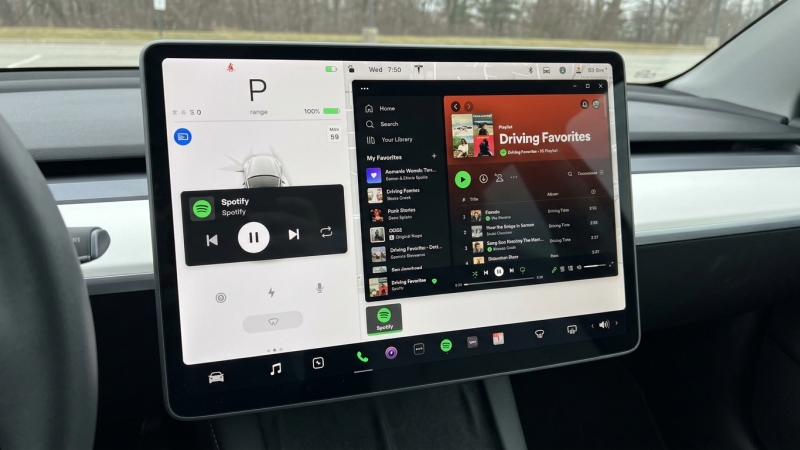
Step 1. Power on your Tesla's touchscreen and head to the Application Launcher at the bottom.
Step 2. From the list of apps, select Spotify, and you'll be directed to the login screen.
Step 3. Open the camera app on your phone, scan the QR code, and open the generated link.
Step 4. Log in with your Spotify credentials and tap Authorize to connect your account.
Once authenticated, your playlists, library, and saved albums will sync automatically to the dashboard. Now you can start playing music in your Tesla.
Note
The Spotify for Tesla application is only available for Model 3, Model S, Model X, and Model Y in the USA, Canada, Mexico, Europe, Turkey, Australia, New Zealand, Taiwan, Hong Kong, United Arab Emirates, and Jordan.
Method 2. Play Spotify on Tesla via Hotspot Setup
If you prefer not to pay $9.99 per month for Tesla's Premium Connectivity package, you can still use the built-in Spotify app by connecting your car to your smartphone's mobile hotspot.
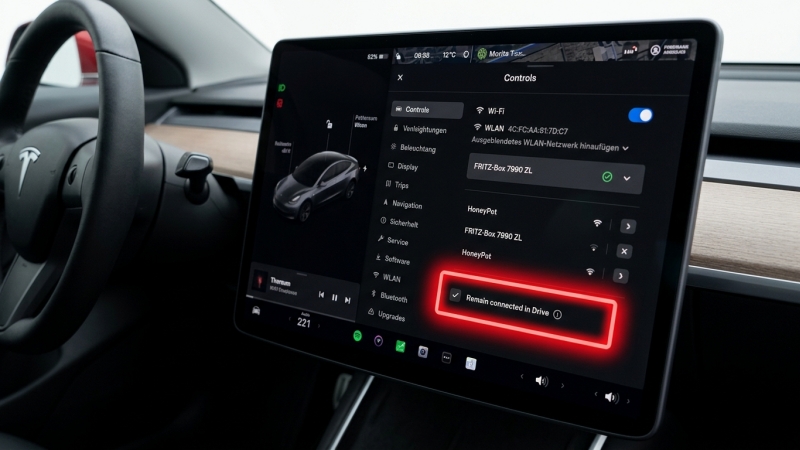
Step 1. Turn on the Personal Hotspot on your iOS or Android device.
Step 2. On your Tesla touchscreen, tap the Wi-Fi icon at the top right corner.
Step 3. Select your phone's hotspot name and enter the Wi-Fi password.
Step 4. Once connected, tap on your network's name again in the list to open Wi-Fi Settings.
Step 5. Check the box next to "Remain connected in Drive".
Note
Enabling this setting ensures your hotspot connection stays active when you switch gears into Drive, letting you stream through the Spotify app without interruption.
Method 3. Use Spotify in Tesla via Bluetooth Audio
Bluetooth audio is a reliable backup method if you want to stream directly from your smartphone's Spotify app without setting up hotspot tethering.
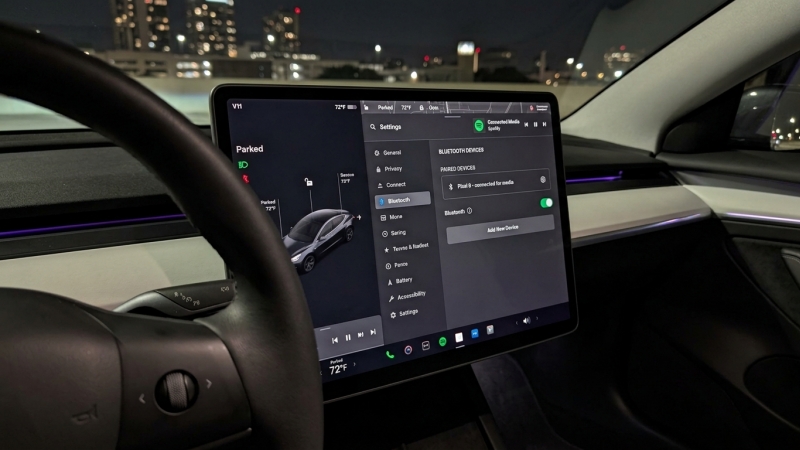
Step 1. Enable Bluetooth on your smartphone.
Step 2. On the Tesla display, tap the Bluetooth icon at the top right, then select Add New Device.
Step 3. Choose your phone from the listed devices and confirm the pairing pin.
Step 4. Change the audio source on your Tesla screen to Bluetooth.
Step 5. Open the Spotify app on your phone and press Play.
While Bluetooth streaming lacks some advanced browse features of the dashboard app, you can still skip tracks and adjust volume using the left scroll wheel on your steering wheel.
Part 3. How to Play Spotify on Tesla without Premium
If you frequently drive through areas with poor cellular service, want to save mobile data, or prefer a completely offline music library without recurring subscription fees, playing audio files directly from a USB flash drive connected to your Tesla is an ideal alternative.
Because Tesla's built-in USB media player can only play standard audio formats like MP3 or FLAC, direct streaming cache files from Spotify cannot be read by the vehicle. To overcome file format restrictions, TunesMake Spotify Music Converter can assist by converting Spotify tracks, albums, or playlists into open MP3 or FLAC files on your computer. Then you can transfer these downloaded Spotify music files to a USB drive for playing in your Tesla.

TunesMake Spotify Music Converter –
Download music from Spotify without premium
- Download Spotify songs, albums, playlists, audiobooks, and podcasts
- Losslessly convert Spotify music to MP3, FLAC, WAV, AIFF, and more
- Remove ads from Spotify music tracks even with a Free account
- Convert Spotify music at 15× faster speed in batch with ID3 tags kept
Security Verified. 100% Clean & Safe.
Step 1 Select Spotify Songs to Download
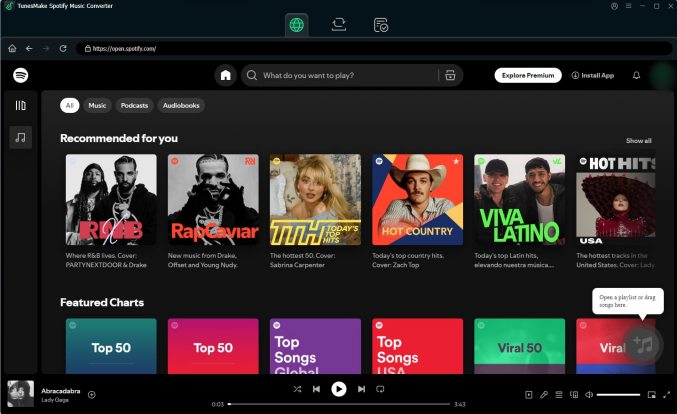
Open TunesMake Spotify Music Converter on your computer, and then it will automatically load the built-in Spotify web player. Next, head to the homepage of Spotify, click the Browse button, and then select the desired songs you wish to download. Dragging and dropping your desired songs or playlists from Spotify to the interface will load them into the conversion list.
Step 2 Configure the Output Audio Format
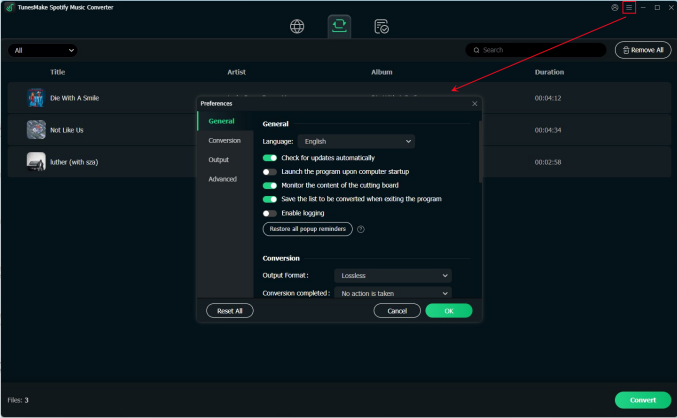
After adding your desired songs or playlists to the conversion list, you can click the menu bar and select the Preferences option under Menu. Then you'll see a pop-up window where you can set the output format, bit rate, sample rate, and channel. Here are six common audio formats, including MP3, AIFF, FLAC, WAV, M4A, and M4B, for you to choose from.
Step 3 Start to Download Music from Spotify
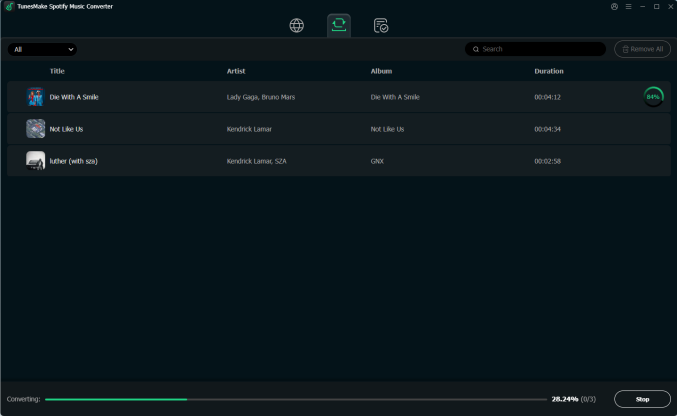
Once you're satisfied with your settings, click the Convert button on the bottom right corner. TunesMake Spotify Music Converter will start to download and convert songs from Spotify to your specified format. When the conversion process finishes, you can browse all the converted songs in the history list by clicking on the Converted button.
Step 4 Play Spotify in Tesla through a USB Drive
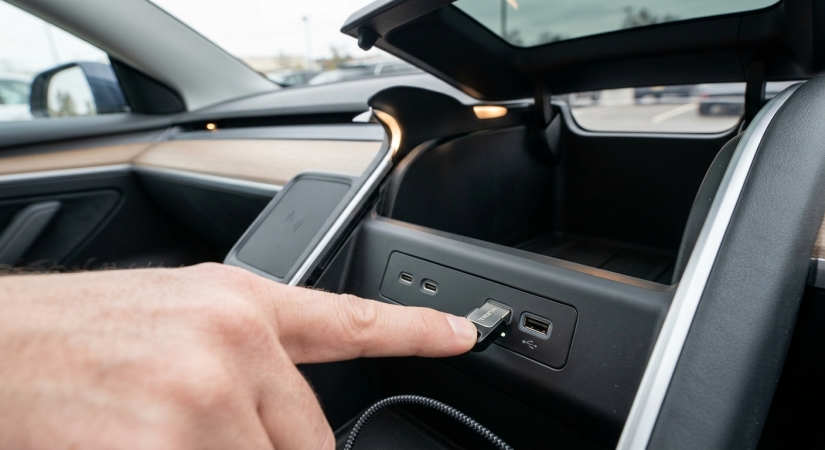
Now you can move your downloaded music files to a USB drive. Just insert your USB drive into the front USB port of your Tesla. Go to touch Media Player USB, and then select the folder that contains your music files. Now you can play music with the built-in media player. Also, you can use the previous and next arrows in Media Player to scroll through your songs.
Part 4. FAQs about Tesla and Spotify
Do I need Spotify Premium to play Spotify on Tesla?
No. Tesla software updates allow both Spotify Free and Spotify Premium account holders to sign into the touchscreen app. However, Spotify Free accounts will include shuffle play restrictions and ad interruptions, just like on other platforms.
How to log out of Spotify in Tesla?
To log out of Spotify on your Tesla, you can do it directly from the vehicle's touchscreen. If you left your account signed in on a rental or a vehicle you no longer own, you can go to spotify.com/account using a web browser and sign out remotely.
Can I use voice commands to control Spotify on Tesla?
Yes. Press the right scroll wheel on your steering wheel and state your request like "Play synthwave on Spotify" or "Play Justin Bieber" clearly. The system will search and launch the track within the Spotify app.
How to queue songs on Spotify Tesla?
To queue songs on Spotify in your Tesla, the method depends on whether you are using the touchscreen app or streaming via Bluetooth. Tesla supports a direct swipe gesture in its Spotify player to queue songs. If you listen to Spotify in your Tesla via Bluetooth, you can queue songs in Spotify on your smartphone.
Part 5. Conclusion
Playing Spotify on your Tesla doesn't have to be complicated, regardless of your connectivity plan or subscription tier. Between the dashboard app, smartphone hotspot tethering, Bluetooth streaming, and offline USB playback, you have multiple ways to keep your favorite playlists running seamlessly on every drive.
Related Articles

A senior editor from TunesMake, dedicated to sharing professional tutorials and solutions of software, movies, and music.
- 1
- 2
- 3
- 4
- 5
- 6
- 7
 Leave Your Comment
(0)

 Download Center


