









 Store
Store


For audiophiles and music lovers, the combination of Tidal and Sonos is a match made in heaven. While Sonos provides some of the most seamless multi-room hardware on the market, Tidal delivers the high-fidelity (HiFi) and Master Quality audio that truly puts that hardware to the test. The integration between these two platforms is deeper than ever, supporting high-resolution 24-bit audio and spatial sound. This guide will show you exactly how to play Tidal on Sonos using various methods, ensuring you get every bit of detail out of your favorite tracks.
Part 1. Does Sonos Support Tidal?
Sonos fully supports Tidal, and the integration is one of the most advanced for high-fidelity music streaming. You can access Tidal's vast library, including curated playlists and HiFi tracks, directly through a Sonos speaker. Here is a breakdown of how the support works and the features available.
-
On-Demand Streaming: Play any track, album, or playlist from Tidal's library.
-
High-Quality Audio: Support Tidal at CD quality up to 16-bit, 44.1 kHz across all systems.
-
HiRes & Dolby Atmos Support: Stream Dolby Atmos Music and HiRes FLAC tracks for a more immersive and detailed listening experience.
-
Direct Control: Cast music directly from the native Tidal app to a Sonos speaker, staying within the Tidal interface.
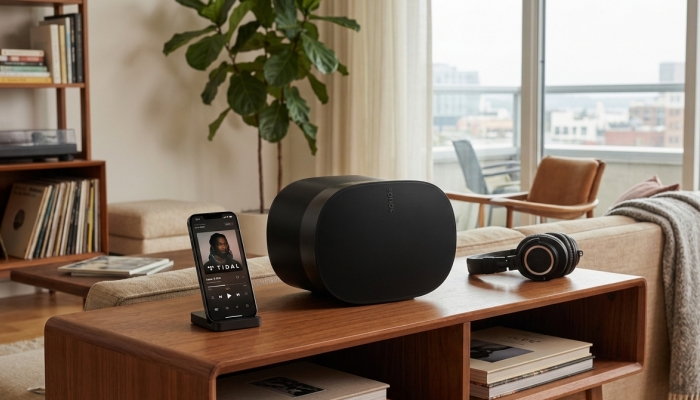
While the Tidal and Sonos integration is powerful, it has specific technical and functional limitations. Understanding these constraints helps in setting up Tidal on Sonos for the best possible performance.
❌ No Tidal Desktop App Support: Unlike the Tidal mobile app, the Tidal desktop application does not support direct casting to Sonos. To play Tidal from a computer to your Sonos speaker, you must use the Sonos S1 Controller app.
❌ No Video Content Support: Tidal's extensive music video catalog cannot be played through the Sonos app. For newer Sonos models, the only workaround is using AirPlay 2 to stream the audio while watching the video on your device.
Part 2. How to Use Sonos with Tidal for Playing
There is more than one way to connect your Tidal music to your Sonos speakers. Depending on whether you value speed, multi-room control, or the Tidal interface, choose your suitable way.
| Feature | Tidal Connect | Sonos App | Amazon Alexa App |
|---|---|---|---|
| Max Audio Quality | HiRes FLAC (24-bit) | HiRes FLAC (24-bit) | HiRes FLAC (24-bit) |
| Interface | Native TIDAL UI | Basic Sonos UI | Basic Alexa UI |
| Atmos Support | Yes | Yes | Yes |
| Playlist Editing | Yes | No | No |
| Volume Control | Restricted | Robust | Robust |
| Voice Command | No | Yes | Yes |
| Best For | Speed & Familiarity | Whole-Home Audio | Whole-Home Audio |
| Primary Benefit | Uses the official TIDAL app interface. | Best for grouping multiple speakers and voice control. | Fastest way to play a song from Tidal via voice commands. |
Option 1. Play Tidal on Sonos via the Tidal Connect
Most users prefer Tidal Connect because it allows you to use the native Tidal app interface, which is faster and more feature-rich to control your Sonos speakers directly.
Requirements:
-
A mobile phone with the latest Tidal app
-
A stable WiFi network
-
A Sonos speaker
How to use Tidal Connect with Sonos
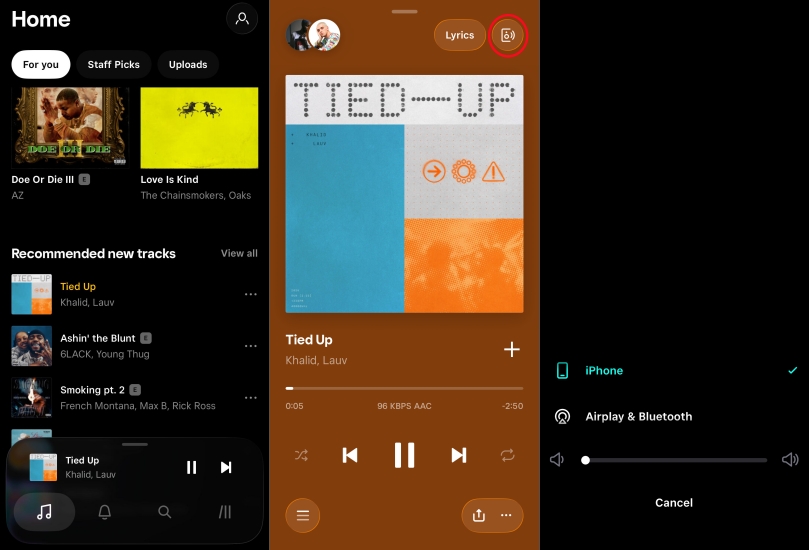
Step 1. Open the Tidal app on your mobile device.
Step 2. Play a track and tap the speaker icon in the bottom-left corner.
Step 3. Find your Sonos speaker or room in the list of available devices.
Step 4. Select the speaker, and the music will hand off to your Sonos system.
Option 2. Play Tidal on Sonos via the Sonos App Integration
Adding Tidal directly to the Sonos Controller app on a computer or the Sonos app on a mobile phone is essential if you want to group multiple rooms together or use Sonos Voice Control.
Requirements:
-
A computer with the Sonos S1 Controller
-
A mobile phone with the Sonos app
How to add Tidal to the Sonos app
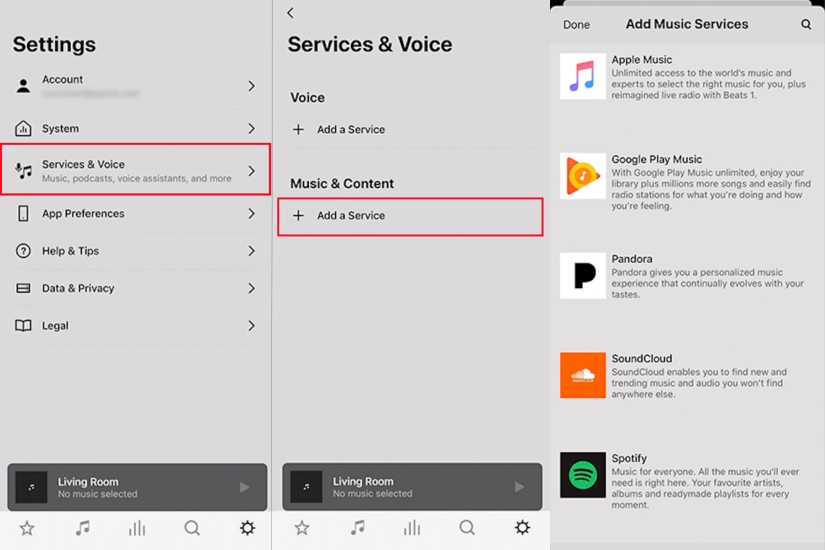
Step 1. Open the Sonos app and tap the Settings icon.
Step 2. Go to Services & Voice, then select Add a Service.
Step 3. Scroll down to Tidal and select Add to Sonos.
Step 4. Enter your Tidal credentials to complete the connection.
Once connected, you can browse your Tidal "My Mix," "Daily Discovery," and "Saved Albums" directly within the Sonos search bar.
Option 3. Play Tidal on Sonos via the Amazon Alexa App
Using the Amazon Alexa app is another way to play Tidal on your Sonos speakers, especially when you want to use voice commands to play Tidal tracks directly on your Alexa-enabled speakers.
Requirements:
-
A mobile phone with the Alexa app
-
An Alexa-enabled Sonos speaker
How to link Tidal to the Amazon Alexa app
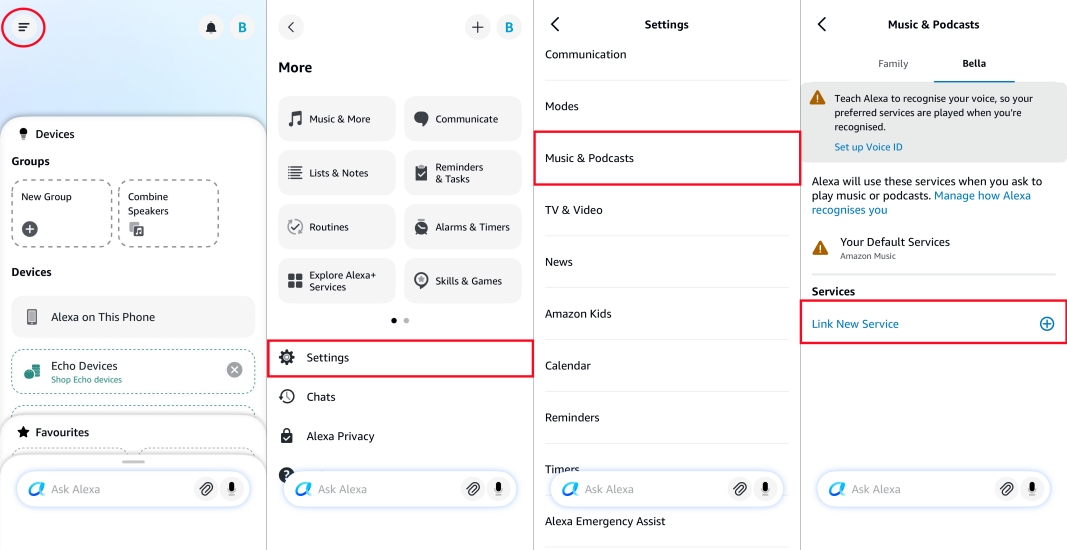
Step 1. Open the Amazon Alexa app on your mobile phone.
Step 2. Tap More in the top left corner, then select Settings.
Step 3. Scroll down to Music & Podcasts and tap Link New Service.
Step 4. Select Tidal from the list and tap Enable to Use.
Step 5. Log into Tidal with your Tidal credentials.
Once linked, you can use commands like "Alexa, play my Daily Discovery in the Living Room," "Alexa, play Taylor Swift on Sonos," or "Alexa, next track."
Part 3. How to Play Tidal on Sonos as a Local Music Library
While streaming directly from the cloud is standard, some users prefer the stability of a local library. This is especially useful if your home internet is prone to outages or if you want to play your favorite Tidal tracks in high fidelity without relying on real-time bandwidth.
For those looking to maintain a permanent collection, TunesMake Tidal Music Converter allows you download Tidal content, including playlists and albums into universal formats like FLAC, WAV, or MP3 while preserving the original ID3 tags and high-resolution quality. After conversion, you won't need the Tidal app or even a Tidal subscription to enjoy your favorite songs on your Sonos speaker. Start downloading Tidal music with TunesMake for playing on Sonos freely.
TunesMake Tidal Music Converter –
Download Tidal music to computer for keeping forever
- Download songs, albums, playlists, and artists from Tidal without premium
- Convert Tidal music to MP3, FLAC, WAV, AIFF, M4A, and M4B losslessly
- Handle the conversion of Tidal music up to 25× faster speed and in batch
- Save a whole set of ID3 tags during the conversion process automatically
- Preserve the original audio quality up to HiRes FLAC or 320kbps MP3
Security Verified. 100% Clean & Safe.
Step 1 Select Tidal Songs to Download
Launch TunesMake Tidal Music Converter on your computer, then log into your Tidal account. In the Tidal web player, go to My Collection and select any song, album, playlist, or artist you want to download. To add Tidal music to the conversion list, you can click the + icon to load the music.

Step 2 Adjust the Output Audio Formats
Then you can set the output audio parameters on demand. Click the menu bar at the top right corner and select the Preferences option. There are some audio parameters like the format and bit rate you can personalize. Here you can choose MP3 or FLAC as the output audio format.

Step 3 Download Tidal Music Tracks
Now confirm your settings, you can click the Convert button to start the conversion of Tidal music. The converted Tidal music will be saved to the default folder. Finally, you can click the Converted icon to open the history list where you can browse the converted Tidal music.

Step 4Start Playing Tidal on Sonos
Now you have downloaded Tidal music to your local folders on computers, things will be super easy to stream Tidal to Sonos. Sonos allows you to stream your music library from any computer, or network-attached storage drive, to your Sonos system. Here is how to add your converted local Tidal music using the Sonos app for Mac OS or Windows.
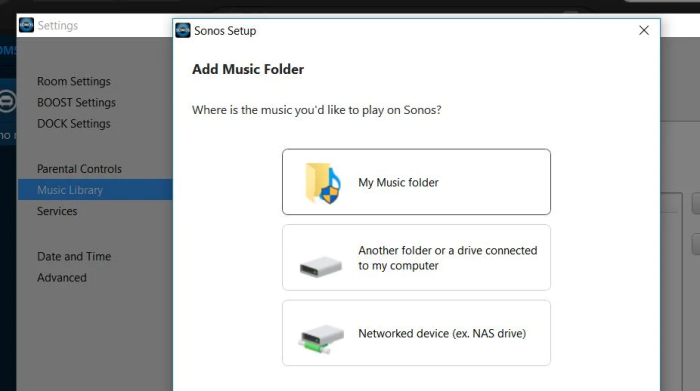
1. Open the Sonos app for Mac OS or Windows.
2. From the Manage menu, go to Music Library Settings.
3. On Mac OS, click + plus; on Windows, select Add.
4. Go to My Music folder to add the converted Tidal songs. If they are not saved in the My Music folder, just select the appropriate option to add.
5. Follow the on-screen instructions to complete adding your music library.
6. Wait for a while for the indexing, and then you can play Tidal music on Sonos speakers with ease.
Part 4. Troubleshooting: Tidal Not Working on Sonos
Even the best setups hit a snag. Some users encounter the issue of Tidal not working on Sonos. If Tidal is not working on your Sonos speaker, don't factory reset your speaker yet. Try these proven fixes first to fix Tidal not working on Sonos.
1. The "Reauthorize" Fix
If you see "Unable to play" or "Account not found," your security token has likely expired.
Fix: Go to Sonos Settings > Services > TIDAL > Reauthorize Account. Log in again, and it should work instantly.
2. The "Grayed Out" Song Fix
If certain songs won't play, it's usually a quality mismatch.
Fix: Ensure your TIDAL subscription is active. If you recently downgraded from "Max" to a lower tier, you may need to remove and re-add the TIDAL service in the Sonos app to refresh your library permissions.
3. The "Missing Speaker" Fix
If your Sonos doesn't show up in the TIDAL Connect list, you need to check the linked network.
Fix: Ensure your phone and your Sonos are on the same Wi-Fi network. If you use a Guest Wi-Fi or a VPN on your phone, TIDAL Connect will not be able to "see" your speakers.
Part 5. Conclusion
Achieving the music playback of Tidal on Sonos shouldn't be a chore. By integrating Tidal with your Sonos system, you've moved beyond standard streaming and into the realm of high-fidelity home audio. Whether you prioritize the sleek interface of Tidal Connect, the multi-room power of the Sonos app, or the hands-free convenience of Alexa, you new how the tools to customize your soundstage exactly how you like it. For those with spotty internet, tools like TunesMake Tidal Music Converter provide a reliable local backup to keep the music playing offline.
Related Articles

A senior editor from TunesMake, dedicated to sharing professional tutorials and solutions of software, movies, and music.
- 1
- 2
- 3
- 4
- 5
- 6
- 7
 Leave Your Comment
(0)
Leave Your Comment
(0)

 Download Center

