









 Store
Store


For audiophiles, music isn't just background noise during a commute, and it's an experience. Tidal has long been the go-to platform for music lovers who refuse to compromise on sound fidelity, thanks to its extensive library of lossless and high-resolution audio. But when you transition from your high-end studio headphones to your car's infotainment system, how does the platform hold up?
Setting up Tidal on Android Auto should theoretically give you the ultimate driving soundtrack. However, navigating connection types, understanding true in-car audio quality, and dodging frustrating software bugs can be tricky. This comprehensive guide will show you exactly how to set up Tidal on Android Auto and how to fix common Tidal Android Auto bugs. Let's look at how to get Tidal up and running in your vehicles.
Part 1. Does Tidal Work with Android Auto?
Yes, Tidal works with Android Auto. You can connect your phone to your car using either a standard USB cable or a wireless connection if your car and phone support wireless Android Auto. Once connected, the Tidal app icon will show up directly on your vehicle's dashboard display.
However, the connection method will affect the audio quality of Tidal in the vehicles. Here is how your connection choice alters the actual data reaching your vehicle's sound system.
| Connection Type | Expected Audio Fidelity |
|---|---|
| Standard Bluetooth | Compressed. Even if the app says "Max," Bluetooth strips away the lossless data. |
| Wireless Android Auto | CD-Quality. It easily handles 16-bit/44.1kHz FLAC, but the Android Auto system layer typically downsamples higher frequencies. |
| Wired USB Connection | Best performance. Provides pristine, uncompressed CD-quality lossless audio. However, the standard Android operating system architecture forces an internal sample-rate conversion. |
Part 2. How to Set up Tidal on Android Auto
Getting Tidal running on your car's dashboard is relatively straightforward, as the app features integration with Google's in-car platform. Depending on your vehicle's multimedia receiver and your smartphone model you will connect using one of two methods.
Requirements of Setting up Tidal on Android Auto
To smoothly stream Tidal using Android Auto, your system needs to meet the following hardware and software requirements:
Compatible Vehicle: Your vehicle or its receiver must support the Android Auto system. This is standard on most vehicles manufactured after 2016.
Android OS Requirements: If your phone is running Android 9 or below, you must manually install the Android Auto app from the Google Play Store. On Android 10 and above, the platform is already built into the operating system.
The Tidal App: You must have the official TIDAL app downloaded and installed on your smartphone from the Google Play Store, with an active account logged in.
Connection Method: A stable USB data cable is required for a wired connection, or active Bluetooth and Wi-Fi configurations if your vehicle supports wireless Android Auto.
Wired Connection via USB Cable
For the vast majority of vehicles on the road, a physical USB cable remains the most stable and reliable way to link your phone to your car.
Step 1. Open the Tidal app on your phone and ensure you are logged into your active account.
Step 2. Connect your smartphone to your vehicle's data USB port using a USB-C or USB-A cable.
Step 3. Tap the Android Auto app launcher icon on your car screen.
Step 4. Select the Tidal icon and start browsing your music.
Wireless Android Auto Setup
Step 1. Ensure both Bluetooth and Wi-Fi are enabled on your smartphone.
Step 2. Pair your phone to your car's infotainment system using Bluetooth.
Step 3. Accept a prompt asking to use wireless Android Auto on both your phone and car screen.
Step 4. Once the interface loads on your dashboard, tap the Tidal icon to begin streaming.
How to Download Tidal Music for Offline Playing in the Vehicle
Using Tidal in offline mode on Android Auto allows you to listen to your music without using cellular data or when driving through areas with poor reception.
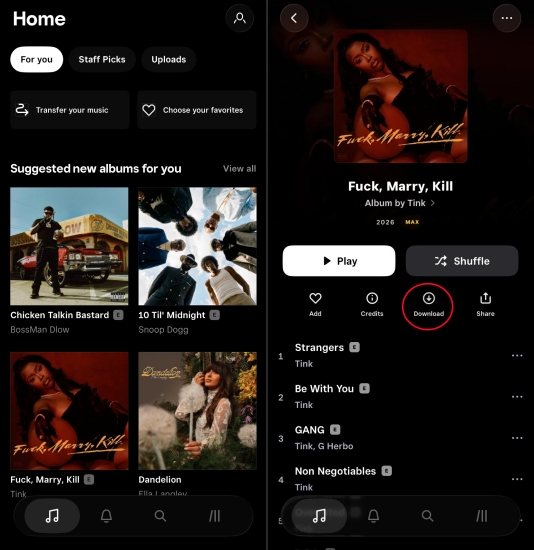
Step 1. Open the Tidal app on your mobile device and go to My Collection.
Step 2. Download the playlists, albums, or tracks you want to listen to.
Step 3. In the Tidal mobile app settings, toggle the app to Offline Mode.
Step 4. Connect your phone to your car's Android Auto system.
Step 5. Play your downloaded content from My Collection directly on the dashboard screen.
How to Use Tidal Android Auto Voice Commands to Play in the Vehicle
Using voice commands with Tidal on Android Auto allows you to keep your hands on the wheel while playing your favorite music.
Step 1. On your mobile phone, open your Settings.
Step 2. Tap on the Google Assistant or OK Google detection settings.
Step 3. Turn on Access with Voice Match.
Once your phone is connected to the vehicle's Android Auto system, say "OK Google" or tap the Microphone icon on your car's display. Use commands such as "Play Taylor Swift on Tidal" or "Play Love Story on Tidal".
Part 3. Alternative Option to Tidal Android Auto
If you are tired of dealing with mobile app handshakes, network dead zones, or the Android system layer downsampling your high-resolution tracks, you can bypass the Android Auto app integration entirely. Many modern car infotainment systems can read local audio files directly from a physical USB flash drive plugged into the dashboard.
Using a tool like TunesMake Tidal Music Converter, you can download your playlists, albums, or individual tracks from Tidal directly to your computer. The software preserves the original audio quality and metadata like ID3 tags for artist and album organization while converting the files into widely compatible formats such as FLAC, WAV, or MP3.
Once your Tidal music is downloaded to your computer, simply transfer the files onto a USB thumb drive and plug it directly into your car's media port. This allows your vehicle's native media player to read the files directly, completely eliminating smartphone battery-saver bugs, cellular data buffering, and Android Auto interface crashes. Follow the steps below to start download Tidal music for offline playback in the car.

TunesMake Tidal Music Converter –
Download Tidal music for playing with Android Auto
- Download songs, albums, playlists, and artists from Tidal without premium
- Convert Tidal music to MP3, FLAC, WAV, AIFF, M4A, and M4B losslessly
- Handle the conversion of Tidal music up to 25× faster speed and in batch
- Save a whole set of ID3 tags during the conversion process automatically
- Preserve the original audio quality up to HiRes FLAC or 320kbps MP3
Security Verified. 100% Clean & Safe.
Step 1 Add the Target Songs to the Program
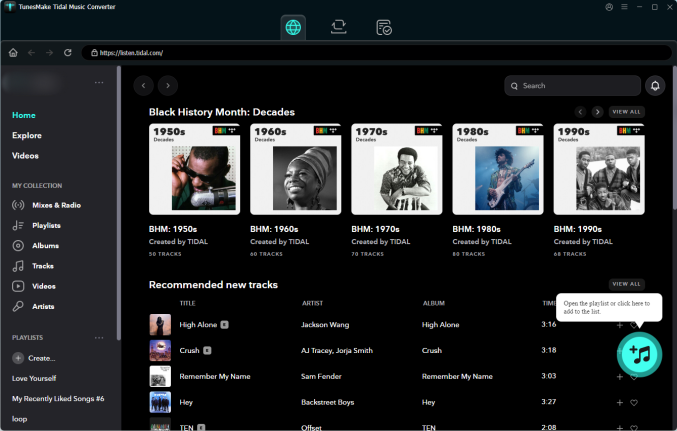
Before the following steps, you're supposed to download and install TunesMake Tidal Music Converter. Adding the target Tidal music tracks to download is quite simple. First, launch the program and browse your library in the Tidal. Then click the + button to add your target music tracks to the conversion list.
Step 2 Set the Output Audio Parameters
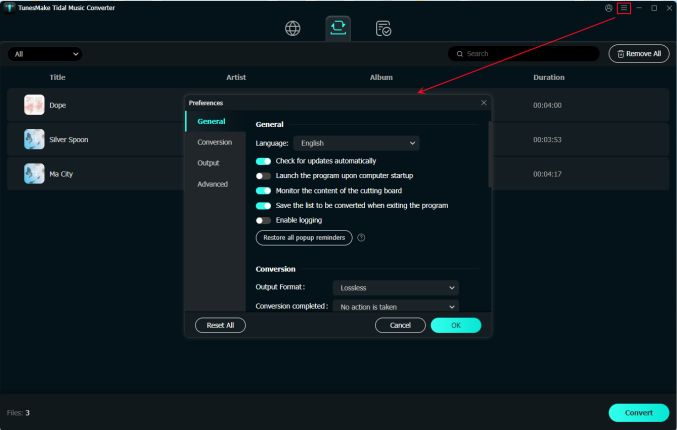
The program supports you to personalize the output audio parameters. You can click the three-line button on the top right corner of the screen and select Preferences. In the Preferences window, you can set the output parameters, including the format, sample rate, bit rate, and channels, as well as organize and archive output tracks by artists and albums as you want.
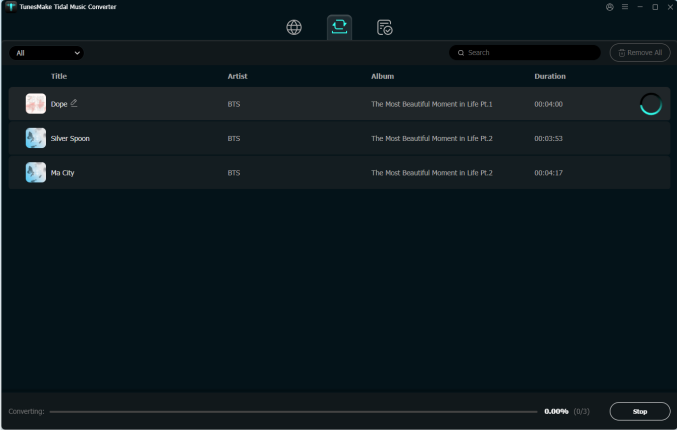
Step 3 Download Tidal Music for Playing
Now click the Convert button to start the downloading and conversion of Tidal music. After that, you can click the Converted button to browse all the converted Tidal music. Then you can locate the folder where you store the Tidal music files on your computers and transfer them to any device for playing anytime without limits.
Step 4 Play Offline Tidal Music in the Car
You can then transfer the converted Tidal music files to a USB drive and plug the USB drive into the car's media port. Later, you can use the media player on the dashboard on the screen to browse and play your Tidal music files. Alternatively, you can move those Tidal music files to your phone and connect it the device to the card for playing.
Part 4. Conclusion
The good news is that Tidal is compatible with Android Auto well. You can easily stream high-quality music from Tidal Android Auto integration. Moreover, an alternative method to play Tidal on Android Auto is provided. The Tidal music files saved with TunesMake Tidal Music Converter can be transferred to a USB drive for playing in the car, even when there is no internet. Have a try with this tool!
Related Articles


A senior editor from TunesMake, dedicated to sharing professional tutorials and solutions of software, movies, and music.
- 1
- 2
- 3
- 4
- 5
- 6
- 7
 Leave Your Comment
(0)
Leave Your Comment
(0)

 Download Center

