








 Store
Store


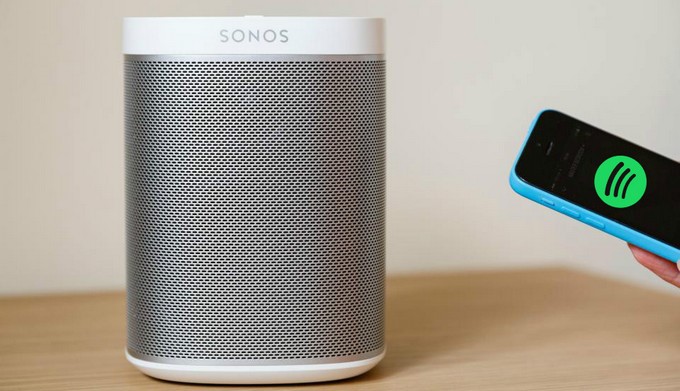
Connecting Apple Music to your Sonos system unlocks access to over 100 million songs, curated playlists, and live radio stations throughout your home. Whether you want multi-room playback managed through a single app, hands-free voice control, or high-fidelity Dolby Atmos spatial audio, setting up your system correctly makes all the difference. This guide walks you through every method to play Apple Music on Sonos speakers, how to optimize your setup for maximum audio quality, and quick fixes for common playback issues.
Part 1. Does Apple Music Work on Sonos?
Yes, Apple Music works with Sonos well. You can seamlessly stream Apple Music across your Sonos speaker using native integration, voice control, direct casting, or local file storage.
| Feature | Sonos App Integration | Alexa Voice Control | AirPlay Direct Streaming | Local Music Library Import |
|---|---|---|---|---|
| Best For | Daily whole-home listening | Quick, direct control from Apple Music | Hands-free convenience | Offline playback without active streaming subscription |
| Max Audio Quality | Up to 24-bit Lossless ALAC & Dolby Atmos | AAC or Lossless | AAC or Lossless depending on setup | Up to Lossless FLAC or WAV |
| Device Dependency | Plays directly on speaker | Requires continuous connection to devices | Independent playback after voice command | Plays directly from local devices |
| Phone Call Interruption | No interruption during calls | Calls may pause audio playback | No interruption during calls | No interruption during calls |
| Setup Complexity | Low | Moderate | Instant | Moderate |
Part 2. How to Add Apple Music to Sonos via the Sonos App
Sonos lets you streaming music from a handful of streaming music services like Apple Music from every room in your home. Using the official Sonos app is the primary and most reliable way to stream Apple Music. The playback streams audio directly from Apple's servers to your speakers, preserving phone battery life and preventing calls or notifications from interrupting your music.
What You'll Need:
-
A valid Apple Music account
-
A Sonos speaker
-
A smartphone or a computer
-
Latest Sonos app
On iOS and Android
Step 1. Download and launch the Sonos app on your mobile device.
Step 2. Tap the Settings icon or navigate to the Services & Voice menu.
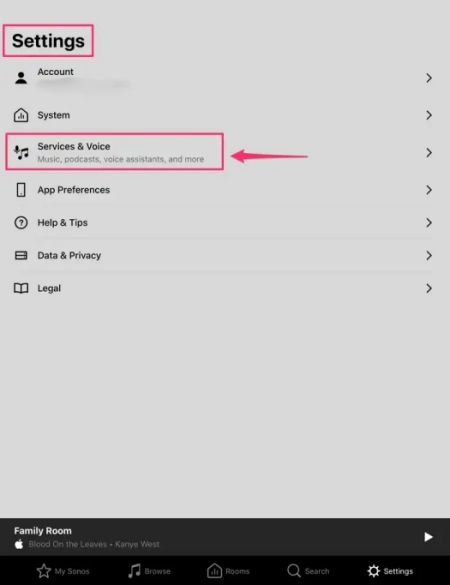
Step 3. Select Add a Service under the Music & Content section.
Step 4. Scroll through the service list, select Apple Music, and tap Add to Sonos.
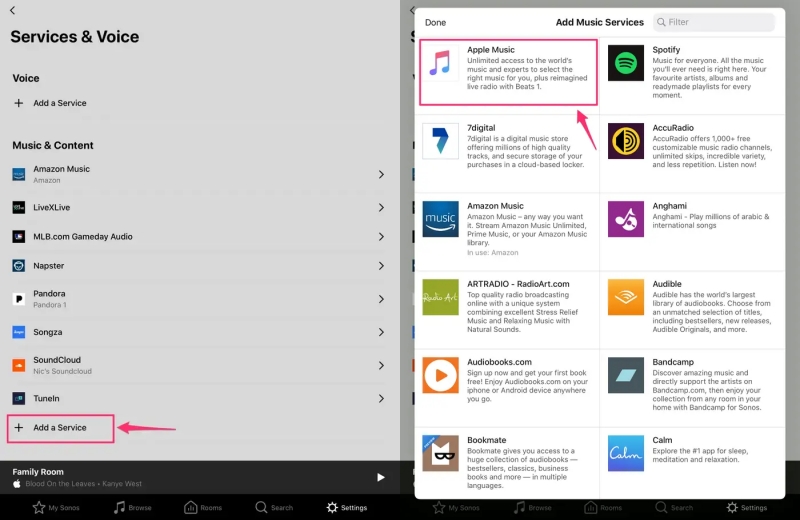
Step 5. Follow the on-screen prompts to sign in with your Apple ID and authorize the connection.
On Windows and macOS
Step 1. Launch the Sonos Desktop Controller on your Mac or Windows PC.
Step 2. Under the Select a Music Source panel on the right side, click Add Music Services.
Step 3. Select Apple Music from the list.
Step 4. Follow the authorization instructions to sign in with your Apple credentials.
Now you can go to the Browser section in the Sonos app, where you can access over 100 million songs and curated playlists updated daily. Only if you have an active Apple Music account will you be able to play your favorite music on your Sonos speaker after completing the setup of Apple Music with Sonos.
Set up Sonos Voice Control for Apple Music
You can use Sonos Voice Control to play music from a number of popular music services, including Apple Music. Then you can ask Sonos to play songs from Apple Music.
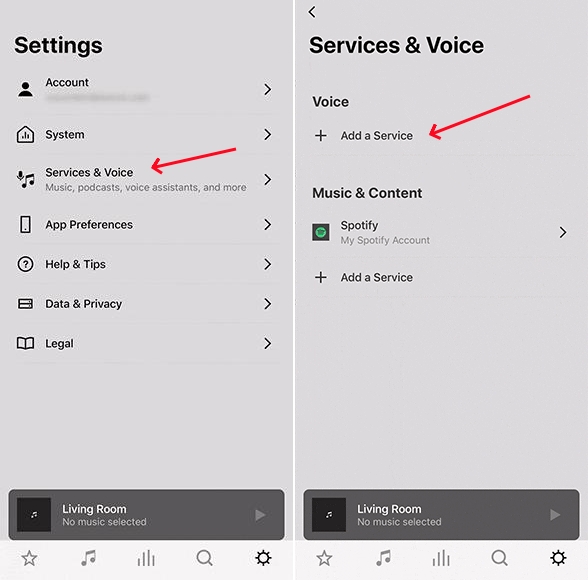
Step 1. Open the Sonos app and tap the Settings tab in the lower-right corner.
Step 2. Press Services & Voice, select Add a Voice Assistant, and tap Sonos Voice Control.
Now you can use Sonos Voice Control to play Apple Music. It's so easy to start your listening to Apple Music on your Sonos speaker by saying:
"Hey Sonos, play some music."
"Hey Sonos, play something relaxing."
"Hey Sonos, play the album The Slow Rush."
"Hey Sonos, restart this song."
"Hey Sonos, repeat this album."
Set Apple Music as Your Default Music Service
You can set Apple Music as your default music service. Then when you ask Sonos to play your liked songs, Sonos will play them from Apple Music directly.
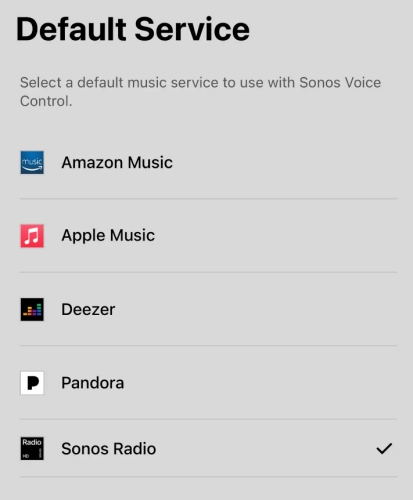
Step 1. In the Sonos app, head to the Settings tab and tap Services & Voice.
Step 2. Under Voice, tap Sonos Voice Control.
Step 3. Press Default Service, then select Apple Music from the list.
Part 3. How to Connect Apple Music to Sonos via the Alexa App
In some countries or regions, you can ask Alex to play songs from Apple Music on your Alexa-enabled Sonos speaker. If you have yet to use this feature, then you can download the Amazon Alexa app on your smartphone. Take the steps below to play Apple Music on Sonos via the Alexa app without trouble.
What You'll Need:
-
An Amazon Alexa app
-
A valid Apple Music account
-
An Alexa-enabled Sonos speaker
-
A smartphone
Note:
Apple Music for Alexa is available only in Austria, Australia, Brazil, Canada, France, Germany, India, Ireland, Italy, Japan, Mexico, New Zealand, Spain, the United Kingdom, and the United States.
Step 1. Open the Amazon Alexa app on your smartphone.
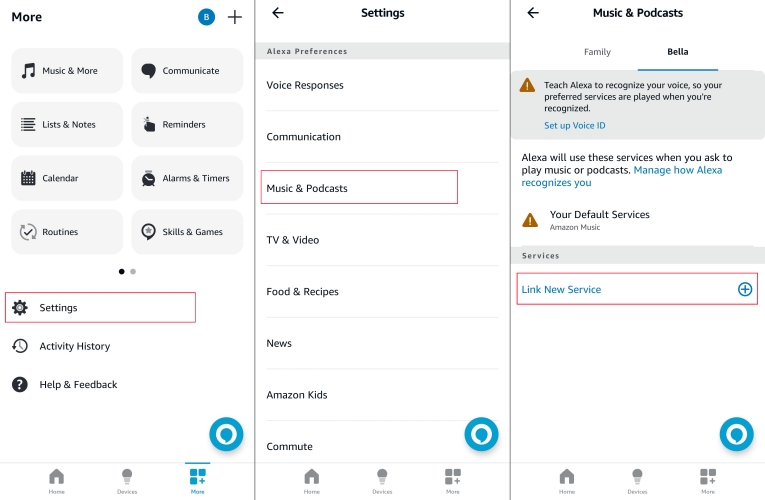
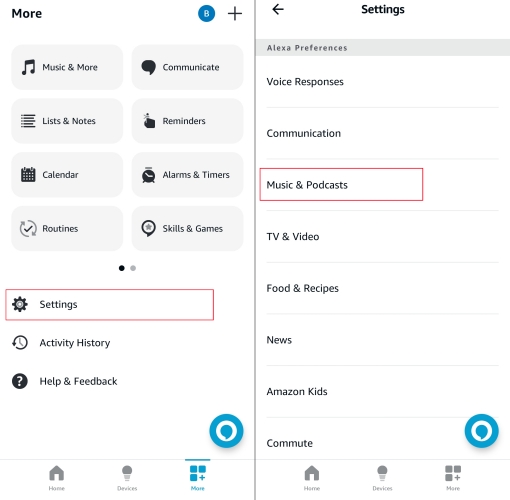
Step 2. Navigate to More > Settings > Music & Podcasts > Link New Service.
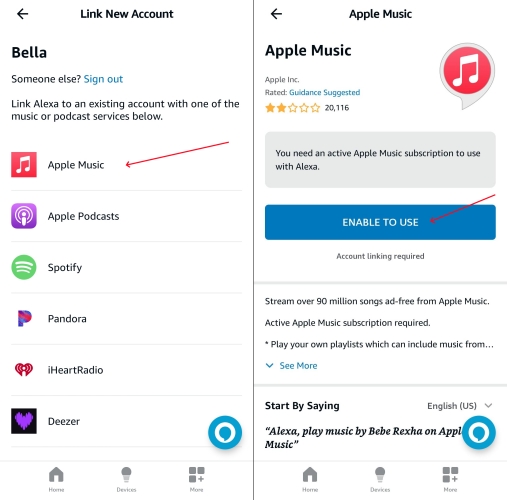
Step 3. Choose Apple Music and authorize your account.
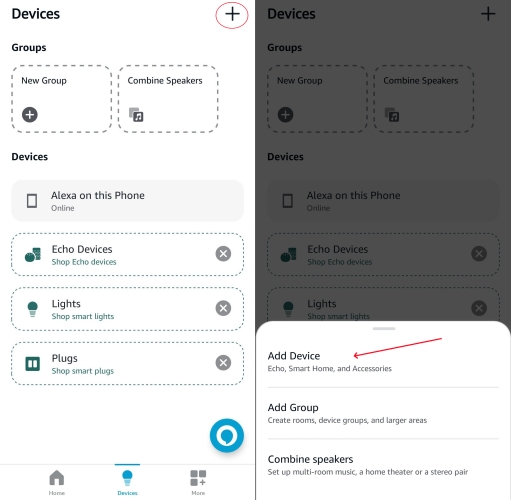
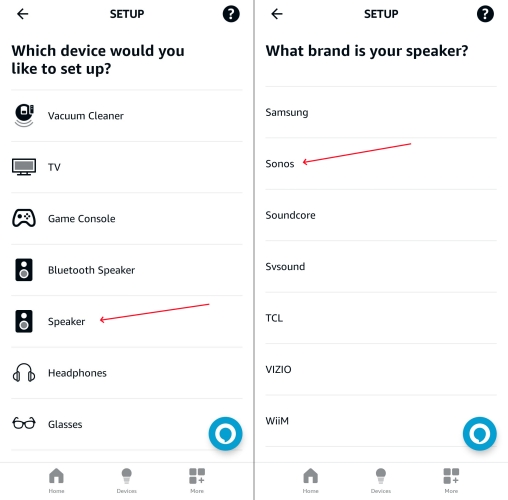
Step 4. Head to the Devices section and tap the + button in the top right corner.
Step 5. Select Add Device and scroll down to tap Speaker.
Step 6. Select Sonos and connect your Sonos speaker.
Set up Apple Music as Your Default Music Service
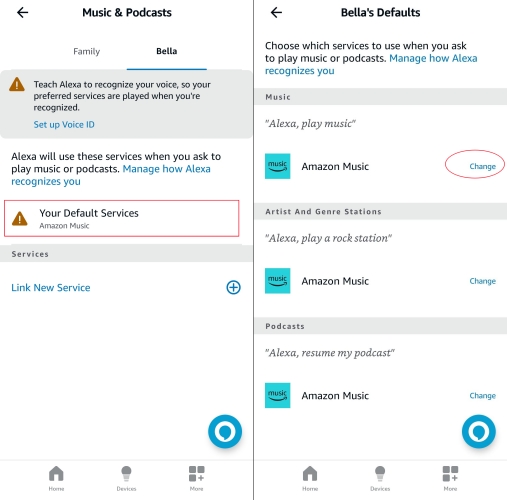
Alexa lets you play your favorite music by saying something. You can make Apple Music your default music service on Alexa, then you don't need to say "on Apple Music" each time you ask Alexa to play something.
Step 1. In the Amazon Alexa app, tap More in the lower-right corner.
Step 2. Tap Settings and scroll down to tap Music & Podcasts.
Step 3. Tap Your Default Services, then Apple Music under Music.
Ask Alexa to Play Your Apple Music Songs
Now you can just ask Alexa to play your liked songs, albums, playlists, or genres from Apple Music. Plus, you can play playlists in your iCloud Music Library. Just say something like
"Alexa, play Ariana Grande."
"Alexa, play Chill radio."
Alexa, play songs for meditation."
"Alexa, stop playing music."
Part 4. How to Play Apple Music on Sonos via Apple AirPlay
If you prefer using the Apple Music app interface rather than browsing withing the Sonos app, using AirPlay is one of the recommended ways to play Apple Music from your iPhone, iPad, or Mac. Make sure your Sonos speaker is compatible with Apple AirPlay. Follow the steps below to start sending Apple Music to your Sonos using AirPlay.
What You'll Need:
-
An Apple device running the required system
-
A Sonos speaker compatible with AirPlay
-
An active Apple Music account
On iPhone or iPad
Step 1. On your iPhone, open the Apple Music app to play your liked songs or playlists.
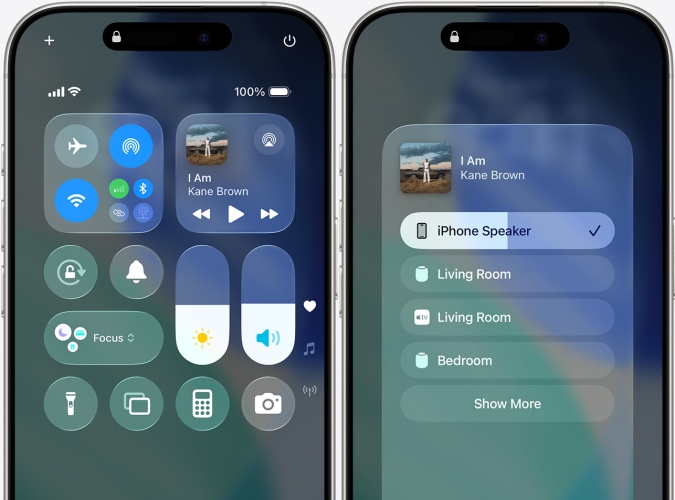
Step 2. Go back to the home screen and swipe down from the top right of the screen to open Control Center.
Step 3. Find the audio card in the upper right-hand corner and tap AirPlay.
Step 4. Select your Sonos speaker to stream what you are playing in the Apple Music app.
On Mac
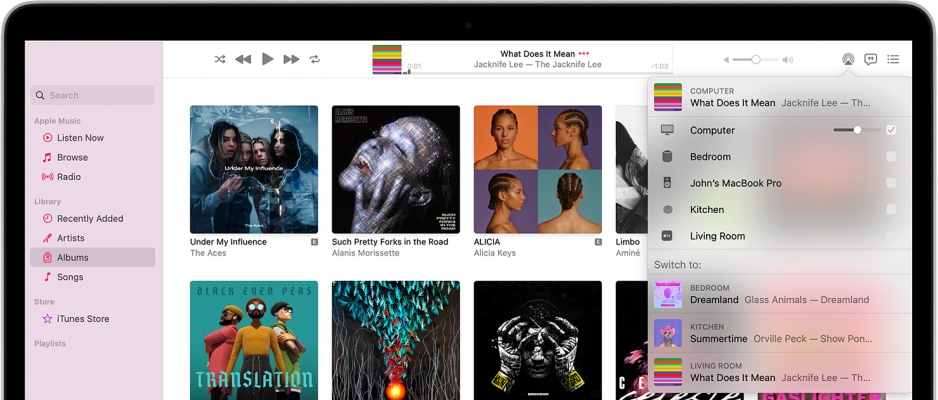
Step 1. Open Apple Music on your Mac and start playing something you like.
Step 2. Click the AirPlay icon on the right of the volume slider in Apple Music.
Step 3. Select your Sonos speaker to play the current audio.
Part 5. How to Get Offline Apple Music on Sonos (Recommended)
If you experience persistent server sync errors, want offline playback without internet dependency, or wish to play your music library on legacy Sonos equipment, you can convert Apple Music tracks into standard audio files for your Sonos Music Library. You can not only resolve those playback issues but also keep a permanent listening of Apple Music.
TunesMake Apple Music Converter allows users to convert Apple Music tracks into standard formats like FLAC or MP3 while preserving original ID3 tags and audio quality. Once converted and saved to a local computer, you can add those converted Apple Music files to the Sonos app. Your Sonos app will then index these tracks under your local library source for direct local network playback.

Streaming Audio Recorder –
Download Apple Music tracks for playing anytime
- Download songs, albums, and playlists from Apple Music
- Convert Apple Music to MP3, M4A, M4B, WAV, FLAC, and AIFF
- Remove DRM protection from Apple Music completely and safely
- Preserve the original audio quality and ID3 tags for management
- Support downloading music from 10 popular streaming platforms
Security Verified. 100% Clean & Safe.
Step 1 Select Apple Music Songs to Download
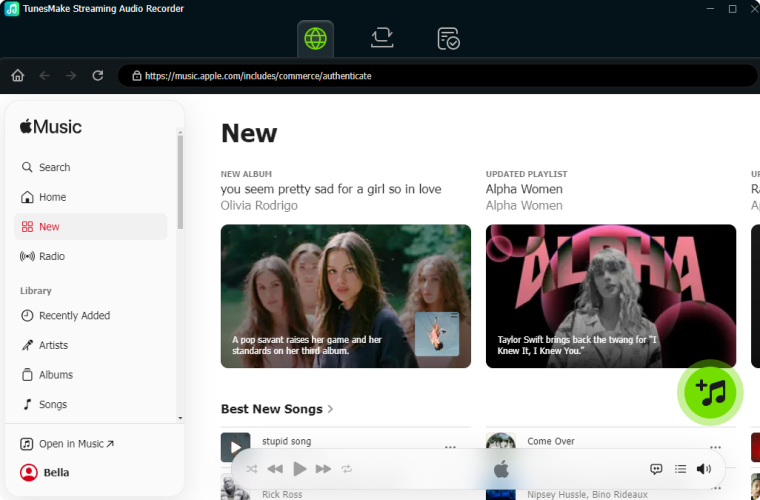
First, install TunesMake Streaming Audio Recorder on your computer and then launch it. You will find the Apple Music icon on the main interface and click it. Go to the built-in Apple Music web player and select some Apple Music songs to convert and add them to the conversion list.
Step 2 Set the Output Format for Apple Music
This part is crucial as you are required to configure the output audio parameters. You can click the Settings button to set the output audio format. Here you can choose MP3 as the output format and adjust the bit rate, sample rate, and channel the way you want.

Note:
The Sonos app supports a series of audio formats, including MP3, AAC, WAV, AIFF, WMA, FLAC, Apple Lossless, and Ogg Vorbis.
Step 3 Remove DRM Protection from Apple Music
Go ahead and click the Convert button in the lower right corner to start the conversion process. Immediately the process is complete, go to click the Converted icon locate in the top menu bar, then you can browse all the converted Apple Music songs.

Step 4 Start to Play Apple Music on Sonos
Sonos allows you to stream your music library from any computer. Once you've set up your local music library, you'll see Music Library appear on the list of music sources. Now you have to upload your Apple Music files to the Sonos app.
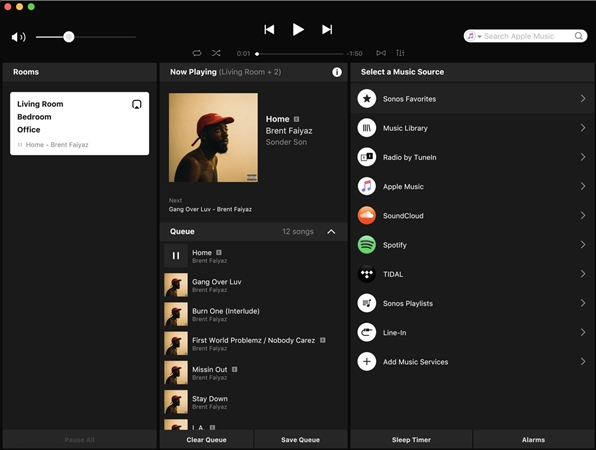
1. Open the Sonos app for macOS or Windows if you have it installed.
2. Head to the Manage menu and select Music Library Settings.
3. Click + on macOS or select Add on PC to add the converted Apple Music songs.
4. Locate the folder where your music is stored, then select the music files to add.
Once added, you can freely play Apple Music tracks on your Sonos speaker even if you cancel your subscription to Apple Music. Beyond that, you can listen to your Apple Music songs on any device without any limit.
Part 6. Troubleshooting Apple Music Not Working on Sonos
If your stream drops, stutters, or fails to play high-res files, follow these targeted solutions to fix Apple Music not working on Sonos.
Missing Dolby Atmos or Lossless Badges
- Cause: Playback was initiated via AirPlay rather than the Sonos app, or Spatial Audio is turned off in settings.
- Fix: Open the Sonos app and navigate to Settings > System to select your room. Then ensure Spatial Audio is toggled ON. Always start playback directly from the Sonos app interface.
"Unable to Browse Content" Error
- Cause: Expired session token between Apple and Sonos servers.
- Fix: In the Sonos app, go to Settings > Services & Voice > Apple Music, and select Reauthorize Account.
Library and Playlists Not Updating
- Cause: Cloud sync delay between Apple Music and third-party APIs.
- Fix: Open the Settings on your iPhone and go to Apps > Music. Then toggle Sync Library OFF, wait 10 seconds, and turn it back ON to force a refresh.
Part 7. FAQs about Apple Music with Sonos
Can you add multiple Apple Music accounts to Sonos?
Yes. You can add multiple Apple Music accounts to the same Sonos system. For example, if family members have different Apple Account.
Step 1. Open the Sonos app.
Step 2. Go to Settings > Services & Voice.
Step 3. Select Add a Service and choose Apple Music.
Step 4. Log in with the second Apple ID and give the account a custom display name so you can easily switch between accounts in the app.
How to reauthorize Apple Music on Sonos?
If you receive playback errors or your account stops syncing, reauthorizing often fixes the issue. The process of reauthorizing Apple Music is pretty easy.
Step 1. In the Sonos app, go to Settings > Services & Voice.
Step 2. Under Your Services, select Apple Music.
Step 3. Tap Reauthorize Account.
Step 4. Follow the on-screen prompts to sign back in with your Apple ID credentials.
How to remove Apple Music from Sonos?
In the Sonos app, head to the Settings tab and tap Services & Voice. Find Apple Music and tap Remove Account. Proceed to tap Remove to confirm.
How to shuffle Apple Music on Sonos?
If you cast your Apple Music songs to your Sonos speaker via AirPlay, you can directly choose Shuffle Mode in the Apple Music app on your device. Or in the Sonos app, navigate to the Now Playing screen and tap the Queue icon to show the Shuffle icon. Then tap the Shuffle icon to randomize the song order in the queue.
Part 8. Conclusion
To maximize your audio experience when playing Apple Music on Sonos speakers, use the Sonos App as your primary source. The streaming unlocks 24-bit Lossless ALAC fidelity and multi-channel Dolby Atmos Spatial Audio on compatible models like the Era 300 or Arc. Use Apple AirPlay for fast, casual listening, or convert Apple Music tracks to local files using TunesMake Apple Music Converter if you need offline playback through your Sonos Music Library.
Related Articles


A professional writer at TunesMake, crafts in-depth tutorials, practical tips and expert advice focusing on streaming music, technology, and more.
- 1
- 2
- 3
- 4
- 5
- 6
- 7
 Leave Your Comment
(0)
Leave Your Comment
(0)

 Download Center

