








 Store
Store


Sonos speaker is a wireless multi-room speaker system providing the easiest way to listen to music, podcasts, and other audio entertainment in more than one room at a time. With Sonos at home, you can hear the heart-pumping stereo sound whenever you want. Furthermore, you can stream your favorite music tunes from multiple music streaming services due to the official integration. Among all the compatible services, Spotify is the most popular one. If you don’t know how to add Spotify to Sonos for streaming, don’t miss this comprehensive guide. In this post, you can learn 3 effective methods to enjoy Spotify on Sonos online or offline. Now, let’s explore them together.
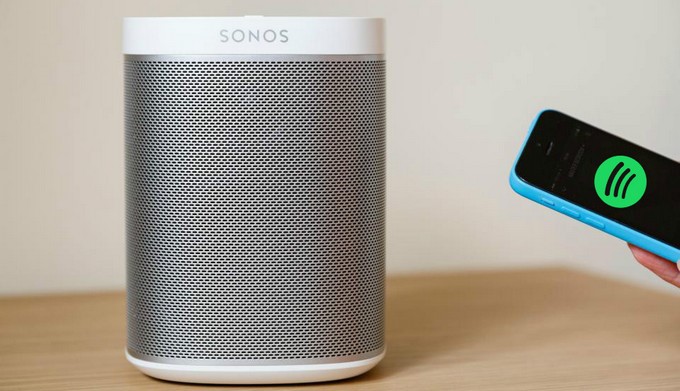
Part 1. How to Add Spotify on Sonos App
The Sonos app combines all your content and settings into one effortless experience. You can easily start the playback of Spotify on Sonos in a few steps with the Sonos app. Whether you are using it on your mobile phone or computer, you can follow the steps below to add Spotify to Sonos with ease.
Prerequisite for adding Spotify to Sonos with the Sonos app:
- Update the Sonos system to the latest firmware
- Install the Spotify and Sonos apps on your device
- Connect your devices to the same Wi-Fi network
1.1 Add Spotify to Sonos from Mobile
Step 1. Open the Sonos app on your mobile phone.
Step 2. Tap Services & Voice from the Settings tab.
Step 3. Under Music & Content, tap Add a Service and select Spotify from the list of services.
Step 4. Tap Connect to Spotify and then enter your Spotify account details to link Spotify to Sonos speakers.
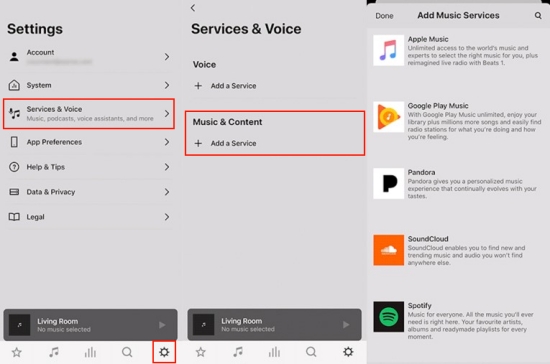
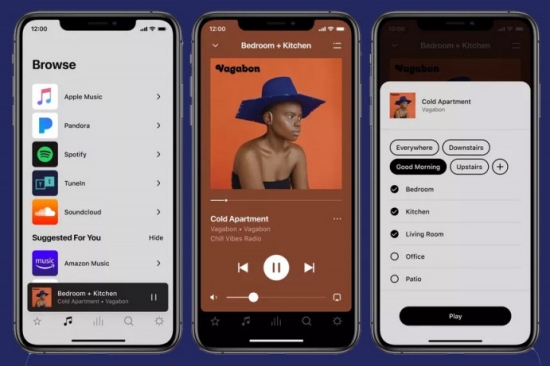
Step 5. Go to the Music tab where you can view all your linked services.
Step 6. Select Spotify to access your Library and start playing.
1.2 Add Spotify to Sonos from Desktop
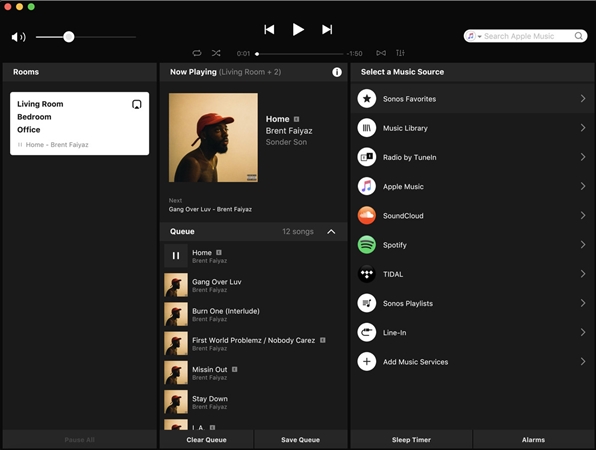
Step 1. Launch the Sonos app on your Mac or PC.
Step 2. Go to the Select a Music Source section and click on Add Music Services.
Step 3. Click on the Spotify service and then type your Spotify account and password.
Step 4. Hit on Spotify and then you can access your Spotify playlists.
Step 5. Just pick one playlist or room to have an immersive enjoyment. You can freely control the playback from the top bar.
Part 2. How to Play Spotify on Sonos via Spotify Connect
In addition to the above way, you can also use the Spotify built-in feature – Spotify Connect to play Sonos from Spotify. Using Spotify Connect, it is much easier to control Sonos from Spotify. Here’s how to connect Spotify to Sonos.
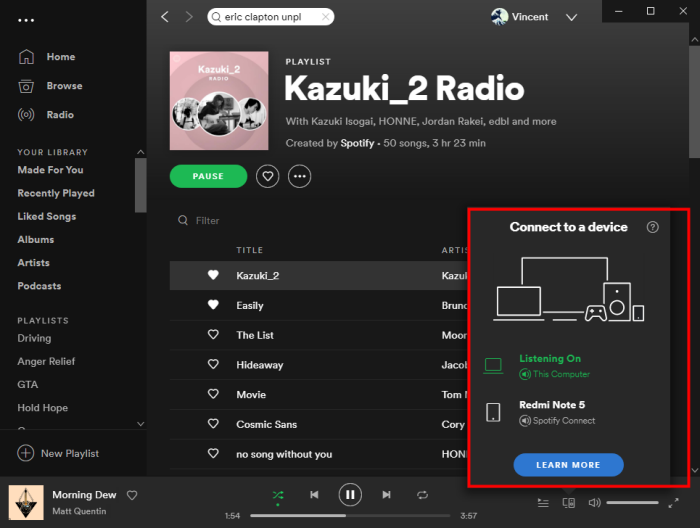
Step 1. Run the Spotify app whether on your phone or desktop.
Step 2. Start playing any song you want to play on Sonos.
Step 3. Hit on the device icon at the bottom Now Playing bar.
Step 4. Select your Sonos speaker from the available devices list.
Step 5. And then the sound from Spotify will be played through your selected devices. You can control the playback on Sonos from Spotify.
Part 3. How to Get Spotify on Sonos Offline Without Premium
Utilize both the Sonos app and the Spotify Connect feature can help you stream Spotify music on your Sonos device online. However, the online streaming requires a stable network connection. If you prefer uninterrupted and seamless listening experience, downloading Spotify to Sonos for offline playback should be your choice. For Spotify Free users, although the downloading feature is unavailable, there is still an workaround - TunesMake Spotify Music Converter.
As a professional music downloader, TunesMake Spotify Music Converter helps both Spotify Premium and Free users to download Spotify songs, playlists, albums, and podcasts to normal audio formats, including MP3, M4A, M4B, WAV, FLAC, and AIFF. In other words, you can download your favorite Spotify content as local files and play them offline on Sonos or other devices with the help of the TunesMake software. What’s better, this tool smartly keeps the original sound quality and ID3 tags to ensure your listening experience.

TunesMake Spotify Music Converter –
Best Spotify to Sonos Downloader
- Unlimitedly download Spotify songs, playlists, and podcasts
- Losslessly convert Spotify music to MP3, FLAC, WAV, AIFF, etc.
- Remove ads from Spotify music tracks even with Free accounts
- Convert Spotify songs at 12X faster speed with ID3 tags kept
Security Verified. 100% Clean & Safe.
How to Download Songs from Spotify to Sonos
Step 1
Add Spotify music to TunesMake
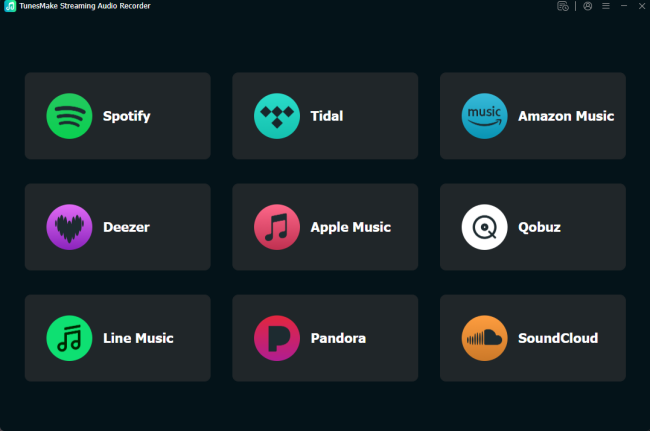
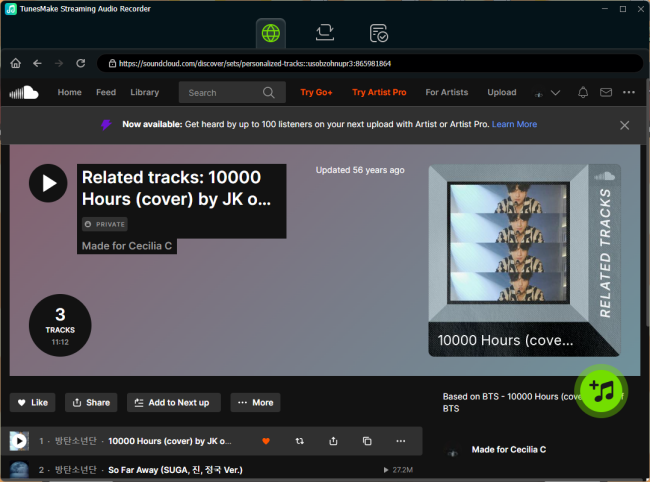
First, launch TunesMake Spotify Music Converter, and it will automatically open the Spotify web player. Here, you can log in to your Free or Premium account. Navigate to the library and select the playlist or album you want to listen to on Sonos offline. Then, click the Add icon in the lower-right corner. When all the song in this playlist/album is listed, you can select the songs you like and add them to the conversion list via the Add to List option.
Step 2
Configure the parameters
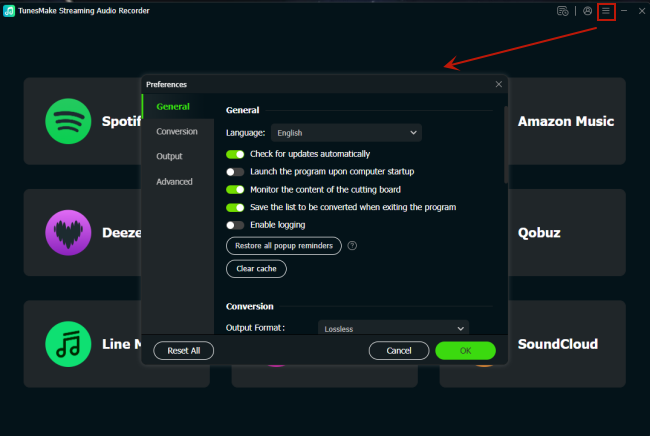
You now need to set the parameters of your songs. Go to the Menu option at the top-right corner and click Preferences. Turn to the Conversion tab and then you can adjust the parameters such as the output format, channel, sample rate, and much more. Currently, Sonos-supported formats include MP3, AAC, FLAC,.ALAC, WMA, and Ogg Vorbis.
Step 3
Download Spotify playlist to Sonos
You can now download and convert your Spotify music to a playable format on Sonos. Click the Convert button and wait for a while. Your downloaded songs will be saved on your computer locally. You can fine their location by clicking the top Converted icon > the file icon next to each song.
Step 4
Play Spotify on Sonos Speaker
Hola! Now let’s check how to upload Spotify songs to Sonos.
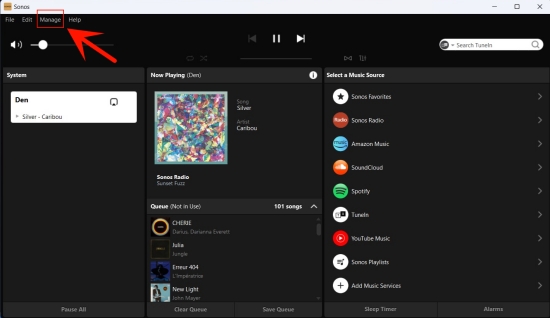
1. Open the Sonos app on your Mac or PC.
2. From the top Manage menu, select Music Library Settings.
3. Click the plus button (Mac) or Add (Windows).
4. Navigate to the folder where converted Spotify songs are stored and then double-click it to upload it to Sonos.
Part 4. Troubleshooting: Spotify to Sonos Issues
In the process of using Spotify on Sonos speaker, you would encounter Sonos Spotify problems, such as Sonos not showing up on Spotify, Sonos not connecting to Spotify, Sonos Spotify not working, and more. To solve those Sonos Spotify problems, we also provide steps.
Issue 1. Sonos Connection to Spotify Lost
1. Check whether Spotify is available in your country.
2. Make sure your devices are connected to the same yet strong network.
3. Remove the Spotify service from the Sonos app and then add it back again.
- Go to Settings on the Sonos App, and navigate to Services & Voice.
- Locate Spotify and tap Remove Account.
- Once removed, back to Services & Voice and add Spotify again.
4. Restart your Sonos speaker by unplugging the power cord and plugging it back.
5. Reopen the Spotify app to fix Sonos not showing up on Spotify.
6. Submit Diagnostics to let the Sonos technical team help you identify where is wrong. Go to Sono’s Settings tab > Support > Submit Diagnostics.
Issue 2. Spotify Not Working on Sonos
1. Stop Spotify playing on another device. Spotify won’t let you play Spotify on two devices at the same time.
2. Reconnect Spotify to Sonos by removing Spotify from Sonos and re-adding it.
3. Clear the cache on your Spotify app to make Spotify work well.
- Go to Spotify Settings and scroll down to the Storage section.
- Tap Clear cache to delete all of your temporary files, so as to start your playback of Spotify on Sonos speakers.
4. Reset your Sonos speaker to remove all the connections to streaming music services.
These woes may affect you if you choose the first 2 ways, so using TunesMake Spotify Music Converter is much more recommended to avoid such issues.
Conclusion
The beauty of music is in the sound, and there is no better way to get quality sound other than from Sonos. It’s good that Sonos supports all users to play music from Spotify. However, those free users have limited rights which inhibit some functionality. In this case, users can take advantage of TunesMake Spotify Music Converter to get Sonos Spotify playing in simple steps. Or you could try to use it to resolve Sonos Spotify problems.
Related Articles

A senior editor from TunesMake, dedicated to sharing professional tutorials and solutions of software, movies, and music.
- 1
- 2
- 3
- 4
- 5
- 6
- 7
 Leave Your Comment
(0)
Leave Your Comment
(0)

 Download Center

