








 Store
Store


Since Tidal is a streaming service that has been renowned for Hi-Res audio quality, its listeners might be demanding on the sound quality not only with the Tidal player but also with the paired device. Yamaha’s diverse musical equipments make it a great choice to level up your listening experience. To get the powerful sound combination, you probably look for the answer to how to play Tidal on Yamaha Receiver. Thankfully, Tidal has been integrated into Yamaha MusicCast for many years. So this post will show you 4 available ways to get a Yamaha Receiver Tidal playing.
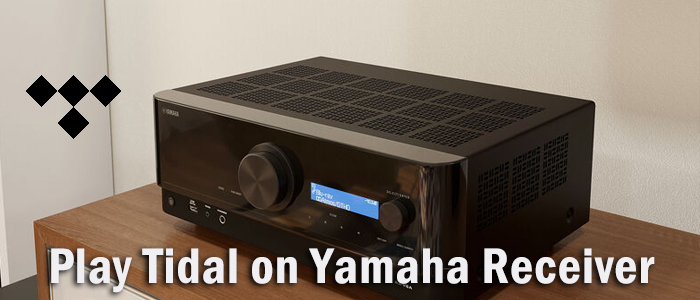
Method 1. Play Tidal on Yamaha Receiver via Yamaha MusicCast
The Yamaha MusicCast Controller app controls all your devices in your home and allows you to take HiFi sound from room to room. Using the MusicCast app, you can easily stream from popular music services like Spotify, Amazon Music, Tidal, and more. But when using Tidal inside the MusicCast app, the artist won’t display under each song’s title. Now, let’s see how to make Tidal connect Yamaha MusicCast app.
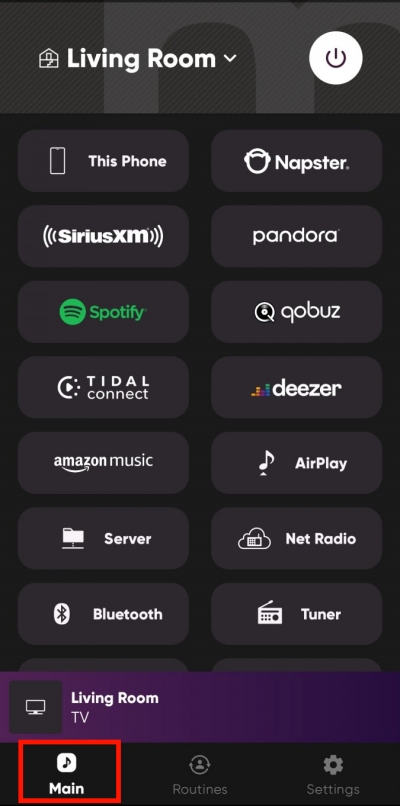
Step 1. Launch MusicCast Controller on your Android or iPhone. If you haven’t installed it, get it from Play Store or App Store.
Step 2. You have to set up your Yamaha device on the MusicCast app by following the instructions.
Step 3. On the Main tab, select a room to listen to music through your MusicCast-enabled devices.
Step 4. Under SOURCES, choose the Tidal section to link your Tidal account.
Step 5. Then you can access your Tidal Collection here or search for the one you wish to listen to on Yamaha Receiver.
Method 2. Connect Tidal to Yamaha Receiver with Bluetooth
In truth, there is another way to get Yamaha MusicCast Tidal playing without the MusicCast app. With the built-in Bluetooth wireless connection on Yamaha products, you can easily cast Tidal to Yamaha Receiver using the Bluetooth on your device.Bluetooth or Airplay feature on your device.
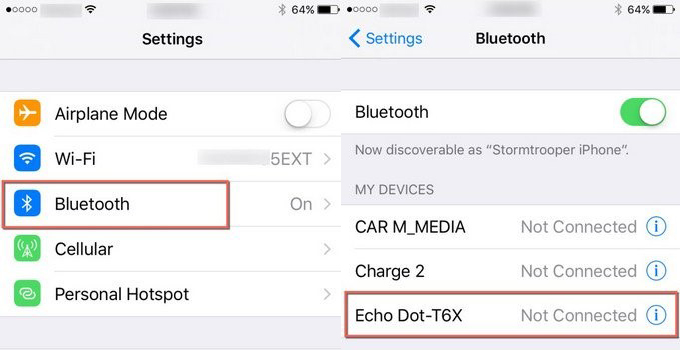
Step 1. Press and hold the Bluetooth button on the Yamaha Receiver for 5 seconds to put it into pairing mode. Or you can use the remote control with the Bluetooth button to do so.
Step 2. Open the Tidal-enabled device and go to Settings > Bluetooth.
Step 3. From the discoverable devices list, tap your Yamaha Receiver to build the Yamaha Receiver Tidal connection.
Step 4. Navigate to the Tidal app to play your desired content, and the sound will be played through the connected Yamaha device.
Method 3. Set up Tidal on Yamaha Receiver via AirPlay
Apart from Bluetooth, setting up Tidal on your Yamaha receiver via AirPlay is also a great option to enjoy your music wirelessly. AirPlay allows you to stream high-quality audio from your iPhone, iPad, or Mac directly to your Yamaha receiver, without the need for any additional cables or complex setup.
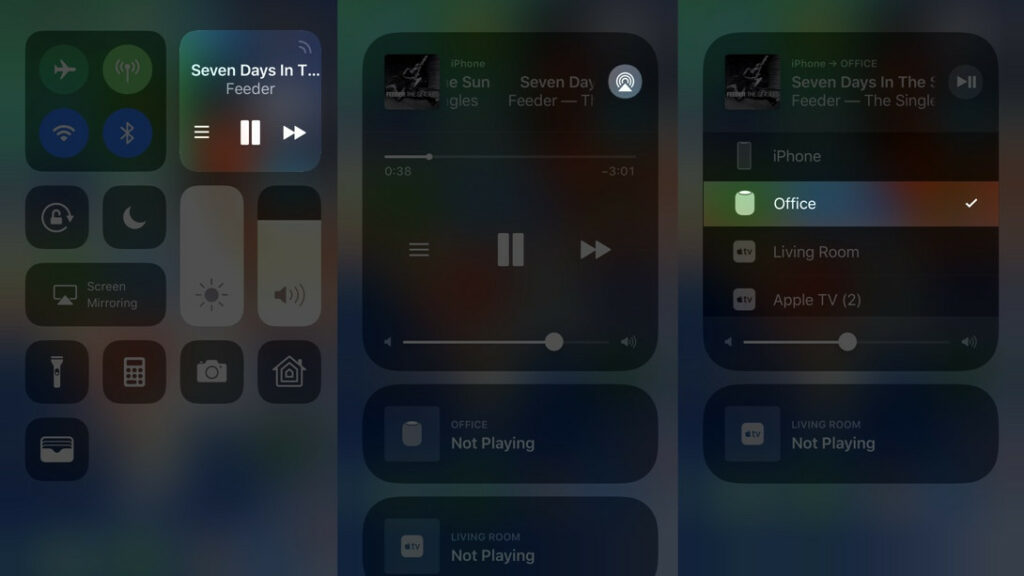
Step 1. Open the Tidal app on your iOS device and pick one to start playing.
Step 2. Swipe down from the top screen to access the Control Center.
Step 3. Tap the Airplay icon in the upper-right corner of the Music card.
Step 4. Select your Yamaha device and you will get the stereo sound from it.
Method 4. Download Tidal Music for Unlimited Play on Yamaha Receiver
For those audiophiles who prefer an offline and uninterrupted listening experience, downloading Tidal music for unlimited play on a Yamaha receiver is a better option compared with all the methods above. By downloading your favorite Tidal songs locally, you can keep them on your device forever and play them on any device as you wish. However, Tidal songs are protected by DRM, which only allows you to play Tidal downloads within the app. You will need an additional tool to get Tidal on your Yamaha Receiver offline - TunesMake Tidal Music Converter.
TunesMake Tidal Music Converter aims to download and convert Tidal Music to MP3, AIFF, FLAC, WAV, M4A, and M4B while retaining all original sound quality and ID3 tags. Its advanced decryption technology can help you save Tidal songs, playlists, albums, or podcasts as DRM-free local music files. Once done, you will get full control over your favorite music.

TunesMake Tidal Music Converter –
Download Tidal Music Locally for Playing on Yamaha Receiver
- Download any Tidal content, including songs, albums, playlists, and artists
- Convert Tidal music to MP3, FLAC, AIFF, WAV, M4A, and M4B
- Preserve a whole set of ID3 tag information in the downloaded Tidal songs
- Handle the conversion of Tidal music up to 22X faster speed and in batch
Security Verified. 100% Clean & Safe.
Step 1
Add Songs from Tidal to TunesMake

Install and open the TunesMake Tidal Music Converter, and the Tidal web player will be launched automatically. On Tidal, find your desired playlist, and then click the lower Add icon > Add to List. So, you can pick all the songs you want to listen to on your Yamaha Receiver and load them to the conversion list.
Step 2
Adjust the Output Format

TunesMake boasts customizable options for every user. Click the menu icon in the upper right corner and select Preferences > Conversion. Here, you are free to change the output format, bit rate, sample rate, and channel as you want. To play Tidal on Yamaha Receiver, just leave the MP3 format. If you make other adjustments, click OK before exiting the window.
Step 3
Download Tidal Songs Locally

Just click the Convert button at the bottom right corner, and TunesMake will automatically download and convert Tidal songs to MP3 at a 22x faster speed. After conversion, all the Tidal songs will be saved to your computer. You can navigate to the Converted list to browse all your converted songs or use the file icon to locate them in the local folder.
Step 4
Play Tidal on Yamaha Receiver Offline
After getting Tidal local files, you can use a USB drive to make Tidal connect Yamaha for playing. Or you can use the MusicCast app to stream audio from your mobile device to your Yamaha MusicCast device. Here’s how to do it.
1. Use the File Manager or iTunes app to transfer all converted Tidal songs to your Android or iPhone.
2. Launch the MusicCast app and select a room.
3. Scroll down to the SOURCE section to choose This Phone as a source.
4. Find the Tidal songs you synced from your computer and tap one to play.
Conclusion
With the aforementioned 4 methods, you can easily stream Tidal on Yamaha Receiver wirelessly. Just select one you prefer to start the Tidal Yamaha MusicCast journey. If you want to have an unlimited and uninterrupted Tidal music experience on your Yamaha Receiver, TunesMake Tidal Music Converter could be the best choice.
Related Articles

An experienced freelance writer at TunesMake, specializes in using various streaming services from Spotify, Apple Music, to Amazon Music, and more other platforms.
- 1
- 2
- 3
- 4
- 5
- 6
- 7
 Leave Your Comment
(0)
Leave Your Comment
(0)

 Download Center

