








 Store
Store


Can I listen to Tidal offline? Is it possible to download Tidal songs for offline listening in the highest possible quality on PC? I have certain connectivity problems and it would be a great help to be able to download music from Tidal, then I can play Tidal offline.
— User from RedditIn an era of ubiquitous connectivity, there are still many moments like long-haul flights, remote hiking trails, or daily subway commutes where data is unreliable or expensive. For audiophiles, the challenge is even greater: how do you maintain that signature high-fidelity sound without a live connection? This guide covers everything you need to know about how to listen to Tidal offline, from official mobile methods to solutions for limitations of Tidal offline mode PC and Mac. Whether you're a free or paid user on Tidal, know how to listen to Tidal offline now.
Part 1. Does Tidal Have Offline Mode?
Yes, Tidal has an Offline Mode, but its availability depends on which device you are using. With a premium subscription, you can download music directly to your phone, tablet, or smartwatches for offline listening. Also, select DJ platforms like Virtual DJ now support an offline mode for Tidal tracks if you have the Tidal DJ Extension add-on.
| Where You Can Use Tidal Offline Mode | Where Tidal Offline Mode Is Not Supported |
|---|---|
| Mobile, tablets, smartwatches, and DJ software | Mobile, tablets, smartwatches, and DJ software Windows and Mac |
After knowing where you can use Tidal Offline Mode, you can start your offline listening with the following steps. If you are worried about Tidal Offline Mode on a computer, it doesn't matter, and you can use a professional Tidal music downloader to get Tidal offline listening. In the following content, you will find the answer to get Tidal offline listening on both phone and computer.
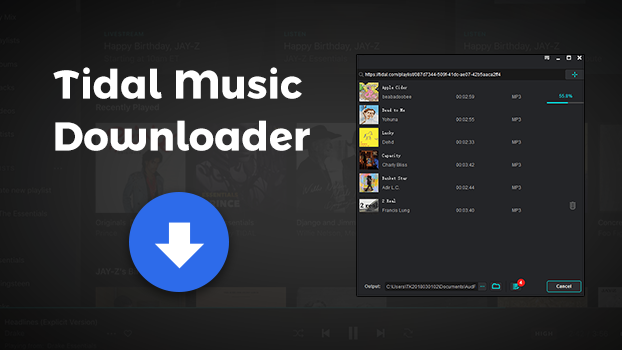
 Tidal Music Downloader
Easily download songs, albums, playlists, and artists from Tidal to MP3 and more common formats without a premium account.
Part 2. How to Use Tidal Offline on Mobile
The Tidal mobile app is the primary way to access offline content. Unlike some other platforms, Tidal Offline Mode is designed to preserve the highest possible audio quality, provided you have the storage space. If you need to get your music ready for offline use right now, follow this process to download Tidal music and enable offline mode on Tidal.
How to Download Music on Tidal
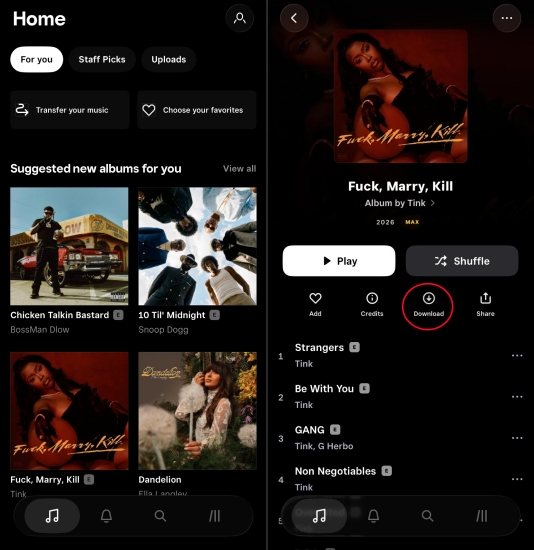
Step 1. Open the Tidal app and navigate to My Collection on the bottom right of the screen.
Step 2. Select the album or playlist you wish to download.
Step 3. Tap on the three-dot icon to the right of the title.
Step 4. Scroll down and choose download to save the selected content.
Note
You cannot download individual songs directly. To save a single track, you must first add it to a playlist and then download that playlist.
How to Enable Offline Mode on Tidal
To ensure your phone doesn't use a single byte of data, you can manually trigger "Offline Mode" on your iPhone or Android phone.
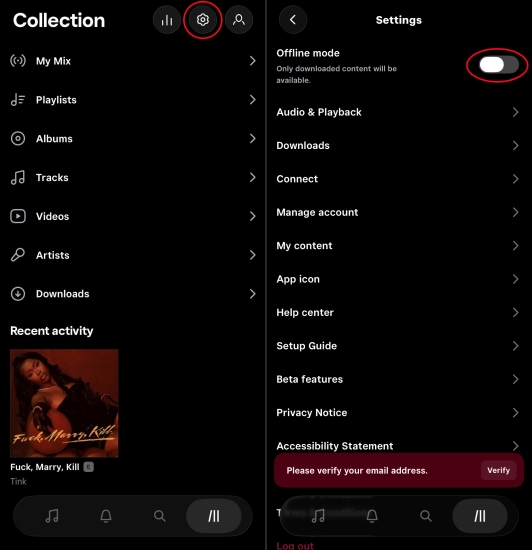
Step 1. In the Tidal app, tap on My Collection.
Step 2. Tap the Settings (gear icon) in the top right.
Step 3. Scroll to the Official section and toggle Offline Mode to ON.
Part 3. How to Listen to Tidal Offline on All Devices
A common point of frustration for users is the search for an official Tidal offline mode on desktop. But the fact is currently, the official Tidal desktop application for Windows and macOS doesn't support offline downloading. This is primarily due to strict Digital Rights Management (DRM) and licensing agreements with record labels. In this case, you can turn to using a tablet or a phone to listen to Tidal offline. If you absolutely need offline music on a computer, consider using TunesMake Tidal Music Converter.
Since the official Tidal desktop app lacks a native download button, TunesMake Tidal Music Converter can solve the problem. This tool functions as a bridge for desktop users, allowing both free and paid users to convert Tidal tracks into local files such as MP3, FLAC, or WAV that can be played offline through any media player. It can preserve the 100% lossless audio quality and original ID3 tags during the conversion process. Compared to Tidal offline listening on mobile, this tool makes the offline listening more controllable.
| Feature | Official Offline Mode | TunesMake Offline Listening |
|---|---|---|
| File Ownership | Temporary. Rental access only. | Permanent. Keep the music forever. |
| Cost | $10.99 per month | $14.95 per month |
| Portability | Locked. Only works inside the Tidal app. | Extreme. Move to any device for playing. |
| Audio Quality | Up to Max (HiRes) | Up to FLAC/WAV (Lossless) |
| Subscription Required | Yes. Offline Mode requires Tidal premium subscriptions. | No. Only need an active Tidal account to access. |
Tidal Music Converter –
Download Tidal music on computer
- Download any song, album, playlist, and artist from Tidal withou Premium
- Convert Tidal content to MP3, M4A, M4B, WAV, FLAC, and AIFF losslessly
- Preserve a whole set of ID3 tag information in the downloaded Tidal songs
- Handle the conversion of Tidal music up to 25× faster speed and in batch
Security Verified. 100% Clean & Safe.
How to Download Tidal Music for Offline Use
Downloading Tidal music with TunesMake Tidal Music Converter is a rather simple process. It is compatible with both Windows and macOS computers. After installing it on the computer, here is what you need to do for downloading Tidal music.
Step 1 Customize the Output Audio Parameters

Open TunesMake Tidal Music Converter on the computer, and then set the output audio parameters for Deezer. Locate the menu bar and select the Preferences option from the drop-down menu. In the pop-up Preferences window, select one format, and you're suggested to set MP3 as the output format. Otherwise, you can change the bit rate, sample rate, and channel on demand. Remember to click the OK button to save all the settings.
Step 2 Load Tidal Music into the Conversion List

Go back to the main interface of the software and select Tidal. The Tidal web player will be opened automatically. In the Tidal web player, log into your Tidal account, then go to My Collection and select any song, album, or playlist to download. When you find the content, you can click the +Add button to add them to the conversion list. All the content will be added for waiting to download.
Step 3 Start to Download Tidal Music to Computer

To initiate the conversion of Tidal music, simply click the Convert button at the bottom right of the corner. TunesMake Tidal Music Converter will download and save Tidal music to the required folder on the computer. After completing the conversion, you can click the Converted icon to browse all the downloaded Tidal music tracks.
Part 4. Troubleshooting: Tidal Offline Mode Not Working
If your Tidal Offline Mode isn't working, it usually boils down to a sync issue, a storage glitch, or premium limitation. Because Tidal uses high-fidelity files, even a small data corruption can prevent playback. Here is a troubleshooting checklist to get your music playing again.
Solution 1. Keep Tidal Account Active
You must connect the Tidal app to the internet at lease once every 30 days. This allows the app to verify that your subscription is still active. If you miss this window, your offline tracks will be "grayed out" and unplayable until you reconnect. Simply connect your device to WiFi, open the app, and wait a few minutes for it to refresh your license tokens.
Solution 2. Clear the Tidal App Cache
Corrupted temporary files often block offline playback. To fix the Tidal Offline Mode not working issue, you can clear the app cache on your phone. On an Android phone, long-press the Tidal icon and tap App Info > Storage & Cache > Clear Cache. As Apple doesn't have a manual "Clear Cache" button for Tidal, you may need to offload the app in your iPhone settings and reinstall it.
Solution 3. Remove Redundant Devices
You can use Tidal Offline Mode on up to 5 devices simultaneously. Make sure that you have only logged into your Tidal account on no more than 5 devices. If not, choose to remove devices from your Tidal account. Go to account.tidal.com and log in. Then click on Offline Devices, select the device you wish to deactivate, and click on Remove Device.
Solution 4. Free up More Device Storage
Tidal requires a buffer of at least 5% free space on your device to function correctly. Ensure your device has at least 2–5GB of free space. Tidal needs a buffer to decrypt and play high-res files. When there is not enough device storage, you can go to delete some unwanted files or unused applications to free up more device storage.
Part 5. FAQs about Tidal Music Offline
Why are my offline tracks grayed out in Tidal?
This usually happens because of the 30-day verification rule. You must connect your device to the internet at least once every 30 days so Tidal can verify your subscription status. If you go 31 days without a connection, your offline music will be temporarily locked.
Can I download individual songs in Tidal?
No. To download a single song, you must add it to a playlist and then download that entire playlist. But using TunesMake Tidal Music Converter, you can download individual Tidal songs without premium easily.
Where does Tidal store offline music?
In the Tidal app, locate My Collection and tap on Downloaded. Then you can find all the downloaded music for offline listening. But you have to know all the downloaded tracks are cached files, only playable within the Tidal app.
Can I listen to Tidal MQA in Offline Mode?
Yes! With a premium subscription, you can listen to Tidal MQA online and offline. To get Tidal MQA in Offline Mode, you need to set the quality of downloaded music in advance. Go to Settings > Downloads > Audio and choose Maxr to access the MQA tracks.
Part 6. Conclusion
Listening to Tidal offline is the best way to enjoy high-fidelity audio without worrying about data caps or signal drops. With a paid subscription, you can download Tidal music and enable Offline Mode on your phone. While the lack of a desktop download feature is a hurdle, TunesMake Tidal Music Converter can help you enjoy Tidal offline with ease. The process of downloading Tidal music with TunesMake Tidal Music Converter is actually pretty simple. Go to have a try!
Related Articles


A senior editor from TunesMake, dedicated to sharing professional tutorials and solutions of software, movies, and music.
- 1
- 2
- 3
- 4
- 5
- 6
- 7
 Leave Your Comment
(0)
Leave Your Comment
(0)

 Download Center

